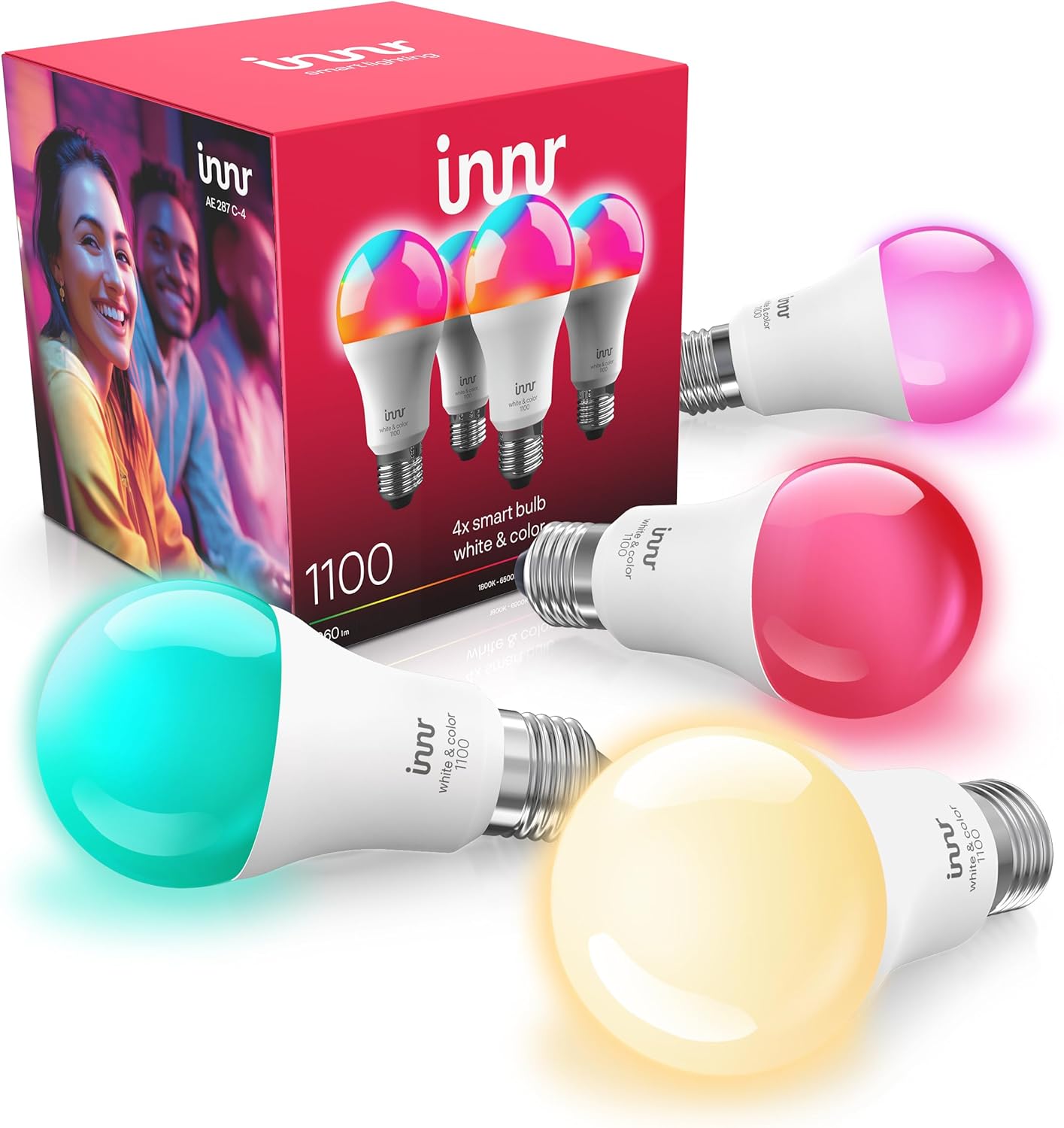
Innr Bulb Only Works When the Wall Switch Is On?
- Smart bulb needs constant power to stay on the network
- Wall switch cutting power to the bulb
- Household habit of using the wall switch
Problem Description
Your Innr bulb only responds when the wall switch is on, and goes dead in the app whenever someone flips that switch off. This is not a fault: smart bulbs need constant power to stay on the Zigbee network. The fix is to keep the switch on and control the bulb wirelessly, or to change how the switch works.
Why This Happens in Real Homes
If your Innr bulb only works with the wall switch on and goes dead in the app when someone flips it off, that is expected behavior for every smart bulb, not a defect. The bulb is a networked device that must have power to stay on the Zigbee mesh, so cutting power at the wall takes it off the network entirely and it goes unreachable. The clean solution is to keep the switch on all the time and control the light wirelessly, and to give people a physical control that does not cut power: a battery Zigbee button or a Hue Dimmer or Friends of Hue switch mounted over the old switch, or a smart switch that keeps the bulb powered while still offering an on/off the hub understands. There is a hidden bonus reason to do this, since mains-powered Innr bulbs also repeat Zigbee for other devices, so leaving them powered keeps your whole mesh healthy. A label by the switch and some voice or schedule automation stop the household from flipping it out of habit.
Symptoms
- Bulb unreachable whenever the wall switch is off
- Bulb only responds with the switch on
- App control lost when someone flips the switch
- Family keeps switching the bulb off at the wall
- Bulb drops off the network at the switch
- Have to flip the switch to use the light
- Automations fail when the switch is off
- Bulb fine on constant power, dead when switched
Recognize these? Here's what usually causes it.
Common Causes
- Smart bulb needs constant power to stay on the network
- Wall switch cutting power to the bulb
- Household habit of using the wall switch
- No smart switch or button in place of the wall switch
- Bulb also acts as a repeater, so switching it off hurts the mesh
- Expecting the bulb to work like a dumb bulb
- No guard or smart control on the switch
- Switch is the only control installed
Most fixes happen in the first 3 steps.
Replacing a wall switch with a smart switch involves house wiring; use an electrician if unsure. Never rely on cutting bulb power at the wall as your normal off control.
Tools & Requirements
Step-by-Step Solution
Understand the Constraint
An Innr bulb is a networked device that must have power to stay on the Zigbee mesh and respond to the app, voice, and automations. When the wall switch cuts its power, the bulb is not just off, it is off the network entirely, which is why it goes unreachable. This is true of all smart bulbs, not just Innr.
Leave the Wall Switch On
The simplest fix is to leave the wall switch permanently on and control the bulb wirelessly, in the app, by voice, or with a smart button. Some people put a small piece of tape or a switch guard over the switch as a reminder not to flip it.
Add a Wireless Switch or Button
To keep a physical control by the door without cutting power, add a battery-powered Zigbee switch or button, a Philips Hue Dimmer switch, a Hue Tap, or a Friends of Hue switch, mounted over or beside the old switch. It sends wireless commands while the bulb stays powered.
Or Replace With a Smart Switch
Alternatively, swap the wall switch for a smart switch or relay that never fully cuts power to the bulb but still gives you a physical on/off that the hub understands. This keeps the bulb online while preserving a normal-feeling switch.
Protect Your Mesh
Because mains-powered Innr bulbs also repeat Zigbee for other devices, switching one off at the wall can weaken the mesh for everything downstream. Keeping bulbs powered helps the whole network stay reliable.
Set Up Voice and Automations
Configure voice control and automations (schedules, motion, sunset) so the light does what people want without anyone reaching for the wall switch, reducing the temptation to flip it.
Educate the Household
Let everyone know that this switch stays on and the light is controlled by the app or the button. A quick label by the switch prevents the daily unreachable errors from someone flipping it out of habit.
Verify Reliability
With the switch left on and a wireless control in place, confirm the bulb stays reachable and responds instantly. If it now works consistently, the wall-switch power cut was the whole issue.
Quick Solutions
Still having issues? This is usually the deeper cause below.
If flickering only happens on dimming, the issue is almost always the dimmer's minimum-load setting, not the bulb — it's drawing less current than the dimmer expects.
The cleanest setup for smart bulbs: leave the wall switch on for constant power, and add a Hue Dimmer or Friends of Hue switch by the door for a physical control that does not cut power.
Battery-related failures are almost always flagged too late — the device degrades silently for days before the app catches up to what's actually happening.
- Smart bulb needs constant power to stay on the
- Wall switch cutting power to the bulb
- Household habit of using the wall switch
- No smart switch or button in place of the
- Bulb also acts as a repeater, so switching it
Before you go — try one of these (they fix most cases).
Most popular upgrades chosen by Innr Smart Bulb owners.

innr Zigbee A19 Smart Bulb, Works with Hue*, Alexa, Smart...
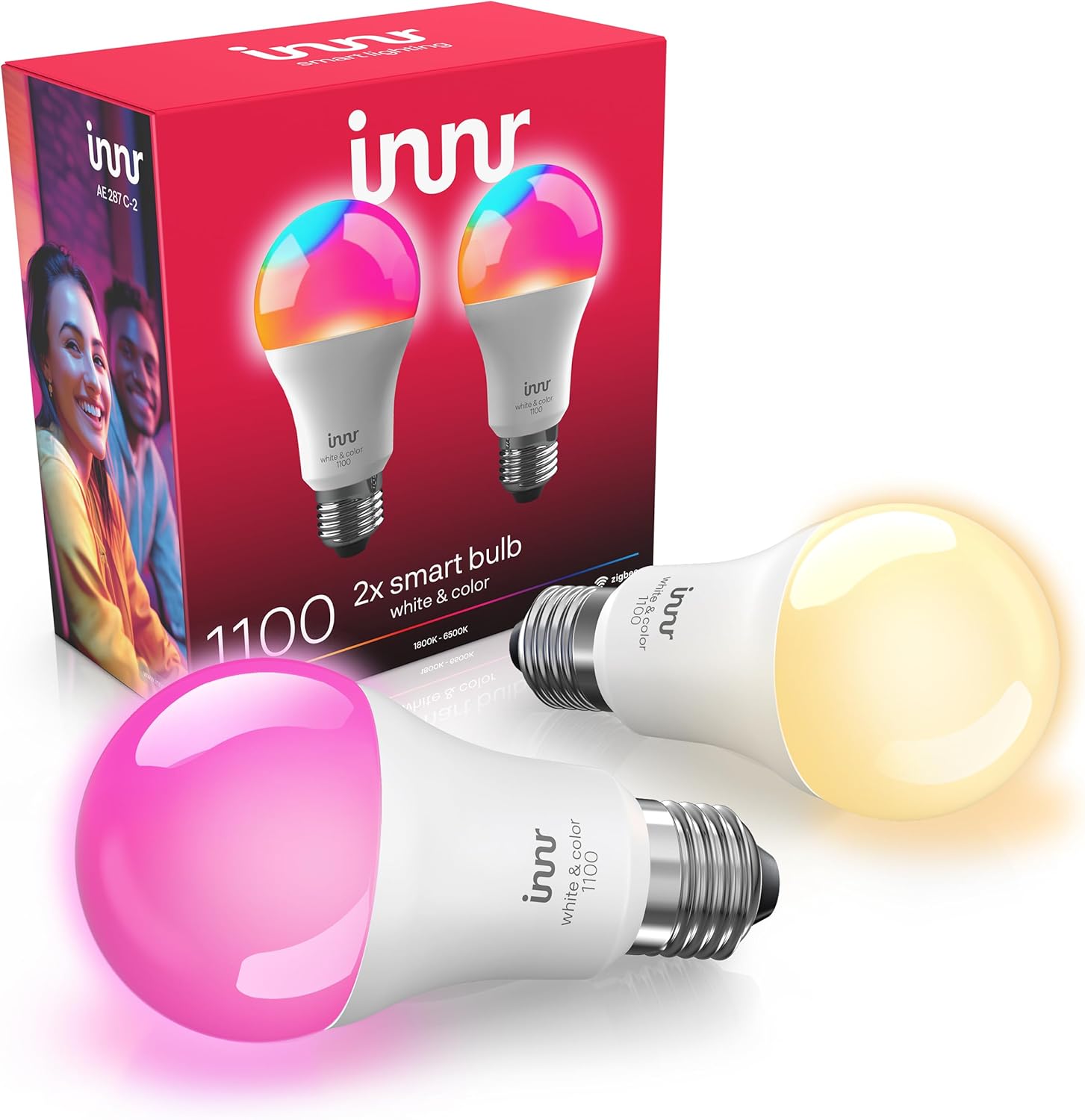
innr Zigbee A19 Smart Bulb, Works with Hue*, Alexa, Smart...

innr Zigbee A19 Smart Bulb, Works with Hue*, Alexa, Smart...
As an Amazon Associate we earn from qualifying purchases.
Official Manufacturer Manual
Innr provides official product documentation through their online manual rather than downloadable PDF. Access setup guides, troubleshooting steps, and product specifications for your Innr Smart Bulb.
Source: innr.com
Need More Help? Innr Support
Note: The contact information below connects you directly to Innr's official customer support team, not Trunetto. They can help with warranty claims, device replacements, and advanced technical issues.