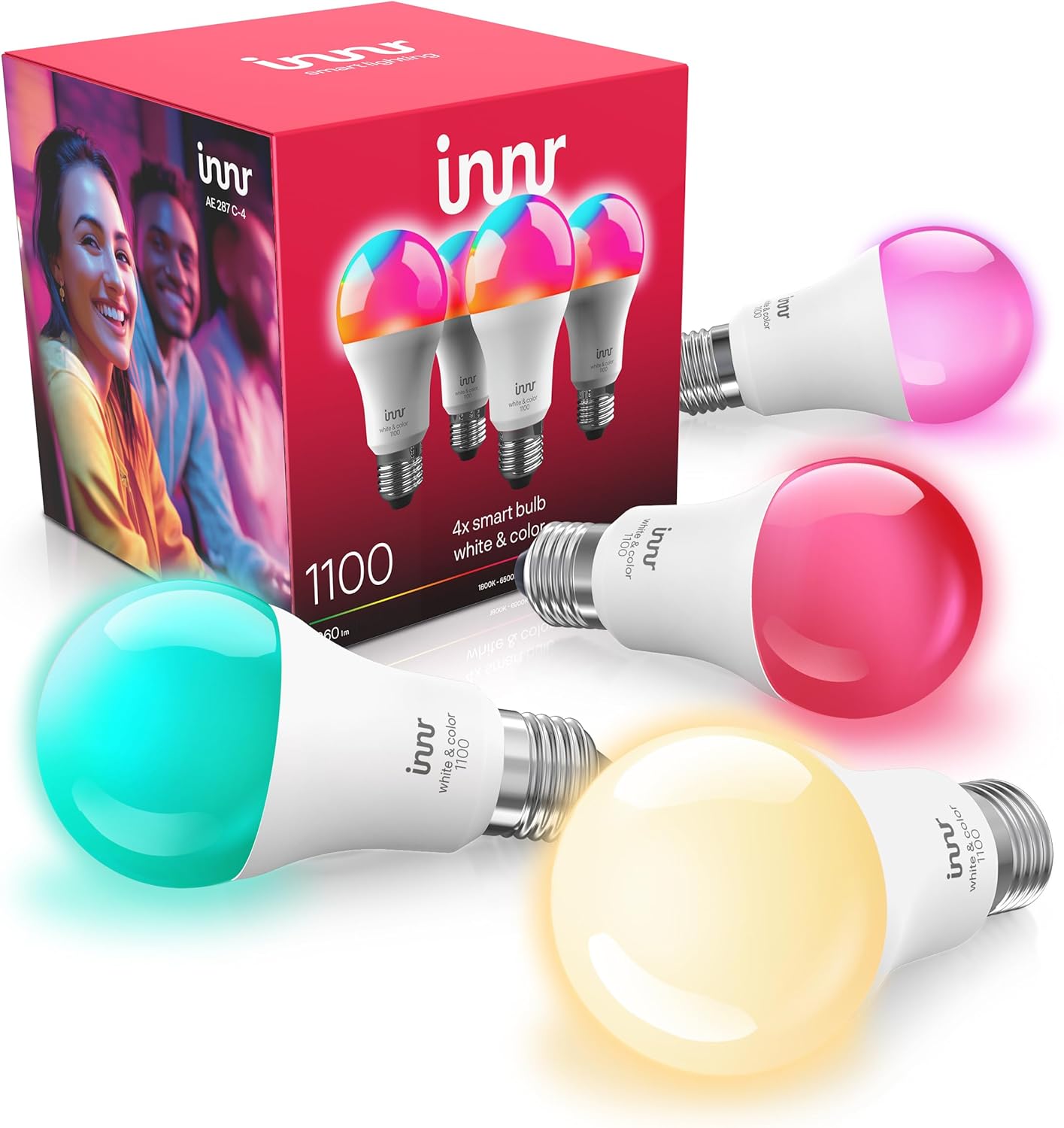
Innr Bulbs Turn On by Themselves After a Power Outage?
- Default Zigbee power-on behavior is to turn on
- Power-on behavior not set to last state or off
- Hub or bulb firmware without the power-on setting
Problem Description
Your Innr bulbs snap on at full brightness whenever power is restored after an outage or a flipped breaker, even if they were off. This is the default behavior of Zigbee smart bulbs, which turn on when they suddenly get power so you are never left in the dark. On a Hue Bridge and some other hubs you can change this power-on behavior.
Why This Happens in Real Homes
Innr bulbs coming on bright after a power outage are doing exactly what Zigbee smart bulbs are designed to do: when a bulb suddenly gets power, it turns on so an outage never leaves you in the dark. It is a safety default, not a fault, which is why even a brief flicker or a reset breaker lights everything up, sometimes at 3 a.m. The modern fix is the power-on behavior setting on your hub. On a Hue Bridge you set each light to return to its last state (so off stays off) or to stay off on power-up, and other hubs have the same per-device option. Two caveats make or break it: older bulb firmware may not expose the setting until you update it through the hub, and a bulb whose wall switch actually gets flipped is cold-started every time, bypassing the setting, so the durable answer is to leave switches on and control the bulb wirelessly, or fit a smart switch that holds state.
Symptoms
- Bulbs turn on at full brightness after an outage
- Bulbs come on when the breaker is reset
- Lights snap on during a brief power flicker
- Bulbs default to bright white after power returns
- Only smart bulbs turn on, regular bulbs stay off
- Bulbs ignore the last on/off state after power loss
- Lights come on in the middle of the night after a blip
- Cannot stop the on-after-power behavior
Recognize these? Here's what usually causes it.
Common Causes
- Default Zigbee power-on behavior is to turn on
- Power-on behavior not set to last state or off
- Hub or bulb firmware without the power-on setting
- Wall switch used to cut power, so each restore is a fresh power-on
- Brief grid flickers restoring power to the bulbs
- Bulb firmware out of date
- Bulbs on a circuit that browns out and recovers
- Hub not configured for power-loss recovery
Most fixes happen in the first 3 steps.
Do not rely on cutting the wall switch to keep smart bulbs off; that defeats the power-on setting and knocks them off the network. Use the app or a smart switch instead.
Tools & Requirements
Step-by-Step Solution
Understand Why It Happens
A Zigbee smart bulb has no idea a human did not flip a switch; when it suddenly receives power, it turns on so you are never stranded in the dark after an outage. That default is deliberate, which is why your Innr bulbs come on bright after any power interruption, including a quick flicker or a reset breaker.
Open the Power-On Behavior Setting
On a Hue Bridge, open the Hue app, go to Settings, then the light (or the power-on behavior / power loss recovery option), and select what the bulb should do when power returns: turn on to last state, stay off, or a custom setting. Other hubs (SmartThings, Hubitat) have a similar per-device power-on setting.
Choose Last State or Off
Set the behavior to Last State so the bulb returns to however it was before the outage (off stays off), or to Off if you always want it dark on power-up. This stops the snap-to-full-brightness behavior.
Update Firmware if the Setting Is Missing
If your hub does not show a power-on behavior option for the bulb, update the bulb firmware through the hub. The configurable power-on behavior arrived in later firmware, so an old bulb may not expose it until updated.
Leave Wall Switches On
If the bulb's wall switch gets used, every switch-on is a fresh power-up the setting cannot override, and it will come on bright. Leave the wall switch permanently on and control the bulb through the app or a smart button so the power-on behavior actually governs it.
Apply It to Every Bulb
Power-on behavior is set per bulb on most hubs. If several bulbs come on after outages, set the behavior on each one, not just a group, so none is left on the default.
Consider a Smart Switch
For a fixture whose switch people naturally flip, replace it with a smart switch that keeps the bulb powered and controls it wirelessly, so the wiring holds state instead of cold-starting the bulb.
Protect Automations With a UPS
If you depend on the hub to run a power-up automation, a small UPS on the hub keeps it online through brief outages so it can command the bulbs to the state you want as power returns.
Quick Solutions
Still having issues? This is usually the deeper cause below.
If drain continues after replacing batteries, check the event history — a stuck-open sensor or rapid polling loop burns through batteries in days.
Set power-on behavior to Last State on every smart bulb, then leave the wall switches on. That combination stops the 3 a.m. lights-on surprise after a power flicker.
Battery-related failures are almost always flagged too late — the device degrades silently for days before the app catches up to what's actually happening.
- Default Zigbee power-on behavior is to turn on
- Power-on behavior not set to last state or off
- Hub or bulb firmware without the power-on setting
- Wall switch used to cut power, so each restore
- Brief grid flickers restoring power to the bulbs
Before you go — try one of these (they fix most cases).
Most popular upgrades chosen by Innr Smart Bulb owners.

innr Zigbee A19 Smart Bulb, Works with Hue*, Alexa, Smart...
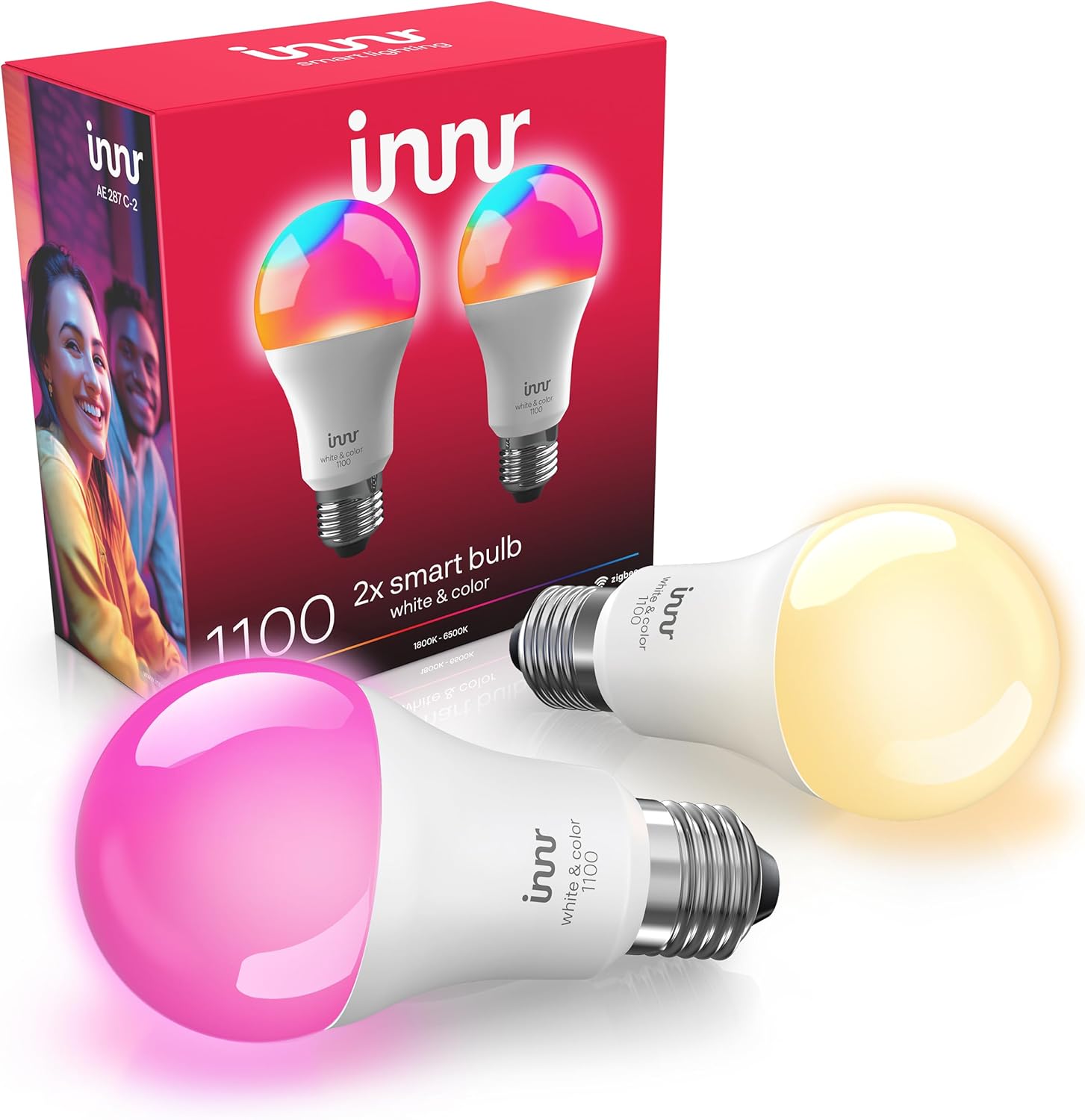
innr Zigbee A19 Smart Bulb, Works with Hue*, Alexa, Smart...

innr Zigbee A19 Smart Bulb, Works with Hue*, Alexa, Smart...
As an Amazon Associate we earn from qualifying purchases.
Official Manufacturer Manual
Innr provides official product documentation through their online manual rather than downloadable PDF. Access setup guides, troubleshooting steps, and product specifications for your Innr Smart Bulb.
Source: innr.com
Need More Help? Innr Support
Note: The contact information below connects you directly to Innr's official customer support team, not Trunetto. They can help with warranty claims, device replacements, and advanced technical issues.