

How to Extend Innr Zigbee Range with Repeaters
- Too few mains-powered repeaters in the mesh
- Long distance or thick walls between hub and device
- Battery devices and switched-off bulbs not repeating
Problem Description
Your far-away Innr bulbs or plugs are unreachable or unreliable because they are at the edge of your Zigbee range. Zigbee is a self-healing mesh where mains-powered devices relay the signal, so you extend range by adding powered repeaters between the hub and the dead zone, not by moving the router.
Why This Happens in Real Homes
Extending Innr range is about the Zigbee mesh, not the router, which surprises people coming from WiFi. In a Zigbee network, every mains-powered device relays signals for others, while battery devices and switched-off bulbs do not, so you reach a distant garage, basement, or yard by dropping powered repeaters along the path. Smart plugs are the best repeaters because they stay on regardless of any wall switch; a repeater bulb switched off at the wall stops relaying and the dead zone comes back. Place a repeater no more than a room or two from both the hub and the next device so signals hop in strong, short steps, and centralize the hub itself off the floor and away from metal so nothing is stranded in a corner. Finish by moving the Zigbee channel off a busy WiFi channel, then pair distant devices after the repeaters are in place so they join through the nearest hop. Built outward this way, the mesh reaches almost anywhere.
Symptoms
- Far bulbs or plugs are unreachable or laggy
- Devices in the garage, basement, or yard drop off
- Range gets worse as you add more devices
- New devices at the edge will not pair or hold
- Signal weak through walls or floors
- Outdoor devices will not stay connected
- One area is a persistent dead zone
- Commands to distant devices are slow
Recognize these? Here's what usually causes it.
Common Causes
- Too few mains-powered repeaters in the mesh
- Long distance or thick walls between hub and device
- Battery devices and switched-off bulbs not repeating
- Hub located in a corner, not centrally
- Zigbee channel overlapping busy WiFi
- Interference from 2.4GHz devices near the hub
- Device too many hops from the hub
- Repeaters unplugged or powered off
Most fixes happen in the first 3 steps.
Do not rely on battery devices or switched-off bulbs to extend range; they do not repeat. Keep repeaters permanently powered.
Tools & Requirements
These tools will help you complete this fix.
As an Amazon Associate we earn from qualifying purchases.
Step-by-Step Solution
Understand the Zigbee Mesh
Zigbee is a mesh network: every mains-powered device (a plugged-in bulb, a smart plug) relays signals for others, while battery devices and switched-off bulbs do not repeat. So you extend range by adding powered devices along the path, which is different from WiFi where you move the router or add an extender.
Needed for this step
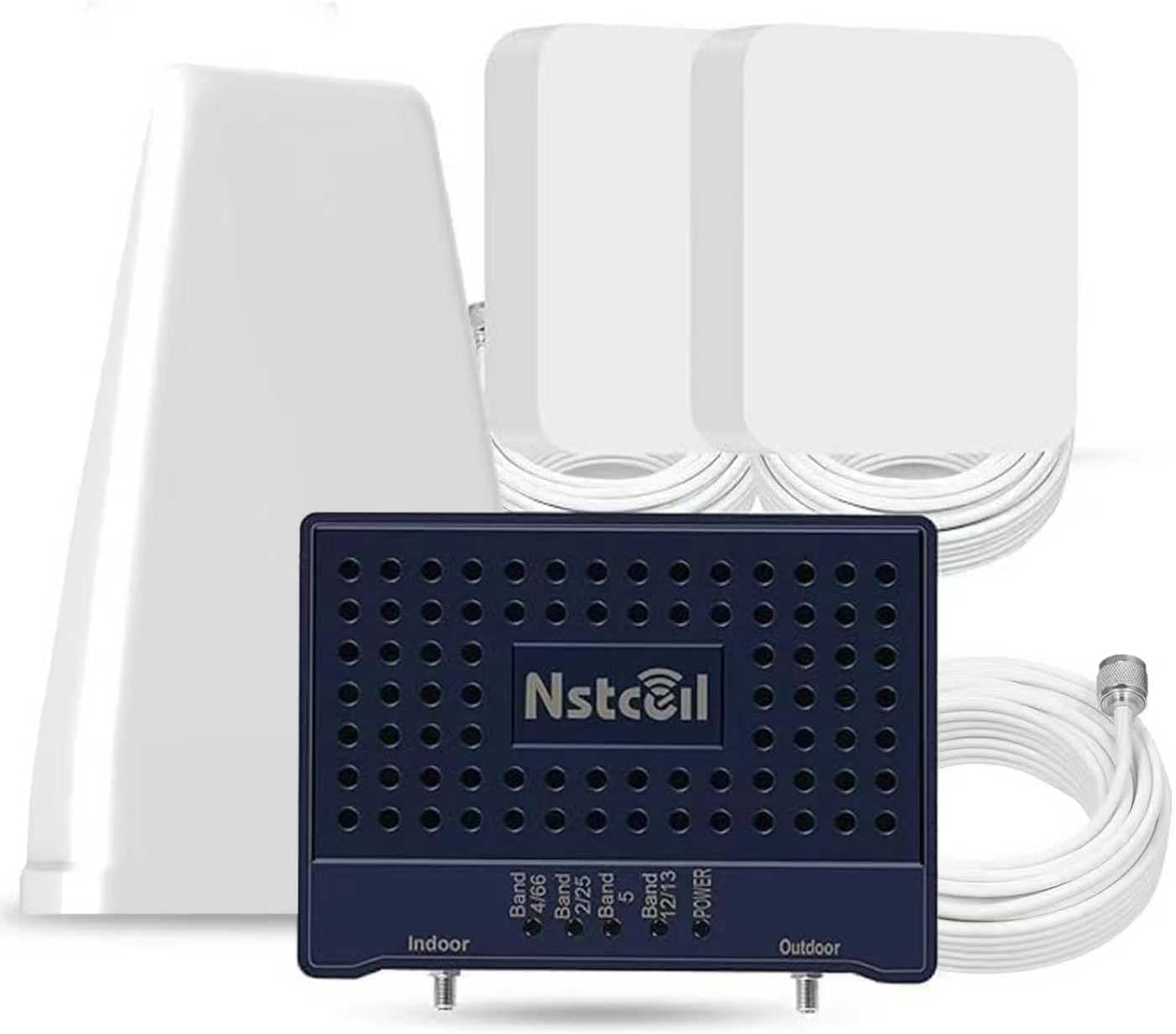
Cell Phone Booster for Home & Multiroom | Up to...
This helps complete the fix you are currently reading.
$125.99Map Your Dead Zones
Note which devices are unreachable or laggy; they are usually the farthest from the hub or behind the most walls. The goal is to place a repeater between the hub and each dead zone so signals hop instead of straining across a long gap.
Add a Repeater Toward the Far Device
Put a mains-powered Innr bulb or, ideally, a smart plug (which stays on regardless of a light switch) in an outlet roughly halfway to the dead zone, no more than a room or two from both the hub and the next device. This gives distant devices a strong intermediate hop.
Keep Repeaters Powered
A repeater only relays while it has power, so leave the wall switches on for repeater bulbs and use always-on outlets for plugs. A repeater bulb switched off at the wall stops relaying and the dead zone returns.
Centralize the Hub
A hub tucked in a corner of the house wastes half its range. Move it toward the center of your devices, off the floor and away from large metal objects, so everything has fewer, shorter hops.
Change the Zigbee Channel
Even with good repeaters, a Zigbee channel overlapping a busy 2.4GHz WiFi channel causes drops. In the hub settings, move the Zigbee channel to one clear of your WiFi, then let the mesh resettle for a while.
Pair or Re-Pair Through the Mesh
Add the repeaters first, let the mesh build, then pair distant devices so they join through the nearest repeater. An already-paired device that still routes the long way can be re-paired (or will re-route over time) to use the new repeater.
Verify Coverage
After adding repeaters, test the far devices for reliable, prompt response. If a spot is still weak, add one more repeater closer to it. Building the mesh outward, hop by hop, is how you reach garages, basements, and yards.
Quick Solutions
Still having issues? This is usually the deeper cause below.
If this comes back after following these steps, check whether a recent app or firmware update reset a default setting — the fix works, but the setting gets reverted silently.
Smart plugs make the best repeaters because they stay powered no matter what a wall switch does. Drop one near each dead zone and your whole Innr network gets more reliable.
Mesh devices that drop repeatedly are almost always missing a repeater between hub and endpoint — initial pairing works because you held the devices close.
- Too few mains-powered repeaters in the mesh
- Long distance or thick walls between hub and device
- Battery devices and switched-off bulbs not repeating
- Hub located in a corner, not centrally
- Zigbee channel overlapping busy WiFi
Before you go — try one of these (they fix most cases).
Most popular upgrades chosen by Innr Smart Lighting owners.

innr Zigbee A19 Smart Bulb, Works with Hue*, Alexa, Smart...
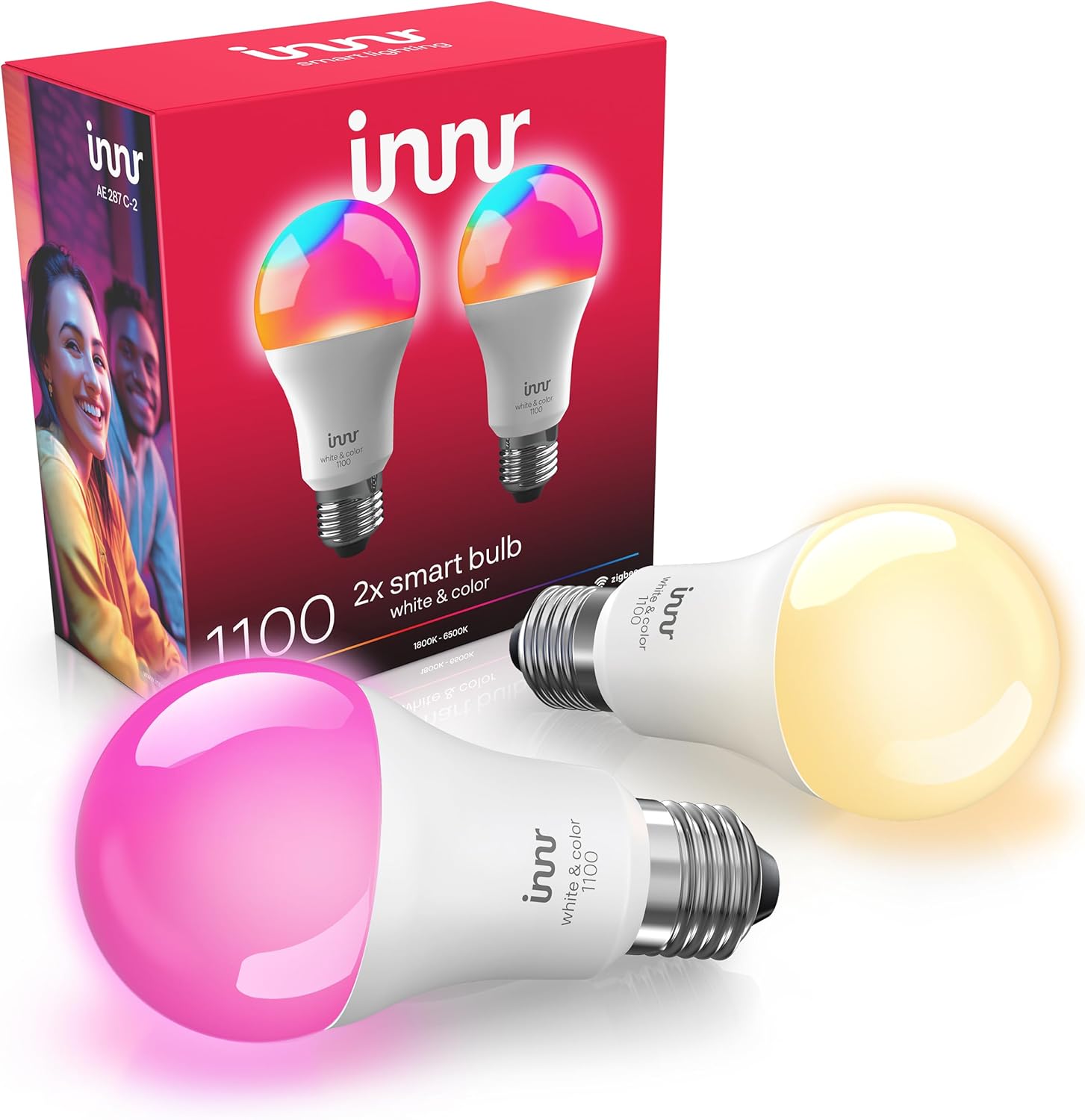
innr Zigbee A19 Smart Bulb, Works with Hue*, Alexa, Smart...

innr Smart Light Bulbs, A19 Zigbee, Works with Philips Hu...
As an Amazon Associate we earn from qualifying purchases.
Official Manufacturer Manual
Innr provides official product documentation through their online manual rather than downloadable PDF. Access setup guides, troubleshooting steps, and product specifications for your Innr Smart Lighting.
Source: innr.com
Need More Help? Innr Support
Note: The contact information below connects you directly to Innr's official customer support team, not Trunetto. They can help with warranty claims, device replacements, and advanced technical issues.
