

Innr GU10 Spots Randomly Flashing or Acting Weird?
- Old GU10 firmware with a known flashing bug
- Wall dimmer on the GU10 circuit
- Loose GU10 pins or a poor socket contact
Problem Description
Your Innr GU10 spotlights flash, blink, or behave randomly, turning on or changing on their own, especially in a group on a Hue Bridge. This is usually old bulb firmware (a known GU10 quirk), a wall dimmer on the circuit, loose GU10 pins in the socket, or a weak Zigbee mesh causing the spots to drop and rejoin.
Why This Happens in Real Homes
Random flashing and weird behavior from Innr GU10 spots, especially in a group on a Hue Bridge, is a well-known issue, and the first fix is almost always a firmware update. Some GU10s shipped with buggy firmware that caused exactly this, and Innr pushed updates that resolve it, applied through the Hue app's software update with the spots powered on. Beyond firmware, the GU10-specific gotchas are the twist-lock pins, which cause flashing when a spot is not fully seated or a contact is dirty, and dimmers, which no Innr bulb tolerates. The rest is the usual Zigbee mesh: spots that sit far from the hub drop off and flash as they rejoin, so a mains-powered repeater nearby steadies them, and a Zigbee channel overlapping your WiFi produces the same drop-and-rejoin flashing until you move it. If one spot in a group is the troublemaker, pull it out of the group to confirm, then fix that spot's firmware, seating, or signal on its own.
Symptoms
- GU10 spots flash or blink at random
- Spots turn on or change by themselves
- Random behavior worse when grouped
- One spot in a group misbehaves
- Spots flicker in certain fixtures
- Behavior started after adding several GU10s
- Spots drop and rejoin repeatedly
- Group commands make them flash
Recognize these? Here's what usually causes it.
Common Causes
- Old GU10 firmware with a known flashing bug
- Wall dimmer on the GU10 circuit
- Loose GU10 pins or a poor socket contact
- Weak Zigbee mesh causing drop-and-rejoin flashes
- Zigbee channel overlapping WiFi
- Group broadcast overwhelming a marginal connection
- Mixed firmware versions across the GU10s
- Fixture running hot and affecting the bulb
Most fixes happen in the first 3 steps.
Turn off power before twisting GU10 bulbs in or out. GU10 fixtures can get hot; let bulbs cool before handling, and never run these spots through a dimmer.
Tools & Requirements
Step-by-Step Solution
Update the Firmware First
Some Innr GU10 spots shipped with firmware that causes random flashing and odd behavior on Hue, and Innr released updates that fix it. In the Hue app go to Settings > Software update and let it update all connected lights. Keep the spots powered during the update. This resolves the majority of GU10 flashing cases.
Get Them Off Any Dimmer
If the GU10 circuit runs through a wall dimmer, that alone causes flashing and erratic Zigbee behavior. Replace the dimmer with a plain on/off switch and dim in the app instead.
Re-Seat the GU10 Pins
GU10 bulbs use a two-pin twist-lock base, and a spot that is not fully twisted in, or has a slightly corroded pin, gets intermittent power that shows as flashing. With the power off, twist each spot out and back in firmly, and check the socket contacts.
Check for a Weak Mesh
Spots that drop off and rejoin the network flash as they reconnect. If they are far from the hub, add a mains-powered Zigbee repeater nearby so they hold a steady connection instead of bouncing.
Move the Zigbee Channel
A Zigbee channel overlapping a busy 2.4GHz WiFi channel causes the drop-and-rejoin flashing. In the hub settings, move the Zigbee channel away from your WiFi channel and let the mesh resettle.
Isolate a Misbehaving Spot
If only one spot in a group acts up, temporarily remove it from the group. If the group then behaves, that spot has a firmware, seating, or signal issue to address individually.
Match Firmware Across the Group
A group of GU10s on mixed firmware versions can behave inconsistently. After updating, confirm all the spots are on the same current version.
Check the Fixtures
Enclosed or poorly ventilated fixtures run GU10s hot, which can affect the electronics over time. Make sure the fixtures are rated for the bulbs and get some airflow.
Quick Solutions
Still having issues? This is usually the deeper cause below.
If this comes back after following these steps, check whether a recent app or firmware update reset a default setting — the fix works, but the setting gets reverted silently.
For random GU10 flashing on Hue, a firmware update is the fix nine times out of ten. Do that before re-seating, ungrouping, or blaming individual bulbs.
This issue almost always looks more complex than it is — the majority of cases trace back to a single setting, a stale credential, or a default that shipped wrong.
- Old GU10 firmware with a known flashing bug
- Wall dimmer on the GU10 circuit
- Loose GU10 pins or a poor socket contact
- Weak Zigbee mesh causing drop-and-rejoin flashes
- Zigbee channel overlapping WiFi
Before you go — try one of these (they fix most cases).
Most popular upgrades chosen by Innr Smart Spot owners.

innr Zigbee A19 Smart Bulb, Works with Hue*, Alexa, Smart...
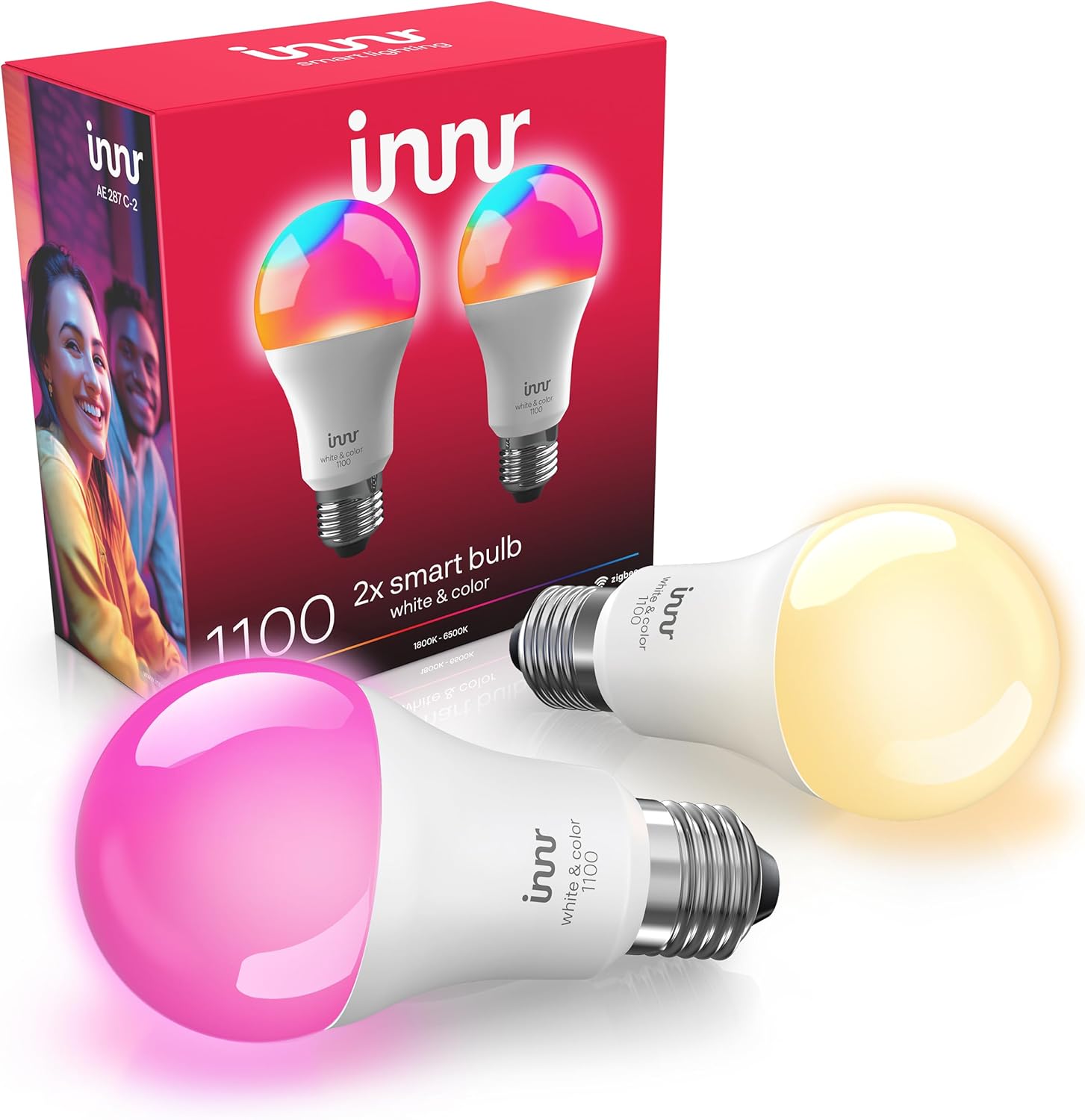
innr Zigbee A19 Smart Bulb, Works with Hue*, Alexa, Smart...

innr Smart Light Bulbs, A19 Zigbee, Works with Philips Hu...
As an Amazon Associate we earn from qualifying purchases.
Official Manufacturer Manual
Innr provides official product documentation through their online manual rather than downloadable PDF. Access setup guides, troubleshooting steps, and product specifications for your Innr Smart Spot.
Source: innr.com
Need More Help? Innr Support
Note: The contact information below connects you directly to Innr's official customer support team, not Trunetto. They can help with warranty claims, device replacements, and advanced technical issues.
