

Why Won't My LIFX Beam Connect?
- Phone on 5GHz while the controller needs 2.4GHz WiFi
- Band-steering router hides the 2.4GHz band under one SSID
- Router set to WPA3-only security the LIFX radio can't join
Problem Description
Your LIFX Beam won't pair with the app or keeps dropping offline. The Beam controller has its own 2.4GHz WiFi radio with no hub or bridge, so connection problems almost always trace to the 2.4GHz band, band-steering, WPA3-only security, or a weak signal where the beams are mounted. This guide walks through getting the controller reliably onto your network and keeping it there.
Why This Happens in Real Homes
A LIFX Beam controller is just a WiFi device, so 'won't connect' follows the same script as any LIFX product: it's 2.4GHz-only with no hub, and the usual failure is a phone stuck on 5GHz or a mesh router that band-steers both bands under a single SSID. The controller and phone never meet on the same band, and setup stalls at the credential step. Splitting off a temporary 2.4GHz SSID for pairing, or moving the router off WPA3-only to WPA2/mixed, clears the large majority of these.
The Beam adds one wrinkle: it's often mounted high on a wall or behind a monitor, away from the router, so a signal that's fine for your phone can be marginal for the controller. If it pairs but drops offline - especially at the same time every night - suspect weak signal or a router that reboots or renews DHCP leases on a schedule; reserving a static/DHCP IP and adding a mesh node near the beams both help. Remember that local control works over your LAN even without internet, but remote access and Alexa/Google need the LIFX cloud account linked, so a Beam that responds at home but not away is a cloud-link issue, not a WiFi one.
Symptoms
- Controller won't appear during setup
- Beam pairs then drops offline
- App shows the Beam as unreachable
- Setup fails at the WiFi credential step
- Beam works locally but not remotely
- Beam reconnects only after a power-cycle
- Voice control for the Beam stops working
- Beam drops off every night at the same time
Recognize these? Here's what usually causes it.
Common Causes
- Phone on 5GHz while the controller needs 2.4GHz WiFi
- Band-steering router hides the 2.4GHz band under one SSID
- Router set to WPA3-only security the LIFX radio can't join
- Weak 2.4GHz signal at the beam's mounted location
- Controller not in pairing mode (needs a reset)
- Nightly router reboot or DHCP lease renewal knocking it offline
- Cloud account not linked, so remote/voice control fails
- 2.4GHz channel congestion from many devices
Most fixes happen in the first 3 steps.
Do not attempt to open or modify the light hardware. Smart lights contain electronic components that can be damaged by moisture or physical tampering. Always power off at the wall switch before removing or repositioning a smart light.
Tools & Requirements
These tools will help you complete this fix.
As an Amazon Associate we earn from qualifying purchases.
Step-by-Step Solution
Check that the controller LED is blinking
The beam controller has a small LED. When in setup mode, it blinks steadily. If the LED is solid or off, the controller is either already connected to a network or not receiving power. To force setup mode: turn off power for 10 seconds, turn it on, then press the controller button for 1 second. The LED should start blinking.
Connect to 2.4GHz WiFi only
LIFX Beams connect to 2.4GHz WiFi only — they cannot use 5GHz. If your router uses a combined network name for both bands, your phone may try to hand off to 5GHz during setup, breaking the pairing process. Either temporarily split the bands in your router settings or disable 5GHz during setup. Once the Beam is connected, re-enable 5GHz.

Needed for this step
TP-Link WiFi Extender with Ethernet Port, Dual ...
This helps complete the fix you are currently reading.
$14.49Move the beams closer to the router for initial setup
If the beams are mounted far from the router, the WiFi signal may be too weak for initial pairing. You can set up the beams on a table near the router first, complete the WiFi connection, then mount them in their permanent location. The beams remember WiFi credentials after setup.
Reset the beam controller
If pairing keeps failing, factory reset the controller. With the beam powered on, press and hold the controller button for about 10 seconds until the LED cycles through colors and then begins blinking. This clears saved WiFi credentials and puts the beam back into setup mode. Try pairing again in the LIFX app.
Check for too many WiFi devices on your router
LIFX products connect directly to WiFi (no hub), so each beam controller is another WiFi client on your router. Consumer routers typically support 20-32 simultaneous WiFi connections. If you have many smart home devices, you may be hitting the limit. Check your router admin panel for connected device count. If you are near the limit, remove old or unused devices.
Quick Solutions
Still having issues? This is usually the deeper cause below.
If this comes back after following these steps, check whether a recent app or firmware update reset a default setting — the fix works, but the setting gets reverted silently.
Group your smart lights by room in the app and assign clear names like Kitchen Ceiling and Bedroom Lamp. This makes voice commands more reliable and lets you create scenes that control multiple lights at once with a single command.
This issue almost always looks more complex than it is — the majority of cases trace back to a single setting, a stale credential, or a default that shipped wrong.
- Phone on 5GHz while the controller needs 2.4GHz WiFi
- Band-steering router hides the 2.4GHz band under one SSID
- Router set to WPA3-only security the LIFX radio can't
- Weak 2.4GHz signal at the beam's mounted location
- Controller not in pairing mode (needs a reset)
Before you go — try one of these (they fix most cases).
Most popular upgrades chosen by LIFX Beam owners.
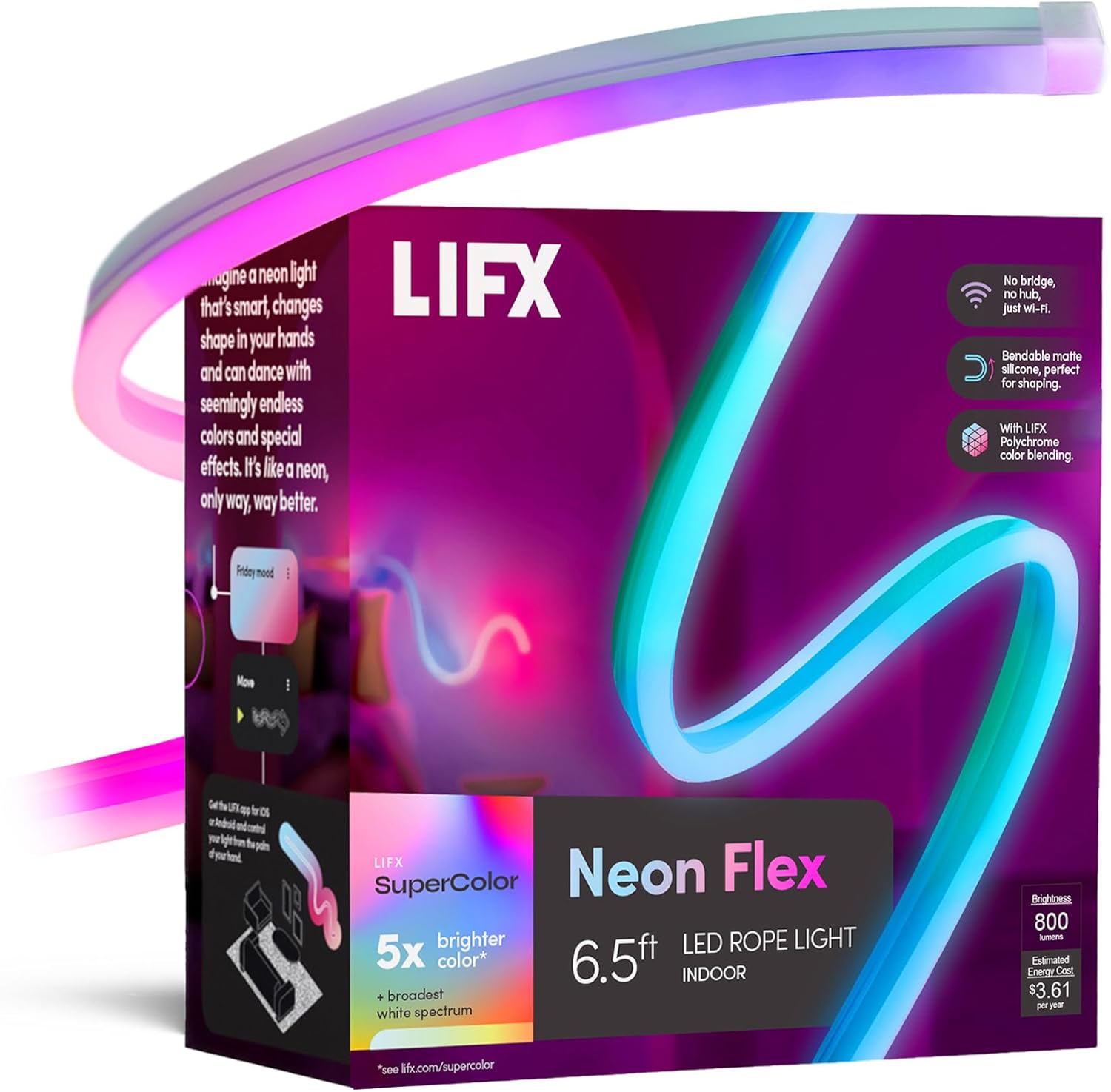
LIFX Neon Flex SuperColor LED Strip Light, 6.5ft Bendable...

LIFX Bedroom Bundle – with 2 Color 800 Lumen Smart Bulb a...

LIFX Supercolor Neon Flex Light Strip, 16ft Bendable RGBW...
As an Amazon Associate we earn from qualifying purchases.
Official Manufacturer Manual
LIFX provides official product documentation through their online manual rather than downloadable PDF. Access setup guides, troubleshooting steps, and product specifications for your LIFX Beam.
Source: support.lifx.com
Need More Help? LIFX Support
Note: The contact information below connects you directly to LIFX's official customer support team, not Trunetto. They can help with warranty claims, device replacements, and advanced technical issues.
Accessories owners commonly pair with LIFX Beam.

Amazon Smart Plug, Works with Alexa, Simple Setup, Endles...

Ring Rechargeable Quick Release Battery Pack

Kasa Smart Plug HS103P2, Smart Home Wi-Fi Outlet Works wi...
As an Amazon Associate we earn from qualifying purchases.

