How to Install August Wi-Fi Smart Lock
- Check deadbolt compatibility before starting
- Remove the existing interior deadbolt assembly
- Attach the August mounting plate
- Mount the August lock onto the plate
- Install batteries and set up in the August app
- Set up DoorSense and smart home integrations
Most users complete this in under 60 minutes
Overview
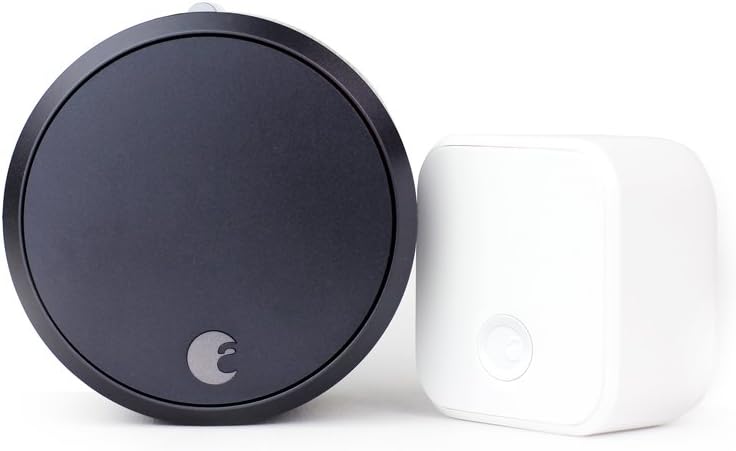
You are installing the August WiFi Smart Lock (4th Generation) — the compact round lock that connects directly to your WiFi without needing a separate August Connect bridge. This is August most popular lock because of its simple retrofit installation: it replaces only the interior side of your existing deadbolt, keeping your exterior key. The WiFi Smart Lock works with the August app, Apple HomeKit, Google Assistant, Alexa, and Samsung SmartThings. Installation takes about 10-15 minutes with just a screwdriver.
Why This Happens in Real Homes
The August WiFi Smart Lock is the most installed smart lock because it is a retrofit — you keep your existing keys and exterior hardware. The most common installation issue is the tailpiece adapter selection: August includes several adapters and choosing the wrong one causes the lock to not turn the deadbolt correctly. The second most common issue is over-tightening the mounting plate screws, which warps the plate and causes the motor to strain against friction. A properly installed August lock should turn smoothly with no grinding noise.
What's Included
- Built-in Wi-Fi connectivity
- Remote lock access
- Smart home integration
- Advanced door control
Got your materials ready? Here's what to check first.
Before You Start
- Remote door access
- Wi-Fi enabled locking
- Smart home automation
- Enhanced security features
Don't skip this step — it breaks everything if you do
Built-in Wi-Fi eliminates need for Connect bridge. Stronger motor than previous generations. Door sense feature detects door position.
Tools & Requirements
These tools will help you complete this fix.

Drill optional
DEWALT 20V MAX Cordless Drill and Impact Driver, Pow...

Level
9 Inch Torpedo Level Magnetic, Shock-Proof Small Lev...

Screwdriver
STREBITO 155 in 1 Electric Screwdriver Set, Small El...
As an Amazon Associate we earn from qualifying purchases.
Installation Steps
Check deadbolt compatibility before starting
The August WiFi Smart Lock fits most standard single-cylinder deadbolts. It will NOT work with mortise locks, double-cylinder deadbolts, or deadbolts that require more than a full turn to lock/unlock. To check: look at your existing deadbolt interior thumb turn. If it is a standard thumb turn on a round or rectangular plate with visible mounting screws, it is likely compatible. August provides a compatibility checker at august.com — enter your deadbolt brand and model. Also measure your door thickness: the lock works with doors 1-3/8 to 2-1/4 inches thick. If your door is thicker, you will need the included door thickness kit with extended mounting screws.
Remove the existing interior deadbolt assembly
You only remove the interior side of the deadbolt — the exterior side with the keyhole stays in place. Remove the two mounting screws that hold the interior thumb turn plate to the door. Pull the thumb turn and plate straight off. You will see the tailpiece — the metal bar that goes through the door and connects to the exterior deadbolt mechanism. Leave the tailpiece in place. If your deadbolt has a third mounting screw in the center of the thumb turn, remove that too. Keep all screws — you may need them if you move and want to reinstall the original hardware.
Attach the August mounting plate
The August lock comes with a DoorSense mounting plate and multiple adapters. Select the adapter that matches your deadbolt tailpiece shape — August includes adapters for flat, D-shape, and various manufacturer-specific tailpieces. Attach the adapter to the mounting plate. Place the mounting plate on the door, aligning the adapter with the tailpiece sticking through the door. Use the included screws (or your original screws if they fit better) to secure the mounting plate to the door. Tighten evenly — do not overtighten as this can warp the plate and cause the lock to bind.
Mount the August lock onto the plate
Align the August lock body with the mounting plate — the lock slides onto the plate from the front with tabs that click into place. Before fully attaching, manually turn the tailpiece with your fingers to verify the deadbolt extends and retracts smoothly. If it binds, the mounting plate may need adjustment. Once movement is smooth, slide the lock onto the plate and press until it clicks. The lock should sit flush against the door. Test the thumb turn on the lock — it should extend and retract the deadbolt with moderate resistance.
Install batteries and set up in the August app
Pull the battery tab from the lock or insert the included 2 CR123 batteries. The lock will chime and the LED ring will light up. Download the August app and create an account (or sign in). Tap Set Up a Device and select August WiFi Smart Lock. The app finds the lock via Bluetooth — stand within 5 feet. Follow the calibration wizard: the app asks you to lock and unlock the door so the lock learns the rotation range. Then connect to WiFi: the August WiFi Smart Lock has built-in WiFi — enter your 2.4GHz network credentials in the app. Once connected, you can lock and unlock from anywhere.
Set up DoorSense and smart home integrations
DoorSense is a magnetic sensor that detects whether your door is open or closed. Attach the DoorSense magnet to the door frame aligned with the sensor on the mounting plate — the app shows you exactly where. After DoorSense is set up, the August app shows whether the door is open, closed and locked, or closed and unlocked. For smart home integration: in the app, go to Lock Settings and enable the services you use — Apple HomeKit (scan the HomeKit code included in the box), Google Assistant (link in the Google Home app), or Alexa (enable the August skill). Auto-Lock can be enabled to lock the door after a set time, and Auto-Unlock uses your phone GPS to unlock as you approach.
Installation Tips
Still stuck? This is usually the deeper cause below.
Wi-Fi Smart Lock includes built-in connectivity for remote access without separate bridge. Enhanced features with door monitoring.
Before you go — these August Home guides fix most remaining issues.
Most popular upgrades chosen by August Wi-Fi Smart Lock owners.
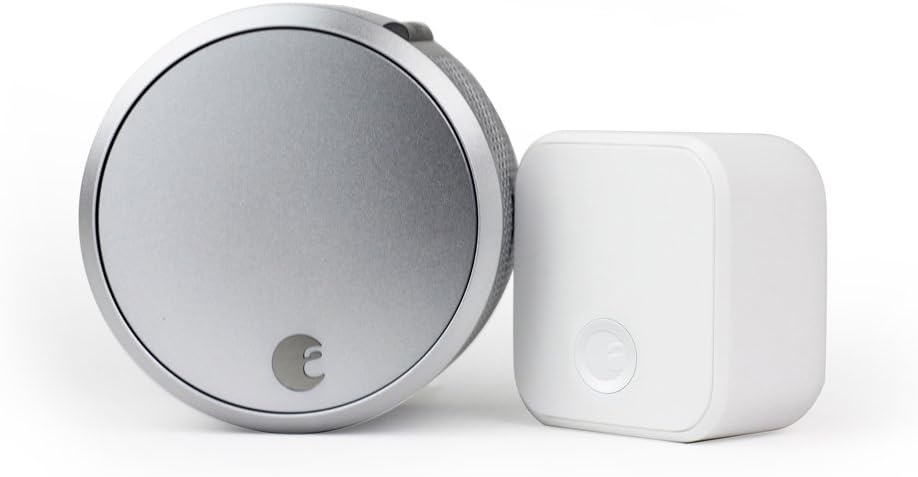
August Home Smart Lock Pro + Connect Hub - Wi-Fi Smart Lo...

August Home Smart Lock + Connect, Silver

August Home Connect Wi-Fi Bridge, Remote Access, Alexa In...
As an Amazon Associate we earn from qualifying purchases.
Official Manufacturer Manual
If you need the complete manufacturer documentation for advanced setup, wiring diagrams, or detailed specifications, you can download the official manual below. The manual includes full technical instructions directly from the manufacturer and may help if your issue requires deeper troubleshooting.
Download the Official August Wi-Fi Smart Lock ManualSource: august.com
Need More Help? August Home Support
Note: The contact information below connects you directly to August Home's official customer support team, not Trunetto. They can help with warranty claims, device replacements, and advanced technical issues.
How Does August Home Compare?
Before replacing your August Home device, see how it stacks up against alternatives in our full comparison guides.
Guide Improvements
- Updated June 18, 2026
Rewrote with WiFi Smart Lock-specific installation steps including built-in WiFi setup, DoorSense calibration
Source: SEO cannibalization fix