How Does the August WiFi Smart Lock DoorSense Work?
- DoorSense magnet misaligned or too far
- Magnet loose or shifted
- Not calibrated
Problem Description
The August WiFi Smart Lock includes DoorSense to detect whether the door is open or closed. This covers DoorSense on the WiFi lock reading the wrong state, not detecting, or needing setup so features like lock-on-close work.
Why This Happens in Real Homes
On the August WiFi Smart Lock, DoorSense works the same way as on other August locks — a magnet on the door jamb read by a sensor in the lock — so a wrong or missing door status is an alignment and calibration matter, not a WiFi one. The WiFi radio handles remote control; DoorSense is purely the local magnet pair.
Line the jamb magnet up directly opposite the lock's sensor with a small consistent gap, re-secure it if it's shifted, and calibrate DoorSense in the app. Make sure the lock is mounted square to the door so the sensor sits where it should, and account for any metal in the door or frame. Once aligned and calibrated, the WiFi lock reports door state and can lock on close reliably.
Symptoms
- DoorSense wrong on the WiFi lock
- No door status
- Status stuck open/closed
- Won't calibrate
- Auto-lock misfires
- 'DoorSense not set up' prompt
- Intermittent detection
- Reads wrong after install
Recognize these? Here's what usually causes it.
Common Causes
- DoorSense magnet misaligned or too far
- Magnet loose or shifted
- Not calibrated
- Wrong mounting height/position
- Metal door/frame interference
- Firmware issue
- Lock not mounted square
- DoorSense not enabled
Most fixes happen in the first 3 steps.
Always keep a physical backup key accessible outside your home in case of total lock failure. Never perform a factory reset while locked out as this may disable all electronic access. Ensure battery level is above 50 percent before firmware updates to prevent corruption.
Tools & Requirements
Step-by-Step Solution
How DoorSense works on the WiFi Smart Lock
The August WiFi Smart Lock 4th Gen has DoorSense built in. It uses a small magnet (included in the box) that you mount on the door frame. When the door is closed, the magnet is close to the sensor in the lock and it reads as closed. When the door opens and the magnet moves away, it reads as open. DoorSense enables features like Auto-Lock waiting until the door is closed before locking, and sending alerts when the door is left open.
Install the DoorSense magnet
Find the small DoorSense magnet in the box (it looks like a thin rectangular piece). Mount it on the door frame directly adjacent to the lock, within 1-1.5 inches of the lock body. Use the included adhesive strip. Surface-mount it on the face of the frame — do not try to flush-mount it inside the frame, as this weakens the magnetic signal. Align it at the same height as the DoorSense sensor mark on the lock body.
Calibrate DoorSense
After mounting the magnet, open the August app and go to Lock Settings > DoorSense > Calibrate. Close the door and tap Next. Open the door and tap Next. The lock learns the difference between open and closed. After calibrating, test by opening and closing the door — the app should update the status within 1-2 seconds. If it does not change, the magnet is too far from the sensor.
Use DoorSense with Auto-Lock
Once DoorSense is calibrated, enable Auto-Lock (Lock Settings > Auto-Lock). With DoorSense active, Auto-Lock waits until the door is confirmed closed before engaging the deadbolt. Without DoorSense, Auto-Lock runs on a timer and may try to lock while the door is open — which does nothing but drain batteries. DoorSense makes Auto-Lock intelligent: leave the house, close the door, and the lock engages automatically.
Get open-door alerts
In the August app, go to Lock Settings > DoorSense > Notifications. Enable the open-door alert and set the time threshold — for example, alert if the door is open for more than 5 minutes. This is useful for catching situations where someone left without closing the door fully, or where a child left the door ajar. The alert only works when the lock has WiFi connectivity (built-in on the 4th Gen), so it can send the notification to your phone.
Quick Solutions
Still having issues? This is usually the deeper cause below.
This usually happens right after a router reboot or ISP change — the device rejoins the network but drops its cloud session silently.
Set up auto-lock to engage 30 seconds after the door closes so you never accidentally leave it unlocked. Create temporary access codes for guests and service workers that automatically expire after a set time period.
Most WiFi drop-offs happen right after a router reboot or ISP swap — the device reconnects to the network but silently loses its cloud registration.
- DoorSense magnet misaligned or too far
- Magnet loose or shifted
- Not calibrated
- Wrong mounting height/position
- Metal door/frame interference
Before you go — try one of these (they fix most cases).
Most popular upgrades chosen by August WiFi Smart Lock owners.
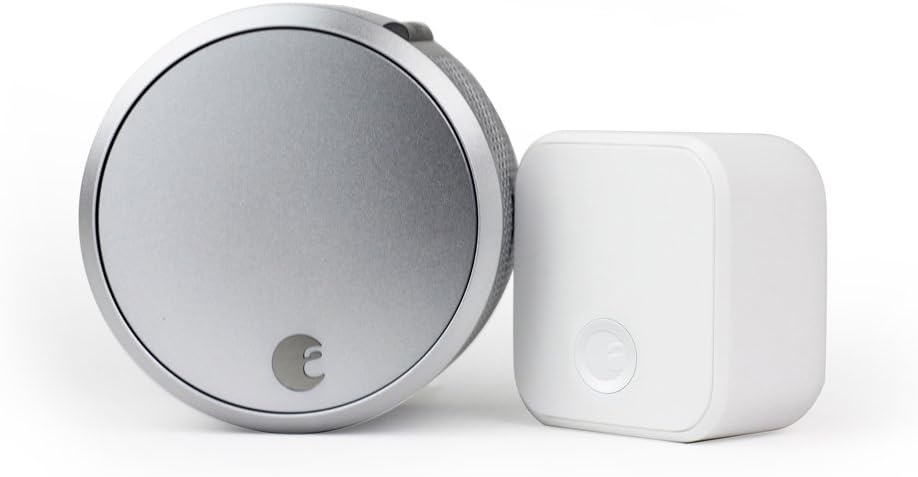
August Home Smart Lock Pro + Connect Hub - Wi-Fi Smart Lo...

August Home Smart Lock + Connect, Silver

August Home Connect Wi-Fi Bridge, Remote Access, Alexa In...
As an Amazon Associate we earn from qualifying purchases.
Official Manufacturer Manual
August Home provides official product documentation through their online manual rather than downloadable PDF. Access setup guides, troubleshooting steps, and product specifications for your August WiFi Smart Lock.
Source: support.august.com
Need More Help? August Home Support
Note: The contact information below connects you directly to August Home's official customer support team, not Trunetto. They can help with warranty claims, device replacements, and advanced technical issues.
How Does August Home Compare?
Before replacing your August Home device, see how it stacks up against alternatives in our full comparison guides.