

SwitchBot Lock Calibration Failed or Motor Jammed
- Door or strike plate is misaligned
- The deadbolt mechanism is dirty or needs lubrication
- SwitchBot Lock is not mounted flush to the door
Problem Description
Your SwitchBot Lock is failing to complete calibration, or the motor is jamming during lock or unlock operations. The lock may make a grinding noise, fail to fully extend or retract the bolt, or repeatedly get stuck at a certain point. This can leave your door insecure or prevent you from entering.
Why This Happens in Real Homes
Your SwitchBot Lock is failing to complete calibration, or the motor is jamming during lock or unlock operations. The lock may make a grinding noise, fail to fully extend or retract the bolt, or repeatedly get stuck at a certain point. This can leave your door.. In real usage this appears as Calibration process fails with an error message, Motor makes a loud grinding or clicking noise, and Bolt does not fully extend or retract
The pattern in this case points to Door or strike plate is misaligned, The deadbolt mechanism is dirty or needs lubrication, and SwitchBot Lock is not mounted flush to the door. The repair usually holds when done in order: Check Door and Strike Plate Alignment, then Lubricate the Deadbolt, then Verify SwitchBot Lock Mounting. After applying the fix, validate behavior with repeated command tests and at least one full automation cycle to confirm stability.
Symptoms
- Calibration process fails with an error message
- Motor makes a loud grinding or clicking noise
- Bolt does not fully extend or retract
- Lock shows Jammed or Uncalibrated in the app
- Manual thumb turn is very stiff or difficult
- Lock worked before but started jamming recently
Recognize these? Here's what usually causes it.
Common Causes
- Door or strike plate is misaligned
- The deadbolt mechanism is dirty or needs lubrication
- SwitchBot Lock is not mounted flush to the door
- The thumb turn adapter is the wrong size
- Motor is fighting against a stiff existing lock
- Low battery power is weakening motor force
Most fixes happen in the first 3 steps.
Never force the SwitchBot Lock motor by manually turning the thumb turn while it is actively trying to operate. This can damage the motor gears.
Tools & Requirements
These tools will help you complete this fix.

Fresh batteries
Energizer Ultimate Lithium AA Batteries, Long Lastin...

Graphite lock lubricant
Hillman 703185 Graphite Tube 3G, White Key Lock Lubr...

Screwdriver
STREBITO 155 in 1 Electric Screwdriver Set, Small El...
As an Amazon Associate we earn from qualifying purchases.
Step-by-Step Solution
Check Door and Strike Plate Alignment
Close your door and try to manually turn the deadbolt with the original thumb turn (or a key from outside). If it is stiff or requires force, the issue is with the door or lock itself, not the SwitchBot. The door may be warped, the strike plate misaligned, or the bolt is scraping. Adjust the strike plate or fix the door alignment before proceeding.
Needed for this step
Hillman 703185 Graphite Tube 3G, White Key Lock...
This helps complete the fix you are currently reading.
$5.97Lubricate the Deadbolt
A dry or dirty deadbolt mechanism can cause excessive friction. Apply a graphite-based lock lubricant (never WD-40 or oil-based products) directly into the keyhole and on the bolt itself. Work the bolt back and forth manually several times to distribute the lubricant. This should make the manual operation smooth and easy.
Verify SwitchBot Lock Mounting
Remove the SwitchBot Lock from the door and inspect the mounting. The device must sit flat and flush against the interior door surface. If it is tilted or loose, the motor's force will be misaligned. Make sure the mounting plate is secure and the correct thumb turn adapter is being used. Reattach the lock firmly.
Replace Batteries
If the batteries are low (even if the app shows some charge remaining), the motor may not have enough power to overcome any resistance in the lock. Replace all batteries with fresh, high-quality AA or CR123A batteries (depending on your model). Do not mix old and new batteries.
Needed for this step
Energizer Ultimate Lithium AA Batteries, Long L...
This helps complete the fix you are currently reading.
$83.98Retry Calibration
With the door properly aligned, the lock lubricated, and fresh batteries installed, retry the calibration. In the SwitchBot app, go to your Lock device, then Settings, and select Calibration. Follow the prompts. The lock will learn the exact range of motion needed. If it still fails, contact SwitchBot support, as the motor itself may be defective.
Quick Solutions
Still having issues? This is usually the deeper cause below.
If the keypad rejects valid codes, a lockout timer may be running — five failed entries locks most keypads silently for 5–10 minutes.
Before installing a smart lock, always ensure the underlying manual deadbolt operates smoothly with minimal effort. A stiff manual lock will cause problems for any motorized smart lock.
Most smart lock failures people label as hardware issues turn out to be a code wiped during a sync, or a setting reset nobody remembers triggering.
- Door or strike plate is misaligned
- The deadbolt mechanism is dirty or needs lubrication
- SwitchBot Lock is not mounted flush to the door
- The thumb turn adapter is the wrong size
- Motor is fighting against a stiff existing lock
Before you go — try one of these (they fix most cases).
Most popular upgrades chosen by SwitchBot Lock / Lock Pro owners.
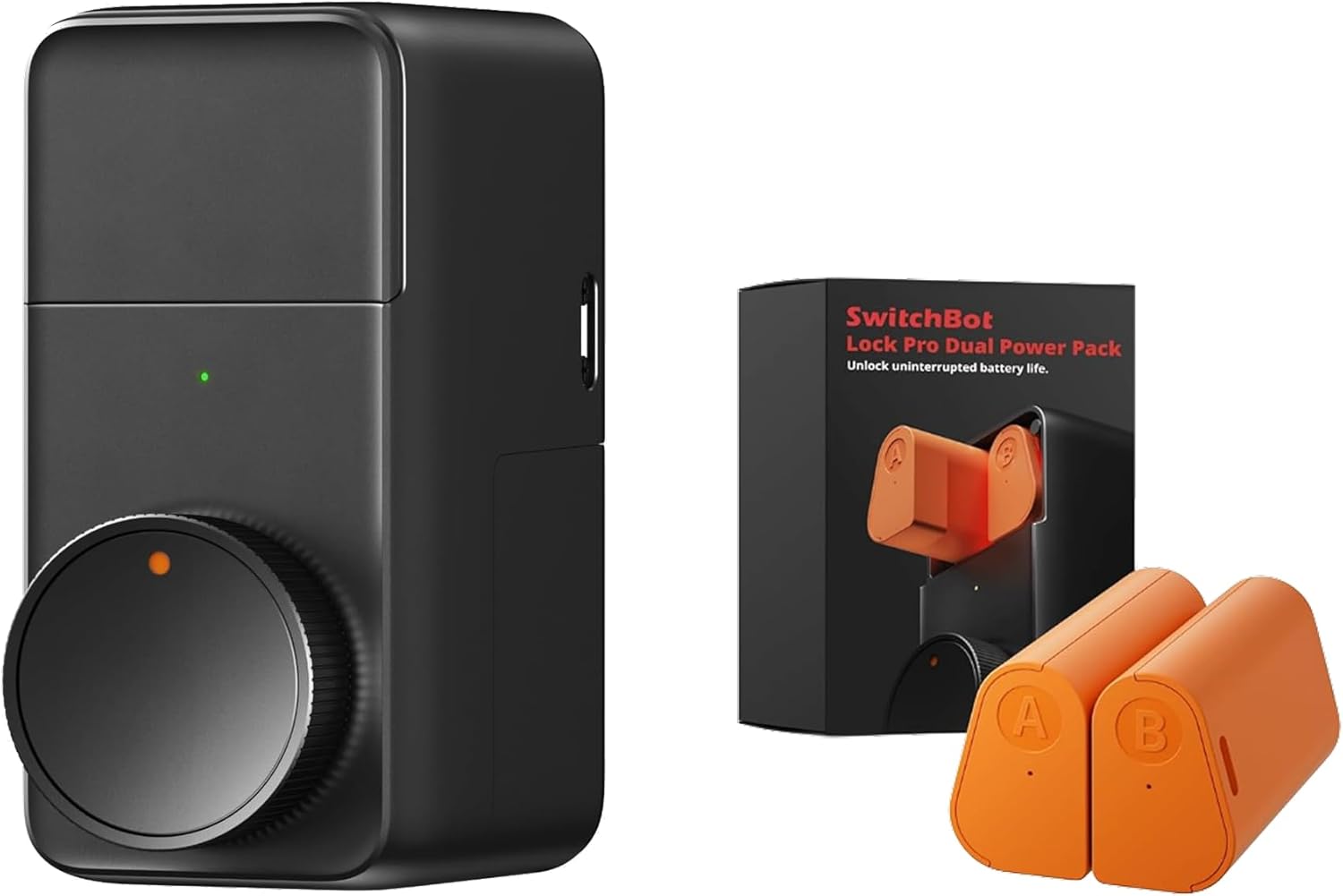
SwitchBot Smart Lock Pro, Keyless Entry Door Lock, Smart ...

SwitchBot Smart Lock Pro with Remote, Keyless Entry Door ...

SwitchBot Smart Lock Pro Keyless Entry Door Lock, Smart D...
As an Amazon Associate we earn from qualifying purchases.
Official Manufacturer Manual
SwitchBot provides official product documentation through their online manual rather than downloadable PDF. Access setup guides, troubleshooting steps, and product specifications for your SwitchBot Lock / Lock Pro.
Source: support.switch-bot.com
Need More Help? SwitchBot Support
Note: The contact information below connects you directly to SwitchBot's official customer support team, not Trunetto. They can help with warranty claims, device replacements, and advanced technical issues.
Accessories owners commonly pair with SwitchBot Lock / Lock Pro.

Amazon Basics 20-Pack AA Alkaline High-Performance Batter...

Amazon Basics CR2032 3V Lithium Coin Cell Batteries for K...

Duracell Coppertop Double AA Batteries with Power Boost I...
As an Amazon Associate we earn from qualifying purchases.


