

Why Won't My SwitchBot Plug Mini Pair?
- WiFi connection unstable or device too far from router
- Device firmware or app needs updating
- Device not properly set up during initial pairing
Problem Description
Your SwitchBot Plug Mini won't pair with the SwitchBot app. Check Bluetooth and WiFi on your phone — the Plug Mini uses Bluetooth for initial pairing then connects to your 2.4GHz WiFi. Both must be enabled on your phone. The Plug Mini only supports 2.4GHz WiFi, not 5GHz. Make sure you are within 3 feet of the plug during the pairing process.
Why This Happens in Real Homes
Your SwitchBot Plug Mini is failing to pair with your hub, app, or smart home network. When this happens, you lose the ability to control the Plug Mini through the SwitchBot app, scheduled automations, and voice assistants like Alexa and Google Home. This is a.. In real usage this appears as Device shows as offline in the app, Device does not respond to commands, and App cannot connect to device
The pattern in this case points to WiFi connection unstable or device too far from router, Device firmware or app needs updating, and Device not properly set up during initial pairing. The repair usually holds when done in order: Confirm the Plug is on a 2.4GHz WiFi Network, then Reset the Smart Plug to Pairing Mode, then Add the Plug in the Manufacturer App. After applying the fix, validate behavior with repeated command tests and at least one full automation cycle to confirm stability.
Symptoms
- Device shows as offline in the app
- Device does not respond to commands
- App cannot connect to device
- Features not working as expected
- Device disconnects frequently
- Automations fail to trigger
- Voice commands not recognized
Recognize these? Here's what usually causes it.
Common Causes
- WiFi connection unstable or device too far from router
- Device firmware or app needs updating
- Device not properly set up during initial pairing
- Power supply issue or loose connection
- Account not linked correctly
- Too many devices causing network congestion
- Interference from other wireless devices
Most fixes happen in the first 3 steps.
After pairing, plug works via WiFi - Bluetooth only needed for initial setup.
Tools & Requirements
Step-by-Step Solution
Check Bluetooth and WiFi on your phone
The SwitchBot Plug Mini pairs via Bluetooth first, then connects to WiFi. Make sure Bluetooth is enabled on your phone. Also make sure your phone is connected to a 2.4GHz WiFi network — if your phone is on 5GHz, the Plug Mini cannot receive the WiFi credentials because it only supports 2.4GHz. The SwitchBot app transfers the WiFi network information to the plug through the Bluetooth pairing connection.
Put the Plug Mini in pairing mode
Plug the SwitchBot Plug Mini into a wall outlet. Press and hold the button on the plug for 5 seconds until the indicator LED blinks rapidly. The plug is now in pairing mode and discoverable via Bluetooth. If the LED does not blink (stays solid or off), unplug the plug, wait 10 seconds, plug it back in, and immediately hold the button for 5 seconds.
Stay close during pairing
During the pairing process, keep your phone within 3 feet of the Plug Mini. Bluetooth pairing requires close proximity. In the SwitchBot app, tap + > Add Device > Plug Mini. The app searches for the plug. When found, follow the prompts to enter your WiFi password. The plug connects to WiFi and the LED turns solid — pairing complete.
Fix the plug not being discovered
If the app does not find the plug: force close the SwitchBot app and reopen. Toggle Bluetooth off and on on your phone. Make sure Location Services are enabled on your phone (Android requires location for Bluetooth scanning). Try a different phone if available — some phones have Bluetooth compatibility issues with specific devices. If using an Android phone, grant all requested permissions to the SwitchBot app (location, Bluetooth, nearby devices).
Factory reset and retry
If pairing fails repeatedly: factory reset the Plug Mini. Press and hold the button for 15 seconds until the LED flashes rapidly in a different pattern (alternating or red). The plug resets all settings. Unplug it, wait 5 seconds, plug it back in. The plug enters pairing mode automatically on first boot. Retry the pairing process in the SwitchBot app. If it still fails, try on a different WiFi network or contact SwitchBot support.
Quick Solutions
Still having issues? This is usually the deeper cause below.
If pairing fails after multiple attempts, the device may still be registered to a previous account — factory-reset it before trying to add it to a new one.
SwitchBot Plug Mini has HomeKit version (W1901401) - ensure you have correct model.
Pairing failures almost always come down to distance during the initial handshake — manufacturers seriously understate how close you actually need to be.
- WiFi connection unstable or device too far from router
- Device firmware or app needs updating
- Device not properly set up during initial pairing
- Power supply issue or loose connection
- Account not linked correctly
Before you go — try one of these (they fix most cases).
Most popular upgrades chosen by SwitchBot Plug Mini owners.

SwitchBot Smart Plug Mini, 15A Energy Monitoring, WiFi & ...

SwitchBot Smart Plug Mini, 15A Energy Monitoring, WiFi & ...
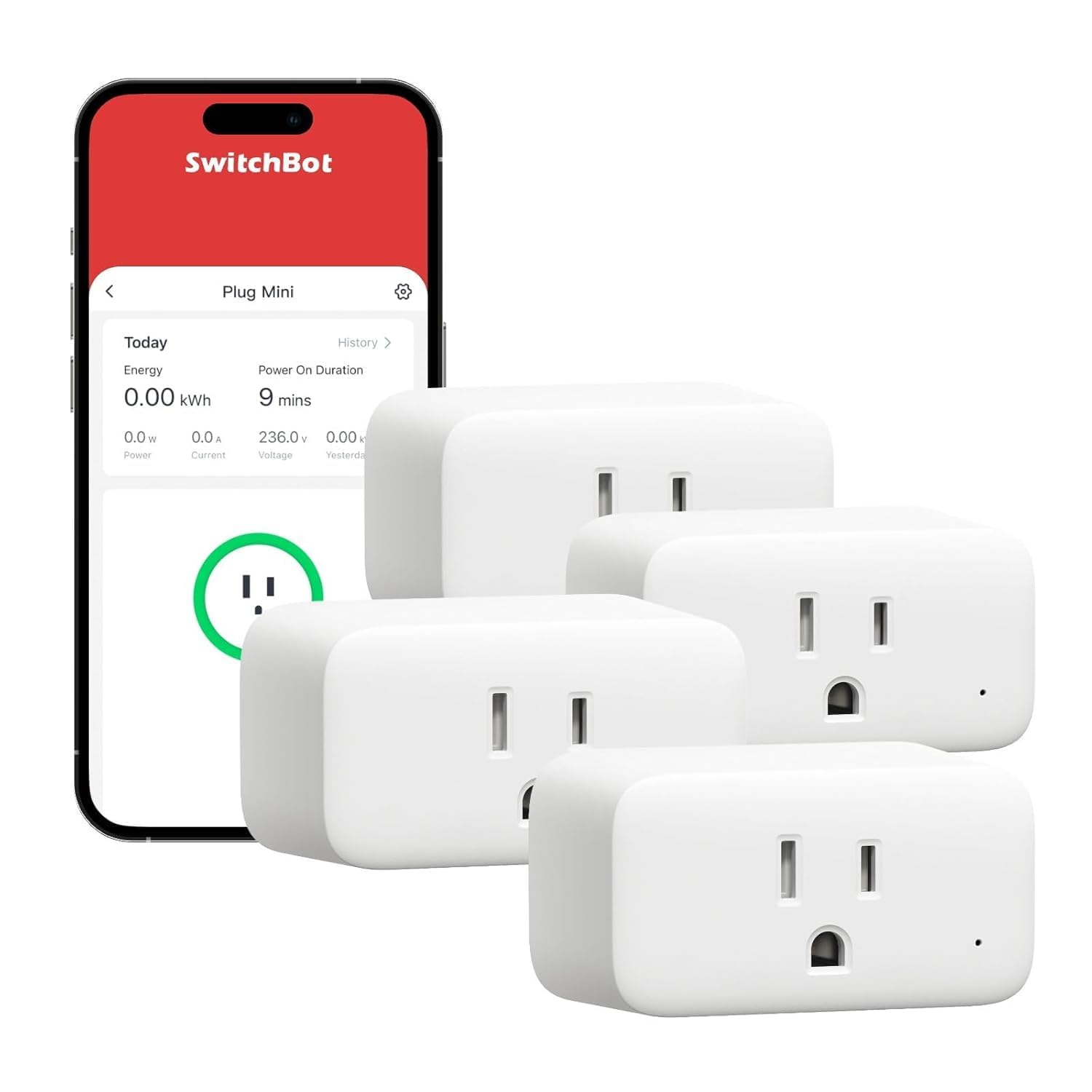
SwitchBot Smart Plug Mini, 15A Energy Monitoring, WiFi & ...
As an Amazon Associate we earn from qualifying purchases.
Official Manufacturer Manual
SwitchBot provides official product documentation through their online manual rather than downloadable PDF. Access setup guides, troubleshooting steps, and product specifications for your SwitchBot Plug Mini.
Source: support.switch-bot.com
Need More Help? SwitchBot Support
Note: The contact information below connects you directly to SwitchBot's official customer support team, not Trunetto. They can help with warranty claims, device replacements, and advanced technical issues.
Accessories owners commonly pair with SwitchBot Plug Mini.

Sengled Alexa Light Bulb, S1 Auto Pairing with Alexa Devi...

Sengled Smart Light Bulbs, Color Changing Alexa/Bluetooth...

Ring Rechargeable Quick Release Battery Pack
As an Amazon Associate we earn from qualifying purchases.


