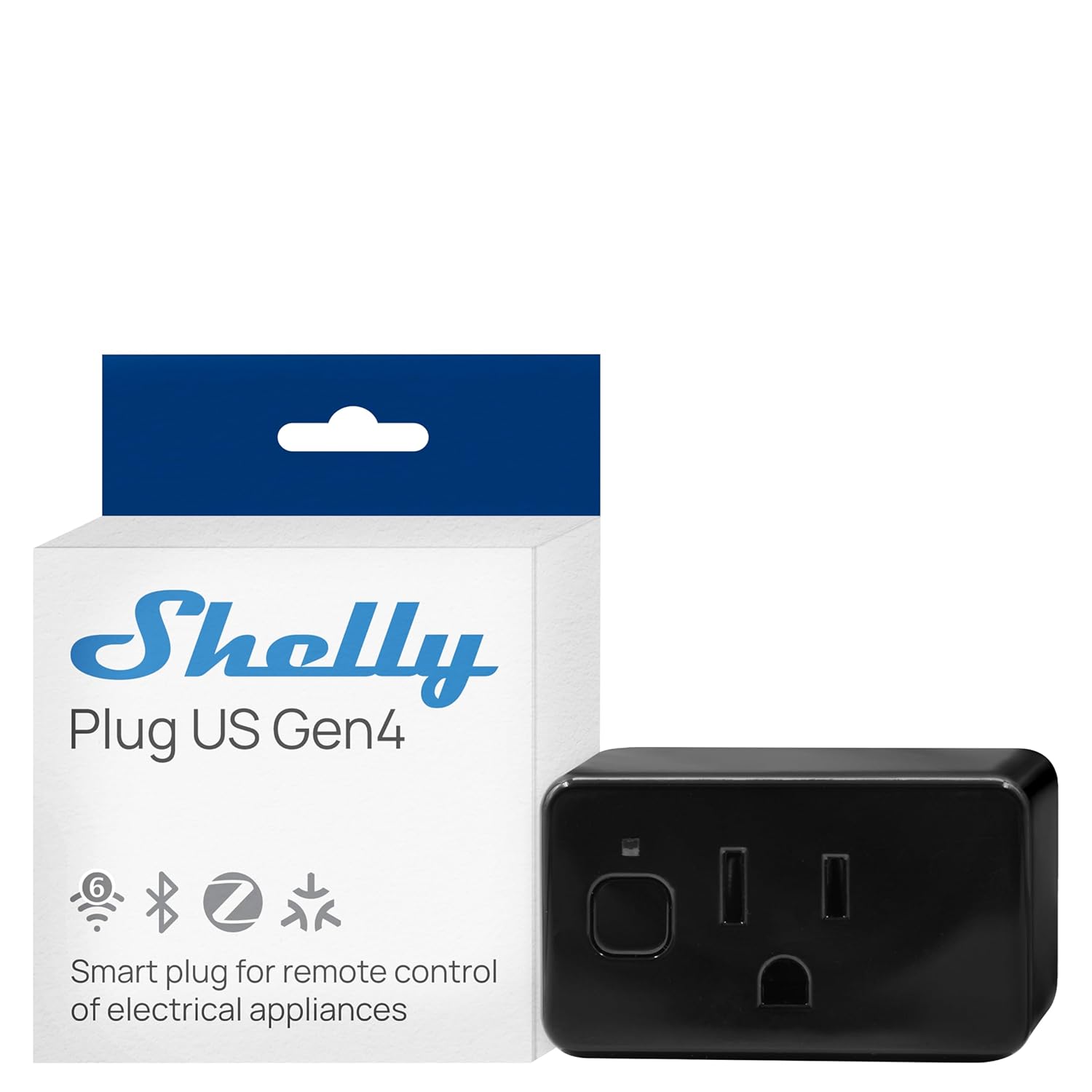
Why Won't My Shelly Relay Connect to WiFi After Installation?
- Metal electrical box blocking WiFi signal
- Router broadcasting only 5GHz and Shelly needs 2.4GHz
- WiFi password has special characters Shelly cannot parse
Problem Description
Your Shelly smart relay is installed in the electrical box but will not connect to WiFi. The device creates its own AP for setup but cannot join your home WiFi. Without WiFi the relay works only as a dumb switch with no app control or automations. Typically caused by WiFi signal issues inside metal electrical boxes or router incompatibility.
Symptoms
- Shelly AP appears but WiFi join step fails in app
- Shelly device not found during WiFi scan in setup
- Device connects to WiFi briefly then disconnects
- Shelly app shows device offline after successful setup
- WiFi signal too weak inside metal electrical box
- Device worked on WiFi but dropped after router change
Recognize these? Here's what usually causes it.
Common Causes
- Metal electrical box blocking WiFi signal
- Router broadcasting only 5GHz and Shelly needs 2.4GHz
- WiFi password has special characters Shelly cannot parse
- Device too far from WiFi router
- Router WPA3 security incompatible with Shelly firmware
- Too many devices reaching router connection limit
Most fixes happen in the first 3 steps.
Shelly relays connect to mains voltage. Always turn off the circuit breaker before physically accessing or adjusting the device. Live mains wiring is a serious electrocution hazard.
Tools & Requirements
Step-by-Step Solution
Connect to Shelly Access Point
After powering on the Shelly creates a WiFi network named ShellyPlus1-XXXX. Connect your phone to it. Go to 192.168.33.1 in a browser. If you cannot find the AP power cycle the device. The AP appears for about 5 minutes after power-up.
Configure 2.4GHz WiFi
In the web interface go to WiFi settings. Enter your 2.4GHz network name and password. Use simple password with no special characters. Click save and wait 30 seconds. Check your router client list for the Shelly device.
Address Metal Box Signal Issues
Metal junction boxes block WiFi signals like a Faraday cage. Replace the metal cover plate with plastic to improve signal. Or install a WiFi mesh node in the same room. Signal of at least negative 70 dBm is needed for reliable operation.
Check Router Compatibility
Set router to WPA2-PSK. Disable WPA3 PMF and IoT isolation. Disable 802.11r fast roaming if available. Check that DHCP pool has available addresses for new devices.
Use Shelly App Cloud Connection
After WiFi connects if the app cannot find the device enable cloud connection in the web interface under Internet and Security. For Home Assistant users add the Shelly via its IP address directly in integration settings.
Quick Solutions
Still having issues? This is usually the deeper cause below.
This usually happens right after a router reboot or ISP change — the device rejoins the network but drops its cloud session silently.
Note the Shelly IP address from your router client list and bookmark it. You can always access the web interface directly at that IP even if the app has issues.
Most WiFi drop-offs happen right after a router reboot or ISP swap — the device reconnects to the network but silently loses its cloud registration.
- Metal electrical box blocking WiFi signal
- Router broadcasting only 5GHz and Shelly needs 2.4GHz
- WiFi password has special characters Shelly cannot parse
- Device too far from WiFi router
- Router WPA3 security incompatible with Shelly firmware
Before you go — try one of these (they fix most cases).
Most popular upgrades chosen by Shelly Smart Relay owners.

As an Amazon Associate we earn from qualifying purchases.
Official Manufacturer Manual
Shelly provides official product documentation through their online manual rather than downloadable PDF. Access setup guides, troubleshooting steps, and product specifications for your Shelly Smart Relay.
Source: shelly.cloud
Need More Help? Shelly Support
Note: The contact information below connects you directly to Shelly's official customer support team, not Trunetto. They can help with warranty claims, device replacements, and advanced technical issues.
Accessories owners commonly pair with Shelly Smart Relay.

Shelly Plus 1PM | WiFi Smart Relay Switch with Power Mete...

Shelly Plus Add-On | Wi-Fi & Bluetooth Add-On for Shelly ...

Shelly BLU Gateway | Bluetooth WiFi Gateway in a USB-A do...
As an Amazon Associate we earn from qualifying purchases.