

Why Won't My Leviton Decora Smart Switch Connect to WiFi During Setup
- Phone on 5GHz during setup
- Joining a 5GHz network (2.4GHz only)
- Wrong WiFi password
Problem Description
Your Leviton Decora smart switch will not connect to your WiFi network during initial setup. The My Leviton app cannot find the switch, or the setup process fails at the WiFi configuration step. The switch LED may be blinking amber indicating it is in setup mode but the app cannot establish a connection.
Why This Happens in Real Homes
When a Leviton Decora Smart switch won't connect during setup, the amber-blinking LED tells you it's ready and in setup mode — so the break is almost always on the network side. Leviton Decora Smart is 2.4GHz-only, and the app has to reach the switch over that band, so the number-one cause is the phone being on 5GHz or the app pointed at a 5GHz SSID.
Put your phone on the 2.4GHz network, select that same 2.4GHz SSID in the app, and enter the password carefully. If your router uses one name for both bands, temporarily separating the 2.4GHz SSID removes the ambiguity. A couple of less obvious blockers: router client isolation (or a guest network) can stop the phone and switch from seeing each other during handoff, and a weak signal at the box can drop the pairing partway. Confirm the LED is blinking amber, get everything on 2.4GHz, and setup completes.
Symptoms
- Won't connect during setup
- App can't find the switch
- Setup fails at WiFi config
- LED blinking amber
- Connection times out
- Setup never completes
- Stuck on network step
- Pairing fails repeatedly
Recognize these? Here's what usually causes it.
Common Causes
- Phone on 5GHz during setup
- Joining a 5GHz network (2.4GHz only)
- Wrong WiFi password
- Weak 2.4GHz signal at the box
- Band-steering / one combined SSID
- Switch not in setup mode (amber blink)
- Router client isolation / guest network
- My Leviton account/app issue
Most fixes happen in the first 3 steps.
The Leviton Decora smart switch requires a neutral wire in the switch box. If your home wiring does not include a neutral wire, which is common in homes built before the 1980s, the switch will not function and could be dangerous to install without proper wiring.
Tools & Requirements
Step-by-Step Solution
Prepare Your Phone and Network
Before starting setup, connect your phone to your 2.4GHz WiFi network. If your router uses a combined SSID for both bands, create a separate 2.4GHz-only SSID in your router settings. Also enable Bluetooth and location services on your phone, as the My Leviton app uses these for device discovery. Update the My Leviton app to the latest version from the app store. Close and reopen the app before attempting setup.
Put the Switch in Setup Mode
The Leviton Decora smart switch must be in setup mode to pair. For a new installation, the switch enters setup mode automatically when first powered on. For a switch that was previously configured, you need to factory reset it. Press and hold the top of the rocker switch for 7 seconds until the status LED blinks amber rapidly. This clears the previous WiFi settings and enters setup mode. The LED should blink amber at approximately once per second.
Run the App Setup Wizard
Open the My Leviton app and sign into your account. Tap the plus icon to add a new device. Select your switch model from the device list. The app will scan for the switch via Bluetooth or WiFi Direct. When the switch appears, tap it to begin pairing. Enter your 2.4GHz WiFi network name and password exactly as configured on your router. The password is case-sensitive. Wait up to 2 minutes for the connection to establish.
Fix Router Compatibility
Log into your router admin panel and check the 2.4GHz settings. Make sure the security mode is WPA2-PSK, not WPA3 or WPA3-only. Verify the WiFi channel is set to a standard channel between 1 and 11. Some routers use channels 12 or 13 which some smart home devices do not support. Also check that AP Isolation or Client Isolation is disabled, as this prevents the app from communicating with the switch during setup.
Alternative Setup Method
If the app setup continues to fail, try the following. First, uninstall and reinstall the My Leviton app. Second, try setup on a different phone or tablet. Third, temporarily disable the 5GHz band on your router so the switch can only find the 2.4GHz network. Fourth, move a portable WiFi hotspot device next to the switch and use it as the WiFi network for setup, then update the WiFi settings later through the app once the switch is paired.
Quick Solutions
Still having issues? This is usually the deeper cause below.
This usually happens right after a router reboot or ISP change — the device rejoins the network but drops its cloud session silently.
After successful setup, the switch LED changes from blinking amber to solid green indicating a stable WiFi connection. If the LED later turns amber, the switch has lost its WiFi connection and needs reconnection.
Most WiFi drop-offs happen right after a router reboot or ISP swap — the device reconnects to the network but silently loses its cloud registration.
- Phone on 5GHz during setup
- Joining a 5GHz network (2.4GHz only)
- Wrong WiFi password
- Weak 2.4GHz signal at the box
- Band-steering / one combined SSID
Before you go — try one of these (they fix most cases).
Most popular upgrades chosen by Leviton Decora Smart Switch owners.

Leviton Decora Digital/Decora Smart Switch Color Change K...

Leviton Decora Digital/Decora Smart Switch Color Change K...

Leviton Decora Smart Switch Z-Wave 800 Series, ZW15S-1RW
As an Amazon Associate we earn from qualifying purchases.
Official Manufacturer Manual
Leviton provides official product documentation through their online manual rather than downloadable PDF. Access setup guides, troubleshooting steps, and product specifications for your Leviton Decora Smart Switch.
Source: leviton.com
Need More Help? Leviton Support
Note: The contact information below connects you directly to Leviton's official customer support team, not Trunetto. They can help with warranty claims, device replacements, and advanced technical issues.
Accessories owners commonly pair with Leviton Decora Smart Switch.
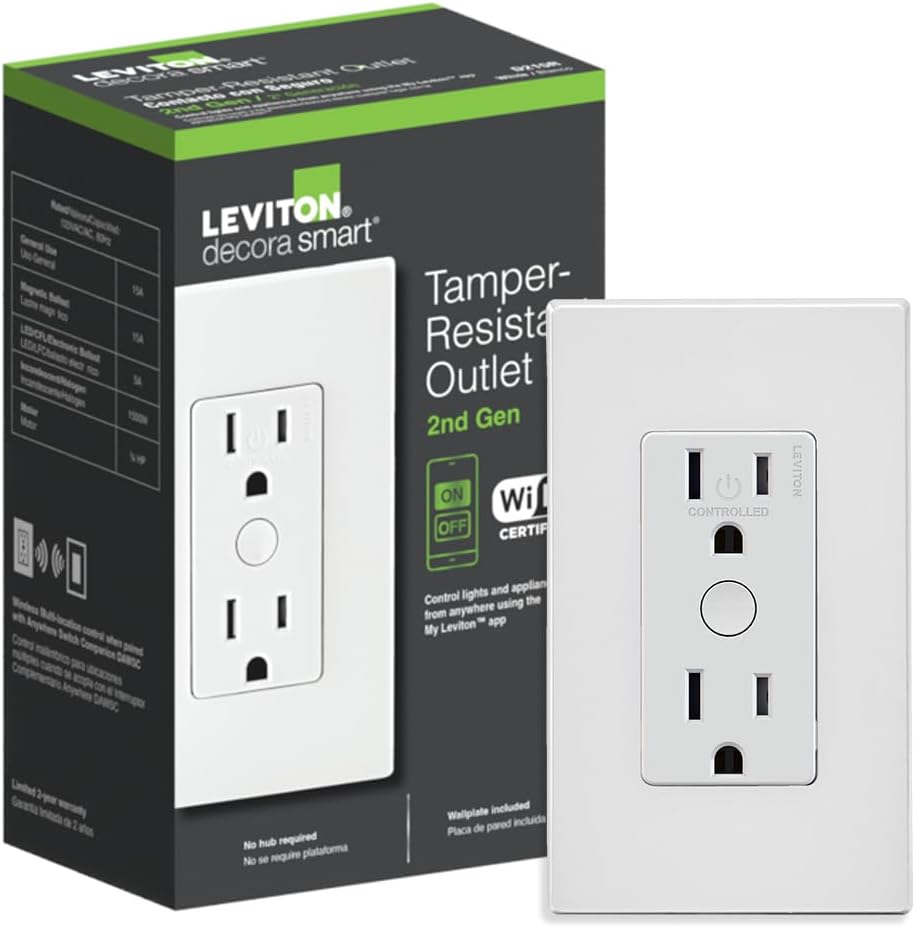
Leviton Decora Smart Outlet, Tamper-Resistant 15A, Wi-Fi ...

Leviton Decora Smart Plug, Wi-Fi 2nd Gen, Works with Matt...

Leviton Decora Smart Fan Speed Controller, Wi-Fi 2nd Gen,...
As an Amazon Associate we earn from qualifying purchases.


