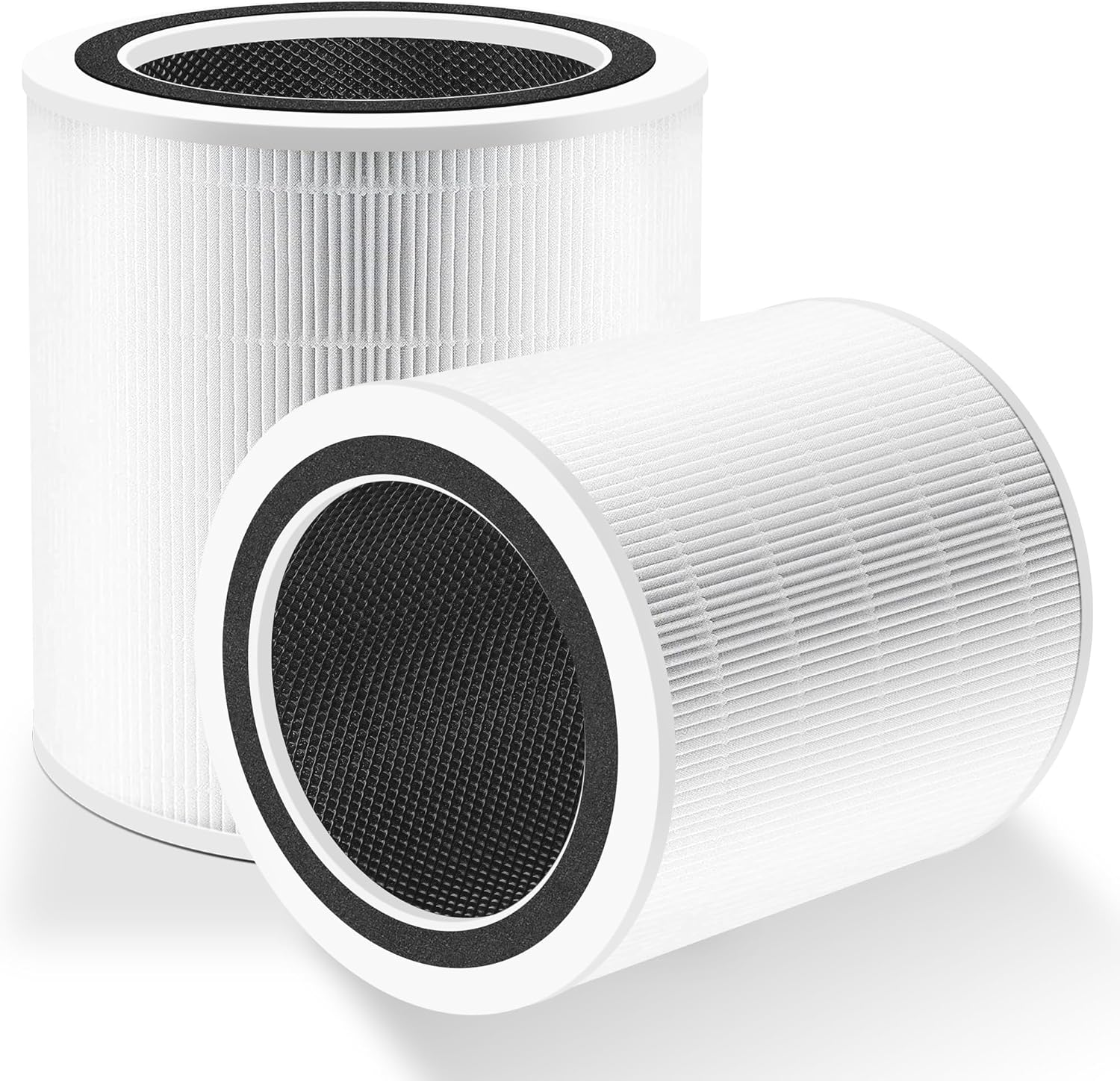
Why Is My Levoit Core 300S Showing a Red WiFi Light and Going Offline?
- WiFi name/password changed, invalidating stored credentials
- Router on 5GHz-only, which the Core 300S can't join
- WiFi signal too weak at the purifier's location
Problem Description
Your Levoit Core 300S air purifier is displaying a red or blinking WiFi indicator light and appears offline in the VeSync app. You cannot control the purifier remotely and scheduled automations no longer run. The Core 300S only supports 2.4GHz WiFi and a red WiFi light indicates the device cannot connect to your network or has lost its stored WiFi credentials.
Why This Happens in Real Homes
A red WiFi light on the Core 300S means the purifier can't reach your network or has lost its stored WiFi credentials - the fan still works from the buttons, but remote control and schedules are gone until it reconnects. The most common triggers are a changed WiFi name or password (which invalidates what the device remembered) and the classic 2.4GHz issue: the Core 300S only supports 2.4GHz, so a 5GHz-only network, a band-steered single SSID, or a router that's been switched to WPA3-only security will leave it unable to connect. Reconnecting through the VeSync setup wizard on a confirmed 2.4GHz WPA2 network fixes most cases.
When it connects but keeps dropping, it's usually signal or the network layer. The front-of-house or bedroom spot where a purifier lives can have a weak 2.4GHz signal, so moving it closer to the router or improving coverage helps, and reserving a DHCP IP stops a router reboot or lease renewal from knocking it offline. A quick power cycle (unplug 30 seconds) clears a crashed WiFi stack, and updating the VeSync app before re-running setup avoids version mismatches. If a standard reconnect won't take, factory-resetting just the WiFi settings and pairing fresh is the reliable reset. Note that if local WiFi is clearly fine but the app still shows offline, it can be a VeSync cloud outage rather than your device.
Symptoms
- WiFi light is solid red or blinking red
- VeSync app shows the Core 300S offline/unreachable
- Scheduled automations no longer run
- Lost connection after a router reboot
- Red WiFi light appeared after a WiFi password change
- Purifier works manually but the app can't reach it
- Reconnects then drops again
- Remote control unavailable
Recognize these? Here's what usually causes it.
Common Causes
- WiFi name/password changed, invalidating stored credentials
- Router on 5GHz-only, which the Core 300S can't join
- WiFi signal too weak at the purifier's location
- VeSync server outage despite local WiFi being fine
- Firmware bug crashing the WiFi stack
- Router switched to WPA3, unsupported by the 300S firmware
- Band-steering pushing it toward 5GHz
- Router DHCP/reboot dropping the device
Most fixes happen in the first 3 steps.
Do not attempt to run the Core 300S WiFi setup while your phone is connected to cellular data. The VeSync wizard requires your phone to be on the same 2.4GHz WiFi network you are connecting the purifier to.
Tools & Requirements
Step-by-Step Solution
Run VeSync WiFi Setup Wizard
Open the VeSync app and go to the Core 300S device. If it shows offline tap the device icon and select Reset WiFi or Reconnect to WiFi. Follow the in-app wizard which will guide you through pressing the WiFi button on the purifier for 5 seconds until the indicator blinks blue. Enter your 2.4GHz WiFi password in the app. The purifier will attempt to connect and the WiFi light should turn solid white when successful.
Confirm 2.4GHz WPA2 Network
The Levoit Core 300S requires a 2.4GHz network with WPA2 Personal security. Log into your router admin and verify the 2.4GHz band is active and broadcasting separately from 5GHz. If your router uses a combined band name separate them temporarily into distinct SSIDs. Also confirm the security mode is WPA2 Personal not WPA3 or mixed WPA2/WPA3 which some Core 300S firmware versions cannot negotiate.
Power Cycle and Move Purifier
Unplug the Core 300S from the wall for 30 seconds then reconnect. After powering on stand within 2 metres of the router and run the VeSync setup wizard again. The Core 300S WiFi module has a short initial range requirement during provisioning. After successful provisioning the purifier can be moved to its normal location. If the WiFi light turns red again after moving the signal is too weak at that location and a WiFi extender is needed.
Factory Reset WiFi Module
Hold the WiFi button on the Core 300S for 10 seconds until the indicator light flashes rapidly then releases to a slow blink. This factory resets the WiFi module only without clearing your VeSync account settings. After the reset run the VeSync app Add Device wizard and add the purifier as a new device. You will need to re-enter your WiFi credentials and reconfigure any schedules that were saved to the purifier.
Check VeSync Service Status
Visit the VeSync social media accounts or status page to check for any ongoing service outages. VeSync cloud outages can cause purifiers to show as offline in the app even when the device has a valid WiFi connection. During an outage the local controls on the purifier continue to work and scheduled programs stored in the purifier run normally. Outages typically resolve within 1 to 3 hours.
Quick Solutions
Still having issues? This is usually the deeper cause below.
This usually happens right after a router reboot or ISP change — the device rejoins the network but drops its cloud session silently.
Write your WiFi network name and password down before starting the VeSync setup wizard. The in-app keyboard does not support autocorrect and typos in the password cause the red light to persist.
Most WiFi drop-offs happen right after a router reboot or ISP swap — the device reconnects to the network but silently loses its cloud registration.
- WiFi name/password changed, invalidating stored credentials
- Router on 5GHz-only, which the Core 300S can't join
- WiFi signal too weak at the purifier's location
- VeSync server outage despite local WiFi being fine
- Firmware bug crashing the WiFi stack
Before you go — try one of these (they fix most cases).
Most popular upgrades chosen by Levoit Core 300S Air Purifier owners.

LEVOIT 6000S Smart Whole House Humidifiers, 6 Gal, 72-Hou...

LEVOIT Smart Humidifier (Dual 200S) and Air Purifier (Cor...

Levoit Dual200S Smart Humidifier and Humidifier Filters
As an Amazon Associate we earn from qualifying purchases.
Official Manufacturer Manual
Levoit provides official product documentation through their online manual rather than downloadable PDF. Access setup guides, troubleshooting steps, and product specifications for your Levoit Core 300S Air Purifier.
Source: levoit.com
Need More Help? Levoit Support
Note: The contact information below connects you directly to Levoit's official customer support team, not Trunetto. They can help with warranty claims, device replacements, and advanced technical issues.
Accessories owners commonly pair with Levoit Core 300S Air Purifier.

Ring Rechargeable Quick Release Battery Pack
Ring Chime Pro

SwitchBot Hub Mini Smart Remote - IR Universal Remote, Wi...
As an Amazon Associate we earn from qualifying purchases.