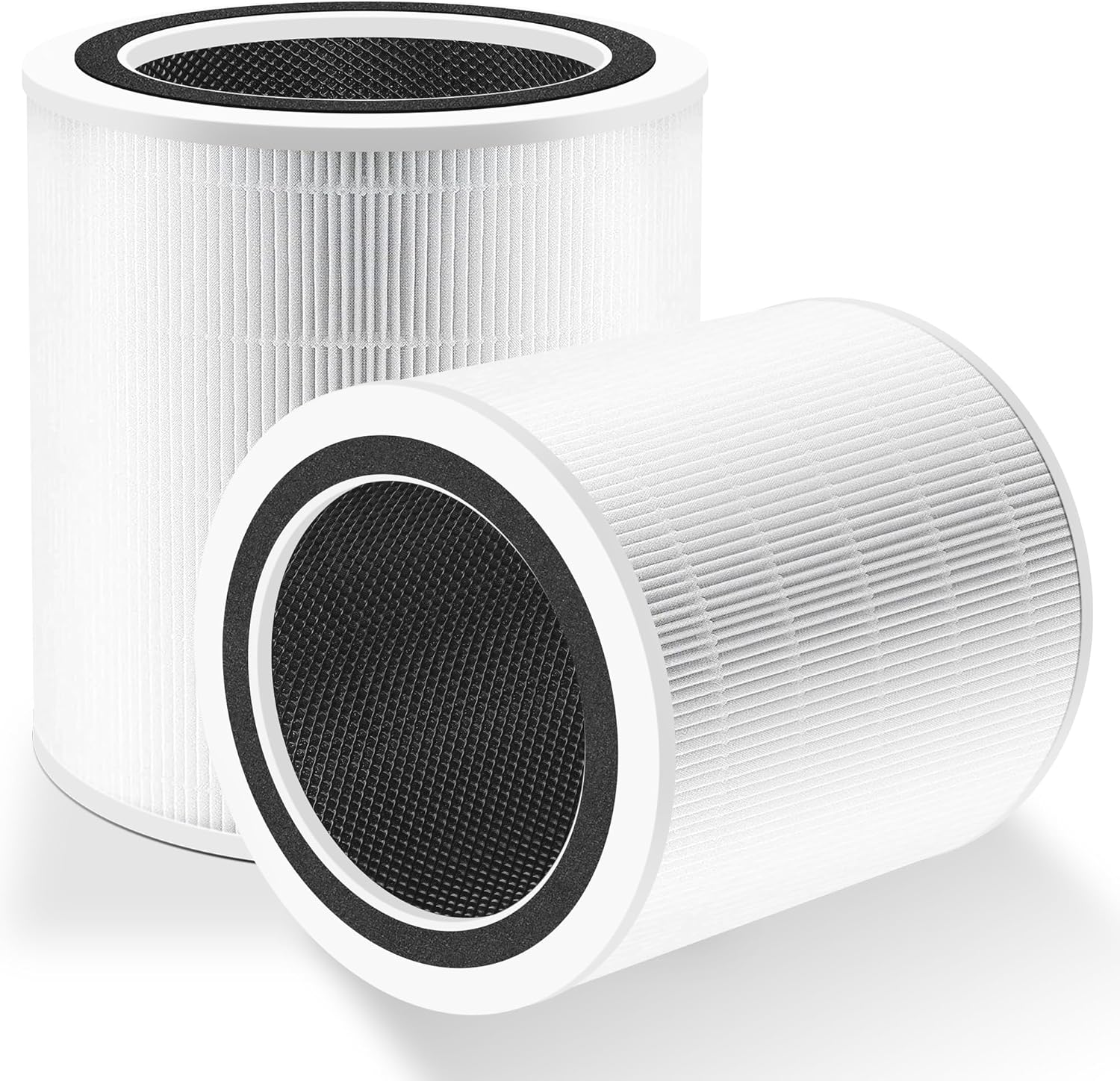
Why Won't My Levoit Core 300S Connect to WiFi or the VeSync App?
- Purifier pointed at a 5GHz band it doesn't support
- VeSync app not updated for the Core 300S
- Phone on a different WiFi network than the setup one
Problem Description
Your Levoit Core 300S air purifier will not complete the WiFi setup process in the VeSync app. The purifier may fail during pairing, show as offline after connecting, or disconnect repeatedly. Core 300S only supports 2.4GHz WiFi and will silently fail when pointed at a 5GHz or combined band network during the setup wizard.
Why This Happens in Real Homes
The Core 300S is a 2.4GHz-only device, and nearly every setup failure comes back to that. If the purifier is pointed at a 5GHz network, or your router band-steers both bands under one SSID, the wizard will silently fail at the credential step - the blue LED blinks but never goes solid. The reliable approach is to make sure both your phone and the purifier are on a plain 2.4GHz network for setup: split off a temporary 2.4GHz SSID if needed, and confirm your phone isn't sitting on 5GHz. WPA3-only security is the other hard blocker, so drop the router to WPA2 (or mixed) for pairing.
A handful of smaller issues cause the rest. An out-of-date VeSync app or outdated purifier firmware can be incompatible, so update the app before you start. WiFi passwords with special characters are easy to mistype in the wizard, and a weak 2.4GHz signal at the setup location makes pairing flaky, so set up near the router and move the unit afterward. If it still won't pair, factory-reset the purifier to clear any half-finished state and run the wizard again on a confirmed 2.4GHz WPA2 network. A device that pairs but shows 'added with greyed-out controls' is usually a signal or firmware issue rather than a failed pairing.
Symptoms
- VeSync can't find the Core 300S during setup
- Connects briefly then shows offline
- Setup wizard times out at the credential step
- Blue WiFi LED blinks but never goes solid
- App shows the device added but controls greyed out
- Drops from the app every router reboot
- Pairing fails repeatedly
- Won't complete WiFi setup
Recognize these? Here's what usually causes it.
Common Causes
- Purifier pointed at a 5GHz band it doesn't support
- VeSync app not updated for the Core 300S
- Phone on a different WiFi network than the setup one
- WiFi password with special characters mistyped
- Router on WPA3, rejected by older Levoit firmware
- Purifier firmware outdated vs the current app
- Band-steered SSID hiding the 2.4GHz band
- Weak 2.4GHz signal during setup
Most fixes happen in the first 3 steps.
Never enter your WiFi password on a public or shared device when setting up the VeSync app. Use your personal phone to protect your home network credentials.
Tools & Requirements
Step-by-Step Solution
Confirm 2.4GHz WiFi Band
The Levoit Core 300S only supports 2.4GHz WiFi and will fail silently when you attempt to connect it to a 5GHz network. Log into your router admin panel and verify your 2.4GHz network name is different from the 5GHz network name. If your router uses the same SSID for both bands temporarily disable 5GHz or create a dedicated 2.4GHz guest network. Connect your phone to the 2.4GHz network before opening VeSync to begin the setup process.
Update VeSync App and Reset Purifier
Open the App Store or Google Play and update VeSync to the latest version. Older VeSync versions have known pairing failures with Core 300S units purchased after firmware updates. After updating the app perform a factory reset on the purifier by holding the lock button and fan button simultaneously for 3 seconds until all indicator lights flash. This clears any partial setup data and prepares the device for a fresh connection attempt.
Run Setup Wizard on 2.4GHz Network
Open VeSync and tap the plus icon to add a device. Select Air Purifier then Core 300S. When prompted enter your 2.4GHz WiFi password exactly as set on your router. Levoit recommends avoiding passwords longer than 32 characters or containing special characters like hash or percent signs during initial setup as these can cause the handshake to fail. The purifier LED will flash during pairing and turn solid blue when successfully connected.
Check Router Security Settings
Some routers running WPA3 or mixed WPA2/WPA3 security reject connections from older IoT firmware. Log into your router admin panel and temporarily set the 2.4GHz band security to WPA2 Personal only. Complete the Levoit pairing process then restore your preferred security setting. Also check that your router is not blocking new device registrations through MAC address filtering or client isolation settings which prevent the purifier from reaching the internet.
Move Purifier Closer to Router
During initial WiFi setup move the Levoit Core 300S to within 3 metres of your router. Weak WiFi signal during the pairing handshake causes the authentication to time out even when the correct password is entered. Once the device is successfully added to VeSync you can move it to its intended room and it will maintain connectivity as long as the signal strength at that location is above minus 70 dBm.
Quick Solutions
Still having issues? This is usually the deeper cause below.
This usually happens right after a router reboot or ISP change — the device rejoins the network but drops its cloud session silently.
Name your 2.4GHz network something different from your 5GHz network so you can always confirm which band Levoit and other smart home devices are connecting to.
Pairing failures almost always come down to distance during the initial handshake — manufacturers seriously understate how close you actually need to be.
- Purifier pointed at a 5GHz band it doesn't support
- VeSync app not updated for the Core 300S
- Phone on a different WiFi network than the setup
- WiFi password with special characters mistyped
- Router on WPA3, rejected by older Levoit firmware
Before you go — try one of these (they fix most cases).
Most popular upgrades chosen by Levoit Core 300S Air Purifier owners.

LEVOIT 6000S Smart Whole House Humidifiers, 6 Gal, 72-Hou...

LEVOIT Smart Humidifier (Dual 200S) and Air Purifier (Cor...

Levoit Dual200S Smart Humidifier and Humidifier Filters
As an Amazon Associate we earn from qualifying purchases.
Official Manufacturer Manual
Levoit provides official product documentation through their online manual rather than downloadable PDF. Access setup guides, troubleshooting steps, and product specifications for your Levoit Core 300S Air Purifier.
Source: levoit.com
Need More Help? Levoit Support
Note: The contact information below connects you directly to Levoit's official customer support team, not Trunetto. They can help with warranty claims, device replacements, and advanced technical issues.
Accessories owners commonly pair with Levoit Core 300S Air Purifier.

Ring Rechargeable Quick Release Battery Pack
Ring Chime Pro

SwitchBot Hub Mini Smart Remote - IR Universal Remote, Wi...
As an Amazon Associate we earn from qualifying purchases.