

What Does Nest Camera 'Could Not Connect' Error Mean and How Do I Fix It?
- Camera WiFi bandwidth too low for video upload requiring at least 2 Mbps
- Router changed WiFi channel or settings disrupting camera connection
- Nest cloud servers temporarily unable to relay the video stream
Problem Description
When you try to view your Nest camera live feed the app shows a Could Not Connect error, Connection Failed, or Camera Is Offline message. The camera may have been working fine previously and suddenly became unreachable. This error means the Google Home or Nest app cannot establish a video stream from the camera through the Nest cloud servers. Unlike a complete offline status where the camera is powered off, the Could Not Connect error often means the camera has power and partial network access but the video stream specifically cannot reach your phone. This is caused by WiFi bandwidth issues, router configuration changes, or Nest server-side stream failures.
Why This Happens in Real Homes
A Could Not Connect error on a Nest camera is a connection problem: too little upload bandwidth (it needs about 2 Mbps), a router setting or channel change, or Nest servers unable to relay the stream. In real homes a router firmware update or channel change breaks it. Reboot the camera and router, confirm at least 2 Mbps up at the camera, and check for a Google service outage.
Symptoms
- Google Home app shows Could Not Connect when opening camera feed
- Camera status light shows it is on but video will not stream to app
- Camera thumbnail shows the last captured image but live view will not load
- Error happens intermittently where sometimes it connects and sometimes it does not
- Multiple cameras all showing Could Not Connect at the same time
- Recorded clips may be available but live stream specifically will not connect
Recognize these? Here's what usually causes it.
Common Causes
- Camera WiFi bandwidth too low for video upload requiring at least 2 Mbps
- Router changed WiFi channel or settings disrupting camera connection
- Nest cloud servers temporarily unable to relay the video stream
- Camera firmware outdated causing compatibility issues with current Nest servers
- Router firewall blocking the ports Nest uses for video streaming
- Too many devices on the same WiFi channel congesting the network
Most fixes happen in the first 3 steps.
While the camera shows Could Not Connect it may still be recording locally if it has a Nest Aware subscription and the issue is only between Nest servers and your phone. Check the camera timeline in the app after the connection is restored to see if events were recorded during the outage.
Tools & Requirements
Step-by-Step Solution
Power Cycle the Camera
Unplug the camera power cable or USB-C cable. For Nest Cam Battery press and hold the button on the back for 10 seconds to force power off. Wait 30 seconds. Reconnect power. The camera will reboot and attempt to reestablish its cloud connection. Wait 3 to 5 minutes for the camera to fully come online. Check the Google Home app to see if the live feed is now accessible.
Check WiFi Signal at Camera Location
In the Google Home app tap the camera then tap the gear icon for settings. Check the WiFi signal strength or connection quality indicator. If it shows weak or poor the camera does not have enough bandwidth to stream video reliably. Move your router closer to the camera, add a WiFi extender, or reduce the number of devices on the 2.4GHz band near the camera.
Restart Your Router
Unplug your router for 30 seconds and plug it back in. Wait 3 minutes for WiFi to fully broadcast. Network congestion or a stale routing table can prevent the camera video stream from reaching Nest servers even if other internet activity works fine. After the router restarts the camera should reconnect within 5 minutes.
Check Nest Service Status
Visit the Google Nest community or status page to check for ongoing service issues. If Nest cloud servers are experiencing problems the Could Not Connect error will affect all users not just you. If a service issue is reported wait for Google to resolve it. You can also search Google for Nest camera down today to see if other users are reporting the same issue.
Verify Router Port and Firewall Settings
Nest cameras need outbound access on TCP ports 443 and 8883 and UDP port 123. Some routers or firewalls block these ports especially after firmware updates. Log into your router and check firewall rules. The simplest fix is to add the camera IP address to a DMZ or firewall exception list. Also make sure UPnP is enabled which allows the camera to automatically configure the ports it needs.
Quick Solutions
Still having issues? This is usually the deeper cause below.
This usually happens right after a router reboot or ISP change — the device rejoins the network but drops its cloud session silently.
If Could Not Connect happens frequently at the same time of day it may be network congestion from other household activity. Streaming video on multiple devices, online gaming, and large downloads can consume all available bandwidth. Consider setting up QoS (Quality of Service) on your router to prioritize Nest camera traffic.
Live view problems that start suddenly usually trace back to an upload speed drop — the camera itself is fine, the bandwidth path to the cloud isn't.
- Camera WiFi bandwidth too low for video upload
- Router changed WiFi channel or settings disrupting camera connection
- Nest cloud servers temporarily unable to relay the video
- Camera firmware outdated causing compatibility issues with current Nest
- Router firewall blocking the ports Nest uses for video
Before you go — try one of these (they fix most cases).
Most popular upgrades chosen by Google Nest Camera owners.

Google Nest Cam Indoor (Wired, 3rd Gen) - Security Camera...

Google Nest Cam Indoor (Wired, 3rd Gen) - Security Camera...
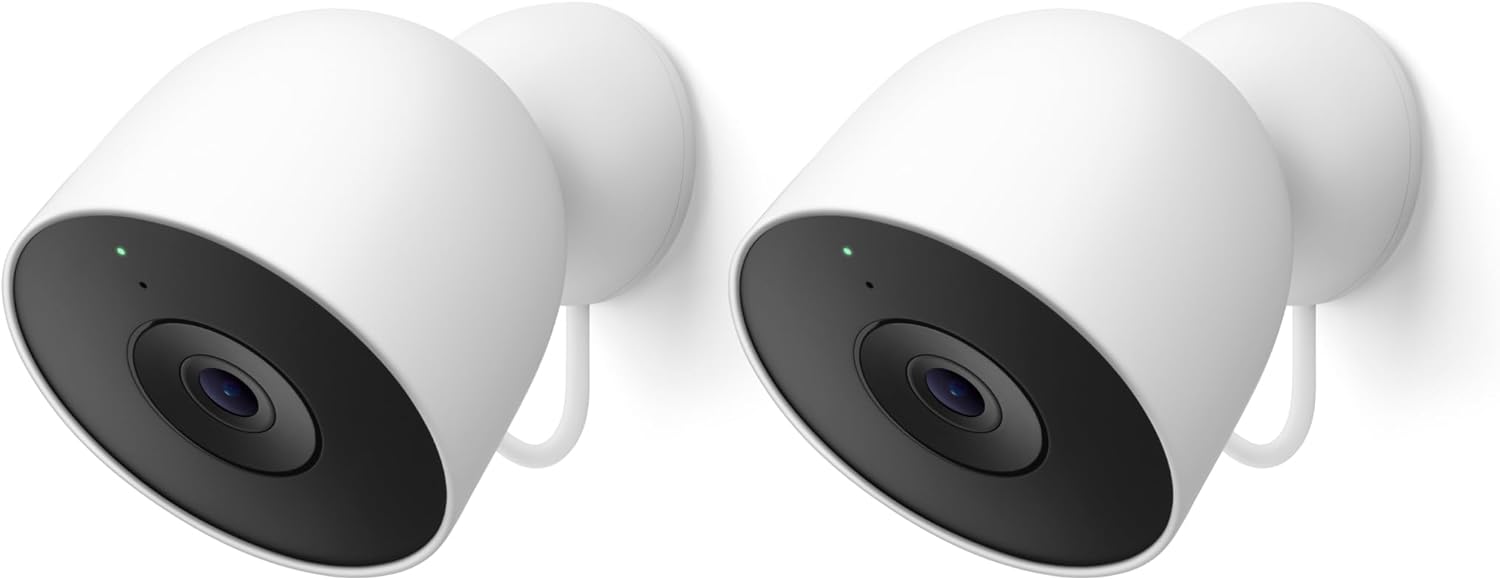
Google Nest Cam Outdoor (Wired, 2nd Gen) - 2 Pack - Secur...
As an Amazon Associate we earn from qualifying purchases.
Official Manufacturer Manual
If you need the complete manufacturer documentation for advanced setup, wiring diagrams, or detailed specifications, you can download the official manual below. The manual includes full technical instructions directly from the manufacturer and may help if your issue requires deeper troubleshooting.
Download the Official Google Nest Camera ManualSource: support.google.com
Need More Help? Google Nest Support
Note: The contact information below connects you directly to Google Nest's official customer support team, not Trunetto. They can help with warranty claims, device replacements, and advanced technical issues.
How Does Google Nest Compare?
Before replacing your Google Nest device, see how it stacks up against alternatives in our full comparison guides.
Accessories owners commonly pair with Google Nest Camera.

Google Nest Cam Outdoor or Indoor, Battery - 2nd Generati...

Google Nest Cam Outdoor or Indoor/Battery - 2nd Generatio...
As an Amazon Associate we earn from qualifying purchases.


