

Why Won't My Ring Floodlight Cam Wired Pro Lights Turn On?
- Light schedule set to off during current hours
- Motion zones for lights configured differently from camera zones
- Light sensitivity set too low to trigger from detected motion
Problem Description
Your Ring Floodlight Cam Wired Pro camera is recording motion events and sending notifications but the integrated floodlights do not activate when motion is detected or when manually turned on from the Ring app. The floodlights are controlled separately from the camera recording and require their own motion trigger settings and a functional light enable toggle in the Ring app.
Why This Happens in Real Homes
Lights not activating on the Wired Pro are almost always the light schedule or motion-zone config: a schedule set to off during the current hours, or light motion zones that don't cover where motion happens.
Start in the app's light settings: check the schedule isn't holding lights off now, enable motion-activated lighting, and confirm the light motion zones and sensitivity cover the area. These lights react to their own zones, separate from the camera's recording zones.
Symptoms
- Floodlight Cam detects motion and records but lights stay off
- Manual light toggle in Ring app does nothing
- Lights were working then stopped after a Ring app update
- Motion-activated lights work at night but not at dusk
- Lights turn on once then do not activate again for hours
- Ring app light toggle shows on but physical lights remain dark
Recognize these? Here's what usually causes it.
Common Causes
- Light schedule set to off during current hours
- Motion zones for lights configured differently from camera zones
- Light sensitivity set too low to trigger from detected motion
- Lights toggle disabled in Ring app device settings
- Floodlight bulbs failed requiring LED module replacement
- Ring app version bug causing light control commands to fail
Most fixes happen in the first 3 steps.
Do not install the Ring Floodlight Cam Wired Pro on a circuit controlled by a dimmer switch. Floodlight Cam requires a full 120V supply from a standard on/off circuit and dimmer switches can damage the integrated power supply.
Step-by-Step Solution
Enable the Lights Toggle in Ring App
Open the Ring app and tap the Floodlight Cam Wired Pro device. On the device screen look for a light bulb icon or a Lights section. Confirm the Lights toggle is enabled. There is a separate toggle for lights from the camera recording and it can be disabled independently. If the lights toggle was off turn it on and immediately test by tapping the manual light icon. The floodlights should activate within 2 seconds of the manual command.
Check the Light Schedule
In the Ring app go to the Floodlight Cam device settings then Light Schedules. A scheduled off period may be active during the hours you are testing the lights. Review any scheduled periods and modify or delete a schedule that may be suppressing light activation. If Light Schedules is empty the schedule is not the cause and you should check motion settings.
Adjust Light Motion Sensitivity
Go to Ring app device settings for the Floodlight Cam then Motion Settings then Lights. Increase the light motion sensitivity slider to the maximum. Also check that the motion zones for lights include the area where you are triggering detection. The camera motion zones and the light motion zones are configured separately and may not match. Draw the light motion zone to cover the same area as the camera motion zone.
Test Manual Light Control from App
Tap the Floodlight Cam in the Ring app and use the manual light control button to turn on the lights. If the lights respond to the manual toggle but not to motion the motion-to-light trigger needs reconfiguration. If the lights do not respond to the manual toggle either the LED module has failed or the light control circuit has a wiring fault. Contact Ring support if manual control produces no response.
Update the Ring App
Open the App Store or Google Play and update the Ring app to the latest version. Some Ring app versions have had bugs where the floodlight control commands were sent to the wrong API endpoint causing the lights to appear controlled in the app but with no physical response. After updating force close the app and reopen it before testing light activation again.
Quick Solutions
Still having issues? This is usually the deeper cause below.
If flickering only happens on dimming, the issue is almost always the dimmer's minimum-load setting, not the bulb — it's drawing less current than the dimmer expects.
Set the floodlight timer duration to 1 minute in Ring app settings for the first week after installation. This allows you to observe light activation frequency and adjust motion zone size before committing to a longer duration.
This issue almost always looks more complex than it is — the majority of cases trace back to a single setting, a stale credential, or a default that shipped wrong.
- Light schedule set to off during current hours
- Motion zones for lights configured differently from camera zones
- Light sensitivity set too low to trigger from detected
- Lights toggle disabled in Ring app device settings
- Floodlight bulbs failed requiring LED module replacement
Before you go — try one of these (they fix most cases).
Most popular upgrades chosen by Ring Floodlight Cam Wired Pro owners.

4 Channel 360° Dash Cam Front Rear Inside & Left Right,4K...
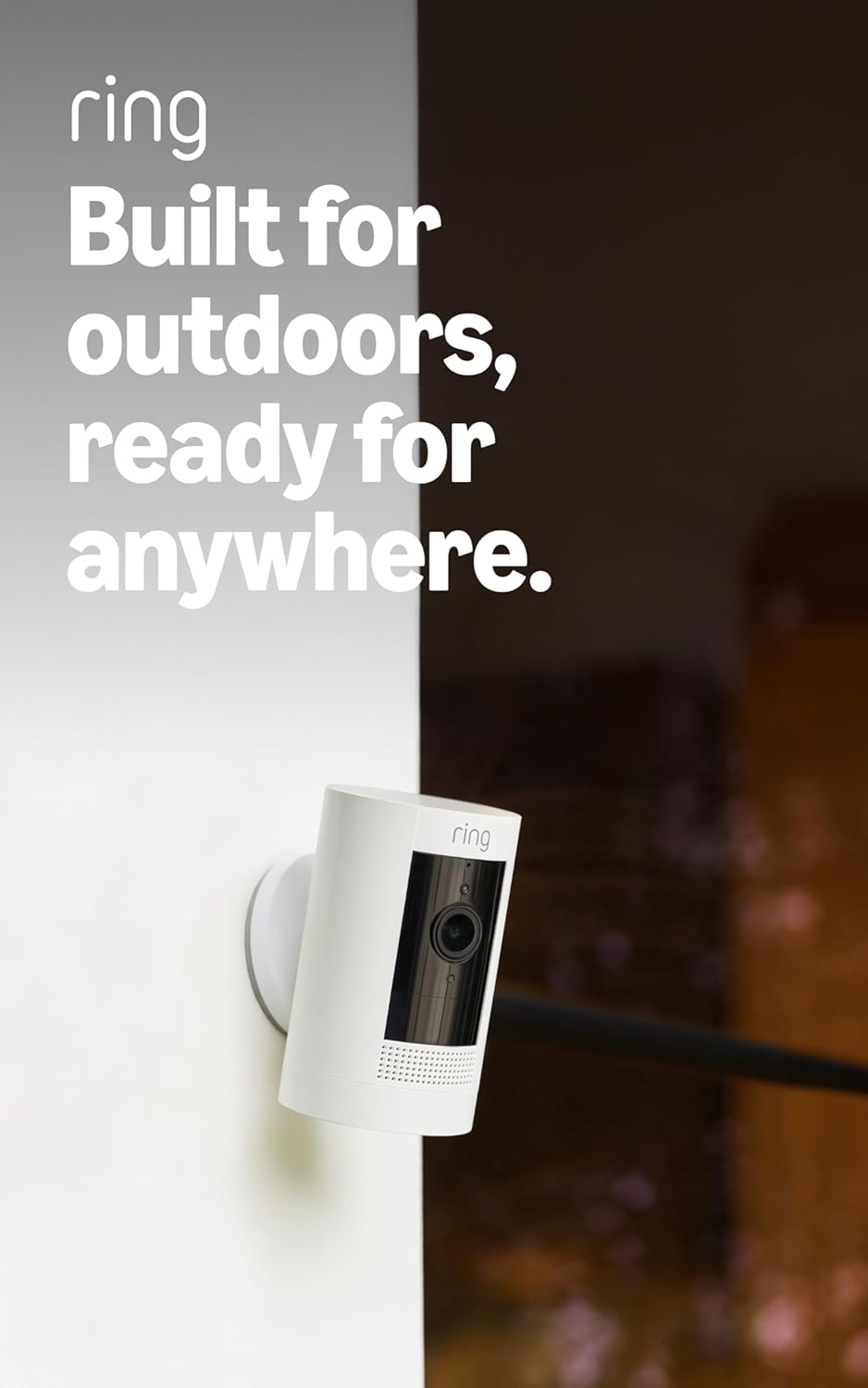
Ring Outdoor Cam (Stick Up Cam), Weather-resistant home o...
Ring Outdoor Cam (Stick Up Cam) | Weather-Resistant Outdo...
As an Amazon Associate we earn from qualifying purchases.
Official Manufacturer Manual
Ring provides official product documentation through their online manual rather than downloadable PDF. Access setup guides, troubleshooting steps, and product specifications for your Ring Floodlight Cam Wired Pro.
Source: ring.com
Need More Help? Ring Support
Note: The contact information below connects you directly to Ring's official customer support team, not Trunetto. They can help with warranty claims, device replacements, and advanced technical issues.
How Does Ring Compare?
Before replacing your Ring device, see how it stacks up against alternatives in our full comparison guides.
Accessories owners commonly pair with Ring Floodlight Cam Wired Pro.

SANDISK 64GB Extreme microSDXC UHS-I Memory Card with Ada...

SANDISK 128GB Ultra microSDXC UHS-I Memory Card with Adap...

SANDISK 64GB Ultra microSDXC UHS-I Memory Card with Adapt...
As an Amazon Associate we earn from qualifying purchases.


