

Why Is My Ring Indoor Cam Showing a Black Screen or No Live View?
- Poor Wi-Fi connection
- Power interruption
- Outdated Ring app or device firmware
Problem Description
Your Ring Indoor Cam is displaying a black screen or failing to load Live View in the Ring app, preventing you from monitoring your indoor space. This can be due to connectivity issues, power problems, or app glitches.
Why This Happens in Real Homes
A black screen with no live view, on a camera that's otherwise online, is usually a connection or firmware hiccup — poor WiFi, a brief power interruption, or an outdated app/firmware — and occasionally the manual privacy shutter being closed.
Start by checking the privacy cover isn't over the lens, then power-cycle the camera, update the Ring app and firmware, and check the WiFi signal. Live view needs enough upload bandwidth; a weak or congested connection is the most common reason it spins then shows black.
Symptoms
- Live View shows black screen
- Live View fails to connect
- Camera appears offline in app
- No motion alerts received
- LED light is off or red
- Other Ring devices work fine
Recognize these? Here's what usually causes it.
Common Causes
- Poor Wi-Fi connection
- Power interruption
- Outdated Ring app or device firmware
- Router firewall settings
- Server issues
- Physical damage to camera
Most fixes happen in the first 3 steps.
Do not attempt to disassemble your Ring Indoor Cam, as this can void your warranty and potentially damage the device. Contact Ring Support if you suspect hardware failure.
Tools & Requirements
These tools will help you complete this fix.

Power adapter
JcBlaon Outlet Extender Surge Protector - 6 Outlet S...
As an Amazon Associate we earn from qualifying purchases.
Step-by-Step Solution
Check Wi-Fi Connection and Signal Strength
Make sure your Ring Indoor Cam is connected to a stable Wi-Fi network. In the Ring app, go to 'Device Health' for your camera and check the 'Network' section for RSSI signal strength. If the signal is poor (e.g., -60 or worse), move your router closer or consider a Wi-Fi extender like Ring Chime Pro.
Verify Power Supply
Make sure the Ring Indoor Cam is properly plugged into a working power outlet and that the power adapter is securely connected to the camera. If the LED light on the camera is off, try plugging it into a different outlet or using a different Ring power adapter if available. A power cycle can also help.
Needed for this step
JcBlaon Outlet Extender Surge Protector - 6 Out...
This helps complete the fix you are currently reading.
$9.99Update Ring App and Device Firmware
Make sure you have the latest version of the Ring app installed on your smartphone. Outdated app versions can have compatibility issues. Device firmware updates are usually automatic, but make sure your camera has a stable connection to receive them. Check 'Device Health' for firmware status.
Reboot Router and Ring Indoor Cam
Unplug your home Wi-Fi router and modem from power for 30 seconds, then plug them back in. Once your network is fully online, unplug your Ring Indoor Cam from power for 30 seconds and plug it back in. Allow both devices to fully restart and reconnect.
Check Ring Server Status
Occasionally, Ring's services may experience outages. Visit status.ring.com or check Ring's social media channels to see if there are any reported service interruptions in your area. If there is an outage, you may need to wait for Ring to fix the problem.
Quick Solutions
Still having issues? This is usually the deeper cause below.
Camera issues that start suddenly almost always trace back to an upload bandwidth drop — run a speed test before assuming hardware failure.
For continuous monitoring and to avoid missed events, ensure your Ring Indoor Cam is connected to a reliable power source and has a strong, stable Wi-Fi connection.
A black screen after connecting is almost always the IR cut filter stuck mid-position — a power cycle resets the mechanical component in under a minute.
- Poor Wi-Fi connection
- Power interruption
- Outdated Ring app or device firmware
- Router firewall settings
- Server issues
Before you go — try one of these (they fix most cases).
Most popular upgrades chosen by Ring Indoor Cam owners.

4 Channel 360° Dash Cam Front Rear Inside & Left Right,4K...
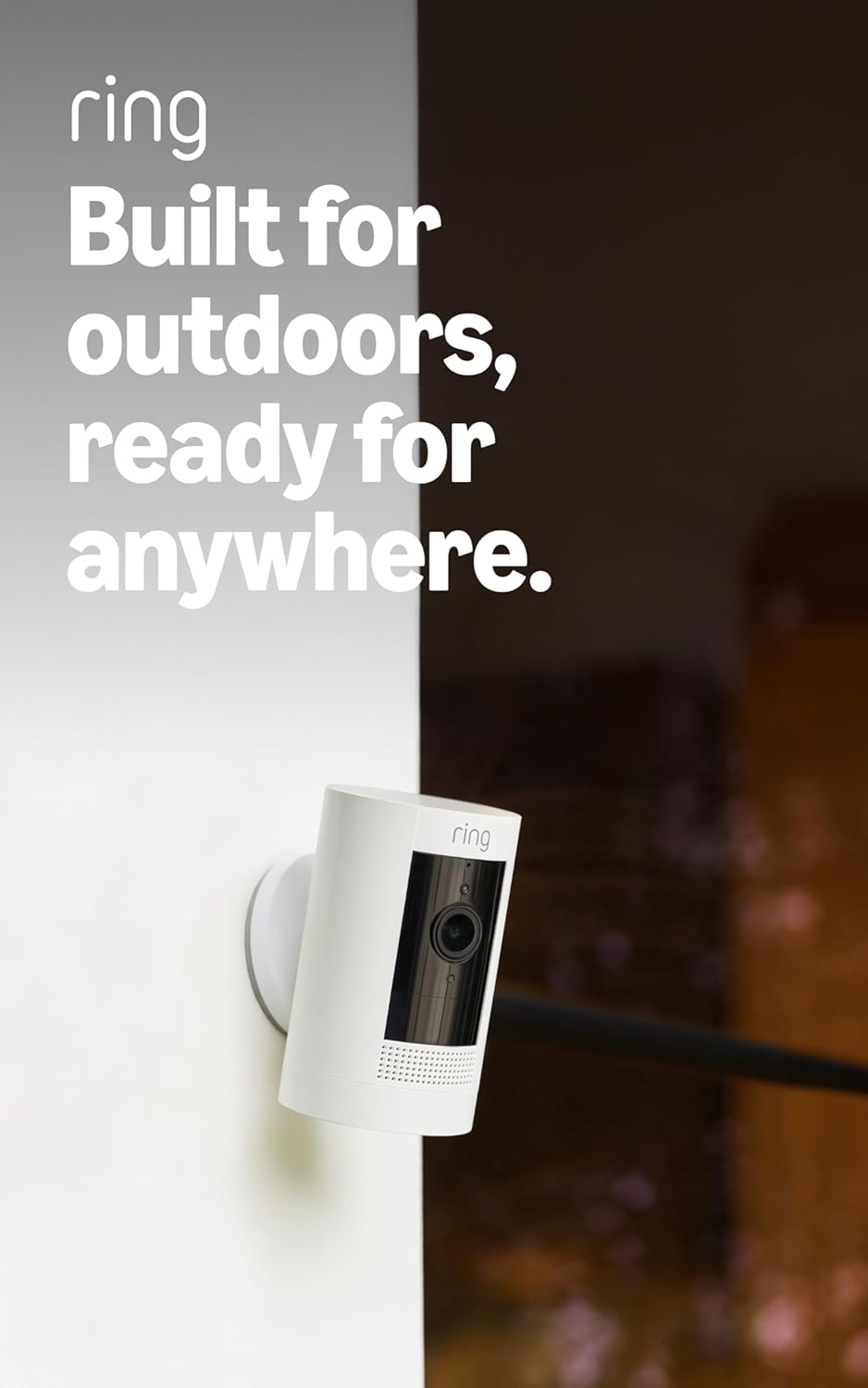
Ring Outdoor Cam (Stick Up Cam), Weather-resistant home o...
Ring Outdoor Cam (Stick Up Cam) | Weather-Resistant Outdo...
As an Amazon Associate we earn from qualifying purchases.
Official Manufacturer Manual
Ring provides official product documentation through their online manual rather than downloadable PDF. Access setup guides, troubleshooting steps, and product specifications for your Ring Indoor Cam.
Source: support.ring.com
Need More Help? Ring Support
Note: The contact information below connects you directly to Ring's official customer support team, not Trunetto. They can help with warranty claims, device replacements, and advanced technical issues.
How Does Ring Compare?
Before replacing your Ring device, see how it stacks up against alternatives in our full comparison guides.


