

Why Won't My Ring Indoor Cam Gen 2 Save My Motion Zones?
- Ring app not successfully pushing zone config to camera
- Camera firmware version not supporting custom zone saving
- Ring account sync failure not persisting zone to cloud
Problem Description
Your Ring Indoor Cam Gen 2 motion zones revert to the default full-frame zone after you save custom zones in the Ring app. Custom zones allow you to exclude areas like TVs or windows to reduce false alerts but the settings do not persist after the app is closed or the camera is power cycled. Zone save failures are caused by the Ring app not successfully syncing the zone configuration to the camera firmware or account settings.
Why This Happens in Real Homes
Motion zones not saving on the Gen 2 is the familiar push-to-camera failure: the app isn't successfully sending the zone config, often because of a firmware mismatch or a weak connection during the save.
Start by updating the camera firmware and the app, confirming the camera is solidly online, then redraw and save the zone. Force-closing the app to clear stale data before saving helps; a marginal signal at the camera is the usual reason zones silently revert.
Symptoms
- Custom motion zones disappear after saving and reopening app
- Zones appear saved in app but camera triggers from excluded areas
- Motion zone configuration reverts to all zones active after reboot
- Saved zones work briefly then reset overnight
- Zone settings show correctly but alerts still come from excluded regions
- Multiple zone profiles set but camera always uses default zone
Recognize these? Here's what usually causes it.
Common Causes
- Ring app not successfully pushing zone config to camera
- Camera firmware version not supporting custom zone saving
- Ring account sync failure not persisting zone to cloud
- App cache displaying stale zone configuration
- Camera went offline during zone save preventing cloud write
- Zone editor on older app version incompatible with Gen 2 firmware
Most fixes happen in the first 3 steps.
Do not exclude the entire camera frame with motion zones as a way to silence a noisy camera. A fully excluded zone still records motion events but never alerts, creating a gap in your security coverage without you realising.
Step-by-Step Solution
Update Ring App Before Editing Zones
Open the App Store or Google Play and update the Ring app to the latest version. The Ring Indoor Cam Gen 2 zone editor was updated in a specific app version to support the camera's firmware zone saving API. Older app versions display the zone editor but send zone data in an incompatible format that the Gen 2 firmware rejects silently. After updating force close the app and reopen before accessing the motion zone settings.
Confirm Camera Is Online When Saving
Before editing motion zones check the camera status in the Ring app. The camera must show as Online with a good WiFi signal. Tap the camera live view to confirm you have a live connection. Save your motion zones while the live view is active. This confirms the app has a direct channel to push the zone configuration immediately rather than queuing it for when the camera reconnects.
Force Close App and Verify Zone Persistence
After saving your motion zones force close the Ring app completely on your phone. Wait 10 seconds then reopen it and navigate back to the Indoor Cam Gen 2 motion zone settings. If the zones you drew are still displayed the save was successful. If the zones reverted to default the cloud sync failed. Repeat the save process with the camera in live view and force close the app again to verify persistence.
Restart the Camera Then Configure Zones
In the Ring app go to the Indoor Cam device settings then Device Health then Restart Device. After the camera reboots and shows online wait 2 minutes then configure your motion zones. Restarting the camera clears any temporary firmware state that may be preventing zone writes. Configure zones immediately after the restart while the camera is freshly initialised.
Clear App Cache on Android
On Android go to Settings then Apps then Ring then Storage then Clear Cache. This removes the locally cached zone configuration data that the app displays. After clearing cache reopen Ring and sign in. Now configure the motion zones fresh without any cached data influencing the display. This resolves cases where the app shows old zone configurations despite successful cloud saves because it is reading from cache rather than the live cloud state.
Quick Solutions
Still having issues? This is usually the deeper cause below.
If the sensor still misses events after repositioning, check whether a scheduled 'home' or 'away' mode is overriding the sensitivity setting silently.
Take a screenshot of your saved motion zone configuration after verifying it persists. If zones reset again you can refer to the screenshot to quickly recreate the exact zone layout without having to reconfigure from memory.
This issue almost always looks more complex than it is — the majority of cases trace back to a single setting, a stale credential, or a default that shipped wrong.
- Ring app not successfully pushing zone config to camera
- Camera firmware version not supporting custom zone saving
- Ring account sync failure not persisting zone to cloud
- App cache displaying stale zone configuration
- Camera went offline during zone save preventing cloud write
Before you go — try one of these (they fix most cases).
Most popular upgrades chosen by Ring Indoor Cam Gen 2 owners.

4 Channel 360° Dash Cam Front Rear Inside & Left Right,4K...
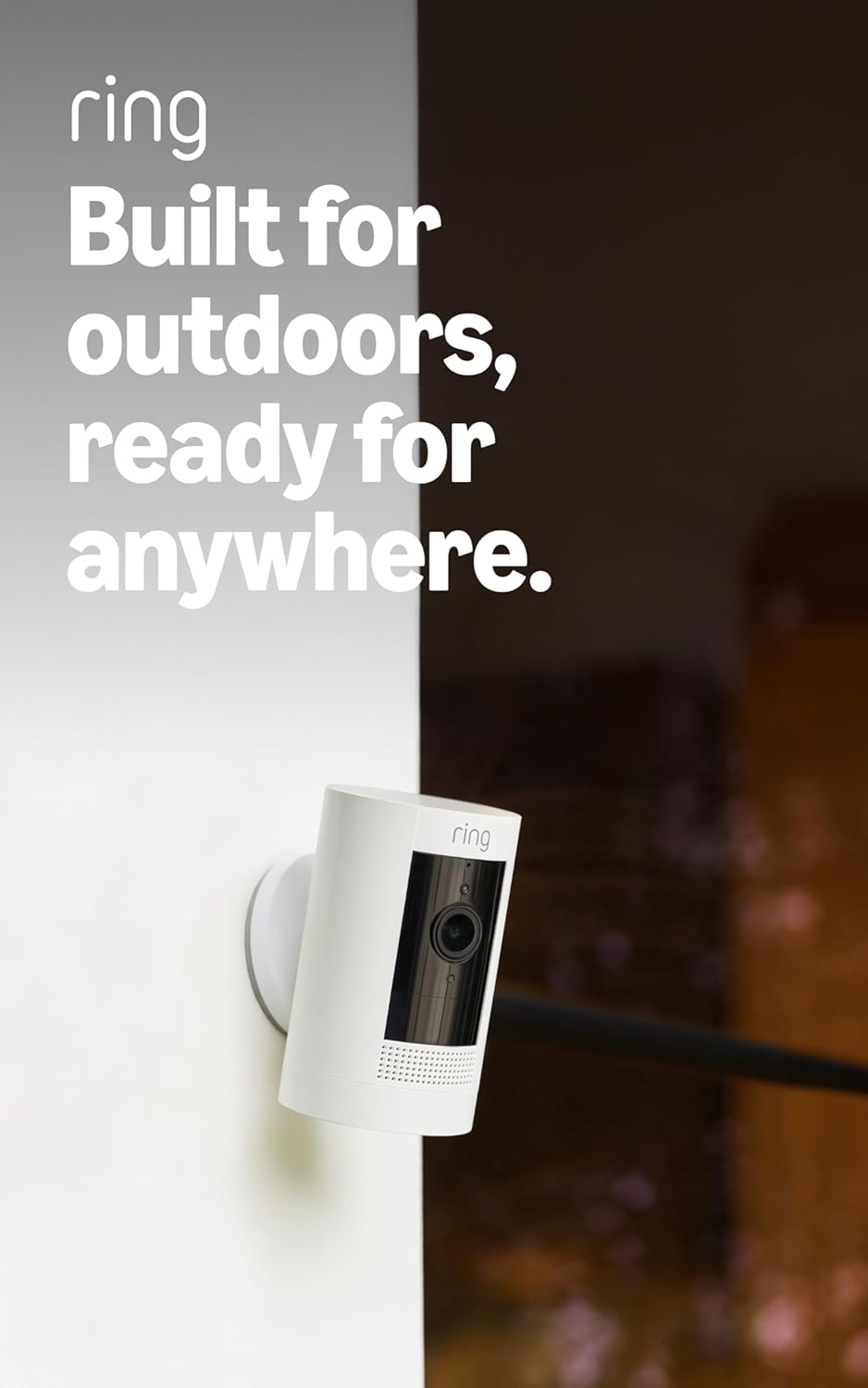
Ring Outdoor Cam (Stick Up Cam), Weather-resistant home o...
Ring Outdoor Cam (Stick Up Cam) | Weather-Resistant Outdo...
As an Amazon Associate we earn from qualifying purchases.
Official Manufacturer Manual
Ring provides official product documentation through their online manual rather than downloadable PDF. Access setup guides, troubleshooting steps, and product specifications for your Ring Indoor Cam Gen 2.
Source: support.ring.com
Need More Help? Ring Support
Note: The contact information below connects you directly to Ring's official customer support team, not Trunetto. They can help with warranty claims, device replacements, and advanced technical issues.
How Does Ring Compare?
Before replacing your Ring device, see how it stacks up against alternatives in our full comparison guides.
Accessories owners commonly pair with Ring Indoor Cam Gen 2.

SANDISK 64GB Extreme microSDXC UHS-I Memory Card with Ada...

SANDISK 128GB Ultra microSDXC UHS-I Memory Card with Adap...

SANDISK 64GB Ultra microSDXC UHS-I Memory Card with Adapt...
As an Amazon Associate we earn from qualifying purchases.


