

Why Is My Ring Indoor Cam Not Recording Motion Events?
- Incorrect motion detection settings
- Poor Wi-Fi signal strength
- Ring Protect Plan expired
Problem Description
Your Ring Indoor Cam is failing to record motion events or send alerts, leading to missed security footage and notifications. This can be due to incorrect settings, connectivity issues, or subscription problems.
Why This Happens in Real Homes
Not recording motion comes down to motion settings, WiFi signal, or — for saved clips — Ring Protect. Recording to the cloud requires an active plan, so alerts without recordings usually means the subscription lapsed.
Start by confirming motion detection is on with adequate sensitivity and zones, then check the signal is strong enough to upload. If you get notifications but no saved video, renew Ring Protect — that's what stores the clips.
Symptoms
- No motion alerts received
- Event history is empty or incomplete
- Live View works fine, but no recordings
- Motion detection settings appear correct
- Camera shows offline in Ring app
- Happens after power outage
Recognize these? Here's what usually causes it.
Common Causes
- Incorrect motion detection settings
- Poor Wi-Fi signal strength
- Ring Protect Plan expired
- Outdated firmware
- Physical obstruction of camera view
- Power interruption
Most fixes happen in the first 3 steps.
If your Ring Indoor Cam is powered by a USB cable, ensure the cable and power adapter are not damaged, as inconsistent power can lead to unreliable motion detection.
Step-by-Step Solution
Adjust Motion Detection Settings
Open the Ring app, go to your Indoor Cam, and tap "Motion Settings". Make sure "Motion Detection" is enabled. Adjust "Motion Sensitivity" to a higher level if needed. Verify that "Motion Zones" are correctly drawn to cover the areas you want to monitor and exclude irrelevant areas. Make sure "People Only Mode" is not preventing other motion types.
Improve Wi-Fi Signal Strength
A weak Wi-Fi connection can delay or prevent motion events from being recorded and uploaded to the cloud. In the Ring app, check your camera\'s "Device Health" for RSSI signal strength. If it\'s poor (e.g., -60 or worse), move your router closer or consider a Wi-Fi extender like Ring Chime Pro.
Check Ring Protect Plan Subscription Status
Ring cameras require an active Ring Protect Plan subscription to record and save motion events to the cloud. Without a subscription, you may only receive notifications or have limited Live View capabilities. Verify your subscription status in the Ring app or on ring.com.
Update Camera Firmware
Make sure your Ring app is up to date, as firmware updates for your Indoor Cam are often pushed automatically through the app and can include improvements to motion detection and overall performance. If an update is pending, make sure your camera has a stable connection to allow it to complete.
Clear Physical Obstructions
Inspect the camera\'s field of view for any physical obstructions like furniture, plants, or curtains that might be blocking the camera lens or interfering with its ability to detect motion. Even small obstructions can impact accuracy. Clean the lens if it\'s dirty.
Quick Solutions
Still having issues? This is usually the deeper cause below.
If the sensor still misses events after repositioning, check whether a scheduled 'home' or 'away' mode is overriding the sensitivity setting silently.
For optimal motion detection, position your Ring Indoor Cam to look across, rather than directly into, areas where motion is expected. This allows the PIR sensor to detect motion more effectively.
This issue almost always looks more complex than it is — the majority of cases trace back to a single setting, a stale credential, or a default that shipped wrong.
- Incorrect motion detection settings
- Poor Wi-Fi signal strength
- Ring Protect Plan expired
- Outdated firmware
- Physical obstruction of camera view
Before you go — try one of these (they fix most cases).
Most popular upgrades chosen by Ring Indoor Cam owners.

4 Channel 360° Dash Cam Front Rear Inside & Left Right,4K...
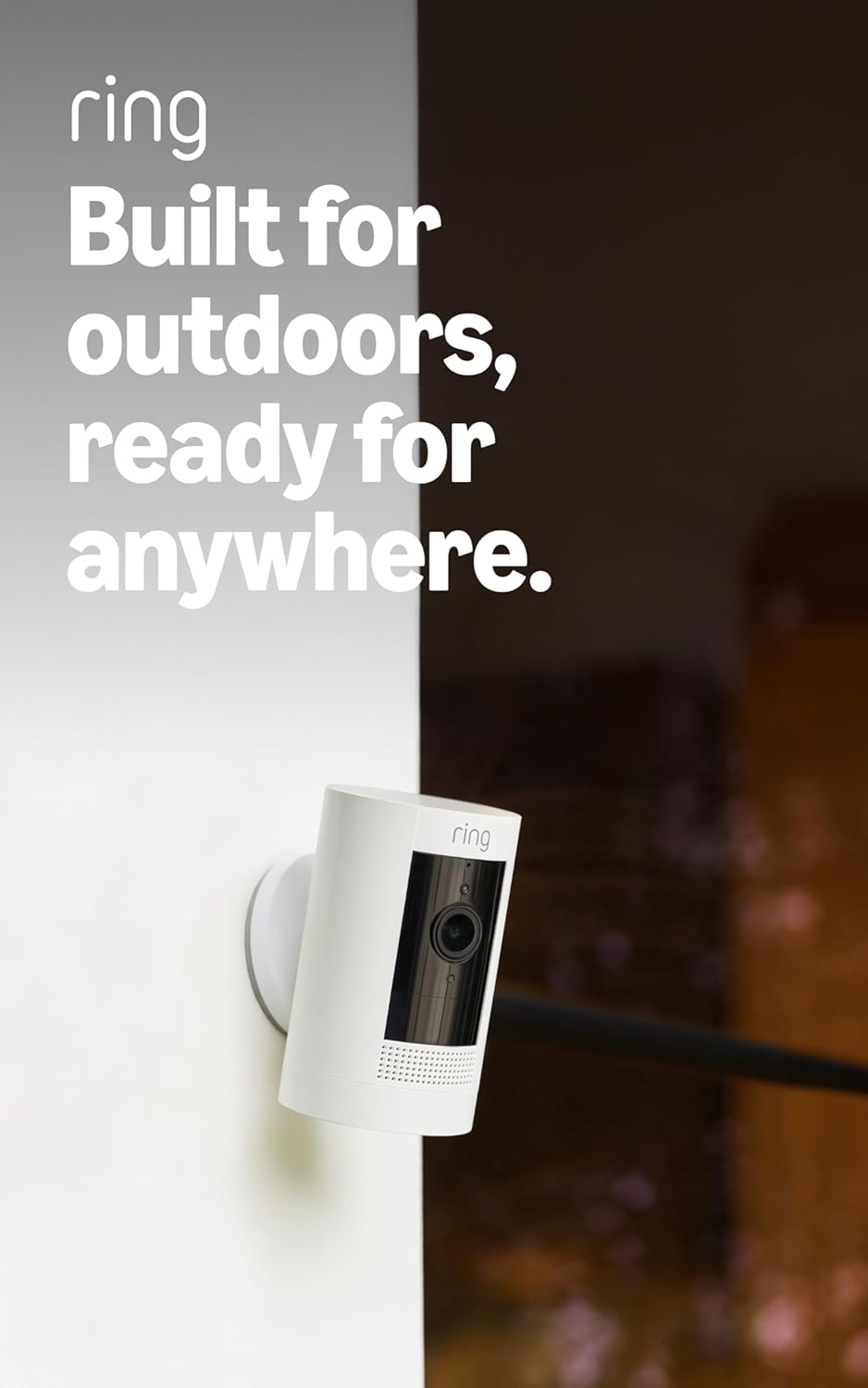
Ring Outdoor Cam (Stick Up Cam), Weather-resistant home o...
Ring Outdoor Cam (Stick Up Cam) | Weather-Resistant Outdo...
As an Amazon Associate we earn from qualifying purchases.
Official Manufacturer Manual
Ring provides official product documentation through their online manual rather than downloadable PDF. Access setup guides, troubleshooting steps, and product specifications for your Ring Indoor Cam.
Source: support.ring.com
Need More Help? Ring Support
Note: The contact information below connects you directly to Ring's official customer support team, not Trunetto. They can help with warranty claims, device replacements, and advanced technical issues.
How Does Ring Compare?
Before replacing your Ring device, see how it stacks up against alternatives in our full comparison guides.
Accessories owners commonly pair with Ring Indoor Cam.

SANDISK 64GB Extreme microSDXC UHS-I Memory Card with Ada...

SANDISK 128GB Ultra microSDXC UHS-I Memory Card with Adap...

SANDISK 64GB Ultra microSDXC UHS-I Memory Card with Adapt...
As an Amazon Associate we earn from qualifying purchases.


