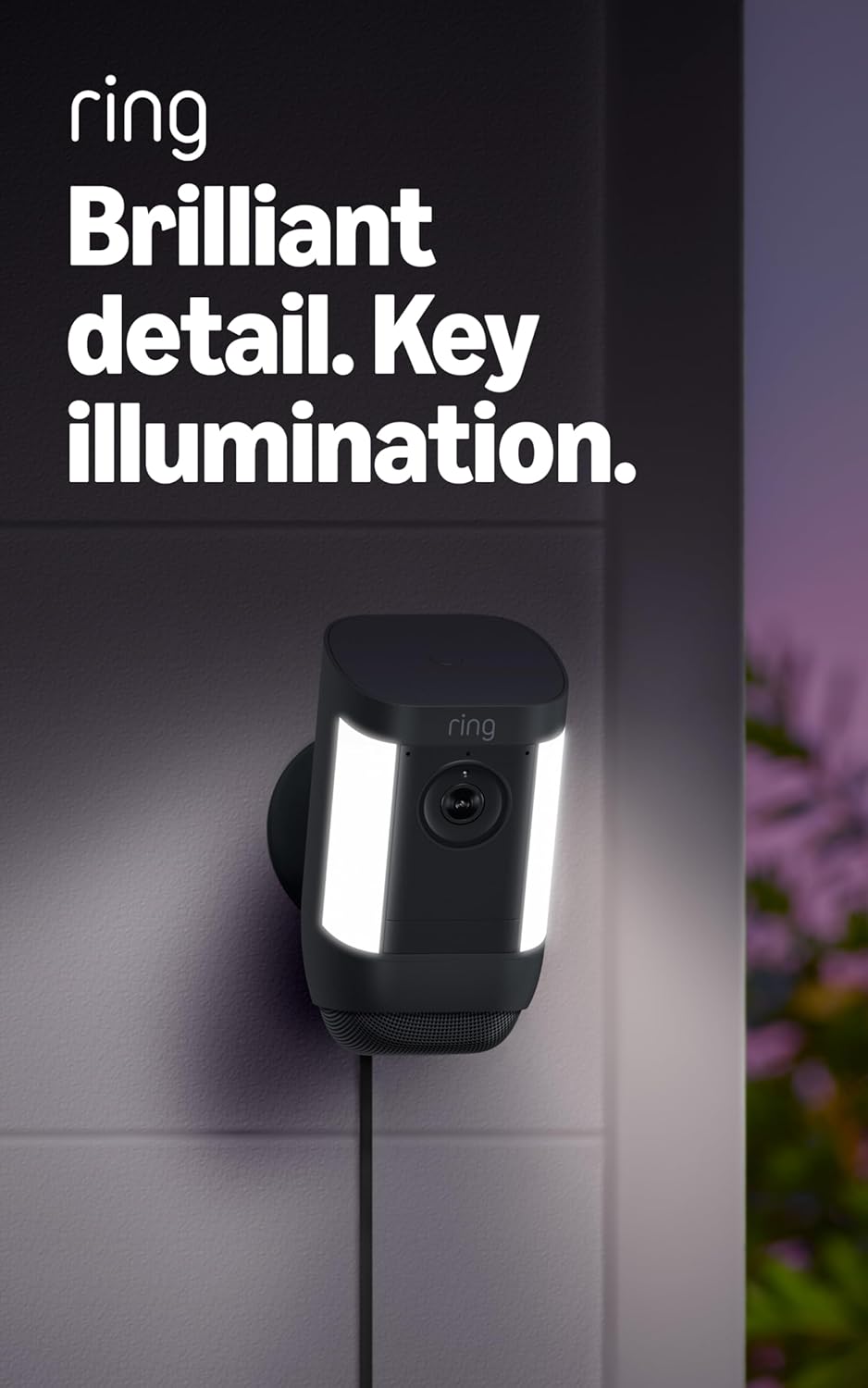
Why Won't My Ring Spotlight Cam Motion Zones Work?
- Motion zone too broad, catching the street/yard
- Sensitivity mismatched to the zone
- Zone not saved (camera offline or app cache)
Problem Description
You're setting up or troubleshooting motion zones on your Ring Spotlight Cam — either getting too many alerts, missing motion, or zones that won't save. Motion zones tell the camera which parts of its view to watch, so problems usually come down to zones drawn too broadly, sensitivity mismatched to the zone, or the zone not saving because the camera was offline during the change.
Why This Happens in Real Homes
Motion zones are how you stop a Spotlight Cam from alerting on every passing car — you draw the parts of the view it should watch and leave out the street, sidewalk, and swaying trees. Most zone complaints are a zone drawn too wide, or sensitivity that doesn't match it.
Start by tightening the zone to the walkway or yard you actually care about and matching sensitivity, then save with the camera solidly online (offline or stale-cache saves are why zones sometimes revert). If you still get too much, People Only Mode filters out non-person motion, though it will also ignore packages and vehicles.
Symptoms
- Too many motion alerts
- Missing motion in an area
- Zones will not save
- Alerts from the street or trees
- Zone covers too much
- People Only Mode filtering wanted motion
- Zones reset after saving
- Sensitivity feels wrong
Recognize these? Here's what usually causes it.
Common Causes
- Motion zone too broad, catching the street/yard
- Sensitivity mismatched to the zone
- Zone not saved (camera offline or app cache)
- No zone excluding traffic or foliage
- People Only Mode ignoring non-person motion
- Camera aimed to include distractions
- Firmware out of date
- Zone drawn but not applied
Most fixes happen in the first 3 steps.
Security cameras should be installed at least 8 feet high to prevent tampering. Check local laws regarding recording audio and video. Never aim cameras at neighboring private property. Outdoor cameras should be rated IP65 or higher for weather resistance.
Step-by-Step Solution
Access motion zone settings
In the Ring app, select the Spotlight Cam and go to Device Settings, then Motion Settings. Tap Motion Zones to see the camera view with adjustable zone overlays. You can create up to three customizable zones. Each zone can be toggled on or off independently. Only motion within active zones triggers recording and notifications.
Draw effective zones
For outdoor cameras, focus zones on entry points — walkways, driveways, and doors. Exclude the street, sidewalk, and areas with constant movement like trees and flags. Draw zones tightly around the areas you care about. The tighter the zone, the fewer false triggers you get. A well-zoned camera produces 5-10 meaningful events per day instead of 50+ false ones.
Adjust motion sensitivity separately from zones
Motion zones define where to detect motion. Sensitivity defines how much motion is needed to trigger. After setting zones, adjust the sensitivity slider. Start at the midpoint and evaluate for a few days. If you miss events, increase sensitivity. If you get too many false triggers from within the zones (shadows, small animals), decrease it.
Configure light zones separately
The Spotlight Cam has separate zone settings for its spotlight lights. The light zones can be wider than the camera zones — you may want the spotlight to illuminate the whole driveway while the camera only records when someone approaches the door. Check Light Settings for the light-specific zone controls.
Test and adjust seasonally
After setting zones, walk through each one while monitoring the Ring app for alerts. Verify triggers happen only where expected. Recheck zones seasonally — summer tree growth can enter zones and cause false triggers, winter sun angle changes create moving shadows that trigger zones differently, and holiday decorations (inflatable figures, wind-blown ornaments) cause constant motion in zones.
Quick Solutions
Still having issues? This is usually the deeper cause below.
If the sensor still misses events after repositioning, check whether a scheduled 'home' or 'away' mode is overriding the sensitivity setting silently.
Set up activity zones to monitor only the areas that matter like your front porch and driveway and exclude the street. This dramatically reduces false alerts while ensuring you never miss an actual event at your property.
This issue almost always looks more complex than it is — the majority of cases trace back to a single setting, a stale credential, or a default that shipped wrong.
- Motion zone too broad, catching the street/yard
- Sensitivity mismatched to the zone
- Zone not saved (camera offline or app cache)
- No zone excluding traffic or foliage
- People Only Mode ignoring non-person motion
Before you go — try one of these (they fix most cases).
Most popular upgrades chosen by Ring Spotlight Cam owners.

4 Channel 360° Dash Cam Front Rear Inside & Left Right,4K...
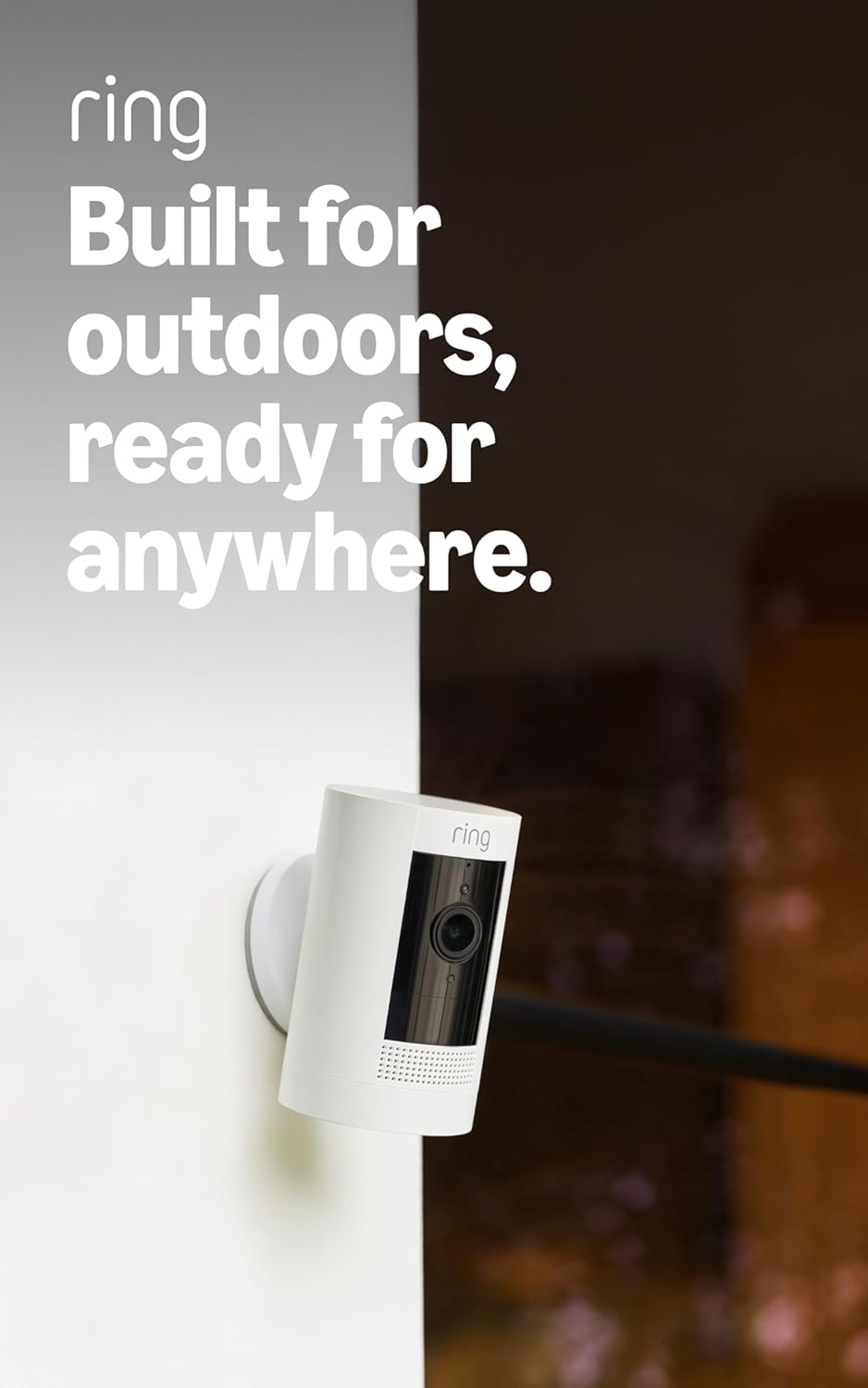
Ring Outdoor Cam (Stick Up Cam), Weather-resistant home o...
Ring Outdoor Cam (Stick Up Cam) | Weather-Resistant Outdo...
As an Amazon Associate we earn from qualifying purchases.
Official Manufacturer Manual
Ring provides official product documentation through their online manual rather than downloadable PDF. Access setup guides, troubleshooting steps, and product specifications for your Ring Spotlight Cam.
Source: ring.com
Need More Help? Ring Support
Note: The contact information below connects you directly to Ring's official customer support team, not Trunetto. They can help with warranty claims, device replacements, and advanced technical issues.
How Does Ring Compare?
Before replacing your Ring device, see how it stacks up against alternatives in our full comparison guides.
Accessories owners commonly pair with Ring Spotlight Cam.

SANDISK 64GB Extreme microSDXC UHS-I Memory Card with Ada...

SANDISK 128GB Ultra microSDXC UHS-I Memory Card with Adap...

SANDISK 64GB Ultra microSDXC UHS-I Memory Card with Adapt...
As an Amazon Associate we earn from qualifying purchases.