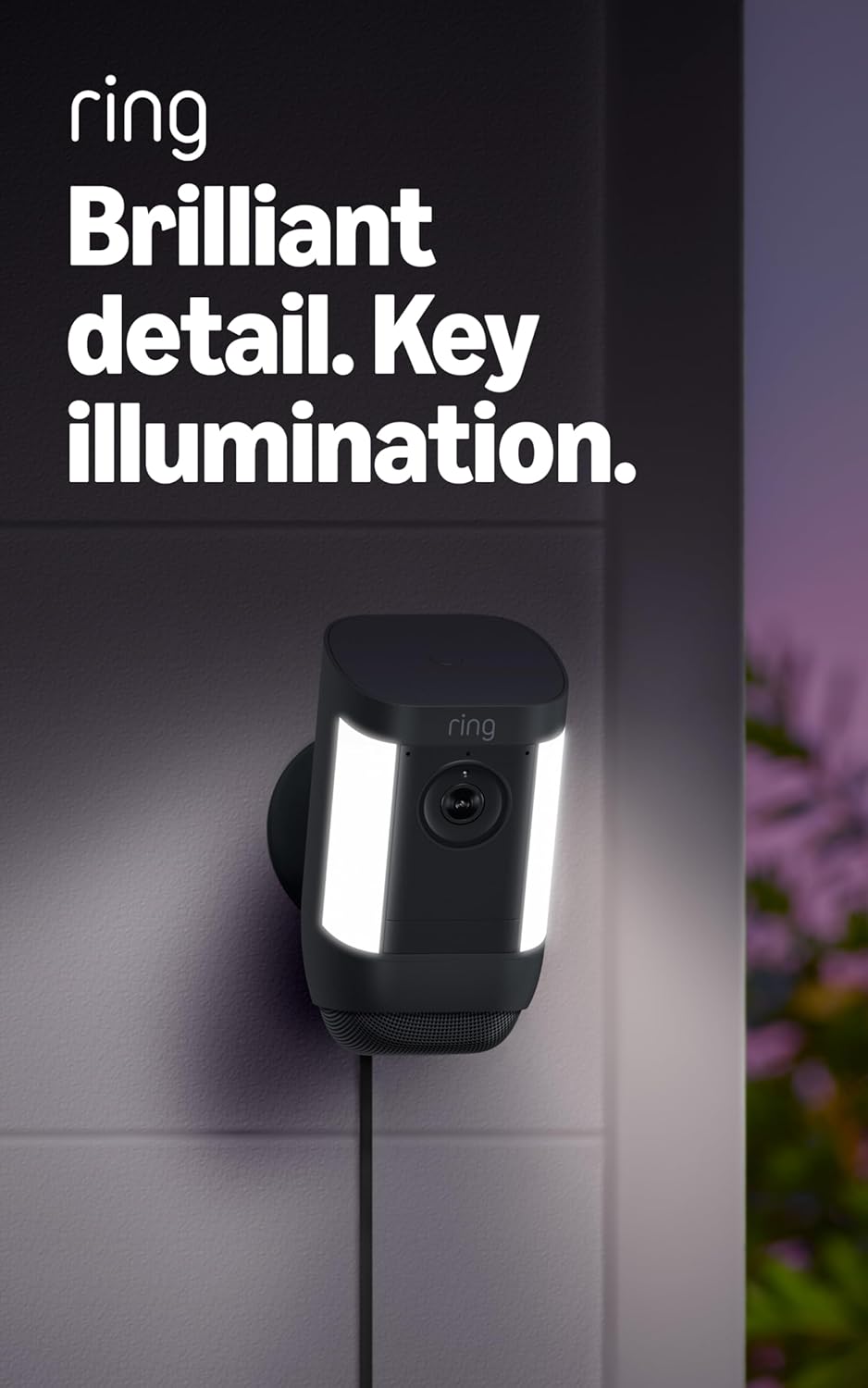
Why Won't My Ring Spotlight Cam Motion Zones Work?
- Zones not saved properly
- Motion sensitivity mismatch
- People Only mode issues
Problem Description
Your Ring Spotlight Cam has stopped working properly or is malfunctioning. The Spotlight Cam is not performing its core functions as expected, which disrupts your smart home routine and leaves you without the automation and control features you depend on. Specifically, the issue involves motion zones not working. The steps below walk you through diagnosing the root cause and applying proven fixes so your Spotlight Cam works reliably again.
Why This Happens in Real Homes
Motion-zone problems on the Spotlight Cam are usually zones not saving properly, a sensitivity mismatch, or People Only Mode filtering out the motion you wanted. Zones and detection modes interact.
Start by redrawing and saving the zone with the camera solidly online (force-close the app first to clear stale data), then align sensitivity to the area. If People Only Mode is on, it deliberately ignores non-person motion — turn it off if you want all motion, or keep it to cut false alerts.
Symptoms
- Alerts for motion outside drawn zones
- Missing motion inside zones
- Zones keep resetting
- People walk through without triggering
- Animals trigger but people don't
Recognize these? Here's what usually causes it.
Common Causes
- Zones not saved properly
- Motion sensitivity mismatch
- People Only mode issues
- Camera angle changed
- Firmware glitch
Most fixes happen in the first 3 steps.
Draw zones slightly larger than needed - the detection boundary is approximate.
Tools & Requirements
These tools will help you complete this fix.

Clean microfiber cloth
MR.SIGA Microfiber Cleaning Cloth,Pack of 12,Size:12...

Ethernet cable
Jadaol Cat 6 Ethernet Cable 25 ft, 10Gbps Support Ca...

Level
9 Inch Torpedo Level Magnetic, Shock-Proof Small Lev...

Power adapter
JcBlaon Outlet Extender Surge Protector - 6 Outlet S...

Replacement batteries
Duracell Coppertop Double AA Batteries with Power Bo...
As an Amazon Associate we earn from qualifying purchases.
Step-by-Step Solution
Verify motion zones are properly configured
Open the Ring app, select the Spotlight Cam, go to Device Settings then Motion Settings. Check the motion zones. If no zones are drawn, the camera monitors the entire field of view — which often leads to excessive triggers. Draw zones that cover only the areas you need (driveway, walkway, doorstep). Exclude the street, sidewalk, and any areas with trees or bushes that move in the wind.
Fix zones that do not seem to work
If you have drawn zones but still get triggers from outside them, the issue is usually that the PIR sensor detects heat in a wider area than the zone overlay suggests. Motion zones on Ring cameras are software overlays applied to the camera image, but the hardware PIR sensor detects heat in its own cone that may extend beyond your drawn zone. Reduce overall motion sensitivity to compensate.
Adjust sensitivity for the light and camera separately
The Spotlight Cam has separate sensitivity settings for the spotlight lights and the camera recording. You may want the spotlight to trigger broadly (wide zones, high sensitivity) for illumination but the camera to record narrowly (tight zones, lower sensitivity) to avoid unnecessary clips. Check both settings independently under Motion Settings and Light Settings.
Handle false triggers from specific sources
Common false trigger sources: headlights from passing cars (the heat signature triggers PIR), direct sunlight heating surfaces in the zone, HVAC exhaust vents blowing warm air, and animals. For car headlights, angle the camera slightly downward so the street is at the top edge of the frame and exclude that area from zones. For HVAC, draw the zone to exclude the vent area.
Reset and reconfigure if zones behave erratically
If motion zones seem to trigger inconsistently or ignore settings, delete all existing zones and recreate them. In Motion Settings, remove each zone, save, then draw new zones from scratch. Occasionally, zone data can become corrupted after app or firmware updates. Also make sure both the Ring app and camera firmware are up to date — motion zone bugs have been fixed in past updates.
Quick Solutions
Still having issues? This is usually the deeper cause below.
If the sensor still misses events after repositioning, check whether a scheduled 'home' or 'away' mode is overriding the sensitivity setting silently.
Ring Spotlight Cam has separate zones for motion detection and light activation - configure both for best results.
This issue almost always looks more complex than it is — the majority of cases trace back to a single setting, a stale credential, or a default that shipped wrong.
- Zones not saved properly
- Motion sensitivity mismatch
- People Only mode issues
- Camera angle changed
- Firmware glitch
Before you go — try one of these (they fix most cases).
Most popular upgrades chosen by Ring Spotlight Cam owners.

4 Channel 360° Dash Cam Front Rear Inside & Left Right,4K...
Ring Outdoor Cam (Stick Up Cam), Weather-resistant home o...
Ring Outdoor Cam (Stick Up Cam) | Weather-Resistant Outdo...
As an Amazon Associate we earn from qualifying purchases.
Official Manufacturer Manual
Ring provides official product documentation through their online manual rather than downloadable PDF. Access setup guides, troubleshooting steps, and product specifications for your Ring Spotlight Cam.
Source: ring.com
Need More Help? Ring Support
Note: The contact information below connects you directly to Ring's official customer support team, not Trunetto. They can help with warranty claims, device replacements, and advanced technical issues.
How Does Ring Compare?
Before replacing your Ring device, see how it stacks up against alternatives in our full comparison guides.
Accessories owners commonly pair with Ring Spotlight Cam.

SANDISK 64GB Extreme microSDXC UHS-I Memory Card with Ada...

SANDISK 128GB Ultra microSDXC UHS-I Memory Card with Adap...

SANDISK 64GB Ultra microSDXC UHS-I Memory Card with Adapt...
As an Amazon Associate we earn from qualifying purchases.