

How Do I Set Up the Ring Stick Up Cam Plug-In?
- Switch-controlled outlet turned off
- USB-C cable or adapter faulty
- Adapter underpowered for the camera
Problem Description
Your plug-in Ring Stick Up Cam is having trouble — no power, dropping offline, or not responding. The plug-in version runs on constant USB-C power (no battery to fall back on), so a dead camera is usually the outlet, cable, or adapter, and connection drops are usually WiFi signal, rather than a hardware fault.
Why This Happens in Real Homes
The plug-in Stick Up Cam has no battery, so power problems are immediate and total — and the usual causes are mundane: a switch-controlled outlet with the switch off, a tripped outdoor GFCI, or a weak cable/adapter that can't supply enough current.
Start by confirming the outlet is live and not switch-controlled, then swap in a known-good USB-C cable and a proper adapter. If power's fine but it keeps dropping offline, that's WiFi — improve the 2.4GHz signal at its spot and stop band-steering from pushing it to 5GHz.
Symptoms
- Camera will not power on
- Drops offline repeatedly
- No live view
- Camera unresponsive
- Works then dies
- No motion alerts
- Will not reconnect after an outage
- Cable/adapter questions
Recognize these? Here's what usually causes it.
Common Causes
- Switch-controlled outlet turned off
- USB-C cable or adapter faulty
- Adapter underpowered for the camera
- Weak WiFi at the mounting spot
- Band-steering pushing it to 5GHz
- Router changed its IP
- GFCI outlet tripped outdoors
- Firmware out of date
Most fixes happen in the first 3 steps.
Security cameras should be installed at least 8 feet high to prevent tampering. Check local laws regarding recording audio and video. Never aim cameras at neighboring private property. Outdoor cameras should be rated IP65 or higher for weather resistance.
Tools & Requirements
These tools will help you complete this fix.

Clean microfiber cloth
MR.SIGA Microfiber Cleaning Cloth,Pack of 12,Size:12...

Ethernet cable
Jadaol Cat 6 Ethernet Cable 25 ft, 10Gbps Support Ca...

Level
9 Inch Torpedo Level Magnetic, Shock-Proof Small Lev...

Power adapter
JcBlaon Outlet Extender Surge Protector - 6 Outlet S...

Replacement batteries
Duracell Coppertop Double AA Batteries with Power Bo...
As an Amazon Associate we earn from qualifying purchases.
Step-by-Step Solution
Choose a power location
The Ring Stick Up Cam Plug-In requires a constant power source via a USB-C or barrel connector (depending on the generation). Place the camera within reach of an outdoor-rated outlet or run the power cable indoors through a window or wall. The included cable is about 6 feet long. For longer runs, use an outdoor-rated USB extension cable rated for continuous use.
Needed for this step
Jadaol Cat 6 Ethernet Cable 25 ft, 10Gbps Suppo...
This helps complete the fix you are currently reading.
$9.99Mount the camera
The Stick Up Cam Plug-In uses the same mounting system as the battery version. Attach the mount to a wall, ceiling, or flat surface using the included screws. For outdoor use, mount under an eave or overhang to protect the camera from direct rain, even though it is weather-resistant. Route the power cable neatly and secure it to the wall with cable clips to prevent it from being pulled loose or becoming a trip hazard.
Needed for this step
JcBlaon Outlet Extender Surge Protector - 6 Out...
This helps complete the fix you are currently reading.
$9.99Set up in the Ring app
Plug the camera in and wait for the status light. Open the Ring app, tap Set Up a Device, and select the Stick Up Cam. Scan the QR code on the camera bottom. Connect to your 2.4GHz WiFi network. Because the camera is wired for power, you do not need to worry about battery optimization — you can run it at maximum settings without battery drain concerns.
Configure settings for always-on power
Since the Plug-In version has continuous power, you can enable features that would drain a battery quickly: Snapshot Capture (takes periodic still images between motion events), maximum motion sensitivity, full-resolution video, longer clip lengths, and continuous live view. Enable all the features you want without the battery tradeoff — this is the main advantage of the wired version.
Set up linked devices and automations
Link the Stick Up Cam to other Ring devices. For example, when the Stick Up Cam detects motion, turn on a Ring Smart Light. Or when your Ring Doorbell rings, start recording on the Stick Up Cam that covers the interior hallway. Because the Plug-In cam is always powered and connected, it responds instantly to linked triggers without the wake-up delay that battery cameras have.
Quick Solutions
Still having issues? This is usually the deeper cause below.
If this comes back after following these steps, check whether a recent app or firmware update reset a default setting — the fix works, but the setting gets reverted silently.
Set up activity zones to monitor only the areas that matter like your front porch and driveway and exclude the street. This dramatically reduces false alerts while ensuring you never miss an actual event at your property.
Battery-related failures are almost always flagged too late — the device degrades silently for days before the app catches up to what's actually happening.
- Switch-controlled outlet turned off
- USB-C cable or adapter faulty
- Adapter underpowered for the camera
- Weak WiFi at the mounting spot
- Band-steering pushing it to 5GHz
Before you go — try one of these (they fix most cases).
Most popular upgrades chosen by Ring Stick Up Cam owners.
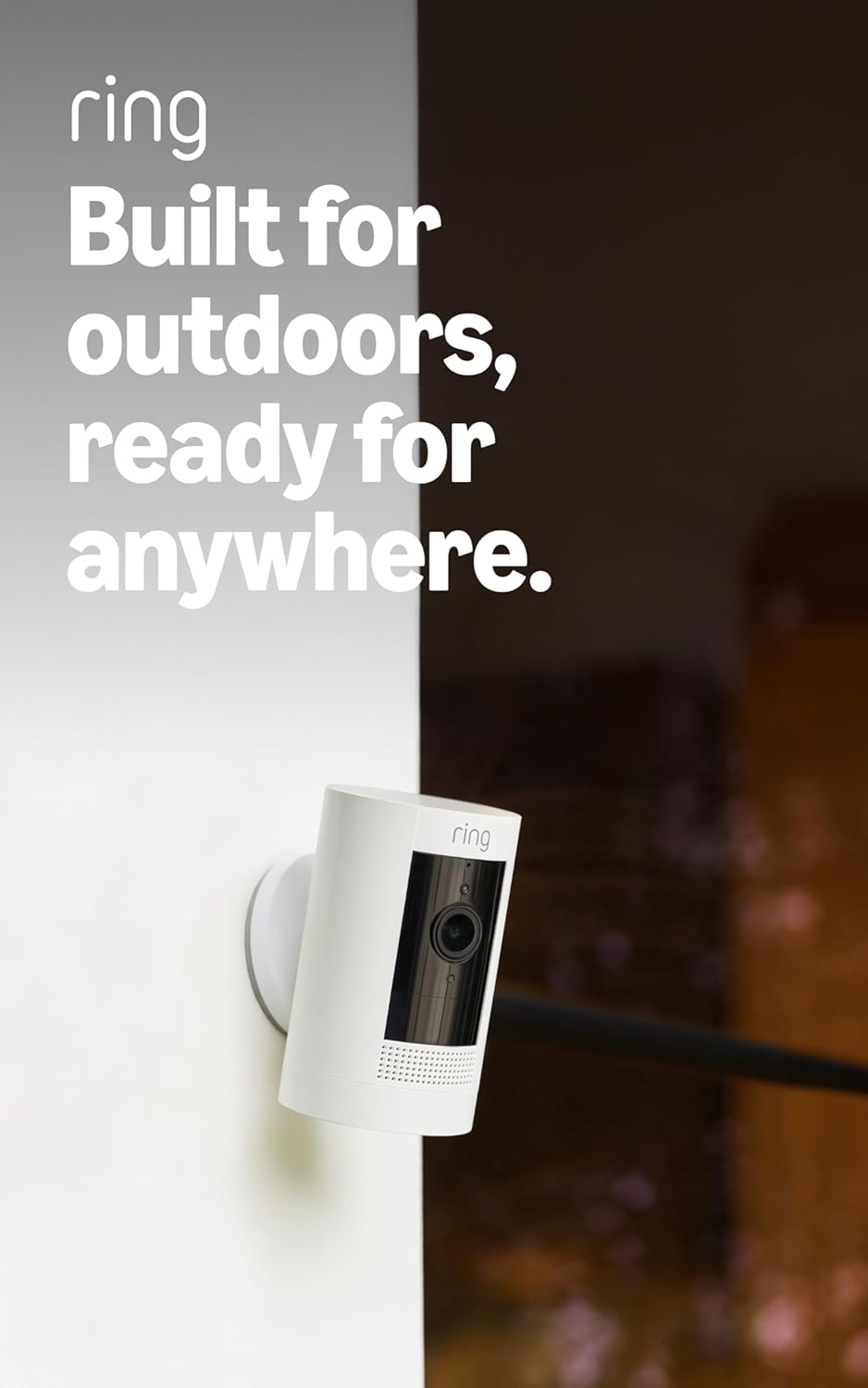
Ring Outdoor Cam (Stick Up Cam), Weather-resistant home o...
Ring Outdoor Cam (Stick Up Cam) | Weather-Resistant Outdo...

Ring Stick Up Cam Elite, Power over Ethernet HD Security ...
As an Amazon Associate we earn from qualifying purchases.
Official Manufacturer Manual
Ring provides official product documentation through their online manual rather than downloadable PDF. Access setup guides, troubleshooting steps, and product specifications for your Ring Stick Up Cam.
Source: support.ring.com
Need More Help? Ring Support
Note: The contact information below connects you directly to Ring's official customer support team, not Trunetto. They can help with warranty claims, device replacements, and advanced technical issues.
How Does Ring Compare?
Before replacing your Ring device, see how it stacks up against alternatives in our full comparison guides.
Accessories owners commonly pair with Ring Stick Up Cam.

SANDISK 64GB Extreme microSDXC UHS-I Memory Card with Ada...

SANDISK 128GB Ultra microSDXC UHS-I Memory Card with Adap...

SANDISK 64GB Ultra microSDXC UHS-I Memory Card with Adapt...
As an Amazon Associate we earn from qualifying purchases.


