

Why Is My Ring Stick Up Cam Pro Night Vision Flashing or Strobing
- IR light reflecting off nearby glass
- Color Night Vision switching modes rapidly
- Infrared passive sensor fighting Color mode
Problem Description
Ring Stick Up Cam Pro owners sometimes see a strobing or flashing effect at night. This guide covers IR reflection issues, Color Night Vision interaction, and firmware handling so your camera produces clean night footage.
Why This Happens in Real Homes
Flashing night vision on the Stick Up Cam Pro is usually IR reflecting off nearby glass or a bright surface, or Color Night Vision switching modes back and forth in borderline light — the camera keeps flipping between IR and color.
Start by aiming the camera away from windows, glass storm doors, and reflective walls that bounce the IR back, and give the scene a steady light level so it isn't hunting between night modes. Setting night vision to a fixed mode (rather than auto) stops the flip-flop in marginal lighting.
Symptoms
- Strobing visible only during night recording
- Color Night Vision recently enabled
- Nearby window or glass reflects into lens
- Flashing stops when IR disabled
- Issue appears on battery and wired models
- Software up to date but issue persists
Recognize these? Here's what usually causes it.
Common Causes
- IR light reflecting off nearby glass
- Color Night Vision switching modes rapidly
- Infrared passive sensor fighting Color mode
- Spider web or dust scattering IR output
- External light triggering auto exposure
- Firmware mishandling low-light transitions
Most fixes happen in the first 3 steps.
Do not shine flashlights or IR illuminators directly at the lens during testing. Excess IR can temporarily saturate the sensor and hide real issues.
Tools & Requirements
These tools will help you complete this fix.

microfiber cloth
BELLEMOND「Samurai Cloth」Japanese Microfiber Cleaning...

flashlight for inspection
Klein Tools RT250KIT Non-Contact Voltage Tester and ...
As an Amazon Associate we earn from qualifying purchases.
Step-by-Step Solution
Check for Reflective Surfaces
Walk to the camera position at dusk. Look through the camera field of view from the Ring app. Identify any glass, polished metal, or water surface reflecting infrared light back into the lens. Remove or reposition reflective items where possible.
Toggle Night Vision Mode
Open Ring app and locate night vision settings for the camera. Switch between standard IR and Color Night Vision. Leave it on the mode that produces steady footage. Rapid automatic switching between modes is a frequent cause of strobing in mixed-light environments.
Clean Lens and Housing
Use a microfiber cloth to gently clean the lens, the ambient light sensor, and any surrounding dust or spider webs. Silk strands catch IR in a way that looks like strobing on video. Clean housings prevent most strobing caused by fine debris.
Needed for this step
BELLEMOND「Samurai Cloth」Japanese Microfiber Cle...
This helps complete the fix you are currently reading.
$18.99Refine Motion Zones
Reduce sensitivity and tighten motion zones if the camera keeps triggering rapid exposure changes. Continuous motion retriggers can make IR pulse visible as flashes. Focus zones on actual walkways or entry points instead of full field of view.
Update and Reboot
Confirm the device firmware is current in the Ring app. Reboot the camera from settings. If strobing persists and reflective sources are ruled out, contact Ring support with a short video clip showing the behavior and the current firmware version from the device page.
Quick Solutions
Still having issues? This is usually the deeper cause below.
If this comes back after following these steps, check whether a recent app or firmware update reset a default setting — the fix works, but the setting gets reverted silently.
Dusk is the best time to audit your camera view for reflective surfaces. IR and ambient light combine in ways that reveal issues missed during daylight.
This issue almost always looks more complex than it is — the majority of cases trace back to a single setting, a stale credential, or a default that shipped wrong.
- IR light reflecting off nearby glass
- Color Night Vision switching modes rapidly
- Infrared passive sensor fighting Color mode
- Spider web or dust scattering IR output
- External light triggering auto exposure
Before you go — try one of these (they fix most cases).
Most popular upgrades chosen by Ring Stick Up Cam Pro owners.

4 Channel 360° Dash Cam Front Rear Inside & Left Right,4K...
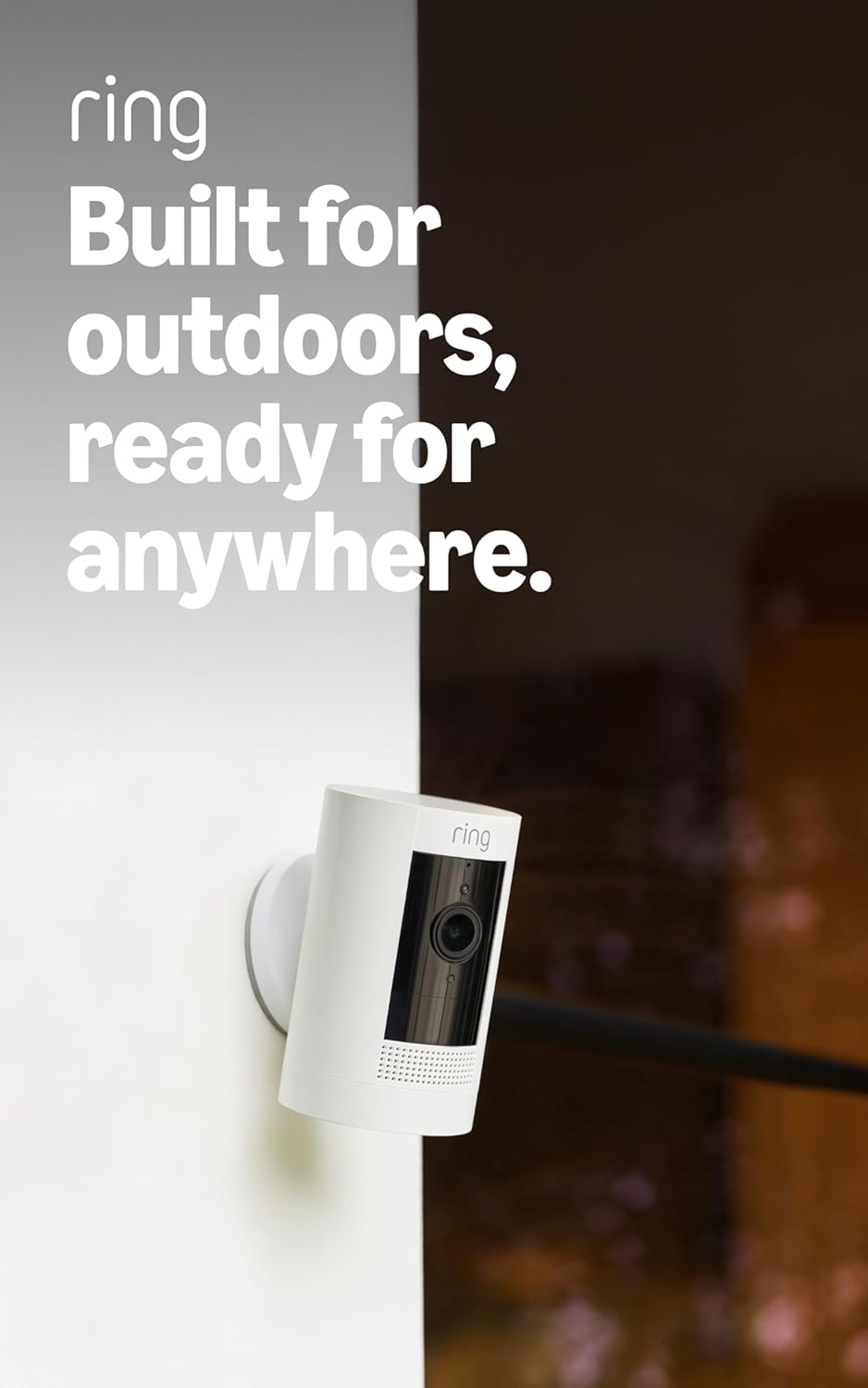
Ring Outdoor Cam (Stick Up Cam), Weather-resistant home o...
Ring Outdoor Cam (Stick Up Cam) | Weather-Resistant Outdo...
As an Amazon Associate we earn from qualifying purchases.
Official Manufacturer Manual
Ring provides official product documentation through their online manual rather than downloadable PDF. Access setup guides, troubleshooting steps, and product specifications for your Ring Stick Up Cam Pro.
Source: support.ring.com
Need More Help? Ring Support
Note: The contact information below connects you directly to Ring's official customer support team, not Trunetto. They can help with warranty claims, device replacements, and advanced technical issues.
How Does Ring Compare?
Before replacing your Ring device, see how it stacks up against alternatives in our full comparison guides.


