

Why Is My Ring Stick Up Cam Wired Not Getting Power After Install?
- Outlet is switch-controlled and the wall switch is currently off
- USB cable not fully seated at the micro-USB or USB-C port
- Power adapter failed or is not rated for the required wattage
Problem Description
Your Ring Stick Up Cam Wired shows no power after installation. The camera does not light up, does not appear in the Ring app, and the LED never activates. No power on a wired Ring camera after installation is caused by the USB power adapter not being plugged into a live outlet, the micro-USB or USB-C cable not being fully seated, or an incorrect outlet that is switch-controlled being used.
Symptoms
- Ring Stick Up Cam Wired shows no LED activity after plugging in
- Camera does not appear in Ring app after installation
- No white startup ring visible on camera front after connection
- Camera powers on briefly then loses power repeatedly
- USB cable feels loose at camera end when gently tugged
- Power adapter LED indicator is off after plugging into outlet
Recognize these? Here's what usually causes it.
Common Causes
- Outlet is switch-controlled and the wall switch is currently off
- USB cable not fully seated at the micro-USB or USB-C port
- Power adapter failed or is not rated for the required wattage
- Extension cord or power strip not delivering sufficient power
- Camera micro-USB port damaged during cable insertion
- Outlet GFCI has tripped cutting power to the connected socket
Most fixes happen in the first 3 steps.
Never modify the Ring power cable or attempt to hardwire the camera directly to house wiring. Ring wired cameras are designed for low-voltage USB power only.
Tools & Requirements
These tools will help you complete this fix.

Clean cloth
WHOOSH! Pro 16.9 fl oz Refillable TV Screen Cleaner ...

Replacement batteries
Energizer Ultimate Lithium AA Batteries, Long Lastin...

Screwdriver
STREBITO 155 in 1 Electric Screwdriver Set, Small El...
As an Amazon Associate we earn from qualifying purchases.
Step-by-Step Solution
Test the Power Outlet First
Before assuming the camera or cable is faulty test the outlet by plugging in a phone charger or lamp. If that device also has no power the outlet itself is the problem. Check for a wall switch nearby that controls the outlet. Many outdoor and garage outlets are switch-controlled. Also check the home electrical panel for a tripped breaker on the circuit. Look for any GFCI outlets in the room and press the reset button on each to restore power to any connected outlets.
Use the Original Ring Power Adapter
Ring Stick Up Cam Wired requires 5V DC at 1A minimum. Third-party adapters or phone chargers with lower output ratings may power the camera briefly but fail under load causing intermittent power loss. Use the white Ring power adapter that shipped inside the box. Inspect the barrel connector and USB cable for any kinks or damage. Replace only with a Ring-approved adapter if the original is lost.
Check USB Cable Connection at Camera
The micro-USB or USB-C port on Ring cameras can feel firmly inserted without being fully seated due to the rubber weatherproof gasket around the port. Remove the cable and reinsert it firmly pushing past the gasket until you feel the connector click. A partial connection delivers enough power for the LED to flicker briefly but not enough to fully boot the camera. After reseating the cable the startup light ring should appear within 5 seconds.
Inspect Camera Port for Damage
Using a flashlight examine the micro-USB or USB-C port on the camera for bent pins, debris, or corrosion. Inserting a cable at an angle can bend the tiny pins inside the port preventing electrical contact. If pins appear bent use a toothpick to gently straighten them then retry the cable. Do not use metal tools inside the port. If the port is visibly damaged contact Ring support for a replacement unit rather than attempting repair.
Needed for this step
Energizer Ultimate Lithium AA Batteries, Long L...
$83.98Try a Different Outlet and Cable
If the original outlet is live and the cable appears undamaged try plugging the camera into a completely different outlet using a different USB cable. This eliminates both the outlet and cable as variables simultaneously. If the camera powers on with a different outlet and cable combination then one of those two components in the original setup is faulty. Replace whichever component does not work with the known-good camera.
Quick Solutions
Still having issues? This is usually the deeper cause below.
If drain continues after replacing batteries, check the event history — a stuck-open sensor or rapid polling loop burns through batteries in days.
Install the Ring Stick Up Cam Wired near an always-on outlet not near switch-controlled outdoor sockets which are commonly found on patios and decks.
Battery-related failures are almost always flagged too late — the device degrades silently for days before the app catches up to what's actually happening.
- Outlet is switch-controlled and the wall switch is currently
- USB cable not fully seated at the micro-USB or
- Power adapter failed or is not rated for the
- Extension cord or power strip not delivering sufficient power
- Camera micro-USB port damaged during cable insertion
Before you go — try one of these (they fix most cases).
Most popular upgrades chosen by Ring Stick Up Cam Wired owners.

4 Channel 360° Dash Cam Front Rear Inside & Left Right,4K...
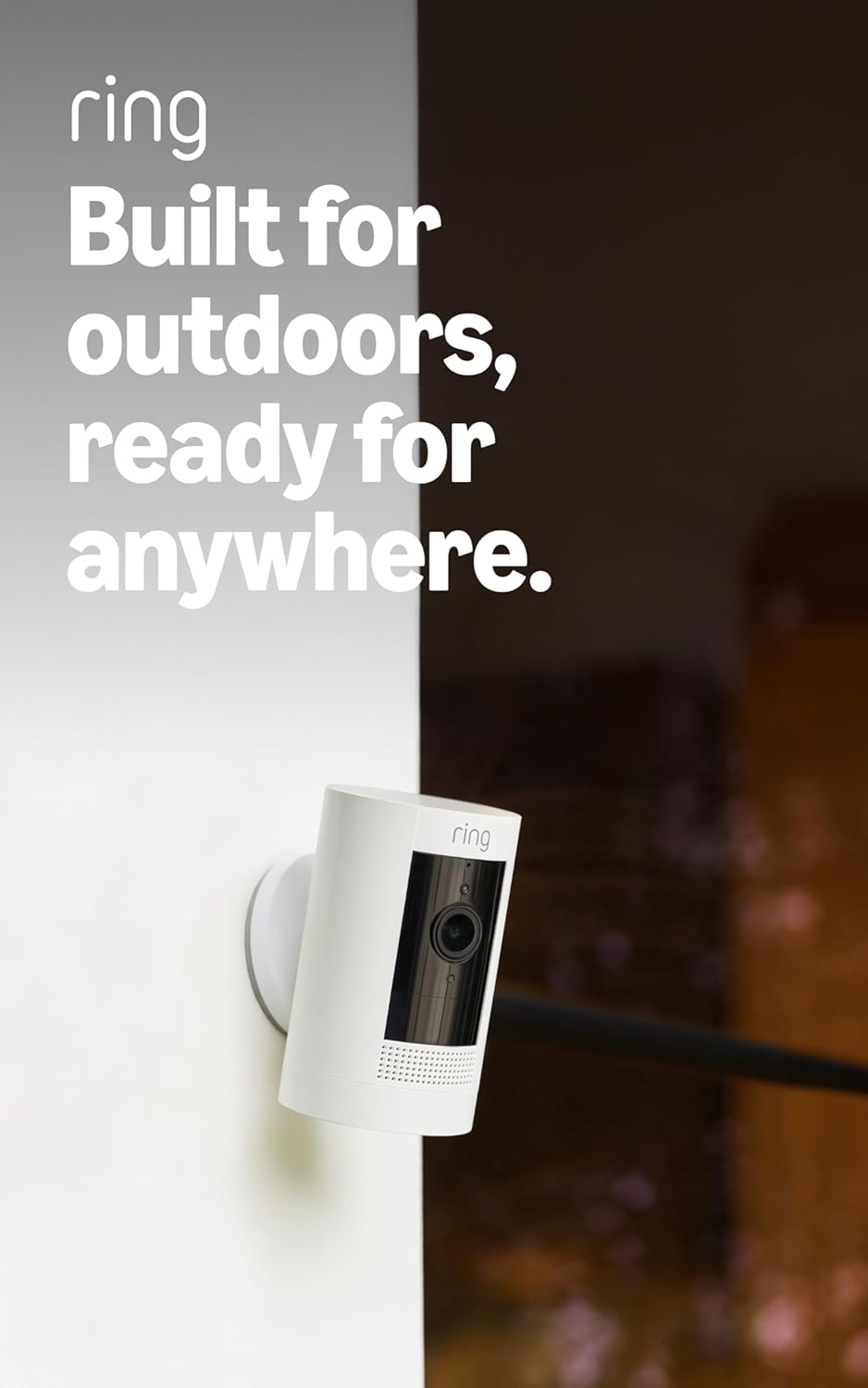
Ring Outdoor Cam (Stick Up Cam), Weather-resistant home o...
Ring Outdoor Cam (Stick Up Cam) | Weather-Resistant Outdo...
As an Amazon Associate we earn from qualifying purchases.
Official Manufacturer Manual
If you need the complete manufacturer documentation for advanced setup, wiring diagrams, or detailed specifications, you can download the official manual below. The manual includes full technical instructions directly from the manufacturer and may help if your issue requires deeper troubleshooting.
Download the Official Ring Stick Up Cam Wired ManualSource: ring.com
Need More Help? Ring Support
Note: The contact information below connects you directly to Ring's official customer support team, not Trunetto. They can help with warranty claims, device replacements, and advanced technical issues.
How Does Ring Compare?
Before replacing your Ring device, see how it stacks up against alternatives in our full comparison guides.


