

Why Won't Video Calling Work on My Echo Show?
- Calling/communications not set up
- Camera shutter closed or camera off
- Weak WiFi for video
Problem Description
Video calling on your Echo Show is not working — calls fail to connect, no video appears, or the other person can't see you. Calling and messaging must be enabled in the Alexa app for your account. The camera shutter on top of the Echo Show must be open (slid to reveal the camera). This guide covers enabling calling, camera access, and contact setup.
Why This Happens in Real Homes
Video calling on an Echo Show needs a few things aligned: Alexa Communications set up on the device, the camera enabled (shutter open), and the person you're calling reachable through Alexa calling on a compatible device or the app. A weak WiFi signal then makes the difference between a clear call and a dropped one.
Start by confirming calling is set up in the Communicate tab and the camera shutter is open, then check the contact is set up for Alexa calling too. For calls that connect but drop or look rough, improving the Echo's WiFi is the main fix — video is bandwidth-hungry.
Symptoms
- Calls will not connect
- No video
- Other person cannot see/hear
- Calls drop
- Camera not working
- Contact not reachable
- Drop In fails
- Poor call quality
Recognize these? Here's what usually causes it.
Common Causes
- Calling/communications not set up
- Camera shutter closed or camera off
- Weak WiFi for video
- Contact not set up for Alexa calling
- Mic/camera permissions off
- Both ends not on compatible devices/app
- Account/contact mismatch
- Firmware out of date
Most fixes happen in the first 3 steps.
Smart displays have always-on microphones and cameras. Use the physical camera shutter when privacy is needed. Review your voice and video call history periodically in the app privacy settings. Keep the display away from steam and grease which damage the screen.
Tools & Requirements
These tools will help you complete this fix.

Power adapter
JcBlaon Outlet Extender Surge Protector - 6 Outlet S...
As an Amazon Associate we earn from qualifying purchases.
Step-by-Step Solution
Check that calling and messaging is enabled
Open the Alexa app, go to the Communicate tab, and verify that calling and messaging is set up. If prompted, enter and verify your phone number. On the Echo Show device, go to Settings > Communication and make sure Calling & Messaging is turned on. If this is disabled, the device cannot make or receive any calls. Also check that Drop In permissions are set correctly if you want to receive Drop In calls from household members.
Test your internet connection
Video calls require at least 1 Mbps upload and download speed for stable video. Say "Alexa, what is my WiFi speed" or check in Settings > Network on the Echo Show. If the speed is low, move the Echo Show closer to your router or connect to 5GHz WiFi instead of 2.4GHz. Video calls on the Echo Show 5 use about 600 Kbps; the Echo Show 15 uses up to 1.5 Mbps for its higher-resolution camera.
Fix one-way audio or no audio
If you can see the other person but cannot hear them (or they cannot hear you), check the microphone toggle button on the Echo Show — if the light is red, the microphone is muted. Press the button to unmute. For the other direction, make sure the device volume is turned up. If audio works for Alexa commands but not for calls, restart the device and try calling again. Persistent one-way audio usually indicates a network issue — switch to a different WiFi band or restart your router.
Fix poor video quality or freezing
If the video is pixelated, laggy, or freezing, bandwidth is the most likely cause. Close other bandwidth-heavy activities on your network (streaming video on other devices, large downloads). On the Echo Show, the video call quality auto-adjusts based on available bandwidth — there is no manual quality setting. If video freezes while audio continues, the upload bandwidth is too low. A wired Ethernet connection (via a USB-to-Ethernet adapter on supported models) provides the most stable call quality.
Needed for this step
JcBlaon Outlet Extender Surge Protector - 6 Out...
This helps complete the fix you are currently reading.
$9.99Fix calls not connecting or dropping
If calls fail to connect, check that the person you are calling has also set up Alexa calling on their device or Alexa app. Both parties need calling enabled and verified phone numbers. If calls connect but drop after a few minutes, check for WiFi instability — the Echo Show may be switching between 2.4GHz and 5GHz bands mid-call. Lock it to one band in your router settings. If calls fail to specific contacts only, ask them to check their Do Not Disturb settings in the Alexa app.
Quick Solutions
Still having issues? This is usually the deeper cause below.
Camera issues that start suddenly almost always trace back to an upload bandwidth drop — run a speed test before assuming hardware failure.
Use Do Not Disturb mode or set a nighttime schedule so the display dims automatically and stops announcements during sleeping hours. Place it where you can see the screen from across the room for at-a-glance weather, time, and calendar.
This issue almost always looks more complex than it is — the majority of cases trace back to a single setting, a stale credential, or a default that shipped wrong.
- Calling/communications not set up
- Camera shutter closed or camera off
- Weak WiFi for video
- Contact not set up for Alexa calling
- Mic/camera permissions off
Before you go — try one of these (they fix most cases).
Most popular upgrades chosen by Amazon Echo Show owners.

Amazon Echo Show 10 (newest model)
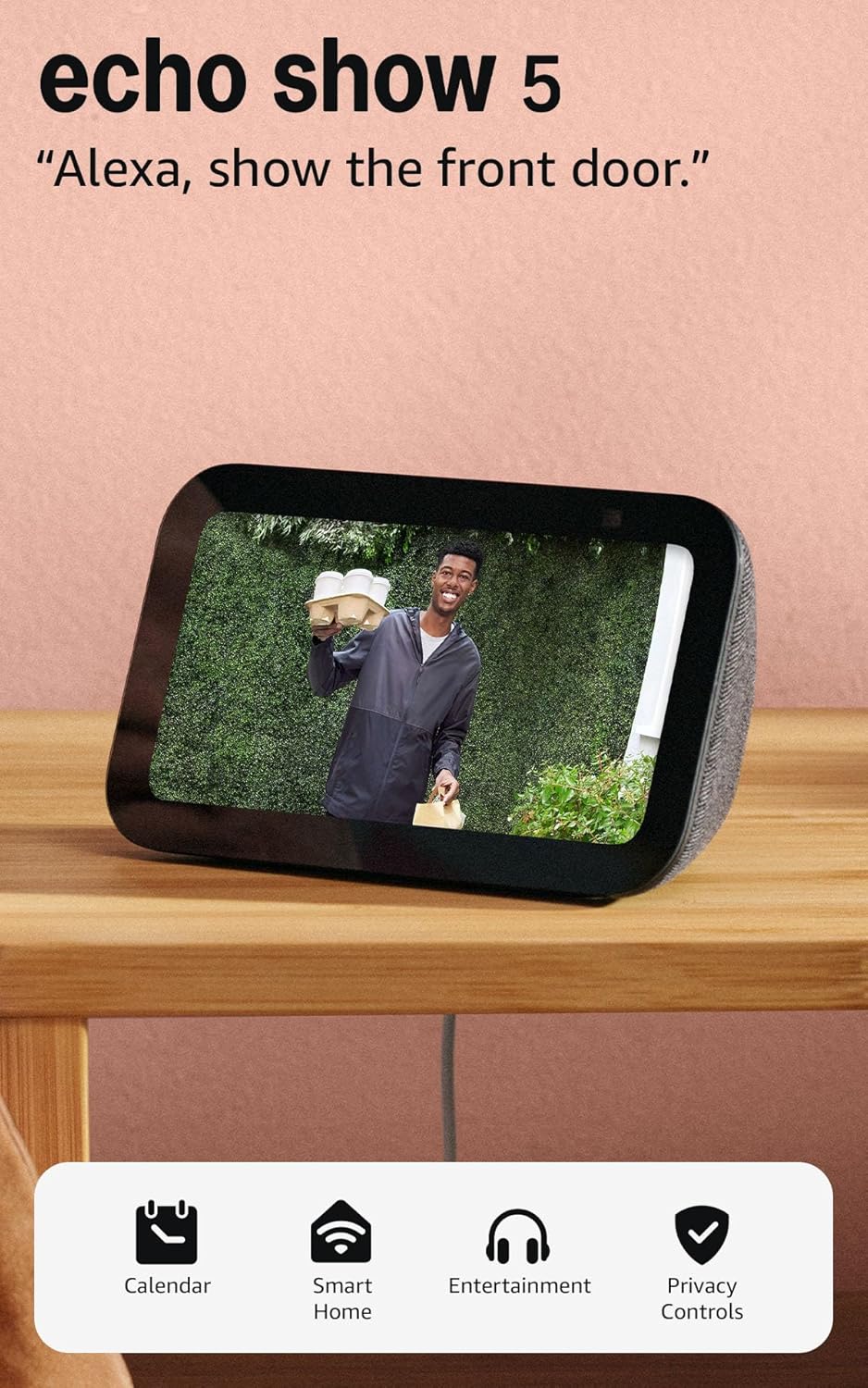
Like-New Amazon Echo Show 5 (newest model), Smart display...

Amazon Echo Show 8 (newest model)
As an Amazon Associate we earn from qualifying purchases.
Official Manufacturer Manual
Amazon provides official product documentation through their online manual rather than downloadable PDF. Access setup guides, troubleshooting steps, and product specifications for your Amazon Echo Show.
Source: amazon.com
Need More Help? Amazon Support
Note: The contact information below connects you directly to Amazon's official customer support team, not Trunetto. They can help with warranty claims, device replacements, and advanced technical issues.
How Does Amazon Compare?
Before replacing your Amazon device, see how it stacks up against alternatives in our full comparison guides.
Accessories owners commonly pair with Amazon Echo Show.

Amazon Smart Plug, Works with Alexa, Simple Setup, Endles...

Sengled Alexa Light Bulb, S1 Auto Pairing with Alexa Devi...

Sengled Smart Light Bulbs, Color Changing Alexa/Bluetooth...
As an Amazon Associate we earn from qualifying purchases.



