

Why Is My Echo Show 8 Camera Not Working
- Camera shutter closed
- Camera disabled in settings
- Alexa app permissions blocked
Problem Description
If the camera is disabled or blocked, video calls fail. This guide checks the camera shutter, app permissions, and device settings to restore camera use.
Why This Happens in Real Homes
If the camera is disabled or blocked, video calls fail. This guide checks the camera shutter, app permissions, and device settings to restore camera use. In day-to-day use, this usually looks like Camera not available in Alexa calls; Shutter slider engaged; Video calls show black screen.
Most cases trace back to Camera shutter closed; Camera disabled in settings; Alexa app permissions blocked. The fix works best when you go step by step instead of changing multiple settings at once.
A practical order for this issue is: Check the Shutter -> Enable Camera -> Update Software -> Restart the Device. After each step, test the exact behavior that was failing so you can confirm what actually solved it.
Symptoms
- Camera not available in Alexa calls
- Shutter slider engaged
- Video calls show black screen
- Camera used before
- Privacy light on
- Device recently updated
Recognize these? Here's what usually causes it.
Common Causes
- Camera shutter closed
- Camera disabled in settings
- Alexa app permissions blocked
- Firmware update pending
- Low light causing black screen
- Device in Do Not Disturb
Most fixes happen in the first 3 steps.
Do not cover the camera with tape while troubleshooting. It will block the image and cause confusion.
Tools & Requirements
These tools will help you complete this fix.

Power adapter
JcBlaon Outlet Extender Surge Protector - 6 Outlet S...
As an Amazon Associate we earn from qualifying purchases.
Step-by-Step Solution
Check the Shutter
Slide the physical camera shutter open. The privacy light should turn off when the camera is active.
Enable Camera
In Settings > Camera, make sure camera access is enabled.
Update Software
Check for device updates and install any pending firmware updates.
Restart the Device
Unplug the Echo Show for 10 seconds and reconnect power.
Needed for this step
JcBlaon Outlet Extender Surge Protector - 6 Out...
This helps complete the fix you are currently reading.
$9.99Test Video Call
Start a Drop In or video call to verify the camera feed works.
Quick Solutions
Still having issues? This is usually the deeper cause below.
Camera issues that start suddenly almost always trace back to an upload bandwidth drop — run a speed test before assuming hardware failure.
Keep the camera shutter closed when not in use for privacy, but open it for video calls.
Live view problems that start suddenly usually trace back to an upload speed drop — the camera itself is fine, the bandwidth path to the cloud isn't.
- Camera shutter closed
- Camera disabled in settings
- Alexa app permissions blocked
- Firmware update pending
- Low light causing black screen
Before you go — try one of these (they fix most cases).
Most popular upgrades chosen by Amazon Echo Show 8 owners.

Amazon eero Pro 6E mesh wifi router (1-pack) with Amazon ...

Amazon Echo Dot Kids (newest model) - Dragon including Am...
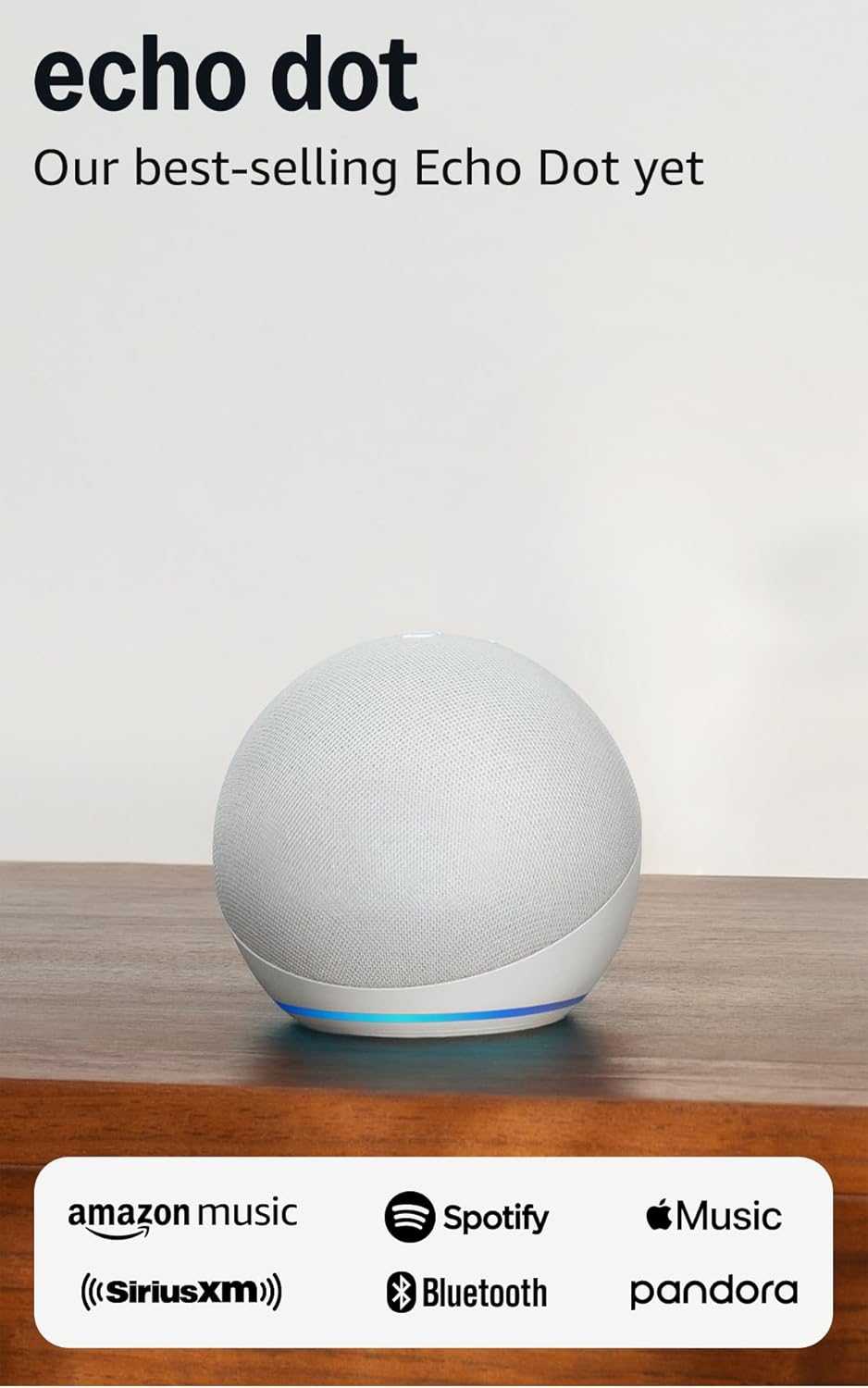
Amazon Echo Dot (newest model) - Vibrant sounding speaker...
As an Amazon Associate we earn from qualifying purchases.
Official Manufacturer Manual
Amazon provides official product documentation through their online manual rather than downloadable PDF. Access setup guides, troubleshooting steps, and product specifications for your Amazon Echo Show 8.
Source: amazon.com
Need More Help? Amazon Support
Note: The contact information below connects you directly to Amazon's official customer support team, not Trunetto. They can help with warranty claims, device replacements, and advanced technical issues.
How Does Amazon Compare?
Before replacing your Amazon device, see how it stacks up against alternatives in our full comparison guides.
Accessories owners commonly pair with Amazon Echo Show 8.

Amazon Smart Plug, Works with Alexa, Simple Setup, Endles...

Sengled Alexa Light Bulb, S1 Auto Pairing with Alexa Devi...

Sengled Smart Light Bulbs, Color Changing Alexa/Bluetooth...
As an Amazon Associate we earn from qualifying purchases.



