Why Is My Fire TV Remote Volume Not Working on My TV
- Equipment control not set up for TV brand
- HDMI-CEC disabled on TV
- Remote paired to Fire TV but not TV
Problem Description
Fire TV Alexa remote navigation works but the volume buttons do not control the TV volume. Pressing volume up or down does nothing. You have to use a separate TV remote for volume which is annoying.
Why This Happens in Real Homes
Navigation working but volume not means Equipment Control isn't set up for your TV — the volume and power buttons control the TV over CEC/IR, and the Fire TV needs to know your TV brand to send the right commands.
Start in Settings > Equipment Control > Manage Equipment and add/select your TV so the remote learns its volume codes, and enable HDMI-CEC on the TV. Once configured, the volume, mute, and power buttons drive the TV; without it, only the Fire-TV-side navigation buttons respond.
Symptoms
- Volume up and down buttons do nothing
- Power button works but volume does not
- Mute button also not working
- Navigation and select buttons work fine
- Had to grab TV remote for volume control
- Volume worked before but stopped after update
Recognize these? Here's what usually causes it.
Common Causes
- Equipment control not set up for TV brand
- HDMI-CEC disabled on TV
- Remote paired to Fire TV but not TV
- TV brand not in Fire TV equipment database
- IR signal blocked by obstacle
- Remote needs re-pairing after battery change
Most fixes happen in the first 3 steps.
Do not open the Fire TV remote to try to fix IR. The IR LED is soldered to the circuit board and cannot be user-serviced. Replace the remote if IR is defective.
Step-by-Step Solution
Set Up Equipment Control
Go to Settings then Equipment Control then Manage Equipment. Select your TV brand and follow setup. This teaches the Fire TV remote to send IR signals for your specific TV model volume controls.
Enable HDMI-CEC
On your TV go to Settings and find HDMI-CEC. Different brands call it different names: Samsung Anynet Plus, LG SimpLink, Sony Bravia Sync, Vizio CEC. Enable it. This lets the Fire TV remote control TV volume over HDMI.
Re-pair Remote
Go to Settings then Controllers then Amazon Fire TV Remotes. Remove the remote and re-pair it. Hold Home button for 10 seconds to enter pairing mode. Sometimes re-pairing restores volume control.
Check IR Line of Sight
The Fire TV remote sends IR signals for volume. The remote must have clear line of sight to the TV IR sensor usually at the bottom center of the TV. Remove any objects blocking the path.
Try Manual Brand Selection
If auto-detect did not find your TV go to Equipment Control and manually select the TV brand and try different device codes. Some brands have multiple IR code sets. Test each until volume works.
Quick Solutions
Still having issues? This is usually the deeper cause below.
If this comes back after following these steps, check whether a recent app or firmware update reset a default setting — the fix works, but the setting gets reverted silently.
If your TV supports HDMI-CEC that is the most reliable volume control method. It works without line of sight since the signal travels through the HDMI cable not IR.
This issue almost always looks more complex than it is — the majority of cases trace back to a single setting, a stale credential, or a default that shipped wrong.
- Equipment control not set up for TV brand
- HDMI-CEC disabled on TV
- Remote paired to Fire TV but not TV
- TV brand not in Fire TV equipment database
- IR signal blocked by obstacle
Before you go — try one of these (they fix most cases).
Most popular upgrades chosen by Amazon Fire TV Remote owners.

Amazon eero Pro 6E mesh wifi router (1-pack) with Amazon ...

Amazon Fire TV Stick 4K (newest model)
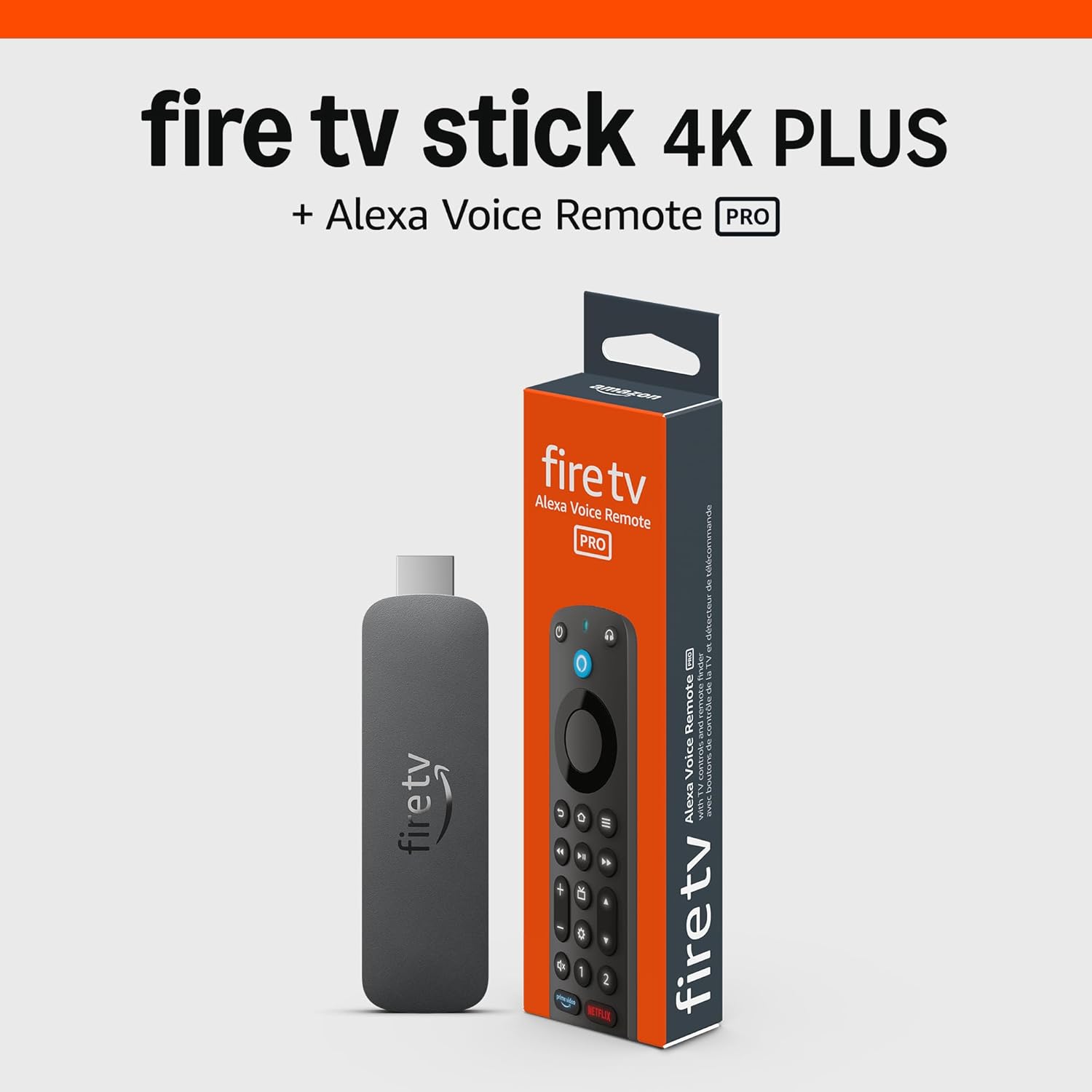
Amazon Fire TV Stick 4K Plus (newest model) with AI-power...
As an Amazon Associate we earn from qualifying purchases.
Official Manufacturer Manual
Amazon provides official product documentation through their online manual rather than downloadable PDF. Access setup guides, troubleshooting steps, and product specifications for your Amazon Fire TV Remote.
Source: amazon.com
Need More Help? Amazon Support
Note: The contact information below connects you directly to Amazon's official customer support team, not Trunetto. They can help with warranty claims, device replacements, and advanced technical issues.
How Does Amazon Compare?
Before replacing your Amazon device, see how it stacks up against alternatives in our full comparison guides.
Accessories owners commonly pair with Amazon Fire TV Remote.

SANDISK 64GB Extreme microSDXC UHS-I Memory Card with Ada...

SANDISK 32GB (Pack of 2) Ultra microSDHC UHS-I Memory Car...

SANDISK 128GB Ultra microSDXC UHS-I Memory Card with Adap...
As an Amazon Associate we earn from qualifying purchases.