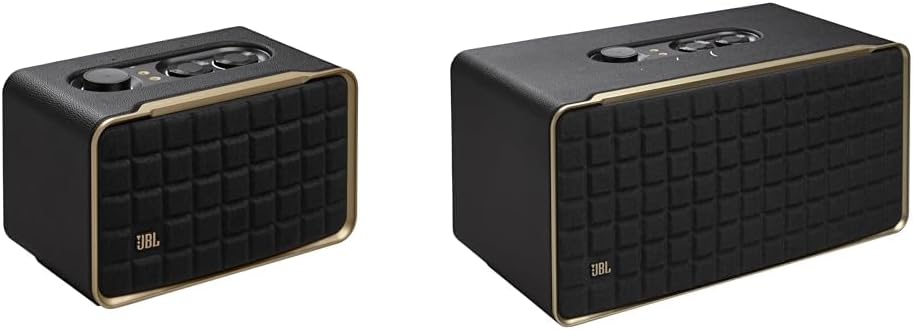
Why Is My JBL Link View Screen Not Working?
- Power adapter disconnected or failing
- WiFi connection lost or unstable
- Software needs updating
Problem Description
Your JBL Link View smart display screen is not working — it's black, dim, or unresponsive. Check the display brightness setting first — it may be set to auto and dimmed in low light. The brightness controls are in Settings on the display. If the screen is completely black but audio works, the display may have a hardware issue.
Symptoms
- Display screen stays black or does not turn on
- Touch screen unresponsive to taps
- Video calls fail to connect
- Display shows wrong time or weather
- Voice assistant does not respond
- Photos not displaying from linked accounts
- Display keeps restarting on its own
Recognize these? Here's what usually causes it.
Common Causes
- Power adapter disconnected or failing
- WiFi connection lost or unstable
- Software needs updating
- Accounts not properly linked
- Microphones muted
- Display settings misconfigured
- Screen protector interfering with touch
Most fixes happen in the first 3 steps.
Smart displays have always-on microphones and cameras. Use the physical camera shutter when privacy is needed. Review your voice and video call history periodically in the app privacy settings. Keep the display away from steam and grease which damage the screen.
Tools & Requirements
These tools will help you complete this fix.

Power adapter
JcBlaon Outlet Extender Surge Protector - 6 Outlet S...
As an Amazon Associate we earn from qualifying purchases.
Step-by-Step Solution
Check display brightness
Swipe down from the top of the JBL Link View screen to access quick settings. Adjust the brightness slider. If the screen appears black but the speaker responds to voice: the brightness may be at minimum. Increase it. The Link View also has auto-brightness that dims in dark rooms — disable auto-brightness in Settings > Display if you want constant brightness.
Fix a frozen or unresponsive screen
If the screen is frozen (shows an image but does not respond to touch or voice): press and hold the power button for 15 seconds to force a restart. Release and let the device boot (takes 1-2 minutes). If the screen shows the JBL logo and gets stuck: let it sit for 5 minutes, as some updates cause longer boot times. If it remains stuck after 10 minutes, perform a factory reset (hold mute + volume down for 15 seconds).
Needed for this step
JcBlaon Outlet Extender Surge Protector - 6 Out...
This helps complete the fix you are currently reading.
$9.99Fix screen flickering or distortion
If the display flickers, shows lines, or has color distortion: restart the device first (power button for 10 seconds). If flickering persists after restart: check for a software update (Settings > System > System Update). Flickering can also be caused by overheating — if the device is in direct sunlight or near a heat source, move it to a cooler location. Persistent display artifacts after moving and updating indicate a hardware defect.
Fix touch not registering
If the screen displays content but does not respond to touch: clean the screen with a soft dry cloth. Moisture, oils, and screen protectors can interfere with the capacitive touch sensor. Restart the device. If touch still does not work: try touching with a dry finger (wet fingers reduce capacitive response). If the screen responds to voice but never to touch after cleaning and restarting, the touch digitizer may be faulty — contact JBL support.
Fix dim or washed-out colors
If colors appear washed out or the screen is abnormally dim at maximum brightness: check if a 'night mode' or 'blue light filter' is active (Settings > Display). These features reduce blue light and dim the screen for nighttime use. Disable them for full brightness and color. If the screen is dim with all filters off and brightness at maximum, the backlight may be aging — this is a gradual hardware degradation over time.
Quick Solutions
Still having issues? This is usually the deeper cause below.
If this comes back after following these steps, check whether a recent app or firmware update reset a default setting — the fix works, but the setting gets reverted silently.
Use Do Not Disturb mode or set a nighttime schedule so the display dims automatically and stops announcements during sleeping hours. Place it where you can see the screen from across the room for at-a-glance weather, time, and calendar.
Battery-related failures are almost always flagged too late — the device degrades silently for days before the app catches up to what's actually happening.
- Power adapter disconnected or failing
- WiFi connection lost or unstable
- Software needs updating
- Accounts not properly linked
- Microphones muted
Before you go — try one of these (they fix most cases).
Official Manufacturer Manual
JBL provides official product documentation through their online manual rather than downloadable PDF. Access setup guides, troubleshooting steps, and product specifications for your JBL Link View.
Source: support.jbl.com
Need More Help? JBL Support
Note: The contact information below connects you directly to JBL's official customer support team, not Trunetto. They can help with warranty claims, device replacements, and advanced technical issues.
Accessories owners commonly pair with JBL Link View.

Amazon Smart Plug, Works with Alexa, Simple Setup, Endles...
Amazon Echo Dot (newest model) - Vibrant sounding speaker...
Amazon Echo Dot (newest model) - Vibrant sounding speaker...
As an Amazon Associate we earn from qualifying purchases.