

How Do I Set Up the JBL Bar Deep Bass?
- Microphones accidentally muted
- Background noise interfering with voice recognition
- WiFi connection unstable or weak
Problem Description
You are setting up the JBL Bar Deep Bass soundbar with your TV. The soundbar connects to your TV via HDMI ARC (preferred) or optical cable — both ports are on the back of the soundbar. The wireless subwoofer pairs automatically when both units are powered on. This guide covers HDMI/optical connection, sub pairing, and audio settings.
Symptoms
- Speaker does not respond to wake word
- Commands are misunderstood frequently
- Speaker says it cannot help with that request
- Music stops playing randomly
- Voice sounds distorted or cuts out
- Speaker goes offline repeatedly
- Smart home commands control wrong device
Recognize these? Here's what usually causes it.
Common Causes
- Microphones accidentally muted
- Background noise interfering with voice recognition
- WiFi connection unstable or weak
- Speaker software needs updating
- Voice profile not trained properly
- Too many similar device names causing confusion
- Account not properly linked in the app
Most fixes happen in the first 3 steps.
Smart speakers are always listening for the wake word when unmuted. Review and delete your voice history regularly in the app privacy settings. Never place the speaker in bathrooms or near water sources as moisture can permanently damage internal components.
Step-by-Step Solution
Connect the soundbar to your TV
The JBL Bar Deep Bass soundbar connects to your TV via HDMI ARC (preferred) or optical cable. For HDMI ARC: plug one end of the included HDMI cable into the HDMI ARC port on the soundbar and the other into the HDMI ARC port on your TV. ARC passes TV audio to the soundbar and lets you control soundbar volume with the TV remote. If your TV does not have HDMI ARC, use the optical cable instead.
Pair the wireless subwoofer
The JBL Bar Deep Bass includes a wireless subwoofer for low-frequency bass. Place the subwoofer on the floor near the soundbar (within 30 feet). Plug in the subwoofer. It should pair automatically with the soundbar — the pairing LED on the subwoofer turns solid when connected. If it does not pair: press and hold the pairing button on the back of the subwoofer for 5 seconds. Then press the pairing button on the soundbar. The two connect wirelessly over a 5.8GHz link.
Adjust bass and sound settings
The soundbar has several EQ presets: Standard, Movie, Music, Voice, and Sport. Switch between them using the remote or buttons on the soundbar. For deep bass, use Movie or Music mode. Adjust the subwoofer volume independently — press the bass + or - button on the remote. If the bass is too boomy (vibrating objects, disturbing neighbors), reduce the subwoofer level. Place the subwoofer in a corner for maximum bass impact, or pull it away from walls for tighter, less boomy sound.
Connect Bluetooth devices
The JBL Bar Deep Bass supports Bluetooth for streaming music from your phone. Press the Bluetooth button on the soundbar or remote. On your phone, go to Bluetooth settings and select 'JBL Bar Deep Bass.' After pairing, play music from any app. Bluetooth input is separate from TV input — switch input sources using the remote. The soundbar can remember multiple paired devices but only connects to one at a time.
Fix no audio from the soundbar
If the soundbar is powered on but no TV audio plays: check the input source on the soundbar (HDMI ARC, Optical, or Bluetooth). Make sure it matches how the soundbar is connected. For HDMI ARC: enable CEC and ARC in your TV settings (Settings > Sound > HDMI ARC > On). For optical: set the TV audio output to optical/digital in the TV sound settings. If audio is still missing, try a different HDMI cable — a damaged cable prevents ARC from working.
Quick Solutions
Still having issues? This is usually the deeper cause below.
If this comes back after following these steps, check whether a recent app or firmware update reset a default setting — the fix works, but the setting gets reverted silently.
Place your speaker in a central location at ear height for best voice pickup. Avoid corners and bookshelves which muffle the microphones. If you have multiple speakers, set up multi-room audio groups so music plays in sync across rooms.
This issue almost always looks more complex than it is — the majority of cases trace back to a single setting, a stale credential, or a default that shipped wrong.
- Microphones accidentally muted
- Background noise interfering with voice recognition
- WiFi connection unstable or weak
- Speaker software needs updating
- Voice profile not trained properly
Before you go — try one of these (they fix most cases).
Most popular upgrades chosen by JBL Bar Deep Bass owners.
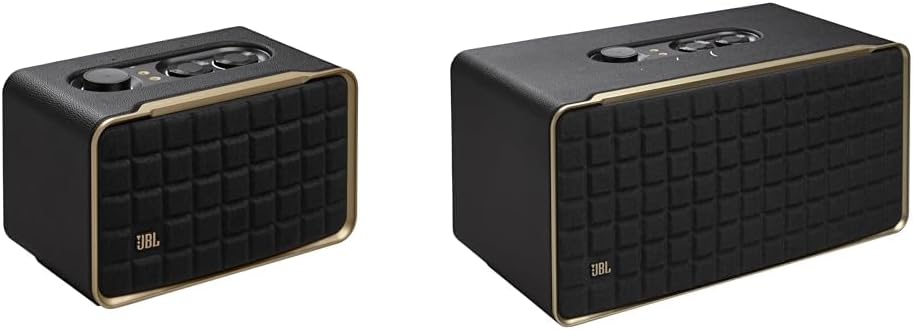
JBL Authentics 500 - Wireless Home Speaker with Bluetooth...

JBL Boombox 3 Wi-Fi - Powerful Wi-Fi and Bluetooth Portab...

JBL JBLAUTH200BLKAM-Z Wi-Fi Bluetooth Smart Home Speaker ...
As an Amazon Associate we earn from qualifying purchases.
Official Manufacturer Manual
JBL provides official product documentation through their online manual rather than downloadable PDF. Access setup guides, troubleshooting steps, and product specifications for your JBL Bar Deep Bass.
Source: support.jbl.com
Need More Help? JBL Support
Note: The contact information below connects you directly to JBL's official customer support team, not Trunetto. They can help with warranty claims, device replacements, and advanced technical issues.


