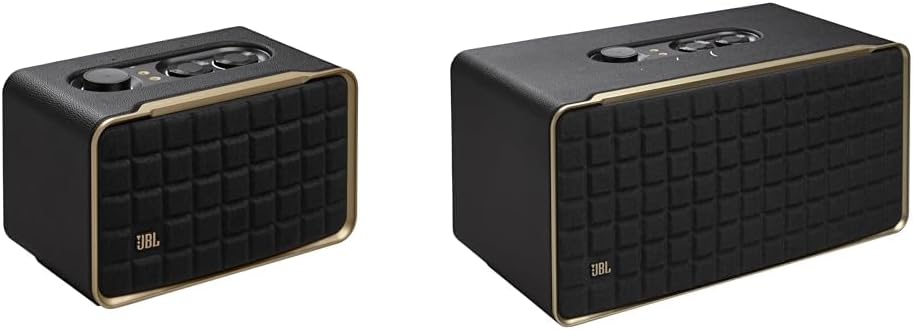
Why Does My JBL Link View Sound Distorted?
- WiFi connection unstable or device too far from router
- Device firmware or app needs updating
- Device not properly set up during initial pairing
Problem Description
Your JBL Link View speaker produces distorted or crackling audio. Lower the volume first — distortion at high volume means the speaker is being overdriven. The JBL Link View has a small speaker that distorts when pushed past 80% volume. If distortion occurs at low volume, the speaker may have a hardware defect.
Symptoms
- Device shows as offline in the app
- Device does not respond to commands
- App cannot connect to device
- Features not working as expected
- Device disconnects frequently
- Automations fail to trigger
- Voice commands not recognized
Recognize these? Here's what usually causes it.
Common Causes
- WiFi connection unstable or device too far from router
- Device firmware or app needs updating
- Device not properly set up during initial pairing
- Power supply issue or loose connection
- Account not linked correctly
- Too many devices causing network congestion
- Interference from other wireless devices
Most fixes happen in the first 3 steps.
Google discontinued updates for Link View - consider upgrading to Nest Hub Max.
Tools & Requirements
These tools will help you complete this fix.

Ethernet cable
Jadaol Cat 6 Ethernet Cable 25 ft, 10Gbps Support Ca...

Replacement batteries
Duracell Coppertop Double AA Batteries with Power Bo...
As an Amazon Associate we earn from qualifying purchases.
Step-by-Step Solution
Lower the volume
Speaker distortion at high volume is common on small smart displays. The JBL Link View has built-in speakers optimized for voice and moderate music listening, not room-filling sound. If audio distorts above 80% volume, lower it to 70-75%. The speakers physically cannot handle maximum volume without some distortion — this is a hardware limitation, not a defect. For louder, cleaner audio, pair with an external Bluetooth speaker.
Check for bass boost or EQ settings
If audio sounds muddy or distorted at moderate volumes: check for any equalizer or bass boost settings. In the Google Home app, some speakers allow adjusting bass and treble. If bass is boosted too high, the small speakers distort on low frequencies. Reduce bass boost to neutral or slightly below neutral. The Link View speakers handle midrange and treble well but struggle with heavy bass content.
Check the audio source quality
Low-quality audio streams (low bitrate radio stations, compressed podcasts, Bluetooth with poor codec) sound distorted regardless of the speaker. Try playing a high-quality source — say 'Hey Google, play [popular song] on YouTube Music' or Spotify. If the high-quality source sounds clear and only certain sources distort, the issue is the source quality, not the speaker. Bluetooth audio compressed with SBC codec sounds noticeably worse than WiFi-streamed audio.
Restart the device
If distortion appeared suddenly on audio that previously sounded fine: restart the Link View (hold power button for 10 seconds). A software glitch or corrupted audio pipeline can cause sudden distortion. After restarting, play the same audio source and check if the distortion is gone. Also check for system updates — audio processing improvements are delivered via firmware updates.
Check for physical damage to the speakers
If distortion occurs at all volumes (even very low): the speaker drivers may be physically damaged. This can happen from water exposure, drops, or prolonged use at maximum volume. Listen closely at low volume for rattling or buzzing sounds — these indicate a damaged speaker cone or loose component. Physical speaker damage cannot be fixed via software. Contact JBL support for warranty replacement if the unit is under warranty.
Needed for this step
Duracell Coppertop Double AA Batteries with Pow...
This helps complete the fix you are currently reading.
$6.96Quick Solutions
Still having issues? This is usually the deeper cause below.
If this comes back after following these steps, check whether a recent app or firmware update reset a default setting — the fix works, but the setting gets reverted silently.
JBL Link View has premium speakers - distortion usually means settings or placement issue.
This issue almost always looks more complex than it is — the majority of cases trace back to a single setting, a stale credential, or a default that shipped wrong.
- WiFi connection unstable or device too far from router
- Device firmware or app needs updating
- Device not properly set up during initial pairing
- Power supply issue or loose connection
- Account not linked correctly
Before you go — try one of these (they fix most cases).
Official Manufacturer Manual
JBL provides official product documentation through their online manual rather than downloadable PDF. Access setup guides, troubleshooting steps, and product specifications for your JBL Link View.
Source: support.jbl.com
Need More Help? JBL Support
Note: The contact information below connects you directly to JBL's official customer support team, not Trunetto. They can help with warranty claims, device replacements, and advanced technical issues.