

Why Won't My JBL Link Pair via Bluetooth?
- Microphones accidentally muted
- Background noise interfering with voice recognition
- WiFi connection unstable or weak
Problem Description
Your JBL Link speaker won't pair via Bluetooth with your phone. Put the speaker in Bluetooth pairing mode by pressing and holding the Bluetooth button on the top of the speaker until the LED blinks blue. The speaker must be in discoverable mode to appear in your phone's Bluetooth settings. This guide covers entering pairing mode and connecting.
Symptoms
- Speaker does not respond to wake word
- Commands are misunderstood frequently
- Speaker says it cannot help with that request
- Music stops playing randomly
- Voice sounds distorted or cuts out
- Speaker goes offline repeatedly
- Smart home commands control wrong device
Recognize these? Here's what usually causes it.
Common Causes
- Microphones accidentally muted
- Background noise interfering with voice recognition
- WiFi connection unstable or weak
- Speaker software needs updating
- Voice profile not trained properly
- Too many similar device names causing confusion
- Account not properly linked in the app
Most fixes happen in the first 3 steps.
Smart speakers are always listening for the wake word when unmuted. Review and delete your voice history regularly in the app privacy settings. Never place the speaker in bathrooms or near water sources as moisture can permanently damage internal components.
Tools & Requirements
Step-by-Step Solution
Put the JBL Link speaker in Bluetooth pairing mode
Press and hold the Bluetooth button on the JBL Link speaker for 3 seconds. The Bluetooth LED blinks, indicating the speaker is discoverable. On your phone, go to Settings > Bluetooth > scan for devices. Select 'JBL Link' from the list. The speaker confirms pairing with a tone. Once paired, you can stream audio from any app on your phone to the JBL Link speaker via Bluetooth.
Switch between Google Assistant and Bluetooth input
The JBL Link speaker has two audio modes: Google Assistant (WiFi streaming, voice commands) and Bluetooth (direct phone streaming). Press the Bluetooth button to switch to Bluetooth input. Press the Google Assistant button to switch back to WiFi/Assistant mode. When in Bluetooth mode, the speaker acts as a standard Bluetooth speaker — Google Assistant commands may be limited or unavailable.
Connect multiple devices
The JBL Link can store pairing information for multiple Bluetooth devices (typically up to 8), but only connects to one device at a time. To switch to a different paired device: disconnect from the current device (on the phone's Bluetooth settings) and connect from the new device. You do not need to re-pair each time — just connect from the stored pairing. If you need to pair a new device and the limit is reached, the oldest pairing is replaced.
Fix Bluetooth not connecting
If the speaker does not appear in your phone's Bluetooth list: make sure the speaker is in pairing mode (LED blinking). Move your phone within 3 feet of the speaker. Restart Bluetooth on your phone (toggle off and on). If a previously paired device cannot reconnect: delete the JBL Link from your phone's Bluetooth saved devices and re-pair from scratch. Also restart the speaker by unplugging it for 10 seconds.
Improve Bluetooth audio quality
Bluetooth audio quality depends on the codec used. The JBL Link supports SBC (standard quality). Some newer models support AAC for better quality with iPhones. Keep your phone within 30 feet of the speaker with minimal obstacles. Walls and other Bluetooth devices reduce range and quality. If audio skips or stutters: move closer to the speaker, close unused Bluetooth connections on your phone, and avoid microwave ovens (they interfere with the 2.4GHz Bluetooth frequency).
Quick Solutions
Still having issues? This is usually the deeper cause below.
If pairing fails after multiple attempts, the device may still be registered to a previous account — factory-reset it before trying to add it to a new one.
Place your speaker in a central location at ear height for best voice pickup. Avoid corners and bookshelves which muffle the microphones. If you have multiple speakers, set up multi-room audio groups so music plays in sync across rooms.
Pairing failures almost always come down to distance during the initial handshake — manufacturers seriously understate how close you actually need to be.
- Microphones accidentally muted
- Background noise interfering with voice recognition
- WiFi connection unstable or weak
- Speaker software needs updating
- Voice profile not trained properly
Before you go — try one of these (they fix most cases).
Most popular upgrades chosen by JBL Link Speaker owners.
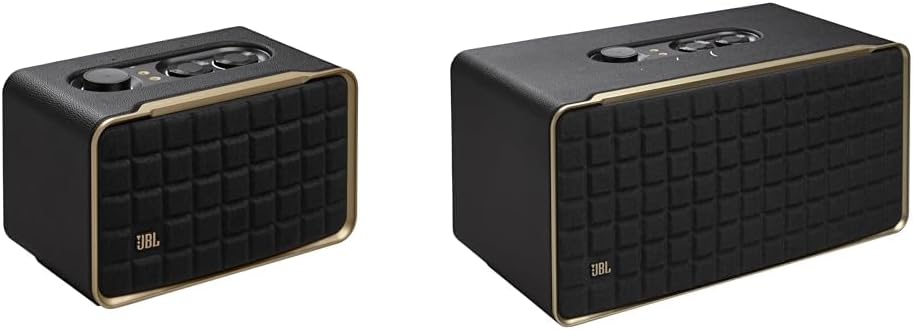
JBL Authentics 500 - Wireless Home Speaker with Bluetooth...

JBL Boombox 3 Wi-Fi - Powerful Wi-Fi and Bluetooth Portab...

JBL JBLAUTH200BLKAM-Z Wi-Fi Bluetooth Smart Home Speaker ...
As an Amazon Associate we earn from qualifying purchases.
Official Manufacturer Manual
JBL provides official product documentation through their online manual rather than downloadable PDF. Access setup guides, troubleshooting steps, and product specifications for your JBL Link Speaker.
Source: support.jbl.com
Need More Help? JBL Support
Note: The contact information below connects you directly to JBL's official customer support team, not Trunetto. They can help with warranty claims, device replacements, and advanced technical issues.
Accessories owners commonly pair with JBL Link Speaker.

Amazon Smart Plug, Works with Alexa, Simple Setup, Endles...

Sengled Alexa Light Bulb, S1 Auto Pairing with Alexa Devi...

Sengled Smart Light Bulbs, Color Changing Alexa/Bluetooth...
As an Amazon Associate we earn from qualifying purchases.

