

Why Is My Google Nest Hub Max Camera Showing as Offline in the Home App?
- Google account Nest camera service authentication expired
- Nest camera service on Hub firmware in fault state
- Hub Max camera access disabled in Google Home app privacy settings
Problem Description
Your Google Nest Hub Max camera shows as offline in the Google Home app even though the Hub itself is on and responsive to voice commands. The Nest Hub Max has a built-in 6.5MP camera that appears as a separate Nest camera device in the Home app. The camera can show as offline independently of the display when Google account authentication to the Nest camera service has lapsed or when the Hub firmware has a camera service fault.
Why This Happens in Real Homes
The Hub Max has a built-in Nest camera that shows as a separate device in Google Home. When it shows offline but the Hub itself still works for recipes and music, people think it is broken. Usually the camera toggle got flipped off — go to the Hub Max device in Google Home app, tap the gear icon, then Cameras and you will find the toggle. The other cause is a lapsed Nest Aware subscription. Without Nest Aware the camera still works for live view, but some features degrade and the status can show incorrectly. Also check that the camera privacy shutter on top of the Hub Max is not physically closed.
Symptoms
- Nest Hub Max camera shows offline in Google Home app
- Live view button on Home app for the Hub Max camera shows error
- Camera was recording events then suddenly stopped
- Camera is offline but Hub screen and voice commands work normally
- Home app shows camera last online hours ago despite Hub being active
- Camera went offline after Google Home or Nest app update
Recognize these? Here's what usually causes it.
Common Causes
- Google account Nest camera service authentication expired
- Nest camera service on Hub firmware in fault state
- Hub Max camera access disabled in Google Home app privacy settings
- Google Home infrastructure change requiring Hub re-authentication
- Camera access blocked by new household member account settings
- Hub Max enrolled in a Nest Aware subscription that has since lapsed
Most fixes happen in the first 3 steps.
Do not use the Nest Hub Max camera to monitor a room where sensitive private activity occurs. The built-in camera with cloud recording is always visible to anyone with Google Home account access to your home.
Tools & Requirements
Step-by-Step Solution
Remove and Re-Add Hub Max to Google Home
Open the Google Home app and tap the Nest Hub Max device. Go to Settings and scroll to Remove Device. Remove the Hub Max from Google Home. After removal unplug the Hub Max power cable for 30 seconds. Plug it back in and wait 2 minutes. Open Google Home and tap the plus icon to add a new device. Follow the setup wizard to add the Hub Max back. This process re-authenticates the Google account and Nest camera service linking and is the most reliable fix for persistent camera offline status.
Power Cycle Hub Max to Reset Camera Service
Say Hey Google restart to the Nest Hub Max or unplug its power cable for 30 seconds. After restarting wait 3 minutes for all services including the Nest camera microservice to fully initialise. Open the Google Home app and check if the camera status has changed to online. A fresh start resolves firmware fault states in the camera module that cause it to show as offline while the rest of the Hub operates normally.
Check Camera Access Settings in Google Home
In the Google Home app tap the Nest Hub Max device then Settings then Camera. Verify the camera access toggle is enabled. Also go to Home Settings then Members and confirm no household member has camera restrictions enabled that might disable the Hub Max camera for some account views. Camera access permissions can be modified by any account with full home access and a change by another member may be the cause of the offline status you are seeing.
Update Google Home App
Open the App Store or Google Play and update the Google Home app to the latest version. Some Google Home app versions have known bugs where Nest Hub Max cameras show as offline despite the camera service being fully operational. The offline status is a display error in the app rather than an actual camera fault. After updating force close and reopen the Google Home app and check if the camera status now shows correctly as online.
Check Nest Aware Subscription
A lapsed Nest Aware subscription does not make the camera go offline for live view but does stop event recording. If you see offline in the context of missing events and not live view check your subscription at home.google.com/intl/en_gb/websupport/. Renew the subscription if it has lapsed. For live view offline issues the subscription is not relevant and the fix is re-adding the device to Google Home as described in the first step.
Quick Solutions
Still having issues? This is usually the deeper cause below.
This usually happens right after a router reboot or ISP change — the device rejoins the network but drops its cloud session silently.
Enable the Nest Hub Max camera to automatically show the live view when motion is detected in the designated monitoring area. This provides a self-activating security display without any voice command needed.
Most WiFi drop-offs happen right after a router reboot or ISP swap — the device reconnects to the network but silently loses its cloud registration.
- Google account Nest camera service authentication expired
- Nest camera service on Hub firmware in fault state
- Hub Max camera access disabled in Google Home app
- Google Home infrastructure change requiring Hub re-authentication
- Camera access blocked by new household member account settings
Before you go — try one of these (they fix most cases).
Official Manufacturer Manual
If you need the complete manufacturer documentation for advanced setup, wiring diagrams, or detailed specifications, you can download the official manual below. The manual includes full technical instructions directly from the manufacturer and may help if your issue requires deeper troubleshooting.
Download the Official Google Nest Hub Max ManualSource: support.google.com
Need More Help? Google Nest Support
Note: The contact information below connects you directly to Google Nest's official customer support team, not Trunetto. They can help with warranty claims, device replacements, and advanced technical issues.
How Does Google Nest Compare?
Before replacing your Google Nest device, see how it stacks up against alternatives in our full comparison guides.
Accessories owners commonly pair with Google Nest Hub Max.

Amazon Smart Plug, Works with Alexa, Simple Setup, Endles...
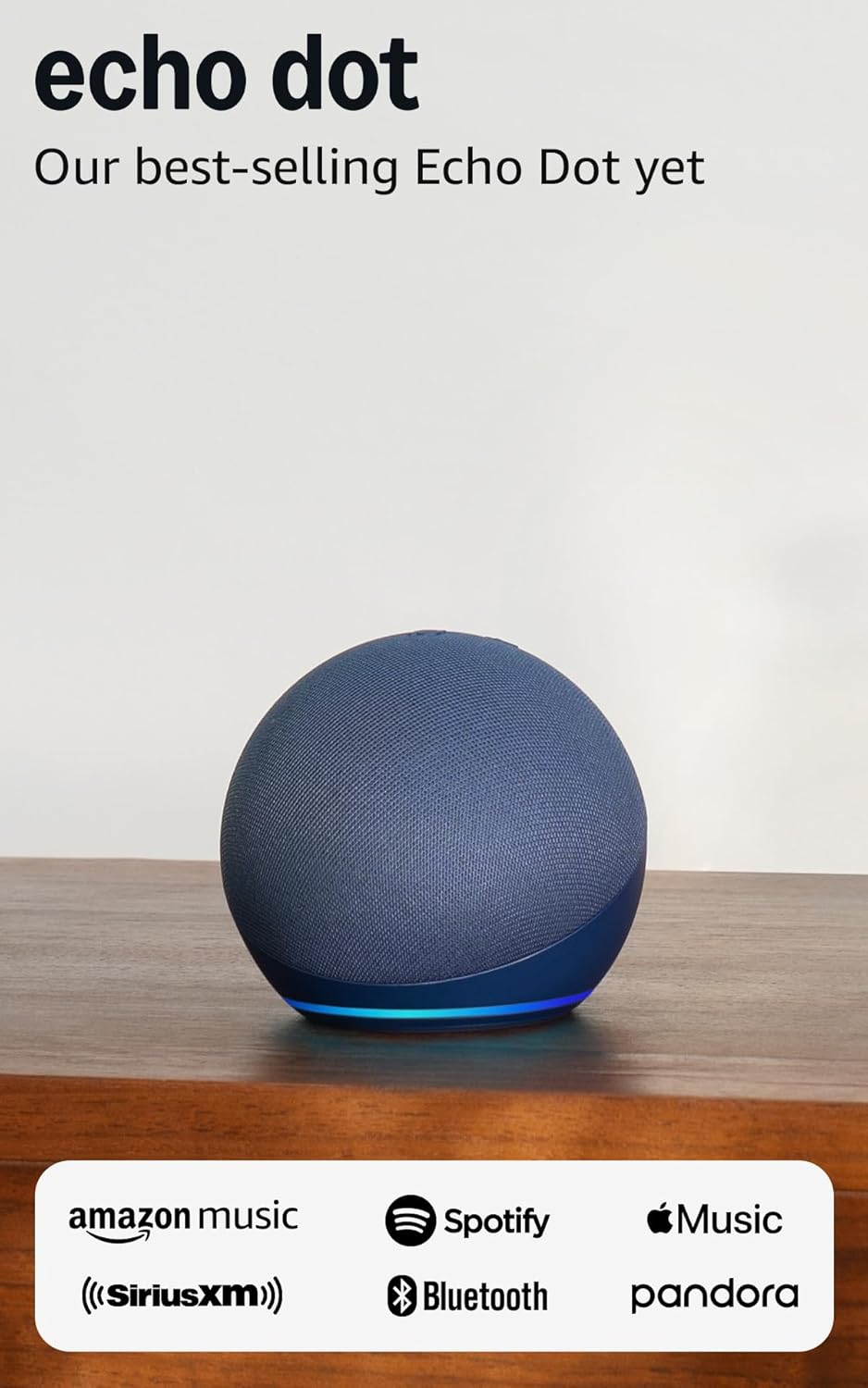
Amazon Echo Dot (newest model) - Vibrant sounding speaker...
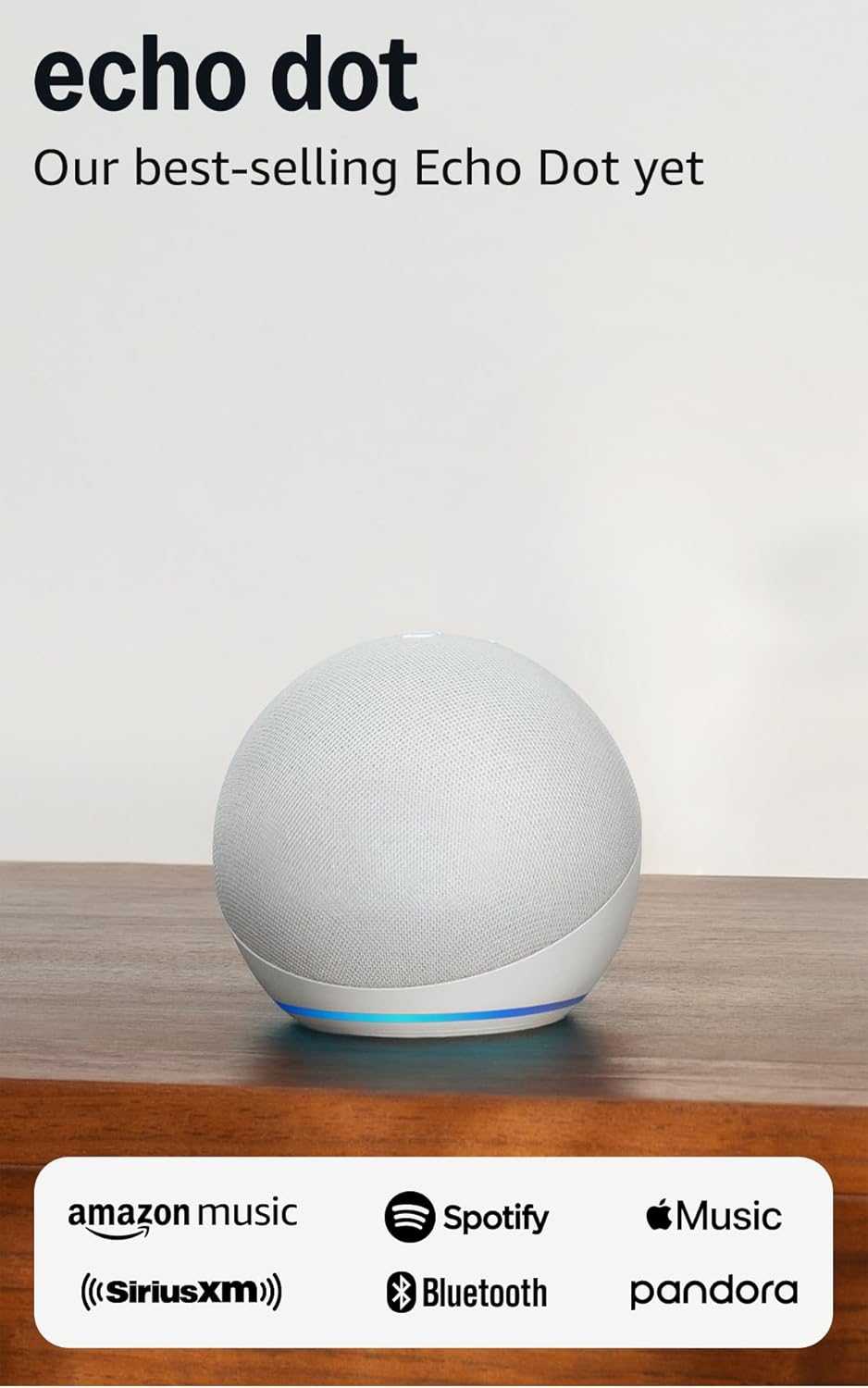
Amazon Echo Dot (newest model) - Vibrant sounding speaker...
As an Amazon Associate we earn from qualifying purchases.





