

How Do I Set Up the Aeotec Smart Home Hub with SmartThings?
- WiFi connection unstable or device too far from router
- Device firmware or app needs updating
- Device not properly set up during initial pairing
Problem Description
You are setting up the Aeotec Smart Home Hub (the rebranded SmartThings hub) for the first time. The hub connects to your network via Ethernet and supports Zigbee, Z-Wave, and WiFi devices through the SmartThings app. This guide covers connecting the hub, creating a SmartThings account, and pairing your first device.
Symptoms
- Device shows as offline in the app
- Device does not respond to commands
- App cannot connect to device
- Features not working as expected
- Device disconnects frequently
- Automations fail to trigger
- Voice commands not recognized
Recognize these? Here's what usually causes it.
Common Causes
- WiFi connection unstable or device too far from router
- Device firmware or app needs updating
- Device not properly set up during initial pairing
- Power supply issue or loose connection
- Account not linked correctly
- Too many devices causing network congestion
- Interference from other wireless devices
Most fixes happen in the first 3 steps.
Do not factory reset your hub unless absolutely necessary as this removes all paired devices, automations, and settings. You will need to re-pair every single device from scratch which can take hours for a large setup. Always try a simple restart first.
Tools & Requirements
These tools will help you complete this fix.
As an Amazon Associate we earn from qualifying purchases.
Step-by-Step Solution
Connect the hub to your network
The Aeotec Smart Home Hub (Samsung SmartThings-compatible) connects to your router via Ethernet or WiFi. Ethernet provides the most reliable connection. Plug the included Ethernet cable into the hub and your router. Connect the USB-C power cable. The hub takes 2-3 minutes to boot. The LED on the front turns solid when ready — blinking means it is still booting or updating.

Needed for this step
Jadaol Cat 6 Ethernet Cable 25 ft, 10Gbps Suppo...
This helps complete the fix you are currently reading.
$9.99Set up in the SmartThings app
Download the Samsung SmartThings app. Create a Samsung account or sign in. Tap + > Add Device > Hub > Aeotec Smart Home Hub. The app detects the hub on your local network. Follow the setup wizard: name the hub, assign it to a location, and update the firmware. The hub receives its initial firmware update during setup — this may take 10-15 minutes. Do not unplug during the update.
Add Z-Wave and Zigbee devices
The Aeotec hub supports Z-Wave Plus, Zigbee 3.0, and WiFi devices. To add a Z-Wave or Zigbee device: in the SmartThings app, tap + > Add Device > scan nearby or select the device brand. Put the device in pairing mode (usually by pressing a button on the device). The hub discovers and adds it within 30-60 seconds. The hub supports up to 200+ devices across protocols.
Create automations and scenes
In the SmartThings app, create automations: If [condition] Then [action]. Example: If motion sensor detects motion after sunset → turn on the hallway light for 5 minutes. Create scenes for one-tap control: 'Good Night' turns off all lights, locks doors, and sets the thermostat. Automations run on the hub locally (no cloud dependency for Z-Wave/Zigbee), so they work even during internet outages.
Integrate with voice assistants and other platforms
SmartThings integrates natively with Samsung devices, Alexa, Google Home, and IFTTT. In the SmartThings app, link accounts under Settings > Connected Services. After linking, voice control works: 'Alexa, turn off the bedroom light.' SmartThings also works with Matter devices (firmware update required) — you can add Matter-compatible devices from any brand alongside Z-Wave and Zigbee devices.
Quick Solutions
Still having issues? This is usually the deeper cause below.
If the hub reconnects then drops every few minutes, check for an IP conflict — two devices sharing the same DHCP address fight each other continuously.
["Hub is official SmartThings hardware", "Requires Samsung account", "Supports Z-Wave, Zigbee, and WiFi devices"]
Hub disconnections that cycle repeatedly are almost always IP conflicts — two devices fighting over the same DHCP lease after a router restart.
- WiFi connection unstable or device too far from router
- Device firmware or app needs updating
- Device not properly set up during initial pairing
- Power supply issue or loose connection
- Account not linked correctly
Before you go — try one of these (they fix most cases).
Most popular upgrades chosen by Aeotec Smart Home Hub owners.

Aeotec SmartThings Motion Sensor, Zigbee, Magnetic Mounti...

Aeotec SmartThings Button, Zigbee Remote Control, Works w...
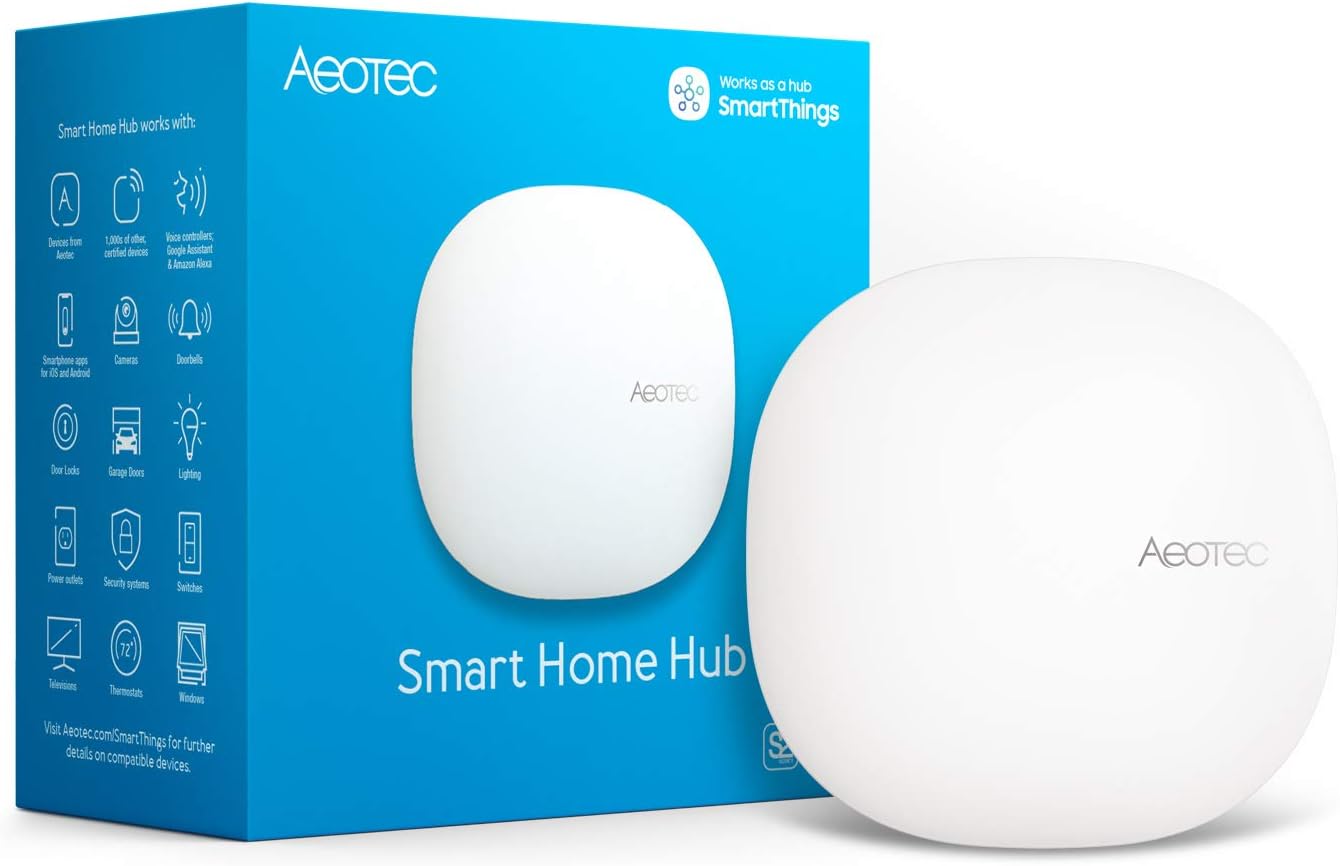
Aeotec Smart Home Hub, Works as a SmartThings Hub, Z-Wave...
As an Amazon Associate we earn from qualifying purchases.
Official Manufacturer Manual
Aeotec provides official product documentation through their online manual rather than downloadable PDF. Access setup guides, troubleshooting steps, and product specifications for your Aeotec Smart Home Hub.
Source: aeotec.com
Need More Help? Aeotec Support
Note: The contact information below connects you directly to Aeotec's official customer support team, not Trunetto. They can help with warranty claims, device replacements, and advanced technical issues.
Accessories owners commonly pair with Aeotec Smart Home Hub.

Aeotec ZWA012 Z-Wave Plus v2 Door / Window Sensor 7 Pro, ...
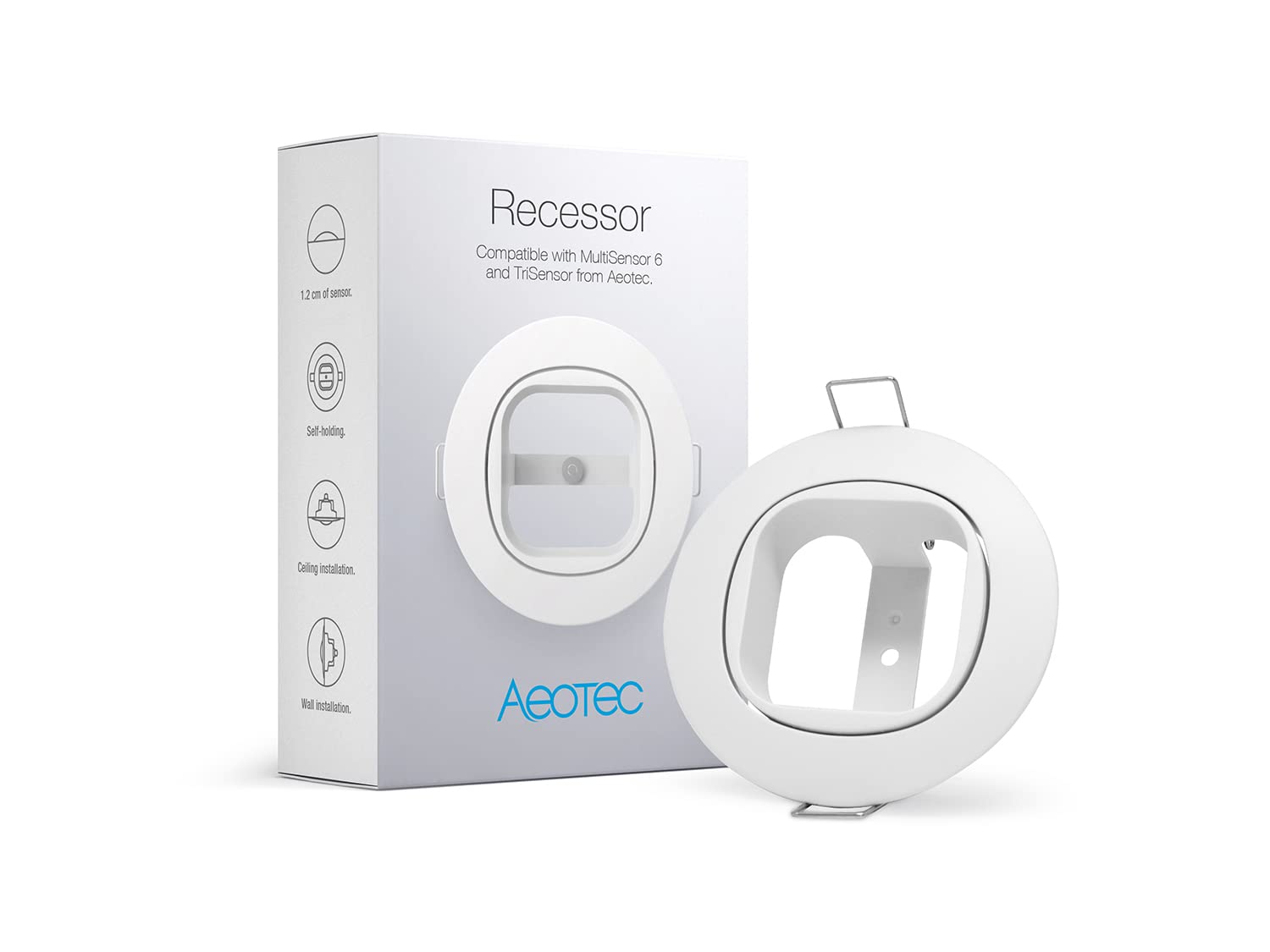
Aeotec Recessor for MultiSensor and TriSensor – Discreet ...
As an Amazon Associate we earn from qualifying purchases.





