How to Set Up Aqara Hub M2 With Ethernet for Stable HomeKit
- Connect Ethernet
- Open Aqara Home
- Update Firmware
- Pair With HomeKit
- Add Zigbee Devices
Most users complete this in under 30 minutes
Overview
A wired Aqara Hub M2 connection improves reliability for HomeKit and Matter accessories. This guide connects Ethernet, updates firmware, and completes pairing in the Aqara Home app.
Why This Happens in Real Homes
A wired Aqara Hub M2 connection improves reliability for HomeKit and Matter accessories. This guide connects Ethernet, updates firmware, and completes pairing in the Aqara Home app. In day-to-day use, this usually looks like Hub M2 powered on; Ethernet port available on router; iPhone with Aqara Home app.
Most cases trace back to Ethernet cable not seated; Hub still on WiFi mode; Router blocks DHCP. The fix works best when you go step by step instead of changing multiple settings at once.
A practical order for this issue is: Connect Ethernet -> Open Aqara Home -> Update Firmware -> Pair With HomeKit. After each step, test the exact behavior that was failing so you can confirm what actually solved it.
What's Included
- Hub M2 powered on and ready
- Ethernet port available on the router
- iPhone with the Aqara Home app
- HomeKit home created
- Want a more stable wired connection
- Hub located near the router
- Setting the hub to wired mode
- Adding child devices after pairing
Got your materials ready? Here's what to check first.
Before You Start
- Ethernet cable not fully seated
- Hub still in WiFi mode after connecting Ethernet
- Router blocking DHCP or on a guest port
- Firmware outdated
- Using a guest network
- Under-rated USB power adapter
- Hub not receiving an IP address
- Cable run to a switch that is isolated
Don't skip this step — it breaks everything if you do
Do not power the hub from a low-output USB adapter. Use the included power supply for stability.
Tools & Requirements
These tools will help you complete this fix.
As an Amazon Associate we earn from qualifying purchases.
Installation Steps
Connect Ethernet
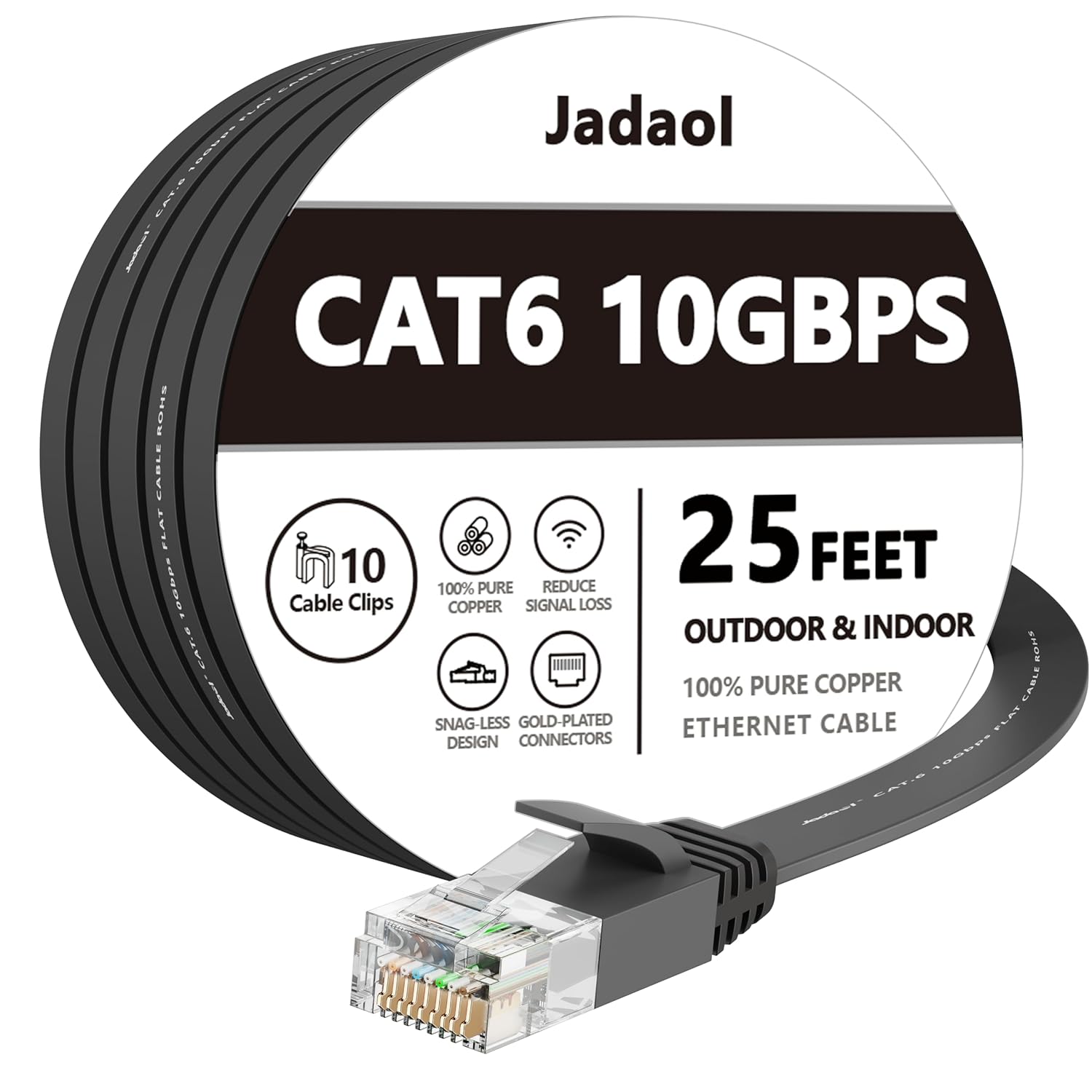
Plug the Ethernet cable into the hub and the router. Keep the hub within a few feet of the router for the initial setup.
Needed for this step
Jadaol Cat 6 Ethernet Cable 25 ft, 10Gbps Suppo...
This helps complete the fix you are currently reading.
$9.99Open Aqara Home
In the Aqara Home app, add the Hub M2 and follow prompts. The app will detect the wired connection and switch to Ethernet mode.
Update Firmware
After the hub appears online, check for firmware updates and install them before adding child devices.
Pair With HomeKit
Scan the HomeKit QR code on the hub or in the app to add it to Apple Home. Assign a room and confirm status in HomeKit.
Add Zigbee Devices
Pair sensors or switches through Aqara Home. Confirm they respond in both Aqara Home and Apple Home.
Installation Tips
Still stuck? This is usually the deeper cause below.
Use a wired connection if your hub sits far from the router or behind thick walls. It reduces device dropouts.
Before you go — these Aqara guides fix most remaining issues.
Most popular upgrades chosen by Aqara Hub M2 owners.

Aqara Presence Sensor FP2 Plus Aqara Smart Hub M2 (2.4 GH...

Aqara Temperature and Humidity Sensor Plus Aqara Hub M2, ...

Aqara Smart Hub M200, Matter Controller, Thread Border Ro...
As an Amazon Associate we earn from qualifying purchases.
Official Manufacturer Manual
Aqara provides official product documentation through their online manual rather than downloadable PDF. Access setup guides, troubleshooting steps, and product specifications for your Aqara Hub M2.
Source: aqara.com
Need More Help? Aqara Support
Note: The contact information below connects you directly to Aqara's official customer support team, not Trunetto. They can help with warranty claims, device replacements, and advanced technical issues.
Accessories owners commonly pair with Aqara Hub M2.

Aqara Zigbee Smart Plug with Energy Monitoring,Overload P...

Aqara Smart Plug Plus Aqara Hub M2, Zigbee, with Energy M...
As an Amazon Associate we earn from qualifying purchases.