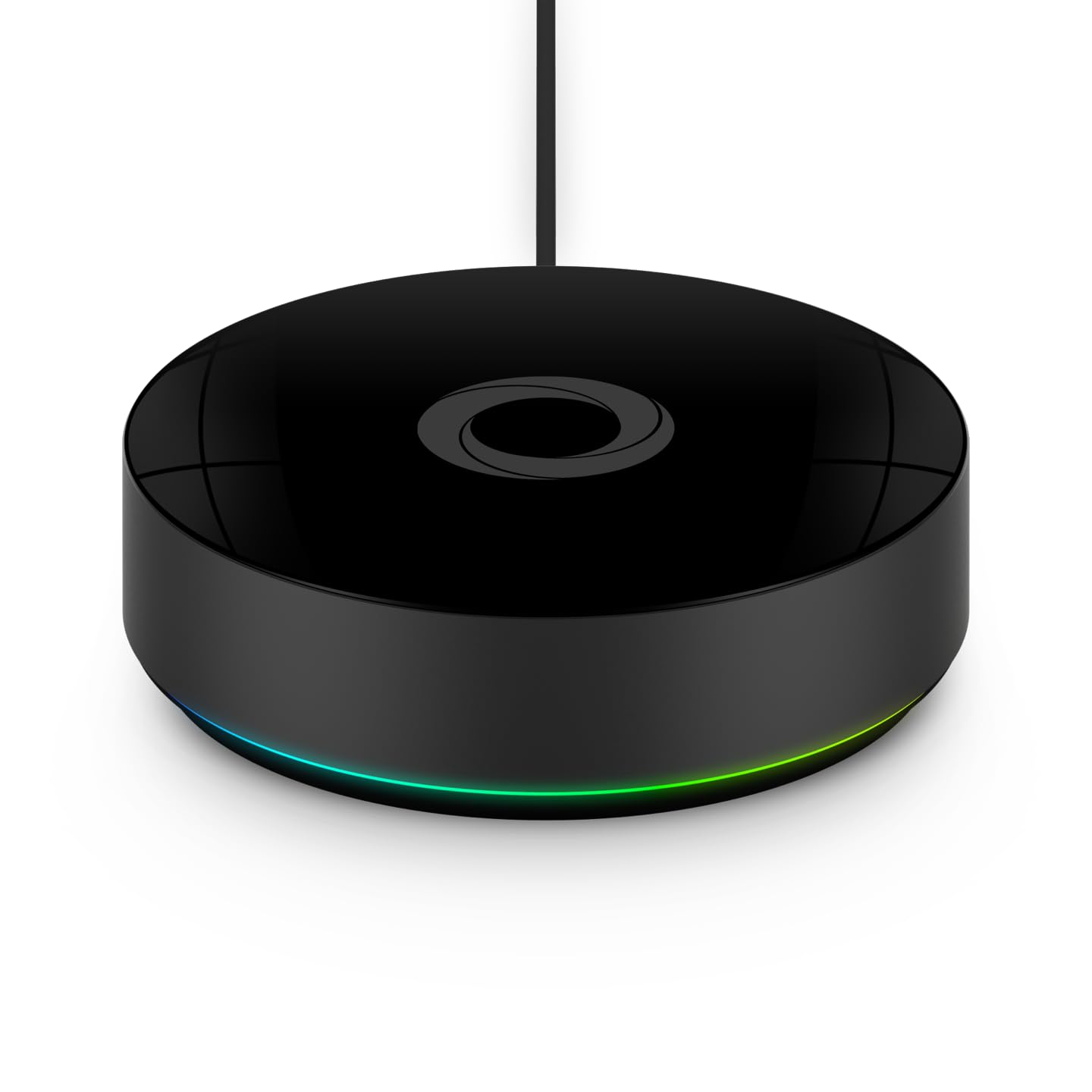
Why Is My IKEA DIRIGERA Hub Showing Offline or Not Connecting in the Home Smart App
- Ethernet cable between hub and router is loose or damaged
- Router assigned a new IP address after DHCP lease expired
- Router firmware update changed network settings or firewall rules
Problem Description
Your IKEA DIRIGERA smart home hub shows as offline or disconnected in the IKEA Home Smart app. Connected devices like TRADFRI bulbs and FYRTUR blinds become unresponsive because they cannot communicate through the hub. The app may display connection errors, fail to load device states, or show the hub as unreachable.
Symptoms
- IKEA Home Smart app says DIRIGERA hub is not connected
- All connected smart devices become unresponsive simultaneously
- Hub LED light is solid white but app cannot find it
- App loads but shows all devices as unavailable or offline
- HomeKit Google Home or Alexa lose control of IKEA devices
- Hub was working fine but stopped after a power outage or router restart
Recognize these? Here's what usually causes it.
Common Causes
- Ethernet cable between hub and router is loose or damaged
- Router assigned a new IP address after DHCP lease expired
- Router firmware update changed network settings or firewall rules
- DIRIGERA hub firmware update failed or is stuck mid-update
- Too many devices on the network causing IP address conflicts
- Hub and phone are on different network subnets or VLANs
Most fixes happen in the first 3 steps.
A factory reset removes all device pairings and scenes. You will need to re-pair every TRADFRI bulb, remote, sensor, and blind individually. Only reset as a last resort.
Tools & Requirements
These tools will help you complete this fix.
As an Amazon Associate we earn from qualifying purchases.
Step-by-Step Solution
Check Physical Ethernet Connection
The DIRIGERA hub connects to your router via Ethernet only, it has no WiFi. Verify the Ethernet cable is firmly seated at both the hub port and the router LAN port. Try a different Ethernet cable and a different LAN port on the router. The hub LED should pulse or glow steadily when properly connected. If the LED is off or flashing red, the hub is not receiving network connectivity.
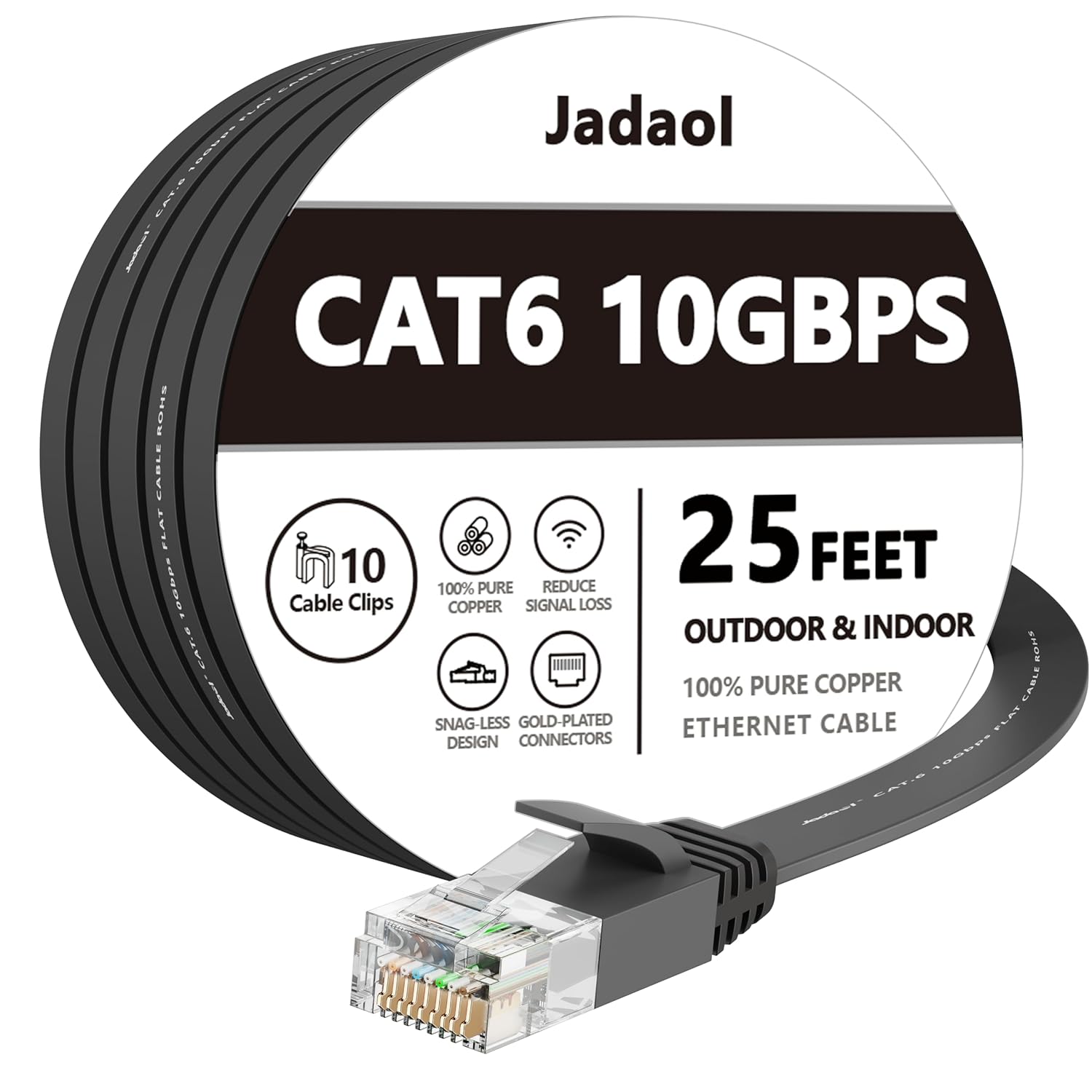
Needed for this step
Jadaol Cat 6 Ethernet Cable 25 ft, 10Gbps Suppo...
This helps complete the fix you are currently reading.
$9.99Power Cycle Hub and Router
Unplug the router from power and wait 30 seconds. Then unplug the DIRIGERA hub USB-C power cable and wait 30 seconds. Plug the router back in first and wait until all indicator lights show normal operation, usually 2 to 3 minutes. Then reconnect the DIRIGERA hub power. Wait 2 minutes for the hub to fully boot and establish its network connection before opening the IKEA Home Smart app.
Verify Network Configuration
Log into your router admin panel and check the connected devices list. Confirm the DIRIGERA hub appears with an assigned IP address. If you have a mesh WiFi system or multiple access points, make sure the hub Ethernet connects directly to the main router node, not a satellite. Some mesh systems isolate wired and wireless clients by default. Also verify that AP isolation or client isolation is disabled in your router settings.
Set Up DHCP Reservation
In your router admin panel, find the DIRIGERA hub in the connected devices list and note its MAC address. Create a DHCP reservation or static IP assignment that always gives the hub the same IP address. This prevents the hub from losing connectivity when the router reassigns IP addresses. Save the router settings and reboot the hub once more to pick up the reserved address.
Factory Reset as Last Resort
If the hub remains offline after all network checks, perform a factory reset. Locate the small reset button on the bottom of the DIRIGERA hub. Press and hold it with a pin or paperclip for 10 seconds until the LED begins flashing rapidly. Release the button and wait for the LED to pulse steadily. Open the IKEA Home Smart app and follow the setup wizard to re-add the hub. Note that all paired devices will need to be re-paired after a factory reset.
Quick Solutions
Still having issues? This is usually the deeper cause below.
This usually happens right after a router reboot or ISP change — the device rejoins the network but drops its cloud session silently.
The DIRIGERA hub requires internet access for initial setup and firmware updates, but local control of Zigbee devices works without internet once everything is paired.
Most WiFi drop-offs happen right after a router reboot or ISP swap — the device reconnects to the network but silently loses its cloud registration.
- Ethernet cable between hub and router is loose or
- Router assigned a new IP address
- Router firmware update changed network settings or firewall rules
- DIRIGERA hub firmware update failed or is stuck mid-update
- Too many devices on the network
Before you go — try one of these (they fix most cases).
Official Manufacturer Manual
IKEA Smart Home provides official product documentation through their online manual rather than downloadable PDF. Access setup guides, troubleshooting steps, and product specifications for your IKEA DIRIGERA Hub.
Source: ikea.com
Need More Help? IKEA Smart Home Support
Note: The contact information below connects you directly to IKEA Smart Home's official customer support team, not Trunetto. They can help with warranty claims, device replacements, and advanced technical issues.
Accessories owners commonly pair with IKEA DIRIGERA Hub.

Amazon Smart Plug, Works with Alexa, Simple Setup, Endles...

TP-Link WiFi Extender with Ethernet Port, Dual Band 5GHz/...

Kasa Smart Plug, Matter Compatible, Energy Monitoring, Co...
As an Amazon Associate we earn from qualifying purchases.