How to Set Up LIFX A19 Color Bulbs Without a Hub
- Install Bulbs
- Open LIFX App
- Allow Firmware Update
- Group and Automate
Most users complete this in under 20 minutes
Overview
LIFX bulbs join WiFi directly, so you do not need a hub. This guide powers up the bulbs, walks through app pairing, moves them to the correct WiFi band, and groups them into rooms for reliable control without a bridge.
Why This Happens in Real Homes
LIFX bulbs join WiFi directly, so you do not need a hub. This guide powers up the bulbs, walks through app pairing, moves them to the correct WiFi band, and groups them into rooms for reliable control without a bridge. In day-to-day use, this usually looks like LIFX A19 bulbs ready to install; Home WiFi has a 2.4GHz SSID; LIFX app installed on phone.
Most cases trace back to Bulb joined to prior owner WiFi; Router hides 2.4GHz band from phones; Bulb firmware update stalls during setup. The fix works best when you go step by step instead of changing multiple settings at once.
A practical order for this issue is: Install Bulbs -> Open LIFX App -> Join WiFi -> Allow Firmware Update. After each step, test the exact behavior that was failing so you can confirm what actually solved it.
What's Included
- LIFX A19 bulbs ready to install
- Home WiFi has a 2.4GHz SSID
- LIFX app installed on phone
- Bulbs not previously paired
- Same phone and bulb on same WiFi
- Router is powered on and stable
- Bulbs boot to a steady glow when powered
- Grouping bulbs into rooms after pairing
Got your materials ready? Here's what to check first.
Before You Start
- Bulb joined to prior owner WiFi
- Router hides 2.4GHz band from phones
- Bulb firmware update stalls during setup
- Multiple setup attempts collide
- Bulb placed far from router during pairing
- Guest network blocks device discovery
- Router set to WPA3-only, which LIFX radios can't join
- Wall switch cut power mid-pairing
Don't skip this step — it breaks everything if you do
Do not power LIFX bulbs on dimmer switches. Dimmers can damage internal electronics and permanently disable color features.
Tools & Requirements
These tools will help you complete this fix.
As an Amazon Associate we earn from qualifying purchases.
Installation Steps
Install Bulbs
Screw LIFX bulbs into fixtures and turn on the wall switch so each bulb boots. A steady glow means the bulb is ready for setup. If a bulb does not light or is dim, reset it by flipping the switch off and on five times at about one-second intervals.
Open LIFX App
Install the LIFX app from your app store and sign in. Tap Add Light and follow the prompts. The app discovers nearby LIFX bulbs advertising setup mode. Keep your phone connected to the 2.4GHz WiFi SSID that the bulb will join for best discovery.

Needed for this step
WiFi Extender Signal Booster for Home Office,Wi...
This helps complete the fix you are currently reading.
$59.99Join WiFi
Enter your WiFi password carefully. LIFX only supports 2.4GHz. If a modern router hides that band, split bands temporarily or enable a dedicated IoT SSID on 2.4GHz. After joining, wait for the bulb to report online in the app before moving on.
Allow Firmware Update
Let the bulb complete any firmware update the app prompts for. Do not power cycle during the update. Once done, the bulb rejoins the network automatically. Firmware completion is the most common failure point on first setup, so patience pays off.
Group and Automate
Name each bulb and add it to a room. Build scenes for Morning, Evening, and Focus lighting. Add your LIFX account to Alexa, Google Home, or HomeKit to extend control. Add automations so lights turn on at sunset or with motion-based triggers.
Installation Tips
Still stuck? This is usually the deeper cause below.
Name bulbs by location and fixture. Generic names like Living Room 1 become confusing after the third bulb in the same space.
Before you go — these LIFX guides fix most remaining issues.
Most popular upgrades chosen by LIFX Color A19 owners.
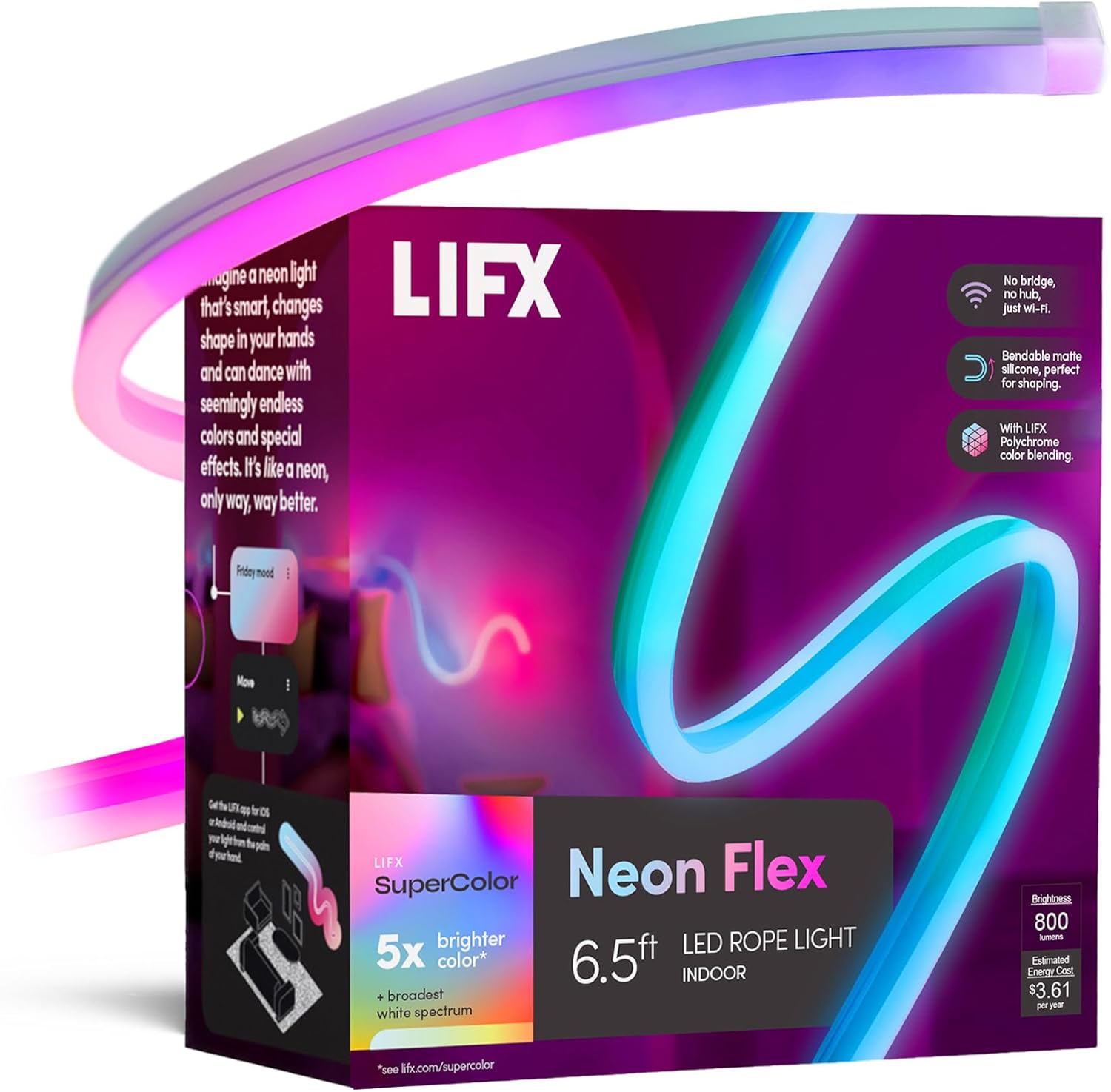
LIFX Neon Flex SuperColor LED Strip Light, 6.5ft Bendable...

LIFX Bedroom Bundle – with 2 Color 800 Lumen Smart Bulb a...

LIFX Supercolor Neon Flex Light Strip, 16ft Bendable RGBW...
As an Amazon Associate we earn from qualifying purchases.
Official Manufacturer Manual
LIFX provides official product documentation through their online manual rather than downloadable PDF. Access setup guides, troubleshooting steps, and product specifications for your LIFX Color A19.
Source: support.lifx.com
Need More Help? LIFX Support
Note: The contact information below connects you directly to LIFX's official customer support team, not Trunetto. They can help with warranty claims, device replacements, and advanced technical issues.
Accessories owners commonly pair with LIFX Color A19.

As an Amazon Associate we earn from qualifying purchases.