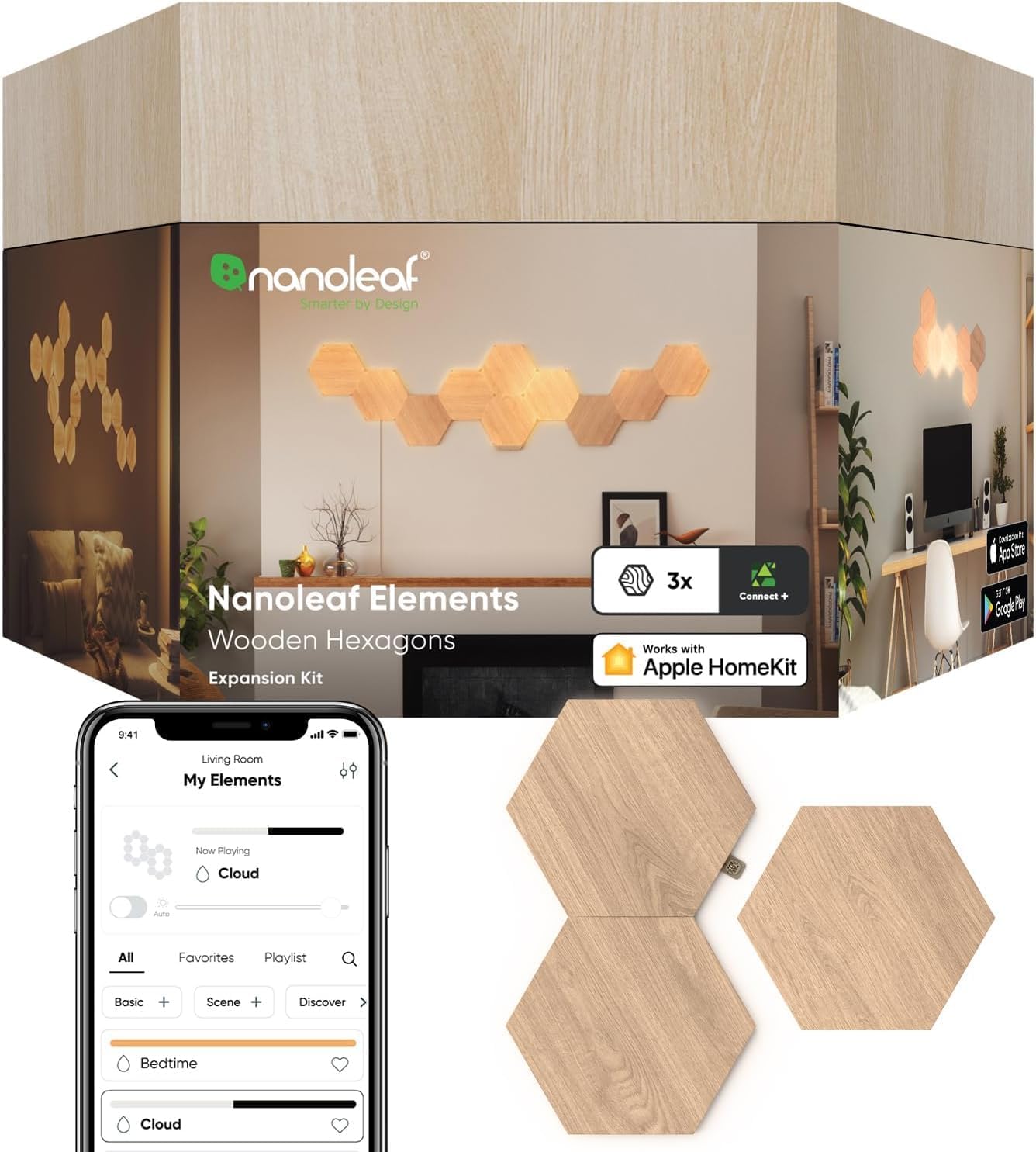
Nanoleaf Elements Not Connecting to HomeKit
- Connecting to a 5GHz-only network
- Weak WiFi at the controller
- Already paired to another Home/account
Problem Description
Your Nanoleaf Elements panels will not connect to Apple HomeKit. The scanning process fails, the setup code is not accepted, or the device appears briefly then disappears from the Home app. You can control the Elements via the Nanoleaf app, but HomeKit integration is not working.
Why This Happens in Real Homes
Nanoleaf Elements connect to Apple Home over your network, so pairing failures are usually the familiar ones: a 5GHz-only or weak network at the controller, a leftover pairing to another Home, or a router blocking the multicast (mDNS) that HomeKit uses to discover accessories. The HomeKit setup code on the controller must scan cleanly too.
Set up on a 2.4GHz network with strong signal at the controller, scan the correct HomeKit code, and if Elements was previously paired, reset it first so it can join your Home. Enable multicast/mDNS on the router, add a home hub (HomePod/Apple TV) for remote and Thread support, update firmware, and restart the controller. That clears the large majority of HomeKit pairing issues.
Symptoms
- Elements won't connect to Apple Home
- HomeKit pairing fails
- 'Accessory not found'
- Scan code rejected
- Pairs then drops
- Missing in the Home app
- No response in HomeKit
- Times out pairing
Recognize these? Here's what usually causes it.
Common Causes
- Connecting to a 5GHz-only network
- Weak WiFi at the controller
- Already paired to another Home/account
- Wrong or unreadable HomeKit code
- No home hub for remote/Thread
- Firmware out of date
- Router blocking multicast (mDNS)
- Controller needs a restart
Most fixes happen in the first 3 steps.
Resetting HomeKit pairing will remove the Elements from Apple Home and any automations or scenes they were part of. You will need to reconfigure these after re-pairing.
Tools & Requirements
Step-by-Step Solution
Update Firmware First
Before attempting to add to HomeKit, make sure your Nanoleaf Elements have the latest firmware. Open the Nanoleaf app, select your Elements, go to settings, and check for updates. Apply any available updates. Older firmware versions may have HomeKit bugs that prevent proper pairing.
Reset HomeKit Pairing on the Elements
If a previous HomeKit pairing is stuck on the device, it can block new pairings. In the Nanoleaf app, go to your Elements device settings. Find the option for HomeKit Reset or Unpair HomeKit and tap it. This clears the HomeKit credentials from the device, making it discoverable again for a fresh HomeKit setup.
Reboot Your Apple Home Hub
Your HomePod Mini or Apple TV 4K serves as the Home Hub. Unplug it from power for 60 seconds, then plug it back in. Wait for it to fully boot and show as Connected in the Apple Home app settings. A malfunctioning home hub can prevent new accessory pairings.
Add to HomeKit Using the Nanoleaf App
Instead of using the Apple Home app directly, try adding HomeKit from within the Nanoleaf app. Go to your Elements device settings and look for an Add to HomeKit option. This method can sometimes be more reliable because it handles the handoff more gracefully. Follow the prompts to scan the HomeKit code.
Check Network Configuration
Make sure your phone, the Elements, and your Home Hub are all on the same WiFi network. Many routers have client isolation enabled for 5GHz, which can block local communication. Temporarily connect everything to the 2.4GHz band. Also, check your router for any firewall rules that might be blocking mDNS (Bonjour) traffic, which HomeKit relies on.
Quick Solutions
Still having issues? This is usually the deeper cause below.
This usually happens right after a router reboot or ISP change — the device rejoins the network but drops its cloud session silently.
The HomeKit setup code is printed on the controller and in the original product packaging. If you've lost it, the code is also stored in the Nanoleaf app under device settings. Make sure you are entering the correct 8-digit code.
Most WiFi drop-offs happen right after a router reboot or ISP swap — the device reconnects to the network but silently loses its cloud registration.
- Connecting to a 5GHz-only network
- Weak WiFi at the controller
- Already paired to another Home/account
- Wrong or unreadable HomeKit code
- No home hub for remote/Thread
Before you go — try one of these (they fix most cases).
Most popular upgrades chosen by Nanoleaf Elements Wood Look Hexagons owners.

Nanoleaf Lines LED Wall Lights, RGBW Smart Geometry Wall ...

Nanoleaf Essentials LED Rope Light, Smart Neon Rope Light...

Nanoleaf Shapes WiFi and Thread Smart RGBW 16M+ Color LED...
As an Amazon Associate we earn from qualifying purchases.
Official Manufacturer Manual
Nanoleaf provides official product documentation through their online manual rather than downloadable PDF. Access setup guides, troubleshooting steps, and product specifications for your Nanoleaf Elements Wood Look Hexagons.
Source: nanoleaf.me
Need More Help? Nanoleaf Support
Note: The contact information below connects you directly to Nanoleaf's official customer support team, not Trunetto. They can help with warranty claims, device replacements, and advanced technical issues.
How Does Nanoleaf Compare?
Before replacing your Nanoleaf device, see how it stacks up against alternatives in our full comparison guides.