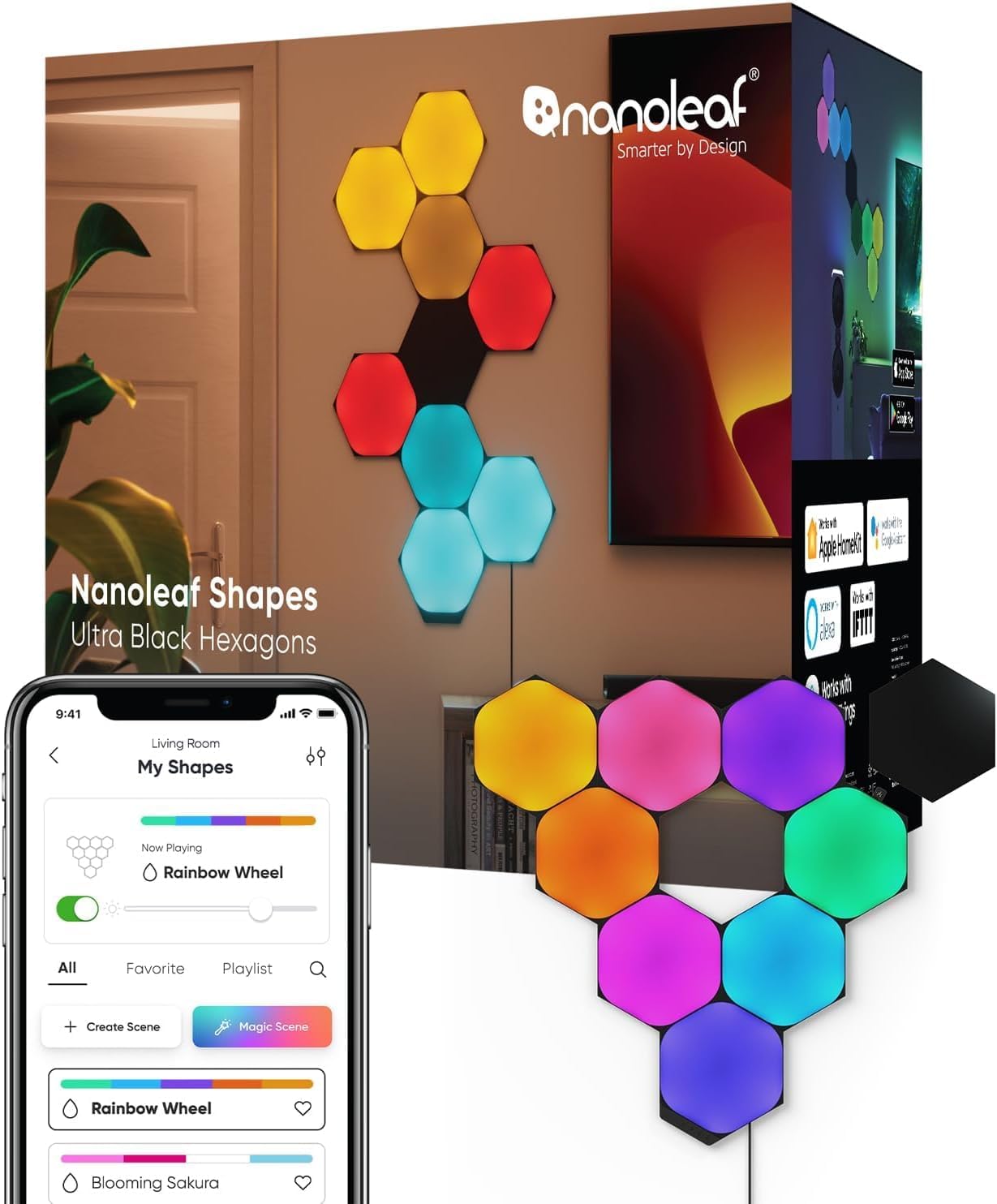
Why Do My Nanoleaf Shapes Panels Keep Going Offline?
- Weak 2.4GHz WiFi at the controller
- Router IP/DHCP churn
- Band steering / 5GHz push
Problem Description
Your Nanoleaf Shapes panels go offline randomly showing as unavailable in the app and not responding to voice commands. Turning them on and off at the switch brings them back temporarily but they go offline again within hours or days. The panels work perfectly when online but the connection keeps dropping.
Why This Happens in Real Homes
Nanoleaf Shapes going offline randomly is usually a WiFi-stability issue at the controller — marginal 2.4GHz signal, a router churning the IP, or band steering pushing it toward 5GHz all cause it to drop and reconnect. On Thread/Matter setups, an unstable Thread mesh does the same.
Strengthen 2.4GHz coverage where the controller sits, reserve a fixed DHCP IP so the router keeps it addressable, and keep it on the 2.4GHz band with band steering off. Reduce 2.4GHz interference by changing channels, update the controller firmware, and if you use Thread, make sure the border router and mesh are solid. Also confirm your power supply can drive the number of panels in your layout, since an overtaxed PSU causes instability.
Symptoms
- Shapes go offline randomly
- Drop then reconnect
- Intermittent control
- Offline in the app
- Unresponsive at times
- Offline after a while
- Reconnect only after a power-cycle
- Random disconnects
Recognize these? Here's what usually causes it.
Common Causes
- Weak 2.4GHz WiFi at the controller
- Router IP/DHCP churn
- Band steering / 5GHz push
- 2.4GHz interference
- Controller firmware out of date
- Thread/Matter network instability
- Power supply marginal for the layout
- Router congestion
Most fixes happen in the first 3 steps.
Do not update firmware during a scene or animation. Wait for solid color or off state before updating.
Tools & Requirements
Step-by-Step Solution
Check WiFi Signal at Panels
Use a WiFi analyzer app to check signal strength where your panels are mounted. The controller needs strong 2.4GHz signal. If weak consider a WiFi extender or mesh node near the panels. Signal should show at least -60 dBm.
Assign Static IP Address
Dynamic IP changes can cause connectivity issues. Log into your router and find the Nanoleaf controller in connected devices. Assign it a static IP address outside your DHCP range. This prevents IP conflicts and reconnection issues.
Reduce 2.4GHz Congestion
Nanoleaf only uses 2.4GHz which is often crowded. In your router settings change 2.4GHz channel to 1, 6, or 11 whichever has least interference. Reduce the number of devices on 2.4GHz by moving capable devices to 5GHz.
Update Controller Firmware
Open Nanoleaf app and go to device settings. Check for firmware updates. Install any available updates. Firmware updates often include WiFi stability improvements. Allow the controller to restart after updating.
Scheduled Power Cycle
Some users find periodic power cycling prevents offline issues. Use a smart plug on a schedule to power cycle the Nanoleaf controller weekly. This clears any accumulated connection issues before they cause problems.
Quick Solutions
Still having issues? This is usually the deeper cause below.
This usually happens right after a router reboot or ISP change — the device rejoins the network but drops its cloud session silently.
Nanoleaf panels communicate through the controller. If the controller is offline all panels are offline even if they have power.
Most WiFi drop-offs happen right after a router reboot or ISP swap — the device reconnects to the network but silently loses its cloud registration.
- Weak 2.4GHz WiFi at the controller
- Router IP/DHCP churn
- Band steering / 5GHz push
- 2.4GHz interference
- Controller firmware out of date
Before you go — try one of these (they fix most cases).
Most popular upgrades chosen by Nanoleaf Shapes owners.

Nanoleaf Shapes WiFi and Thread Smart RGBW 16M+ Color LED...
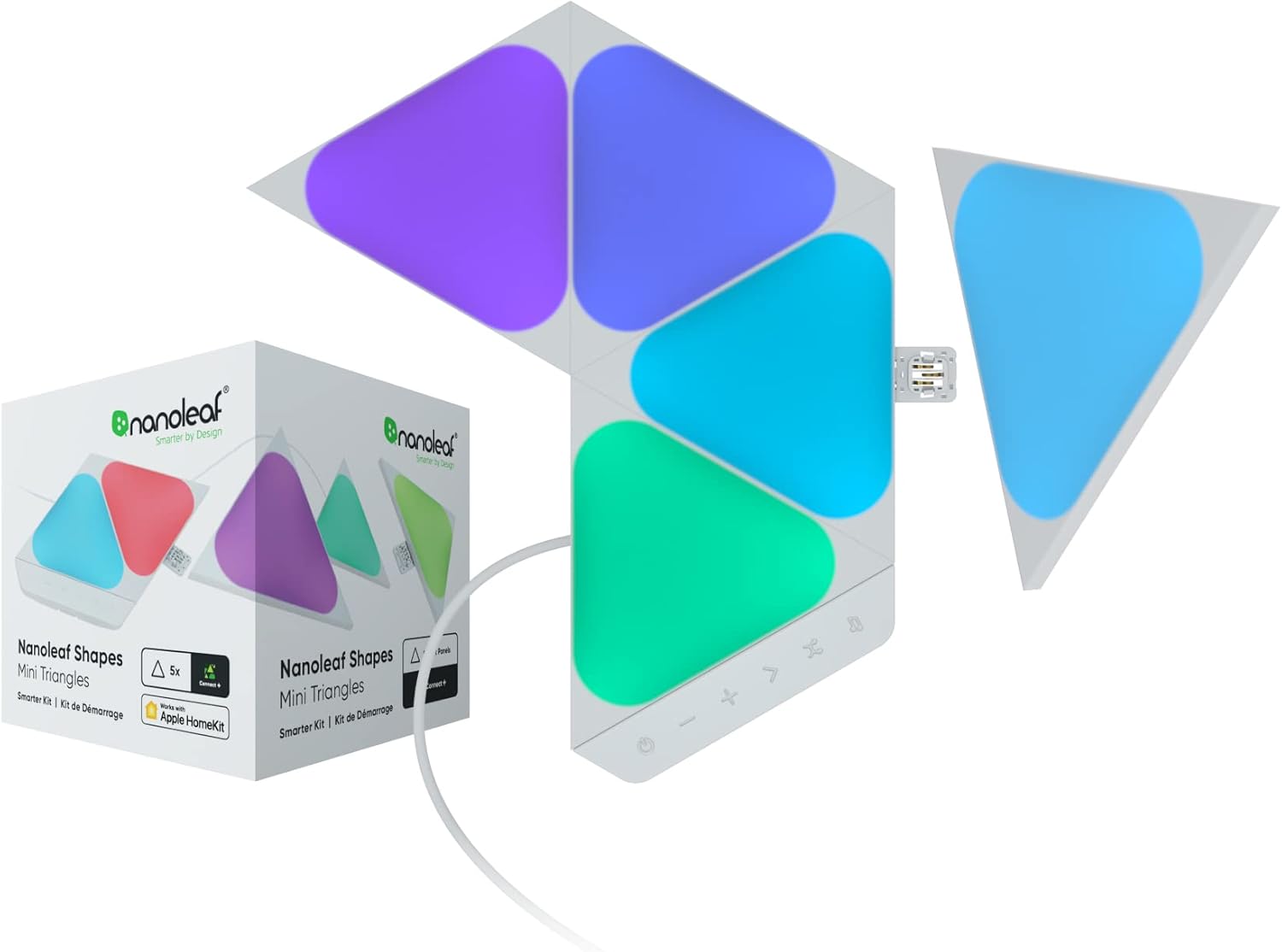
Nanoleaf Shapes WiFi and Thread Smart RGBW 16M+ Color LED...
As an Amazon Associate we earn from qualifying purchases.
Official Manufacturer Manual
Nanoleaf provides official product documentation through their online manual rather than downloadable PDF. Access setup guides, troubleshooting steps, and product specifications for your Nanoleaf Shapes.
Source: nanoleaf.me
Need More Help? Nanoleaf Support
Note: The contact information below connects you directly to Nanoleaf's official customer support team, not Trunetto. They can help with warranty claims, device replacements, and advanced technical issues.
How Does Nanoleaf Compare?
Before replacing your Nanoleaf device, see how it stacks up against alternatives in our full comparison guides.
Accessories owners commonly pair with Nanoleaf Shapes.

Amazon Smart Plug, Works with Alexa, Simple Setup, Endles...

Ring Rechargeable Quick Release Battery Pack

Kasa Smart Plug HS103P2, Smart Home Wi-Fi Outlet Works wi...
As an Amazon Associate we earn from qualifying purchases.