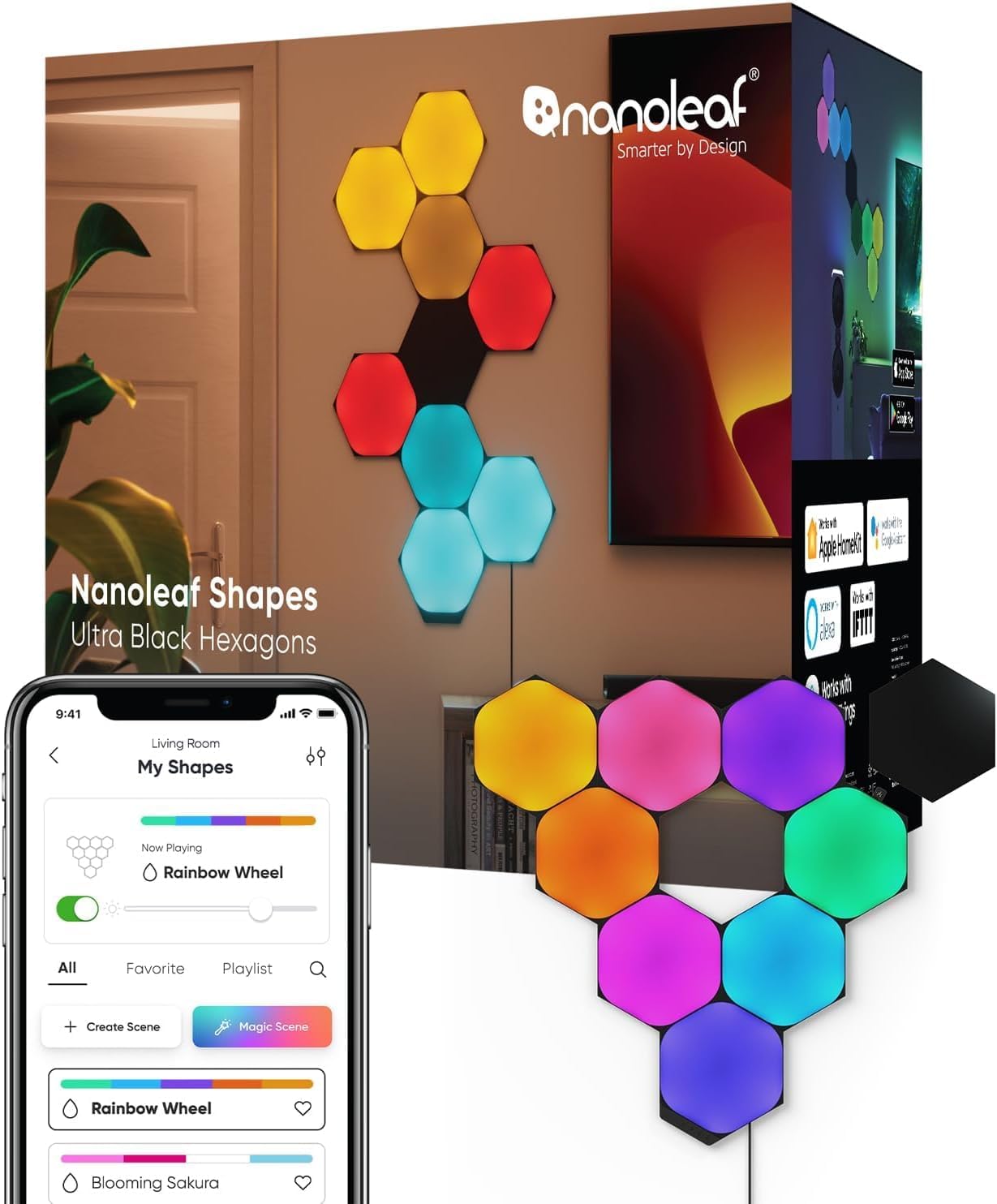
Why Are My Nanoleaf Panels Unevenly Bright?
- Too many panels for one PSU (voltage drop)
- Loose linker/connector at the dim panel
- Long single chain causing voltage drop
Problem Description
Your Nanoleaf panels have uneven brightness — some panels are dimmer than others. Loose linker connections between panels cause power and data loss downstream. Each panel receives power through the chain of linkers from the controller. A loose fit on one linker reduces power to all panels after it. Press each linker firmly to make sure a solid connection.
Why This Happens in Real Homes
Uneven brightness across Nanoleaf panels is usually a power-delivery issue: each power supply can drive only so many panels, and in a long single chain the voltage drops toward the far end, so panels there glow dimmer. A loose linker at one panel does the same thing locally.
Check you're within the panel-per-PSU limit and add a second power supply for large layouts, and reseat the linker at any noticeably dim panel — a poor connection there starves it. Splitting a long chain into branches or repositioning the controller balances the power draw. Clean oxidized contacts, and if one panel is consistently dim regardless of position, it may be failing and need replacing.
Symptoms
- Panels have uneven brightness
- Some panels dimmer than others
- Far panels dim
- Brightness fades across the layout
- One panel much brighter/dimmer
- Flicker on dim panels
- Dim at the end of a chain
- Inconsistent across the design
Recognize these? Here's what usually causes it.
Common Causes
- Too many panels for one PSU (voltage drop)
- Loose linker/connector at the dim panel
- Long single chain causing voltage drop
- Dirty/oxidized connector contacts
- A failing panel
- Controller placed far in the chain
- Layout branches beyond the power budget
- Firmware issue
Most fixes happen in the first 3 steps.
Do not attempt to open or modify the light hardware. Smart lights contain electronic components that can be damaged by moisture or physical tampering. Always power off at the wall switch before removing or repositioning a smart light.
Tools & Requirements
Step-by-Step Solution
Check linker connections for loose fits
Uneven brightness is almost always a power delivery issue. Each panel receives power through the chain of linkers from the controller. If a linker is partially seated, panels beyond it get reduced voltage and appear dimmer. Press every linker firmly until it clicks on both sides. The panels closest to the controller get the strongest power signal — distant panels dim first when connections are weak.
Check your total panel count vs power supply rating
Every Nanoleaf power supply has a maximum panel count. Shapes supports about 28 panels, Canvas about 25, Elements about 22. If you are at or over the limit, panels at the far end of the chain draw less power and appear dimmer than those near the controller. Reduce panel count or add a second power supply using the secondary power input port if your model supports it.
Check for firmware differences between panels
If you mixed panels from a starter kit and an expansion pack purchased months apart, they may be running different firmware versions. Firmware controls the LED driver calibration, so mismatched versions can produce slightly different brightness at the same setting. Update all panels through the Nanoleaf app to the latest firmware to make sure consistent calibration across the entire layout.
Understand that some variation is normal
LED manufacturing tolerances mean no two panels produce exactly identical brightness. A 5-10% difference between panels is within normal range and most people do not notice it during normal use. The variation is most visible when all panels are set to the same solid white at full brightness. Running dynamic scenes or lower brightness levels masks the differences.
Replace noticeably dim panels
If one panel is significantly dimmer than its neighbors (more than 20% difference visible to the eye) and the linkers are fine, that panel may have degraded LEDs. Swap it to a different position in the layout to confirm — if it is still dim in the new position, the panel hardware is the issue. Contact Nanoleaf support for a replacement. Expansion pack panels are direct replacements.
Quick Solutions
Still having issues? This is usually the deeper cause below.
If this comes back after following these steps, check whether a recent app or firmware update reset a default setting — the fix works, but the setting gets reverted silently.
Group your smart lights by room in the app and assign clear names like Kitchen Ceiling and Bedroom Lamp. This makes voice commands more reliable and lets you create scenes that control multiple lights at once with a single command.
This issue almost always looks more complex than it is — the majority of cases trace back to a single setting, a stale credential, or a default that shipped wrong.
- Too many panels for one PSU (voltage drop)
- Loose linker/connector at the dim panel
- Long single chain causing voltage drop
- Dirty/oxidized connector contacts
- A failing panel
Before you go — try one of these (they fix most cases).
Most popular upgrades chosen by Nanoleaf Shapes owners.

Nanoleaf Shapes WiFi and Thread Smart RGBW 16M+ Color LED...
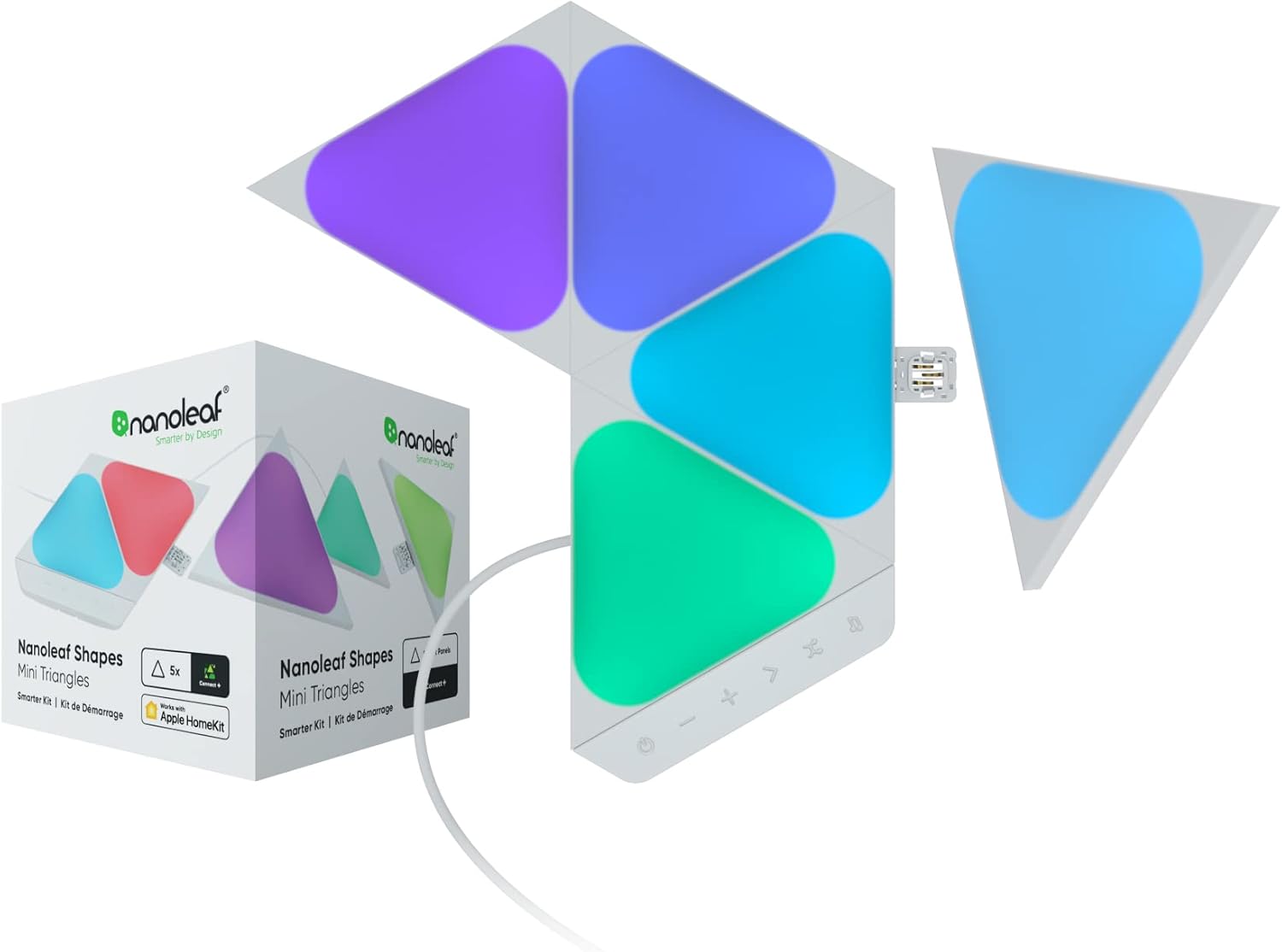
Nanoleaf Shapes WiFi and Thread Smart RGBW 16M+ Color LED...
As an Amazon Associate we earn from qualifying purchases.
Official Manufacturer Manual
Nanoleaf provides official product documentation through their online manual rather than downloadable PDF. Access setup guides, troubleshooting steps, and product specifications for your Nanoleaf Shapes.
Source: nanoleaf.me
Need More Help? Nanoleaf Support
Note: The contact information below connects you directly to Nanoleaf's official customer support team, not Trunetto. They can help with warranty claims, device replacements, and advanced technical issues.
How Does Nanoleaf Compare?
Before replacing your Nanoleaf device, see how it stacks up against alternatives in our full comparison guides.
Accessories owners commonly pair with Nanoleaf Shapes.

Amazon Smart Plug, Works with Alexa, Simple Setup, Endles...

Ring Rechargeable Quick Release Battery Pack

Kasa Smart Plug HS103P2, Smart Home Wi-Fi Outlet Works wi...
As an Amazon Associate we earn from qualifying purchases.