Why Won't My August Lock Auto-Lock Work?
- Auto-Lock not enabled or misconfigured
- DoorSense not set up (for close-to-lock)
- Deadbolt binding so the motor can't throw
Problem Description
Auto-Lock automatically relocks the door a set time after it's unlocked, or with DoorSense once the door closes. When it doesn't work, the door stays unlocked, locks at the wrong time, or the motor jams trying — usually a DoorSense, timing, or deadbolt-alignment issue.
Why This Happens in Real Homes
August Auto-Lock has two modes: a simple timer that relocks a set time after unlocking, and a DoorSense-based mode that locks once the door actually closes — the smarter option, since it won't try to lock an open door. Most "auto-lock not working" cases are DoorSense not being set up, or the deadbolt binding so the motor can't complete the lock.
Enable Auto-Lock in the app and, ideally, set it to lock on door-close using DoorSense so it only fires when the door is shut. Make sure the deadbolt throws smoothly by hand into an aligned strike, recalibrate the lock, and fit fresh AA batteries for full motor torque. With DoorSense working and the bolt moving freely, auto-lock becomes reliable.
Symptoms
- Door stays unlocked (no auto-lock)
- Locks at the wrong time
- Locks while the door is open
- Jams when auto-locking
- Inconsistent auto-lock
- Timer ignored
- Only locks manually
- Auto-lock disabled unexpectedly
Recognize these? Here's what usually causes it.
Common Causes
- Auto-Lock not enabled or misconfigured
- DoorSense not set up (for close-to-lock)
- Deadbolt binding so the motor can't throw
- Calibration off
- Low batteries
- Door not fully closed when it tries to lock
- Lock offline (setting didn't sync)
- Firmware out of date
Most fixes happen in the first 3 steps.
Always keep a physical backup key accessible outside your home in case of total lock failure. Never perform a factory reset while locked out as this may disable all electronic access. Ensure battery level is above 50 percent before firmware updates to prevent corruption.
Tools & Requirements
Step-by-Step Solution
Enable Auto-Lock in the August app
Open the August app, select your lock, go to Lock Settings, and check that Auto-Lock is toggled on. Set the timer — the lock automatically locks after the specified number of minutes (1-30 minutes) after being unlocked. If Auto-Lock was already on but not working, toggle it off, wait 5 seconds, and toggle it back on to reset the feature.
Check DoorSense status
If DoorSense is enabled, Auto-Lock waits until DoorSense confirms the door is closed before locking. If DoorSense shows the door as open (even when it is closed), Auto-Lock will never trigger — it will not lock an open door. Check the DoorSense status in the August app. If it shows the wrong status, recalibrate DoorSense (Lock Settings > DoorSense > Recalibrate). This is the most common reason Auto-Lock fails.
Check the lock battery level
When the lock batteries are low, some features like Auto-Lock are disabled to preserve power for manual locking. Check the battery level in the August app. If batteries are below 20%, replace them — the August WiFi Smart Lock 4th Gen uses two CR123A batteries, the Smart Lock Pro uses four AA batteries. After replacing, Auto-Lock should resume working within one lock/unlock cycle.
Verify the lock is calibrated correctly
Auto-Lock uses the lock motor to turn the deadbolt. If the lock is not calibrated properly, it may try to auto-lock but fail because the motor cannot turn the deadbolt fully. Go to Lock Settings > Calibrate Lock and run the calibration process. Make sure the deadbolt moves smoothly by hand before calibrating — if it is stiff, Auto-Lock will fail even with good calibration. See the alignment and motor jam guides for mechanical fixes.
Check for conflicts with smart home automations
If you have Alexa routines, Google Home automations, or HomeKit scenes that control the lock, they may be sending unlock commands that override Auto-Lock. Check your automations for any that keep the lock unlocked. Also check if another household member is repeatedly unlocking the lock from the app, which resets the Auto-Lock timer each time.
Quick Solutions
Still having issues? This is usually the deeper cause below.
If the keypad rejects valid codes, a lockout timer may be running — five failed entries locks most keypads silently for 5–10 minutes.
Set up auto-lock to engage 30 seconds after the door closes so you never accidentally leave it unlocked. Create temporary access codes for guests and service workers that automatically expire after a set time period.
Most smart lock failures people label as hardware issues turn out to be a code wiped during a sync, or a setting reset nobody remembers triggering.
- Auto-Lock not enabled or misconfigured
- DoorSense not set up (for close-to-lock)
- Deadbolt binding so the motor can't throw
- Calibration off
- Low batteries
Before you go — try one of these (they fix most cases).
Most popular upgrades chosen by August Wi-Fi Smart Lock owners.
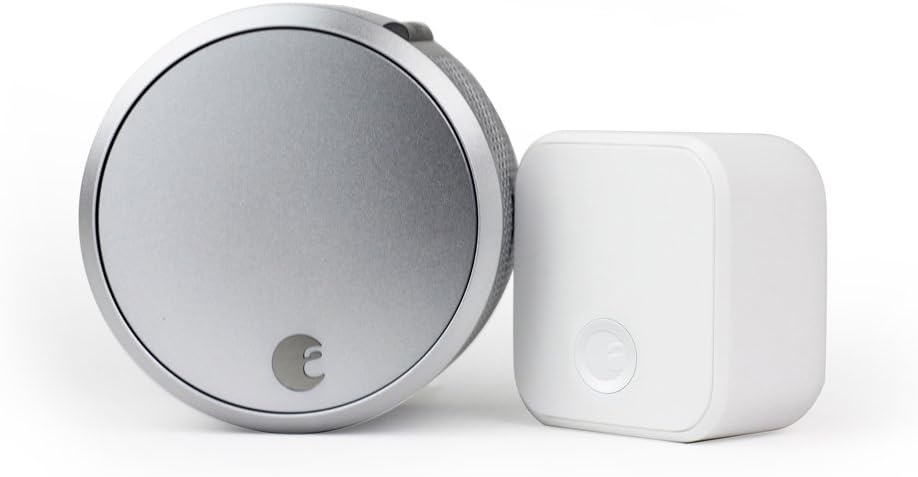
August Home Smart Lock Pro + Connect Hub - Wi-Fi Smart Lo...

August Home Smart Lock + Connect, Silver

August Home Connect Wi-Fi Bridge, Remote Access, Alexa In...
As an Amazon Associate we earn from qualifying purchases.
Official Manufacturer Manual
If you need the complete manufacturer documentation for advanced setup, wiring diagrams, or detailed specifications, you can download the official manual below. The manual includes full technical instructions directly from the manufacturer and may help if your issue requires deeper troubleshooting.
Download the Official August Wi-Fi Smart Lock ManualSource: august.com
Need More Help? August Home Support
Note: The contact information below connects you directly to August Home's official customer support team, not Trunetto. They can help with warranty claims, device replacements, and advanced technical issues.
How Does August Home Compare?
Before replacing your August Home device, see how it stacks up against alternatives in our full comparison guides.