

How Do I Set Up Siri Shortcuts on My Schlage Sense?
- No home hub for HomeKit remote/voice
- Home hub offline
- Lock unresponsive in Apple Home
Problem Description
Your Schlage Sense is not responding properly to voice commands through your smart assistant. Voice control issues prevent you from using hands-free commands to operate the Sense, which is one of the primary benefits of a smart home setup. Specifically, the issue involves siri shortcuts. The steps below walk you through diagnosing the root cause and applying proven fixes so your Sense works reliably again.
Why This Happens in Real Homes
The Schlage Sense works with Siri through Apple Home, so voice control needs the lock added to HomeKit and a home hub (HomePod or Apple TV) online to relay commands — Siri can't reach a Bluetooth lock on its own. And by Apple's security design, unlocking by voice is disabled unless you explicitly enable it, so many "Siri won't unlock" reports are that setting.
Make sure the lock is in Apple Home with a home hub online, then check Home settings to allow unlocking via Siri (it requires authentication to turn on). Locking by voice usually works without that toggle. Keep the Bluetooth/HomeKit link healthy with fresh batteries and reasonable proximity of the hub, and update iOS and firmware to clear voice-control glitches.
Symptoms
- Siri won't control the lock
- Voice commands ignored
- 'Not responding' via Siri
- Works in the app not by voice
- Siri locks but won't unlock
- Intermittent voice control
- Shortcut fails
- Voice control lost after a change
Recognize these? Here's what usually causes it.
Common Causes
- No home hub for HomeKit remote/voice
- Home hub offline
- Lock unresponsive in Apple Home
- Unlock via Siri disabled (security setting)
- Bluetooth/HomeKit connection weak
- Low batteries
- iOS/firmware out of date
- Lock not added to Apple Home
Most fixes happen in the first 3 steps.
Always keep a physical backup key accessible outside your home in case of total lock failure. Never perform a factory reset while locked out as this may disable all electronic access. Ensure battery level is above 50 percent before firmware updates to prevent corruption.
Tools & Requirements
Step-by-Step Solution
Set up the Schlage Sense with Apple HomeKit
Before using Siri, the Schlage Sense must be added to Apple HomeKit. Open the Apple Home app. Tap + > Add Accessory. Scan the HomeKit setup code (on the installation card or the back of the lock interior). The lock pairs via Bluetooth. Name the lock (Front Door Lock, Back Door). Assign it to a room. Once in HomeKit, Siri voice commands work automatically — no additional setup needed.
Use basic Siri commands for lock control
With the lock in HomeKit, you can say: Hey Siri, lock the front door. Hey Siri, is the front door locked? Hey Siri, unlock the front door (requires authentication — Siri asks for confirmation or Face ID before unlocking for security). These commands work from your iPhone, iPad, Apple Watch, HomePod, or Mac. If you have a HomePod or Apple TV as a Home Hub, commands work even when you are away from home.
Create Siri Shortcuts for lock routines
Open the Apple Shortcuts app. Tap + > Add Action. Search for Home. Select Control [your lock]. You can create shortcuts like: Goodnight — locks the front door, turns off all lights, sets the thermostat to sleep mode. Leaving Home — locks all doors and arms the security system. Give the shortcut a phrase: Hey Siri, goodnight. The shortcut runs all actions in sequence.
Add lock actions to HomeKit automations
In the Apple Home app, go to Automations. Create automations that include the Schlage Sense: When I leave home, lock the front door (uses your iPhone location). When the last person leaves, lock all doors. At 10 PM, lock the front door. Automations involving unlocking require manual confirmation for security — iOS does not allow fully automated unlocking without user approval.
Fix Siri not recognizing lock commands
If Siri says it cannot find the device: check that the lock is still in the Home app and shows Connected (not Not Responding). Make sure you are using the exact name you gave the lock in HomeKit. If you named it Deadbolt, saying lock the front door will not work — say lock the deadbolt. You can rename the lock in the Home app to a more natural name. Also check that your Home Hub (HomePod, Apple TV) is online for remote Siri commands to work.
Quick Solutions
Still having issues? This is usually the deeper cause below.
If voice commands stopped working after relinking the account, check that the skill or action is still enabled — relinking sometimes disables it silently.
["Can combine with other HomeKit actions", "Good night shortcut can lock all doors"]
This issue almost always looks more complex than it is — the majority of cases trace back to a single setting, a stale credential, or a default that shipped wrong.
- No home hub for HomeKit remote/voice
- Home hub offline
- Lock unresponsive in Apple Home
- Unlock via Siri disabled (security setting)
- Bluetooth/HomeKit connection weak
Before you go — try one of these (they fix most cases).
Most popular upgrades chosen by Schlage Sense owners.
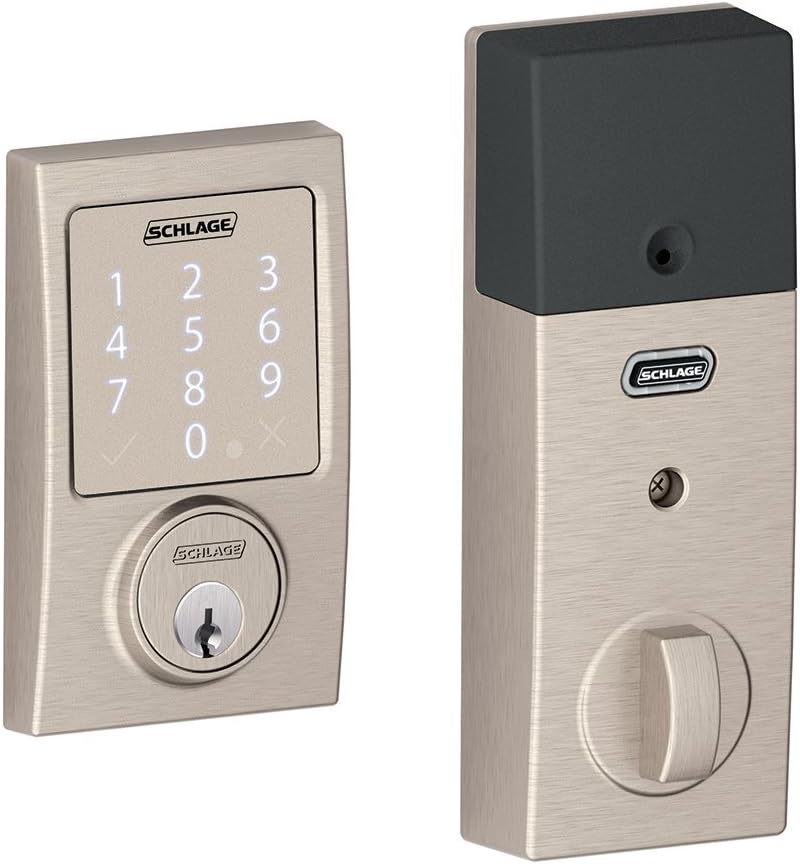
SCHLAGE Sense Smart Deadbolt with Century Trim in Satin N...
As an Amazon Associate we earn from qualifying purchases.
Official Manufacturer Manual
If you need the complete manufacturer documentation for advanced setup, wiring diagrams, or detailed specifications, you can download the official manual below. The manual includes full technical instructions directly from the manufacturer and may help if your issue requires deeper troubleshooting.
Download the Official Schlage Sense ManualSource: schlage.com
Need More Help? Schlage Support
Note: The contact information below connects you directly to Schlage's official customer support team, not Trunetto. They can help with warranty claims, device replacements, and advanced technical issues.
How Does Schlage Compare?
Before replacing your Schlage device, see how it stacks up against alternatives in our full comparison guides.


