

Why Won't My SwitchBot Lock Pro Recognize My Fingerprint?
- Poor-quality fingerprint enrollment
- Dirty or wet fingerprint sensor
- Finger wet, dry, cold, or dirty
Problem Description
Your SwitchBot Lock Pro with Keypad Touch does not recognize your fingerprint. You enrolled your fingers but the lock rejects them consistently. You have to use the PIN code instead which defeats the convenience of biometric unlock. The fingerprint sensor seems unreliable.
Why This Happens in Real Homes
Fingerprint trouble on the Lock Pro's Keypad Touch is usually about enrollment quality and sensor condition, not a broken reader — a print captured from only one angle, or a sensor with grime on it, gives unreliable reads. Cold, wet, or dry fingers also scan poorly.
Re-enroll the finger, deliberately capturing it at several angles and positions so the lock has a fuller template, and enroll the same finger twice for extra reliability. Keep the sensor clean and scan with a clean, dry finger placed the way you enrolled it. Enroll a couple of backup fingers, keep the battery charged, and update the Keypad Touch firmware to improve recognition.
Symptoms
- Fingerprint not recognized
- Keypad Touch rejects the finger
- Have to try several times
- Works sometimes, not others
- New print won't enroll well
- Cold or wet finger fails
- Recognition slower over time
- Certain fingers never work
Recognize these? Here's what usually causes it.
Common Causes
- Poor-quality fingerprint enrollment
- Dirty or wet fingerprint sensor
- Finger wet, dry, cold, or dirty
- Finger placed differently than enrolled
- Only one angle enrolled
- Sensor scratched or damaged
- Low battery affecting the sensor
- Firmware out of date
Most fixes happen in the first 3 steps.
Fingerprint sensors can wear over time. If reliability degrades after a year or more the sensor may need professional evaluation.
Tools & Requirements
These tools will help you complete this fix.
As an Amazon Associate we earn from qualifying purchases.
Step-by-Step Solution
Re-enroll Fingerprints Properly
Delete existing fingerprint entries and re-enroll. When enrolling move your finger slightly between scans to capture different angles. Press firmly and hold still during each scan. Enroll the center pad of your fingertip not the tip or edge.
Prepare Fingers Before Use
Very wet or very dry fingers scan poorly. Wipe excess moisture on your clothes. If fingers are dry rub them together to add slight natural oils. Dirt on fingers blocks sensor reading. Wash hands for best results.
Clean Sensor Surface
The fingerprint sensor is the smooth rectangular pad on the exterior face of the keypad, above the number buttons. It accumulates oil and dirt from repeated use. Clean it weekly with a soft dry cloth. Do not use water or cleaning chemicals on the sensor. A clean sensor reads fingerprints more accurately.

Needed for this step
WHOOSH! Pro 16.9 fl oz Refillable TV Screen Cle...
This helps complete the fix you are currently reading.
$19.99Match Enrollment Position
Touch the sensor the same way every time. If you enrolled pressing straight down always press straight down. If enrolled at an angle maintain that angle. Inconsistent positioning causes rejections even with correct fingerprint.
Enroll Same Finger Multiple Times
Enroll your primary finger as two or three separate fingerprint entries. Use slightly different angles and pressures for each enrollment. This gives the lock more reference data and improves recognition rate significantly.
Quick Solutions
Still having issues? This is usually the deeper cause below.
If the keypad rejects valid codes, a lockout timer may be running — five failed entries locks most keypads silently for 5–10 minutes.
Cold weather can affect fingerprint recognition. Warm your fingers before attempting to unlock in winter.
Most smart lock failures people label as hardware issues turn out to be a code wiped during a sync, or a setting reset nobody remembers triggering.
- Poor-quality fingerprint enrollment
- Dirty or wet fingerprint sensor
- Finger wet, dry, cold, or dirty
- Finger placed differently than enrolled
- Only one angle enrolled
Before you go — try one of these (they fix most cases).
Most popular upgrades chosen by SwitchBot Lock Pro owners.
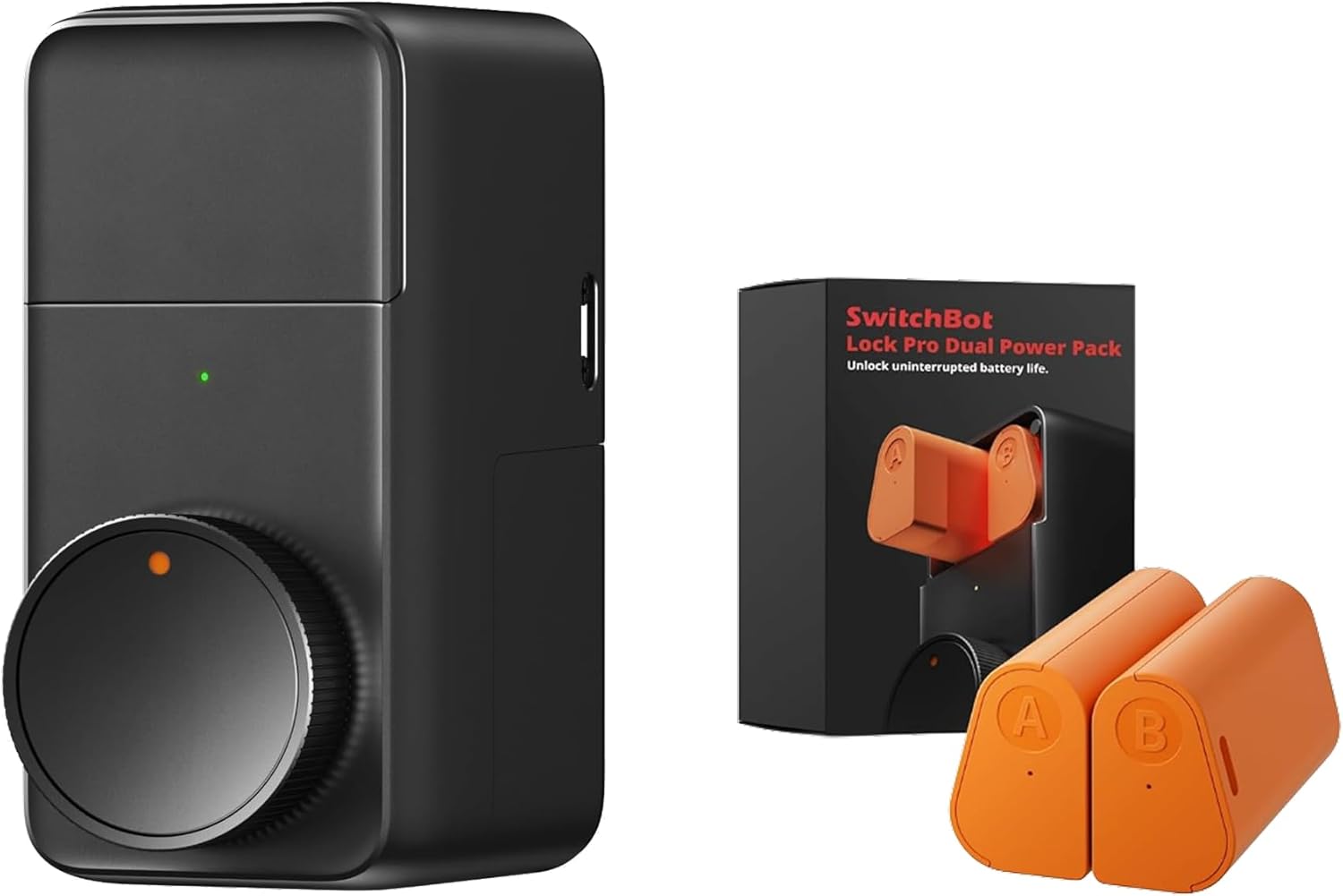
SwitchBot Smart Lock Pro, Keyless Entry Door Lock, Smart ...

SwitchBot Smart Lock Pro with Remote, Keyless Entry Door ...

SwitchBot Smart Lock Pro Keyless Entry Door Lock, Smart D...
As an Amazon Associate we earn from qualifying purchases.
Official Manufacturer Manual
SwitchBot provides official product documentation through their online manual rather than downloadable PDF. Access setup guides, troubleshooting steps, and product specifications for your SwitchBot Lock Pro.
Source: switch-bot.com
Need More Help? SwitchBot Support
Note: The contact information below connects you directly to SwitchBot's official customer support team, not Trunetto. They can help with warranty claims, device replacements, and advanced technical issues.
Accessories owners commonly pair with SwitchBot Lock Pro.

Amazon Basics 20-Pack AA Alkaline High-Performance Batter...

Amazon Basics CR2032 3V Lithium Coin Cell Batteries for K...

Duracell Coppertop Double AA Batteries with Power Boost I...
As an Amazon Associate we earn from qualifying purchases.


