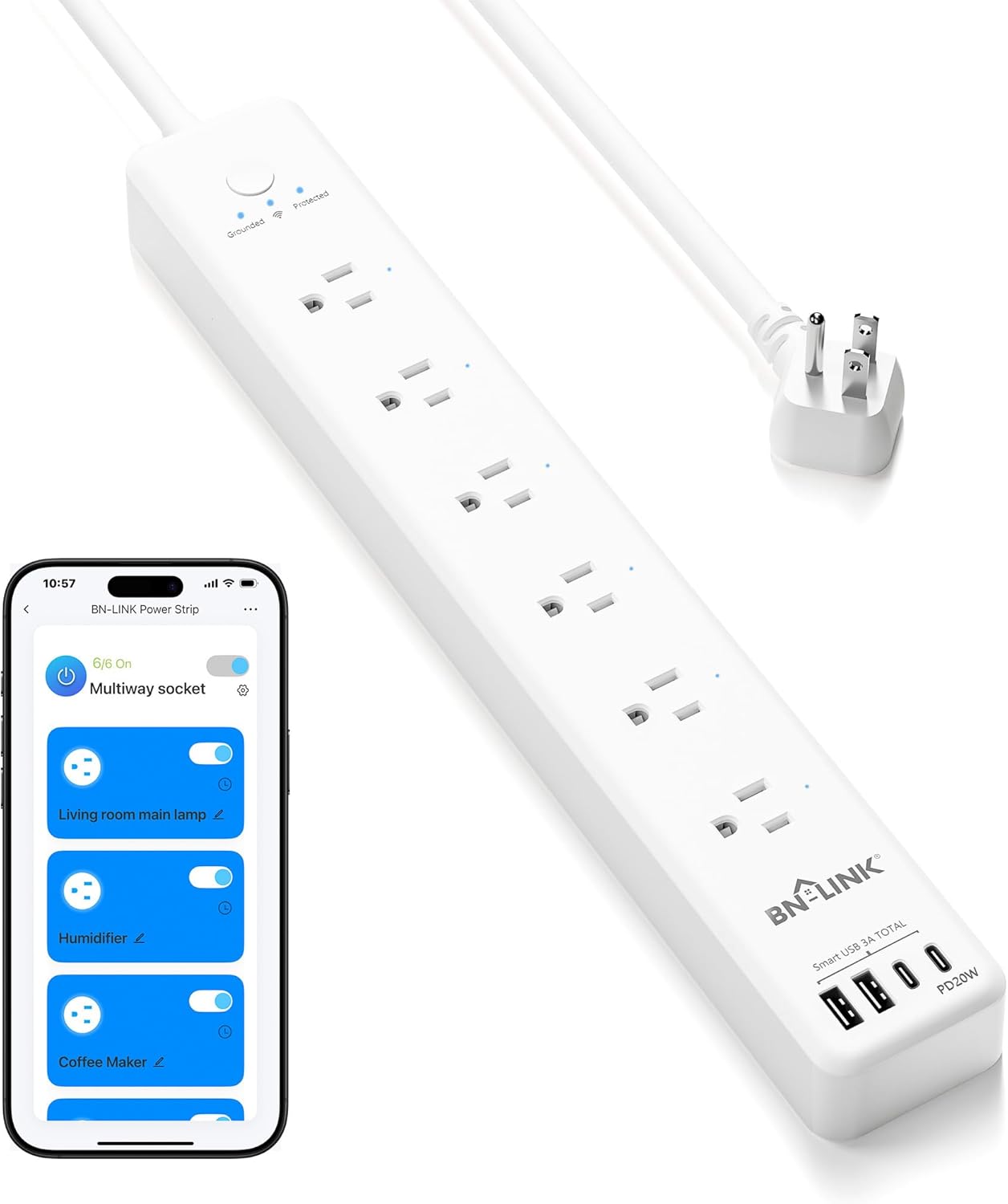
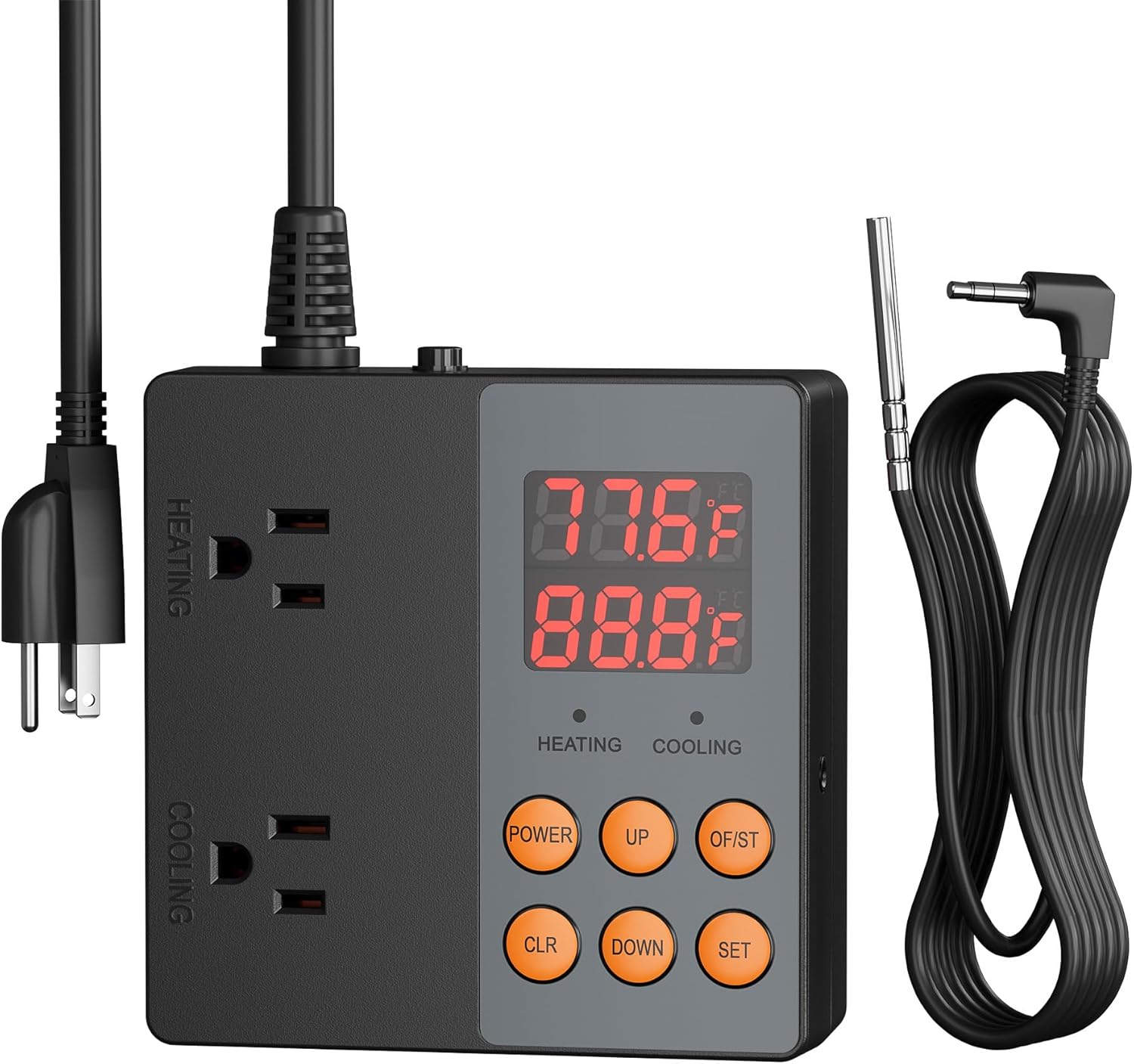
How Do I Set Up a BN-Link Pool Pump Timer?
- WiFi connection unstable or device too far from router
- Device firmware or app needs updating
- Device not properly set up during initial pairing
Problem Description
You are setting up a BN-Link timer for your pool pump. Pool pumps draw significant amperage (10-20A at 240V for most pumps), so the timer must match or exceed the pump's electrical requirements. This guide covers checking your pump's voltage and amperage rating on the nameplate, selecting the right timer, and wiring it.
Symptoms
- Device shows as offline in the app
- Device does not respond to commands
- App cannot connect to device
- Features not working as expected
- Device disconnects frequently
- Automations fail to trigger
- Voice commands not recognized
Recognize these? Here's what usually causes it.
Common Causes
- WiFi connection unstable or device too far from router
- Device firmware or app needs updating
- Device not properly set up during initial pairing
- Power supply issue or loose connection
- Account not linked correctly
- Too many devices causing network congestion
- Interference from other wireless devices
Most fixes happen in the first 3 steps.
Never exceed the smart plug maximum wattage rating listed on the device or packaging. Do not use smart plugs with space heaters, high-wattage appliances, or devices that must not be interrupted like medical equipment. Smart plugs are not designed for outdoor use unless specifically rated for it.
Step-by-Step Solution
Check pool pump power requirements
Before connecting a pool pump to the BN-Link timer: verify the pump's amperage does not exceed the timer's rating. Most BN-Link smart plugs are rated for 15A (1875W). Standard pool pumps draw 8-15A depending on size. A large 2HP pump may exceed 15A on startup (inrush current). If your pump exceeds the plug rating, use a BN-Link heavy-duty timer or a dedicated pool pump timer rated for the pump's load.
Set up the daily pump schedule
Pool pumps need to run long enough to circulate the entire pool volume at least once daily. For most residential pools: 6-8 hours per day. In the BN-Link app, create an on/off schedule — for example, on at 8AM, off at 2PM. Split into two sessions if needed: 6AM-9AM and 4PM-7PM. Running during off-peak electricity hours saves money if your utility has time-of-use rates.
Adjust run time seasonally
Pool filtration needs change with seasons. Summer (hot, heavy use): run the pump 8-10 hours per day. Spring/Fall (moderate use): 6-8 hours. Winter (pool closed or minimal use): 2-4 hours or as needed to prevent freezing. Update the BN-Link schedule seasonally in the app. Running the pump more than necessary wastes electricity (pool pumps use $50-150/month depending on size and run time).
Set up freeze protection
In cold climates, pool water must circulate during freezing temperatures to prevent pipe damage. If the BN-Link plug has a temperature-based automation (through a smart home platform like Alexa or IFTTT), set a rule: if outdoor temperature drops below 35°F, turn on the pump. If the plug does not support temperature triggers, manually adjust the schedule during cold snaps. Frozen pipes can crack and cause thousands of dollars in damage.
Monitor energy consumption
If your BN-Link model has energy monitoring: track the pool pump's electricity usage. A typical pool pump uses 1-2 kWh per hour of operation. At $0.14/kWh, running 8 hours per day costs approximately $3.50-4.50/day ($100-135/month). Use this data to optimize run time — if the pool stays clean with 6 hours instead of 8, you save $1+/day. Variable-speed pumps running at lower speeds use significantly less energy.
Quick Solutions
Still having issues? This is usually the deeper cause below.
If this comes back after following these steps, check whether a recent app or firmware update reset a default setting — the fix works, but the setting gets reverted silently.
Use smart plugs with energy monitoring to track exactly how much electricity each appliance uses. Set up Away Mode schedules that randomly toggle lamps on and off to make your home look occupied when you are traveling.
This issue almost always looks more complex than it is — the majority of cases trace back to a single setting, a stale credential, or a default that shipped wrong.
- WiFi connection unstable or device too far from router
- Device firmware or app needs updating
- Device not properly set up during initial pairing
- Power supply issue or loose connection
- Account not linked correctly
Before you go — try one of these (they fix most cases).
Most popular upgrades chosen by BN-Link Heavy Duty owners.

As an Amazon Associate we earn from qualifying purchases.
Official Manufacturer Manual
BN-Link provides official product documentation through their online manual rather than downloadable PDF. Access setup guides, troubleshooting steps, and product specifications for your BN-Link Heavy Duty.
Source: bn-link.com
Need More Help? BN-Link Support
Note: The contact information below connects you directly to BN-Link's official customer support team, not Trunetto. They can help with warranty claims, device replacements, and advanced technical issues.