

How Do I Set Up Meross Devices with HomeKit?
- Device model doesn't support HomeKit
- Firmware not updated to enable HomeKit
- Connecting to 5GHz not 2.4GHz
Problem Description
You want to set up your Meross devices with Apple HomeKit for Siri control and Home app integration. Meross devices must first be set up in the Meross app, then added to HomeKit by scanning the HomeKit code on the device. Your iPhone and Apple Home Hub (HomePod or Apple TV) must be on the same local network as the Meross device.
Why This Happens in Real Homes
Many Meross devices work with Apple HomeKit, but not all — and some need a firmware update first to enable HomeKit support, so the starting point is confirming your specific model and firmware. HomeKit-capable Meross devices are added by scanning the HomeKit setup code, over a 2.4GHz network.
Confirm the device supports HomeKit and update its firmware if HomeKit needs enabling, then add it in the Apple Home app by scanning the HomeKit code, on a 2.4GHz network with strong signal. Enable multicast/mDNS on your router (HomeKit relies on it), and add a home hub (HomePod/Apple TV) for remote control. If the device was previously paired to another Home, reset it first so it can join yours.
Symptoms
- Setting up Meross with HomeKit
- Won't add to Apple Home
- HomeKit code questions
- Setup fails in Home app
- Not appearing in HomeKit
- Which devices support HomeKit
- Scan code rejected
- Remote HomeKit access questions
Recognize these? Here's what usually causes it.
Common Causes
- Device model doesn't support HomeKit
- Firmware not updated to enable HomeKit
- Connecting to 5GHz not 2.4GHz
- Wrong/unreadable HomeKit code
- Already paired to another Home
- No home hub for remote access
- Router blocking multicast (mDNS)
- Weak 2.4GHz signal
Most fixes happen in the first 3 steps.
Never exceed the smart plug maximum wattage rating listed on the device or packaging. Do not use smart plugs with space heaters, high-wattage appliances, or devices that must not be interrupted like medical equipment. Smart plugs are not designed for outdoor use unless specifically rated for it.
Step-by-Step Solution
Confirm iPhone and Home hub are on same LAN
Keep setup devices on the same local network segment and Apple home context, because HomeKit onboarding fails when discovery path is segmented or isolated.
Reset Meross accessory and enter fresh pairing mode
Factory reset the accessory and verify pairing indicator before adding, because prior bindings can block new HomeKit provisioning attempts.
Scan HomeKit code with required permissions enabled
Enable Bluetooth and local network permissions during add flow, since missing permissions frequently interrupt secure accessory handoff.
Disable VPN/private relay during setup attempt
Temporarily turn off routing/privacy overlays that can interfere with local discovery and key exchange during HomeKit commissioning.
Test local and remote control after pairing
Verify command response on home WiFi and then remote control to confirm both local accessory path and hub relay are fully functional.
Quick Solutions
Still having issues? This is usually the deeper cause below.
If this comes back after following these steps, check whether a recent app or firmware update reset a default setting — the fix works, but the setting gets reverted silently.
Use smart plugs with energy monitoring to track exactly how much electricity each appliance uses. Set up Away Mode schedules that randomly toggle lamps on and off to make your home look occupied when you are traveling.
This issue almost always looks more complex than it is — the majority of cases trace back to a single setting, a stale credential, or a default that shipped wrong.
- Device model doesn't support HomeKit
- Firmware not updated to enable HomeKit
- Connecting to 5GHz not 2.4GHz
- Wrong/unreadable HomeKit code
- Already paired to another Home
Before you go — try one of these (they fix most cases).
Most popular upgrades chosen by Meross Devices owners.

meross Smart Plug Mini Support Apple HomeKit, Siri, Alexa...

Meross Smart Plug Mini Support Apple HomeKit, Siri, Alexa...
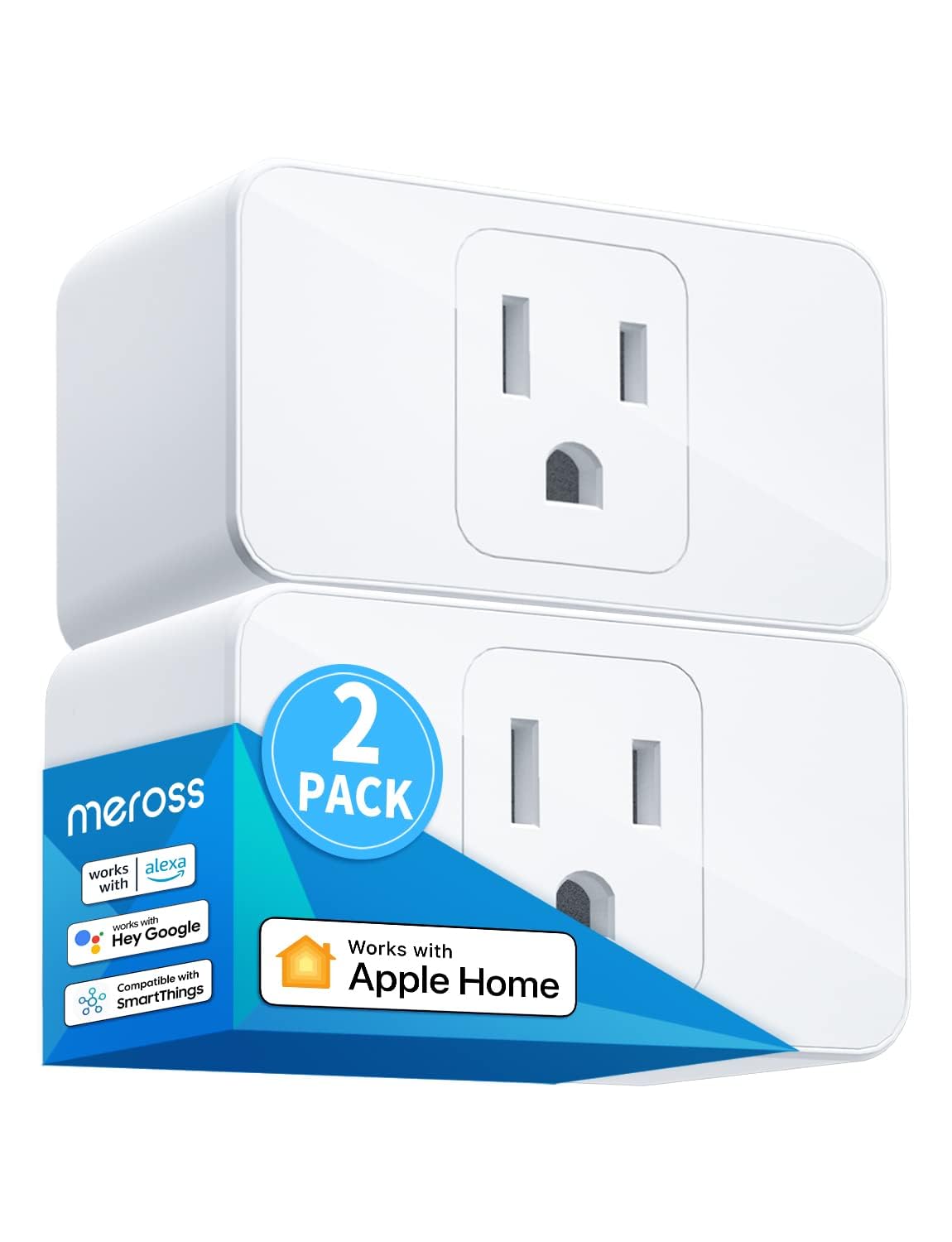
meross Smart Plug Mini, 15A & Reliable Wi-Fi, Support App...
As an Amazon Associate we earn from qualifying purchases.
Official Manufacturer Manual
Meross provides official product documentation through their online manual rather than downloadable PDF. Access setup guides, troubleshooting steps, and product specifications for your Meross Devices.
Source: meross.com
Need More Help? Meross Support
Note: The contact information below connects you directly to Meross's official customer support team, not Trunetto. They can help with warranty claims, device replacements, and advanced technical issues.
Accessories owners commonly pair with Meross Devices.

meross Smart Garage Door Opener Remote with External Ante...

meross Smart Garage Door Opener Remote, Compatible with A...

meross Smart WiFi Garage Door Opener Remote, App Control,...
As an Amazon Associate we earn from qualifying purchases.


