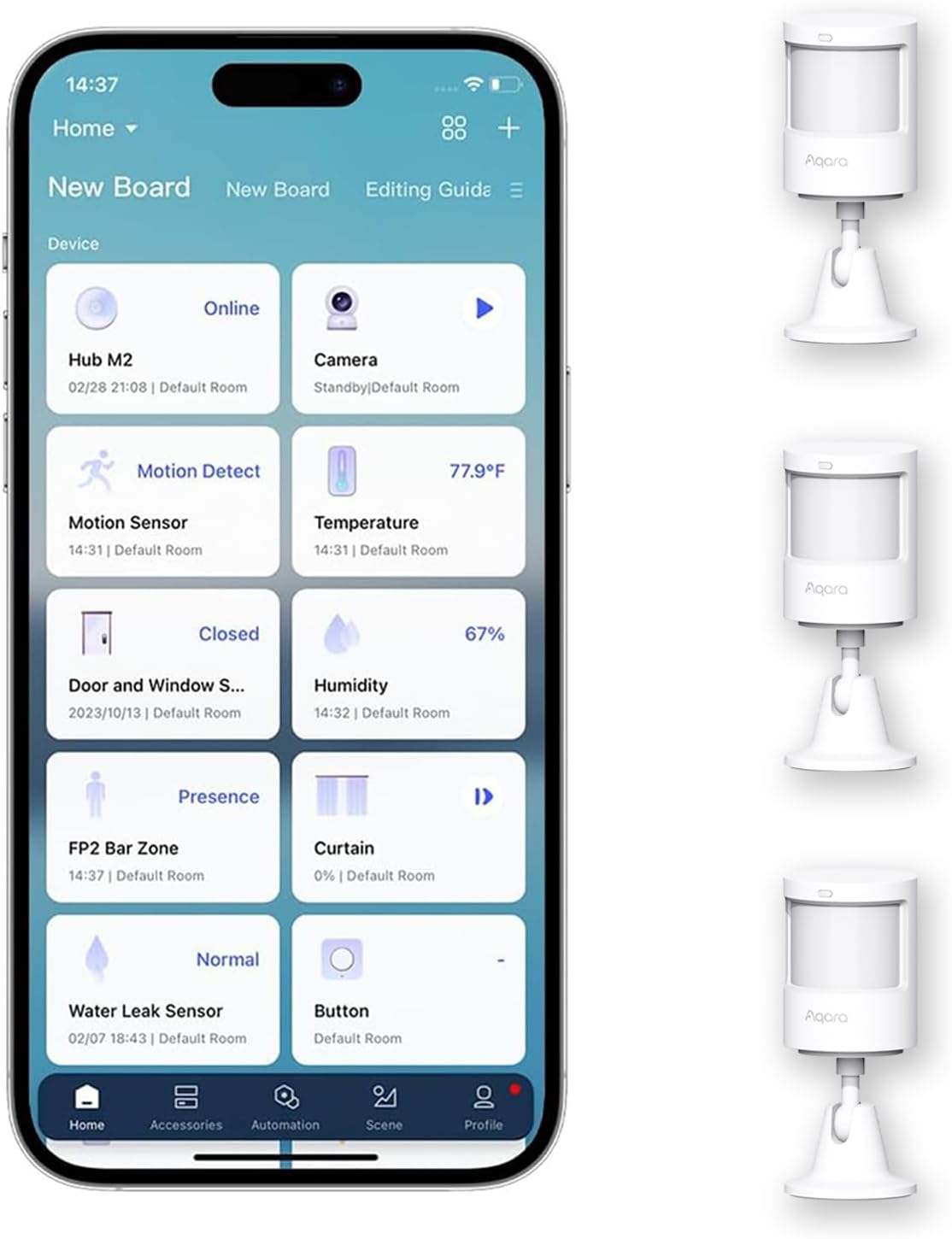
How to Reset Aqara Motion Sensor P1 That Will Not Pair
- Sensor not put into pairing mode
- Battery low or the tab not fully removed
- Hub too far from the sensor for the join
Problem Description
Pairing can fail if the sensor is not in pairing mode or the hub is too far away. This guide resets the P1, checks hub signal, and completes pairing.
Why This Happens in Real Homes
Pairing can fail if the sensor is not in pairing mode or the hub is too far away. This guide resets the P1, checks hub signal, and completes pairing. In day-to-day use, this usually looks like Sensor not found in app; LED does not blink; Hub online.
Most cases trace back to Sensor not in pairing mode; Battery low; Hub too far from sensor. The fix works best when you go step by step instead of changing multiple settings at once.
A practical order for this issue is: Reset the Sensor -> Move Closer to Hub -> Start Pairing -> Confirm LED Blink. After each step, test the exact behavior that was failing so you can confirm what actually solved it.
Symptoms
- Sensor is not found in the app during pairing
- LED does not blink when you hold reset
- Pairing times out
- Sensor pairs then immediately drops
- Battery tab removed but no response
- Multiple sensors nearby confusing setup
- Only pairs right next to the hub
- Sensor was on another hub and will not join
Recognize these? Here's what usually causes it.
Common Causes
- Sensor not put into pairing mode
- Battery low or the tab not fully removed
- Hub too far from the sensor for the join
- Aqara Home app out of date
- Hub firmware outdated
- Zigbee network busy or congested
- Sensor still bound to a previous hub
- Zigbee channel overlapping busy WiFi
Most fixes happen in the first 3 steps.
Do not mount the sensor until pairing completes. It is easier to reset in hand.
Tools & Requirements
Step-by-Step Solution
Reset the Sensor to Pairing Mode
The Aqara P1 motion sensor has a small reset button on the back, recessed in a pinhole. Use a SIM ejector tool or paper clip to press and hold the reset button for 5 seconds until the blue LED on the front flashes rapidly. This clears any previous pairing and puts the sensor in discovery mode. You have about 3 minutes to complete pairing before it times out.
Move the Sensor Close to the Hub
During initial pairing, place the P1 sensor within 5-10 feet of your Aqara hub with no walls between them. Zigbee pairing requires a strong signal to negotiate the secure key exchange. After pairing completes, you can move the sensor to its intended location — it will communicate through the Zigbee mesh (other Aqara powered devices act as repeaters).
Start Pairing in the Aqara Home App
Open the Aqara Home app, tap the plus icon in the top right, select Add Accessory, and choose Motion Sensor P1 from the list. The app will prompt you to reset the sensor (done in step 1). Complete the setup prompts. Make sure Bluetooth is enabled on your phone as the app uses it for initial discovery on some hub models.
Confirm the LED Blinks Three Times
When pairing succeeds, the blue LED on the front of the P1 sensor blinks three times in quick succession. If the LED does not blink or stays solid, pairing failed. Check that the hub is online (solid green LED on the hub), that you are using the correct hub (Aqara M1S, M2, or Hub E — the P1 is not compatible with older Aqara hubs), and retry from step 1.
Test Motion Detection
After pairing, mount the sensor or hold it in position. Walk in front of the sensor from about 10 feet away. Check the Aqara app — the motion sensor device page should show motion detected within 1-2 seconds. If it does not detect motion, check the sensitivity setting in the app (Low, Medium, High) and increase it. The P1 uses a passive infrared (PIR) sensor that detects heat movement.
Quick Solutions
Still having issues? This is usually the deeper cause below.
If pairing fails after multiple attempts, the device may still be registered to a previous account — factory-reset it before trying to add it to a new one.
Pair sensors one at a time to avoid duplicate device IDs.
Pairing failures almost always come down to distance during the initial handshake — manufacturers seriously understate how close you actually need to be.
- Sensor not put into pairing mode
- Battery low or the tab not fully removed
- Hub too far from the sensor for the join
- Aqara Home app out of date
- Hub firmware outdated
Before you go — try one of these (they fix most cases).
Official Manufacturer Manual
Aqara provides official product documentation through their online manual rather than downloadable PDF. Access setup guides, troubleshooting steps, and product specifications for your Aqara Motion Sensor P1.
Source: aqara.com
Need More Help? Aqara Support
Note: The contact information below connects you directly to Aqara's official customer support team, not Trunetto. They can help with warranty claims, device replacements, and advanced technical issues.
Accessories owners commonly pair with Aqara Motion Sensor P1.

Aqara Zigbee Door and Window Sensor, Wireless Contact Sen...

Aqara Zigbee Door and Window Sensor 3 Pack, Wireless Mini...
Aqara Zigbee Temperature and Humidity Sensor, Wireless Th...
As an Amazon Associate we earn from qualifying purchases.