

Why Does My Echo Device Keep Dropping Off WiFi?
- Weak WiFi signal at the Echo
- Band-steering bouncing it between bands
- Router changed its IP (DHCP)
Problem Description
Your Amazon Echo device keeps dropping off WiFi and going offline. The Echo may be connecting to the 5GHz WiFi band which has shorter range, or the 2.4GHz band which is more congested. Check which band the Echo is using in the Alexa app under Device Settings > WiFi Network. This guide covers band selection, interference, and signal improvements.
Why This Happens in Real Homes
An Echo that keeps dropping WiFi is almost always a signal or band problem — a weak signal in a far room, or a router band-steering it between 2.4GHz and 5GHz so it keeps reconnecting. 2.4GHz reaches farther; 5GHz is faster up close.
Start by checking where the Echo sits relative to the router and improving the signal (move it, add a mesh point), then reduce band-steering by pinning it to 2.4GHz for range. Reserve a fixed IP to stop DHCP-renewal drops, and keep router firmware and the device software current.
Symptoms
- Echo keeps dropping WiFi
- Goes offline randomly
- Reconnects on its own
- Drops in a far room
- Offline after router change
- Frequent brief disconnects
- Only drops on 5GHz
- Will not stay connected
Recognize these? Here's what usually causes it.
Common Causes
- Weak WiFi signal at the Echo
- Band-steering bouncing it between bands
- Router changed its IP (DHCP)
- Interference on 2.4GHz
- Too many devices/congestion
- Router firmware/security issue
- Distance from the router
- Firmware out of date
Most fixes happen in the first 3 steps.
Smart speakers are always listening for the wake word when unmuted. Review and delete your voice history regularly in the app privacy settings. Never place the speaker in bathrooms or near water sources as moisture can permanently damage internal components.
Tools & Requirements
Step-by-Step Solution
Check which WiFi band the Echo is using
Echo devices support both 2.4GHz and 5GHz WiFi. The 2.4GHz band has better range but more interference from neighbours and household devices. The 5GHz band is faster with less interference but shorter range. In the Alexa app, go to Devices, select the Echo, and check Network to see which band it is on. If the Echo is far from your router and keeps dropping, it may be on 5GHz — move it closer or force it to 2.4GHz by temporarily disabling 5GHz on your router during reconnection.
Restart your router
Many WiFi drop issues are caused by the router, not the Echo. Unplug your router for 30 seconds and plug it back in. After it fully boots (2-3 minutes), check if the Echo reconnects and stays connected. If your router has been running for weeks without a restart, its DHCP lease table, connection table, or channel allocation may be in a bad state. A restart clears all of these. If drops resume within days, the problem is deeper than a simple restart.
Reduce network congestion
If you have 30+ devices on your WiFi network, the router may be running out of connection slots or DHCP addresses. Check your router admin page for the number of connected devices. Smart home devices (cameras, sensors, plugs) each consume a connection. If your router is consumer-grade, it may struggle beyond 25-30 simultaneous devices. Consider a mesh system or a router rated for 50+ devices. Also check if a neighbour has a router on the same WiFi channel — use a WiFi analyser app to find the least congested channel and switch to it.
Set a static IP or DHCP reservation for the Echo
DHCP lease expiration can cause brief disconnections. When the lease expires, the Echo negotiates a new IP address — during this window, it appears to drop offline. Log into your router admin page, find the Echo in the device list, and set a DHCP reservation (also called a static lease) so it always gets the same IP address. This eliminates lease renewal disruptions. The Echo MAC address is in the Alexa app under Devices > your Echo > About.
Check for hardware interference
USB 3.0 devices, older microwaves, baby monitors, and cordless phones on the 2.4GHz band interfere with WiFi. If the Echo drops at specific times (when the microwave runs, when a USB hard drive is active), that is the culprit. Move the Echo away from the interference source or switch to 5GHz. Also check if the Echo is sitting on or near a metal surface — metal reflects WiFi signals and creates dead spots directly above it.
Quick Solutions
Still having issues? This is usually the deeper cause below.
This usually happens right after a router reboot or ISP change — the device rejoins the network but drops its cloud session silently.
Place your speaker in a central location at ear height for best voice pickup. Avoid corners and bookshelves which muffle the microphones. If you have multiple speakers, set up multi-room audio groups so music plays in sync across rooms.
Most WiFi drop-offs happen right after a router reboot or ISP swap — the device reconnects to the network but silently loses its cloud registration.
- Weak WiFi signal at the Echo
- Band-steering bouncing it between bands
- Router changed its IP (DHCP)
- Interference on 2.4GHz
- Too many devices/congestion
Before you go — try one of these (they fix most cases).
Most popular upgrades chosen by Amazon Echo owners.

Amazon eero Pro 6E mesh wifi router (1-pack) with Amazon ...

Amazon Echo Dot Kids (newest model) - Dragon including Am...
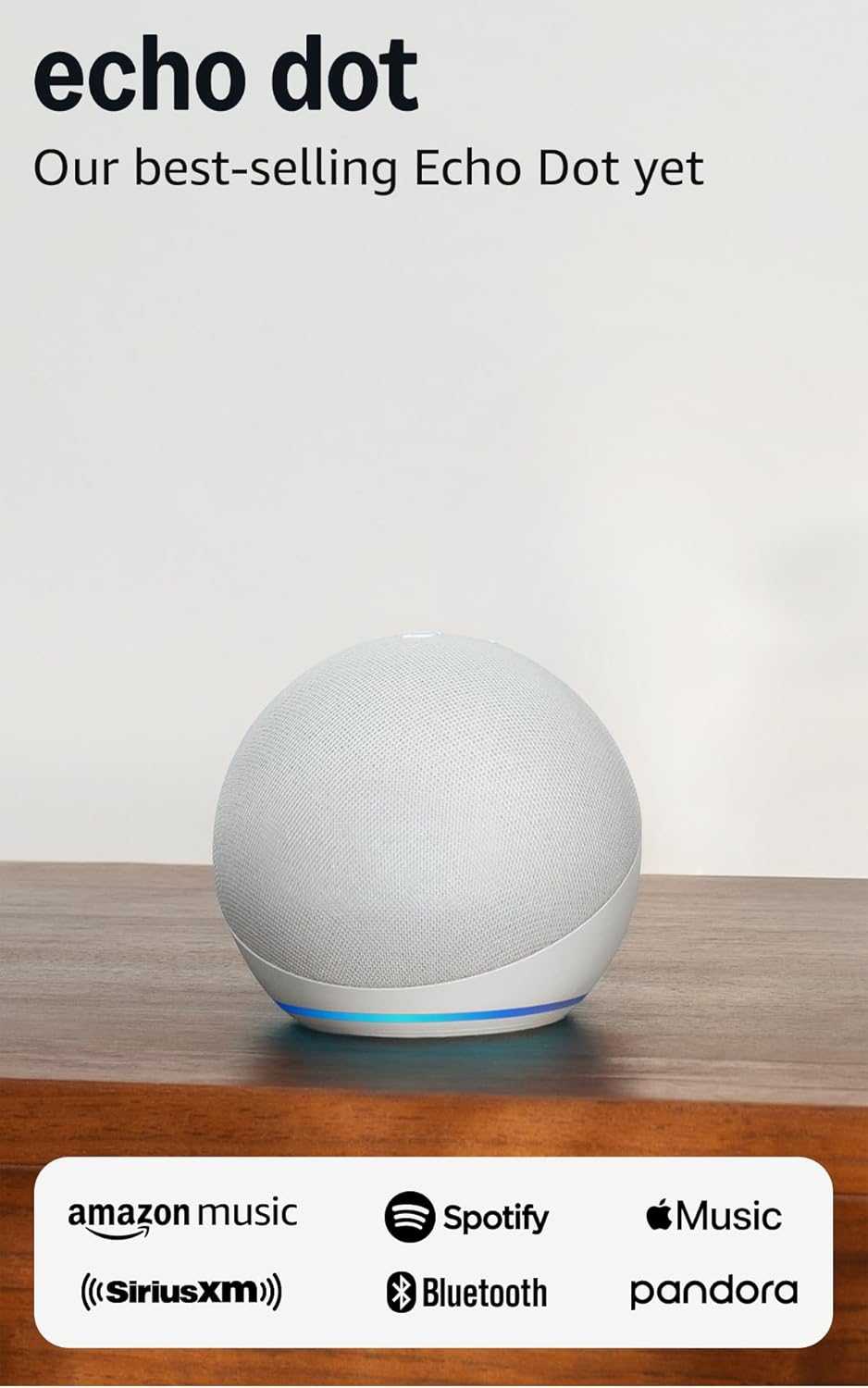
Amazon Echo Dot (newest model) - Vibrant sounding speaker...
As an Amazon Associate we earn from qualifying purchases.
Official Manufacturer Manual
Amazon provides official product documentation through their online manual rather than downloadable PDF. Access setup guides, troubleshooting steps, and product specifications for your Amazon Echo.
Source: amazon.com
Need More Help? Amazon Support
Note: The contact information below connects you directly to Amazon's official customer support team, not Trunetto. They can help with warranty claims, device replacements, and advanced technical issues.
How Does Amazon Compare?
Before replacing your Amazon device, see how it stacks up against alternatives in our full comparison guides.
Accessories owners commonly pair with Amazon Echo.

Amazon Echo Show 5 (newest model), Smart display, Designe...

Amazon Echo Show 5 (newest model), Smart display, Designe...

Amazon Echo Show 10 (newest model)
As an Amazon Associate we earn from qualifying purchases.



