Why Won't My Echo Dot 5th Gen Connect to WiFi
- Wrong WiFi password
- 2.4GHz network disabled
- Router isolation enabled
Problem Description
WiFi setup can fail if the network is 5GHz-only or the password is wrong. This guide restores connectivity and completes setup.
Why This Happens in Real Homes
WiFi setup can fail if the network is 5GHz-only or the password is wrong. This guide restores connectivity and completes setup. In day-to-day use, this usually looks like Orange light spinning; Setup fails in Alexa app; Other devices online.
Most cases trace back to Wrong WiFi password; 2.4GHz network disabled; Router isolation enabled. The fix works best when you go step by step instead of changing multiple settings at once.
A practical order for this issue is: Check WiFi Password -> Enable 2.4GHz -> Restart Router -> Update Alexa App. After each step, test the exact behavior that was failing so you can confirm what actually solved it.
Symptoms
- Orange light spinning
- Setup fails in Alexa app
- Other devices online
- WiFi password changed
- Router recently rebooted
- Echo Dot reset
Recognize these? Here's what usually causes it.
Common Causes
- Wrong WiFi password
- 2.4GHz network disabled
- Router isolation enabled
- App outdated
- MAC filtering on
- Device too far from router
Most fixes happen in the first 3 steps.
Avoid placing the Echo Dot inside cabinets during setup.
Tools & Requirements
Step-by-Step Solution
Verify 2.4GHz WiFi Network is Available
The Echo Dot 5th Gen supports both 2.4GHz and 5GHz WiFi, but during initial setup it connects best on 2.4GHz. If your router uses a combined network name, the Echo Dot may struggle to negotiate during setup. In the Alexa app, go to Devices > Echo & Alexa > your Echo Dot > WiFi Network > Change. Select your 2.4GHz network if you have a separate SSID.
Restart the Echo Dot and Router
Unplug the Echo Dot from power for 15 seconds and plug it back in. Wait for the light ring to turn orange (setup mode). Also restart your router by unplugging it for 30 seconds. A router that has been running for days can develop DHCP pool exhaustion or channel congestion that prevents new connections.
Re-run WiFi Setup in the Alexa App
Open the Alexa app, go to Devices > Echo & Alexa > select your Echo Dot 5th Gen > WiFi Network > Change. Follow the prompts to put the Echo Dot into setup mode (press and hold the action button on top for 20 seconds until the ring turns orange). Select your network and enter the password carefully.
Check Router Security Settings
The Echo Dot 5th Gen works with WPA2-PSK and WPA3 security. If your router uses MAC address filtering, add the Echo Dot's MAC address to the allowed list (find it in the Alexa app under the device settings). Disable AP isolation or client isolation if enabled, as this prevents the Echo Dot from communicating with other devices on your network.
Factory Reset and Start Fresh
If WiFi setup keeps failing, factory reset the Echo Dot by pressing and holding the action button (the small button on top) for 25 seconds until the light ring turns orange. The device resets to factory state. Open the Alexa app and set it up as a new device. This clears any corrupted WiFi credentials from previous failed attempts.
Quick Solutions
Still having issues? This is usually the deeper cause below.
This usually happens right after a router reboot or ISP change — the device rejoins the network but drops its cloud session silently.
Set up the Echo Dot within 10 feet of the router for best signal.
Most WiFi drop-offs happen right after a router reboot or ISP swap — the device reconnects to the network but silently loses its cloud registration.
- Wrong WiFi password
- 2.4GHz network disabled
- Router isolation enabled
- App outdated
- MAC filtering on
Before you go — try one of these (they fix most cases).
Most popular upgrades chosen by Amazon Echo Dot (5th Gen) owners.

Amazon eero Pro 6E mesh wifi router (1-pack) with Amazon ...

Amazon Echo Dot Kids (newest model) - Dragon including Am...
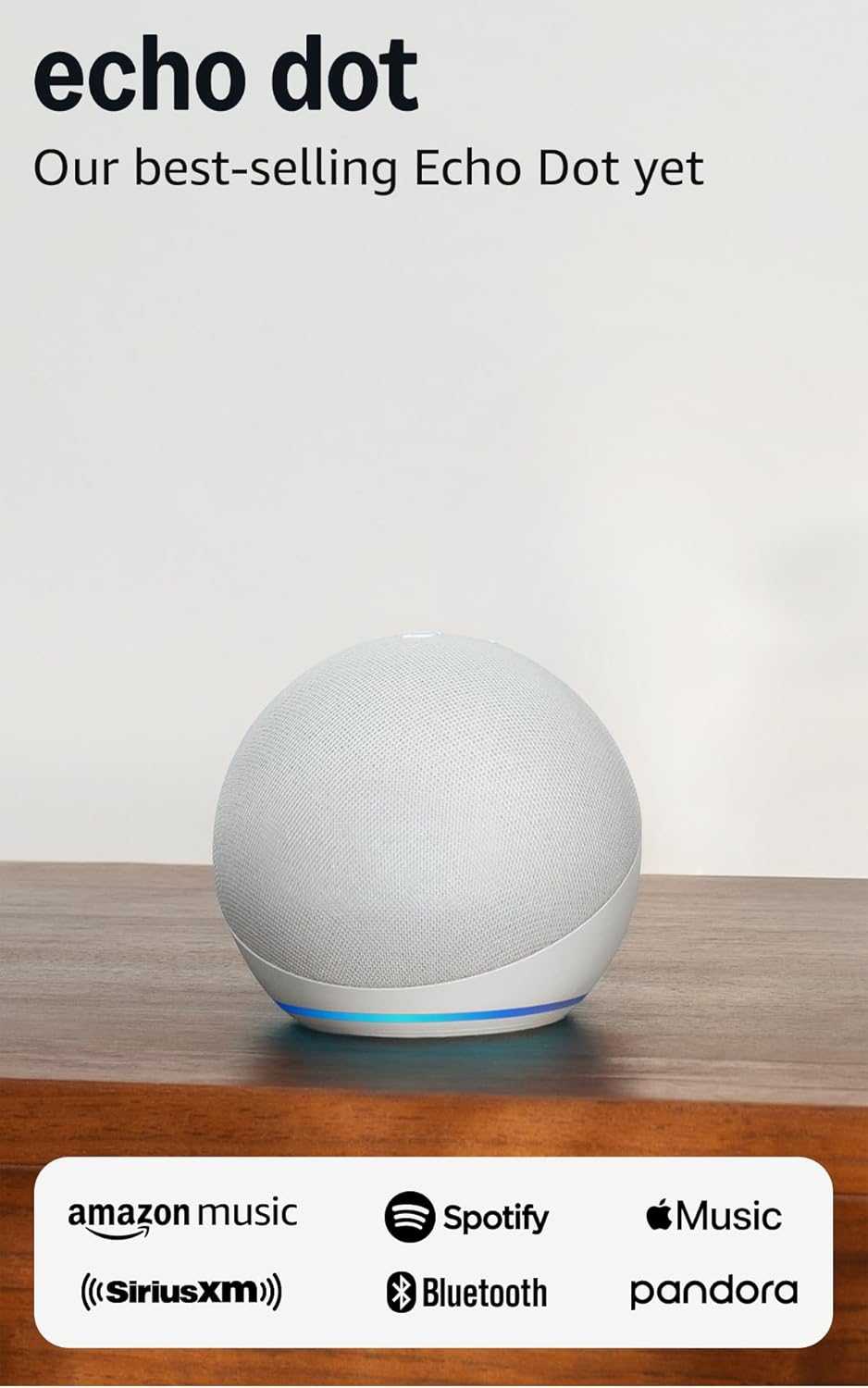
Amazon Echo Dot (newest model) - Vibrant sounding speaker...
As an Amazon Associate we earn from qualifying purchases.
Official Manufacturer Manual
Amazon provides official product documentation through their online manual rather than downloadable PDF. Access setup guides, troubleshooting steps, and product specifications for your Amazon Echo Dot (5th Gen).
Source: amazon.com
Need More Help? Amazon Support
Note: The contact information below connects you directly to Amazon's official customer support team, not Trunetto. They can help with warranty claims, device replacements, and advanced technical issues.
How Does Amazon Compare?
Before replacing your Amazon device, see how it stacks up against alternatives in our full comparison guides.
Accessories owners commonly pair with Amazon Echo Dot (5th Gen).

Amazon Basics 65 Piece Home Repair Tool Kit Set With Carr...

Amazon Basics Smart Plug, Matter Compatible, Compatible w...

Amazon Basics Dual Smart Plug with Motion Sensor and Nigh...
As an Amazon Associate we earn from qualifying purchases.