Why Does My Nest Say In 2+ Hours and Never Reach Temperature
- HVAC undersized for space
- Air leaks losing conditioned air
- Nest location in bad spot
Problem Description
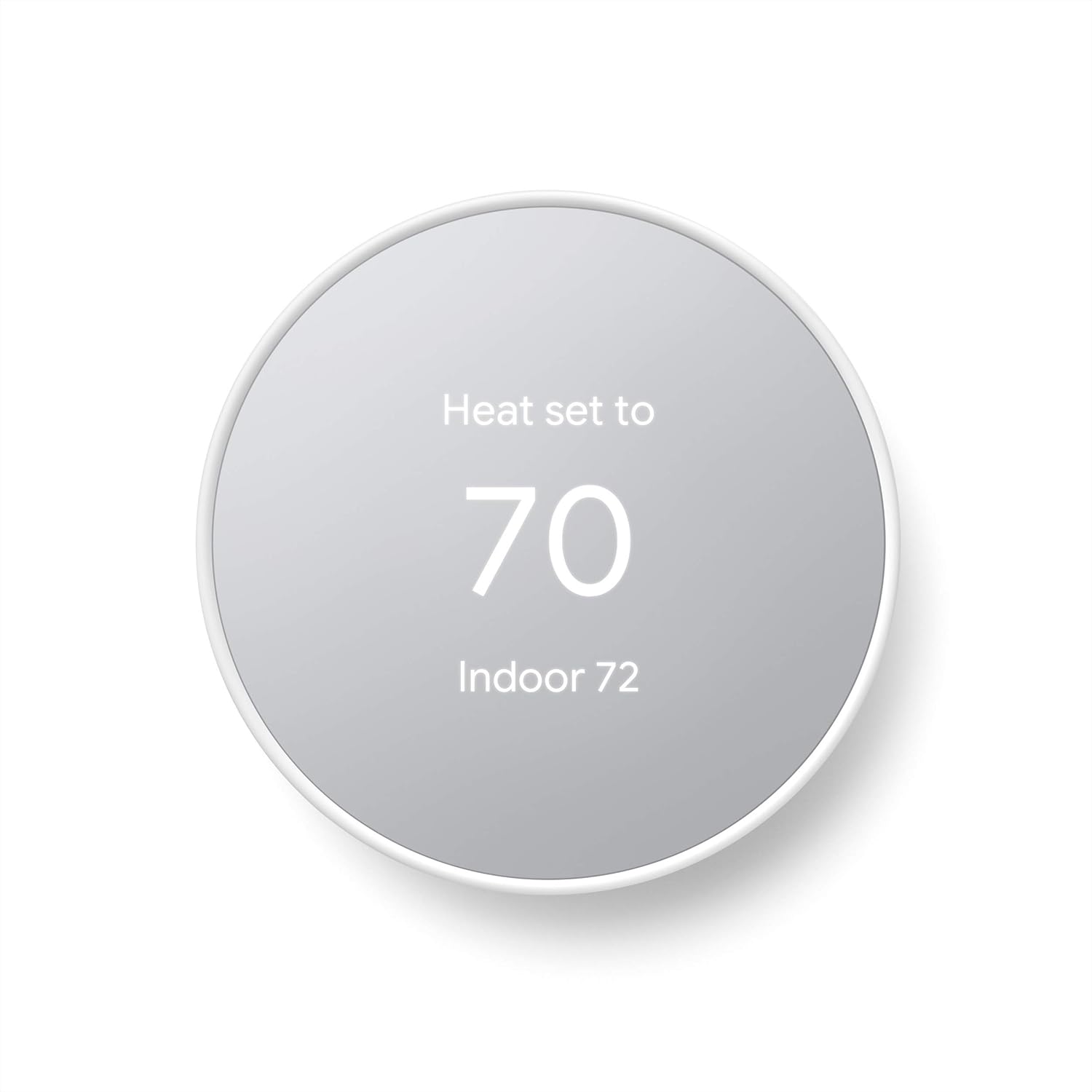
Your Nest thermostat displays a message like In 2+ Hours to reach temperature, but the target temperature is never actually reached. The estimated time keeps resetting or the display stays at 2+ hours indefinitely while the HVAC runs. This means the heating or cooling system is running but losing ground — it cannot keep up with the load placed on it.
Why This Happens in Real Homes
A Nest stuck at In 2+ Hours that never reaches temperature is usually an HVAC struggling to keep up, air leaks, or the thermostat in a bad spot reading the wrong temperature, not a thermostat fault. In real homes an undersized system on a hot day cannot catch up. Check for air leaks and HVAC capacity, and confirm the Nest is not in a drafty or sunny location.
Symptoms
- Time to temp says 2+ hours
- Never reaches set temperature
- HVAC runs but house stays cold/hot
- Time estimate keeps resetting
- Been running for hours
- Other rooms reach temp but not Nest location
Recognize these? Here's what usually causes it.
Common Causes
- HVAC undersized for space
- Air leaks losing conditioned air
- Nest location in bad spot
- Heat pump without aux heat configured
- Dirty filter restricting airflow
- Thermostat wiring issue
Most fixes happen in the first 3 steps.
Do not disable the time-to-temp feature. It is an indicator not the cause of the problem.
Tools & Requirements
These are for the steps in this guide, prioritized by fit, rating, availability, and current value.
As an Amazon Associate we earn from qualifying purchases.
Step-by-Step Solution
Replace the HVAC Air Filter Immediately
A severely restricted or completely clogged air filter is the single most common cause of an HVAC system running without reaching temperature. A blocked filter prevents adequate airflow through the heat exchanger or evaporator coil, dramatically reducing the system's effective heating or cooling output while the equipment runs at full power. Check the filter location near the air handler and replace it — if it is dark gray or tan rather than white, it is restricting airflow.

Needed for this step
Levoit Vital 100 Air Purifier Genuine Replaceme...
This helps complete the fix you are currently reading.
$54.99Verify the HVAC System Is Actually Running
Go to the Nest thermostat and tap the circle to open the menu, then tap Settings then Equipment. Check whether heating or cooling shows as active. Then go to your air handler, furnace, or condenser unit and confirm it is physically running — you should hear airflow and feel air coming from registers. If the system is running but no conditioned air reaches living spaces, a duct leak, damper issue, or refrigerant problem is limiting output.
Enable Auxiliary Heat for Heat Pump Systems
If you have a heat pump, it struggles to heat at outdoor temperatures below approximately 35 degrees Fahrenheit. Without auxiliary electric heat strips engaged, the heat pump alone cannot match heat loss at these temperatures. Go to Nest settings then Equipment then Heat Pump Balance. Set it to Maximum Savings or Balance to allow auxiliary heat to engage when the heat pump alone cannot reach temperature.
Check Nest Thermostat Placement for Drafts or Sunlight
If the Nest is near a drafty exterior door, a cold exterior wall, a sunny window, or a supply vent, it reads an inaccurate temperature. The thermostat thinks the room is colder or warmer than it is and requests more heating or cooling than needed, or interprets the setpoint as reached when it has not been. Relocate the thermostat to an interior wall in a central location away from direct sun and drafts.
Inspect for Refrigerant or Duct Leaks
If the filter is clean, the system is running, and auxiliary heat is enabled but temperature still does not rise or fall adequately, contact an HVAC technician to check refrigerant charge (for cooling) and duct integrity. A refrigerant leak causes cooling capacity to drop while the compressor runs continuously. A major duct leak can lose 30% or more of conditioned airflow before it reaches the living space. Both cause the Nest to show perpetual 2+ hour estimates.
Quick Solutions
Still having issues? This is usually the deeper cause below.
Schedules that skip randomly are usually a daylight-saving holdover — delete and recreate the schedule to clear the corrupted entry.
Decision point
If the fix does not hold, check the matching replacement before another reset cycle.
This is the most relevant replacement path for this Google Nest Thermostat guide. Use it only if the steps above failed, the issue returns, or the part cost is too close to replacing the device.

Prime · in stock · standard · 6.6k reviews
Check Current DealCheck the Home Report in the Nest app. It shows how long your system runs and can indicate if equipment is struggling.
Thermostat issues that keep returning are often caused by stale backup-battery memory holding old settings across power cycles without the user realising.
- HVAC undersized for space
- Air leaks losing conditioned air
- Nest location in bad spot
- Heat pump without aux heat configured
- Dirty filter restricting airflow
Before you go — try one of these (they fix most cases).
Most popular upgrades chosen by Google Nest Thermostat owners.
Compare replacement options
Google Nest Thermostat Trim Kit - Made for th...
- Ecosystem fit
- Works with Google Home
- Product role
- Thermostat
- Ecosystems
- Google Home
- Connectivity
- Wi-Fi
- Setup
- Wiring required
- Features
- The Nest Thermostat Trim Kit is designed to cover imperfections on your wall from r... · Designed for the Nest Thermostat, the smart thermostat that helps you save energy a... · Includes a trim plate for installing your on wall and a steel plate for installing ...
- Price
- $11.49 vs $14.99 list
- Reviews
- 4.6 stars · 6.6k reviews
- Buying signal
- Deal
- Delivery
- Prime · in stock · standard
Google Nest Thermostat Trim Kit - Made for th...
- Ecosystem fit
- Works with Google Home
- Product role
- Thermostat
- Ecosystems
- Google Home
- Connectivity
- Wi-Fi
- Setup
- Wiring required
- Features
- The Nest Thermostat Trim Kit is designed to cover imperfections on your wall from r... · Designed for the Nest Thermostat, the smart thermostat that helps you save energy a... · Includes a trim plate for installing your on wall and a steel plate for installing ...
- Price
- $11.69 vs $14.99 list
- Reviews
- 4.6 stars · 2.6k reviews
- Buying signal
- Deal
- Delivery
- Prime · in stock · standard
Google Nest Thermostat - Smart Thermostat for...
- Ecosystem fit
- Works with Google Home
- Product role
- Thermostat
- Ecosystems
- Google Home
- Connectivity
- Wi-Fi
- Setup
- Wiring required
- Features
- ENERGY STAR certified smart thermostat for home that helps you save energy and stay... · Includes a trim plate for installing your on wall and a steel plate for installing ... · Nest Thermostat turns itself down when you leave, so you don’t waste energy heating...
- Price
- $141.48 vs $144.98 list
- Reviews
- 4.6 stars · 1.2k reviews
- Buying signal
- Save 2%
- Delivery
- in stock · standard
Google Nest Thermostat Trim Kit - Made for the Nest Therm...

Google Nest Thermostat Trim Kit - Made for the Nest Therm...

Google Nest Thermostat - Smart Thermostat for Home - Prog...
As an Amazon Associate we earn from qualifying purchases.
Official Manufacturer Manual
Google Nest provides official product documentation through their online manual rather than downloadable PDF. Access setup guides, troubleshooting steps, and product specifications for your Google Nest Thermostat.
Source: google.com
Need More Help? Google Nest Support
Note: The contact information below connects you directly to Google Nest's official customer support team, not Trunetto. They can help with warranty claims, device replacements, and advanced technical issues.
How Does Google Nest Compare?
Before replacing your Google Nest device, see how it stacks up against alternatives in our full comparison guides.
Compatible accessories that support the setup in this guide, not random checkout recommendations.

Google Nest Wifi - AC2200 - Mesh WiFi System - Wifi Route...
Useful add-on
Google Nest WiFi Pro - 6E - Reliable Home Wi-Fi System wi...
Useful add-on
Google Nest Wifi Router AC2200 Mesh System 1-Pack Covers ...
Useful add-onAs an Amazon Associate we earn from qualifying purchases.