

Why Does My Nest Cam Keep Recording Short Clips Instead of Full Events
- No Nest Aware subscription limiting clip length
- Camera using battery power reducing recording time
- WiFi too slow to upload full clip
Problem Description
Your Nest Cam records only 5 to 10 second clips missing the full event. Someone walks up to your door and the recording starts after they arrive or ends before they leave. You miss critical footage because the clips are too short. Without a Nest Aware subscription recordings are limited and even with a subscription clip length depends on settings and connectivity.
Why This Happens in Real Homes
Short 5-to-10-second Nest clips instead of full events are usually no Nest Aware subscription, a battery camera limiting record time, or WiFi too slow to upload the full event. In real homes the free tier caps clip length. Add or upgrade Nest Aware for full event video, and improve WiFi or use wired power for longer recordings.
Symptoms
- Clips only 5 to 10 seconds long
- Recording starts after person already at door
- Recording ends before event is over
- Free tier only shows snapshot not video
- Event history shows gaps between clips
- Important footage missing from timeline
Recognize these? Here's what usually causes it.
Common Causes
- No Nest Aware subscription limiting clip length
- Camera using battery power reducing recording time
- WiFi too slow to upload full clip
- Motion detection triggering too late
- Camera firmware not updated
- Activity zones too narrow missing start of event
Most fixes happen in the first 3 steps.
Increasing motion sensitivity and expanding zones increases the number of events recorded which uses more cloud storage and may slightly increase battery drain on battery cameras.
Step-by-Step Solution
Check your Nest Aware subscription tier
Without Nest Aware, Nest cameras only save snapshot images from events — no video clips. With Nest Aware ($8/month), you get 30 days of event video history. With Nest Aware Plus ($15/month), you get 60 days of event video plus 10 days of 24/7 continuous recording. If you have the basic Nest Aware, clips are limited to the detected event window — usually 10-30 seconds. The camera records the motion event from start to finish, but the clip starts when motion is first detected, which may miss the first few seconds of approach.
Check activity zone and detection settings
In the Google Home app, tap your Nest camera and go to Settings > Events. Check that the event types you want are enabled (People, Vehicles, Animals, or All Motion). If only People is enabled, the camera ignores other motion and records shorter, people-only clips. Also check Activity Zones — if your zone is very small, the camera only records while motion is inside that zone. A person walking through a small zone produces a 3-5 second clip. Expand the zone to cover the full area of interest for longer recordings.
Check if the camera is battery or wired
Battery-powered Nest cameras (Nest Cam Battery, Nest Doorbell Battery) limit event recording length to conserve power. Typical event clips are 5-15 seconds. The camera stops recording when motion stops or after a maximum event duration. Wired cameras can record longer events because power is not a constraint. If you have a battery camera and want longer clips, connect it to a weatherproof USB-C power source — once connected to continuous power, the recording duration extends and the camera can use 24/7 recording if you have Nest Aware Plus.
Adjust camera sensitivity for longer events
If the camera detects motion briefly and then cuts the clip short, the sensitivity may be too low. In the Google Home app, go to camera Settings > Events and increase Motion Sensitivity. A higher setting makes the camera more likely to keep recording as long as there is any movement in the frame. Lower sensitivity means the camera needs larger, more obvious motion to keep the recording going — a person standing still or moving slowly may not sustain the event trigger.
Check WiFi bandwidth for uninterrupted uploads
Nest cameras upload event clips in real time. If your WiFi is weak or congested, the upload can fail mid-recording, resulting in a truncated clip. Check the camera signal strength in the Google Home app under Device Information. If the signal is poor, move the camera closer to the router or add a WiFi mesh point. Also check your upload speed — Nest cameras need at least 2 Mbps upload per camera for reliable event recording. If you have multiple cameras competing for bandwidth, they may all produce shorter clips during busy periods.
Quick Solutions
Still having issues? This is usually the deeper cause below.
If this comes back after following these steps, check whether a recent app or firmware update reset a default setting — the fix works, but the setting gets reverted silently.
For the best coverage use a wired Nest Cam with Nest Aware Plus for 24/7 continuous recording. You never miss anything because everything is recorded not just motion events.
Battery-related failures are almost always flagged too late — the device degrades silently for days before the app catches up to what's actually happening.
- No Nest Aware subscription limiting clip length
- Camera using battery power reducing recording time
- WiFi too slow to upload full clip
- Motion detection triggering too late
- Camera firmware not updated
Before you go — try one of these (they fix most cases).
Most popular upgrades chosen by Google Nest Cam owners.

Google Nest Cam Indoor (Wired, 3rd Gen) - Security Camera...

Google Nest Cam Indoor (Wired, 3rd Gen) - Security Camera...
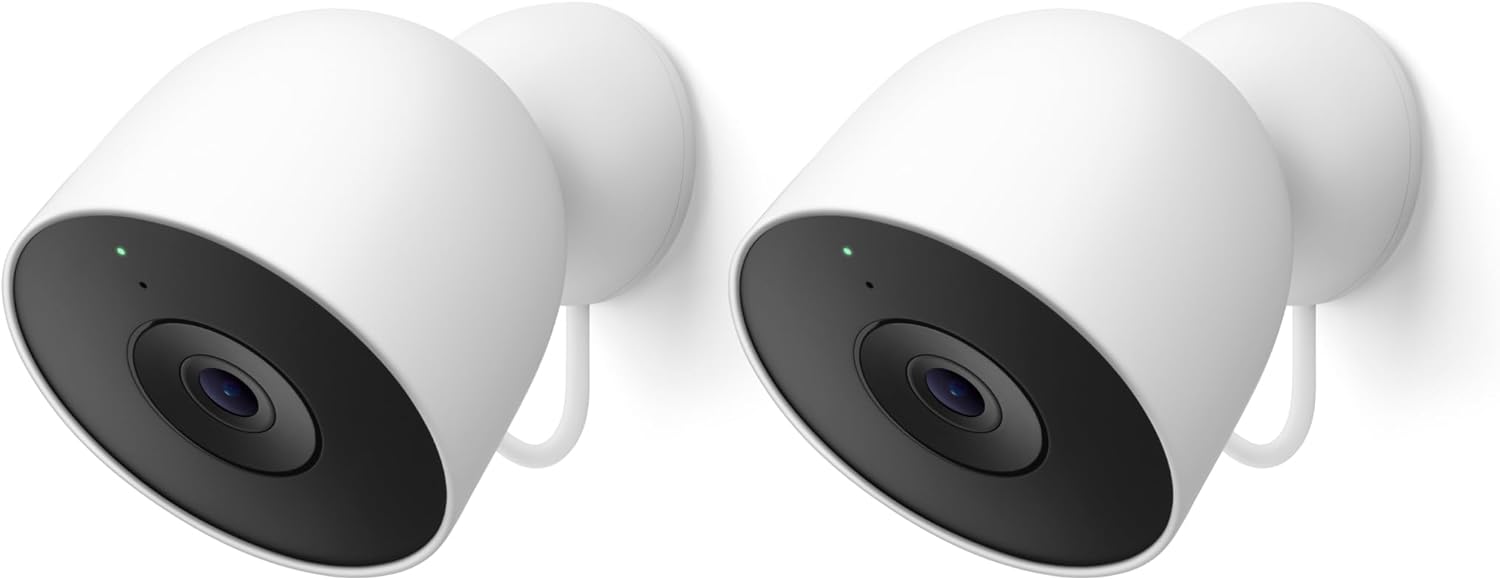
Google Nest Cam Outdoor (Wired, 2nd Gen) - 2 Pack - Secur...
As an Amazon Associate we earn from qualifying purchases.
Official Manufacturer Manual
If you need the complete manufacturer documentation for advanced setup, wiring diagrams, or detailed specifications, you can download the official manual below. The manual includes full technical instructions directly from the manufacturer and may help if your issue requires deeper troubleshooting.
Download the Official Google Nest Cam ManualSource: support.google.com
Need More Help? Google Nest Support
Note: The contact information below connects you directly to Google Nest's official customer support team, not Trunetto. They can help with warranty claims, device replacements, and advanced technical issues.
How Does Google Nest Compare?
Before replacing your Google Nest device, see how it stacks up against alternatives in our full comparison guides.
Accessories owners commonly pair with Google Nest Cam.

SANDISK 64GB Extreme microSDXC UHS-I Memory Card with Ada...

SANDISK 128GB Ultra microSDXC UHS-I Memory Card with Adap...

SANDISK 64GB Ultra microSDXC UHS-I Memory Card with Adapt...
As an Amazon Associate we earn from qualifying purchases.





