

Why Does My Nest Temperature Sensor Show Weak Connection to the Thermostat?
- Sensor is too far from the Nest thermostat exceeding Bluetooth range
- Thick walls, metal studs, or concrete between sensor and thermostat
- Sensor battery is low reducing Bluetooth transmission power
Problem Description
Your Nest temperature sensor is showing a weak connection or offline status in the Google Home app. The sensor is supposed to communicate with the Nest thermostat over Bluetooth Low Energy to report the temperature in a specific room. When the connection is weak the thermostat either gets delayed temperature readings, intermittent readings, or no readings at all from that sensor. This means the thermostat cannot accurately control the temperature in the room where the sensor is placed. You may have placed the sensor in a distant room to balance temperatures in your home but the Bluetooth signal cannot reliably reach the thermostat through walls and floors.
Why This Happens in Real Homes
The Nest Temperature Sensor talks to the thermostat over short-range Bluetooth, so "weak connection" is almost always distance or a dying coin cell. In real homes it shows up when the sensor sits a couple of rooms away, or with thick walls, plaster-and-lath, or metal ductwork between it and the thermostat. As the CR2 battery ages (roughly a year or two of life), its transmit power drops and the link gets flaky.
Start by moving the sensor closer or to a clearer line to the thermostat, then replace the coin cell before assuming the sensor has failed.
Symptoms
- Google Home app shows sensor with weak connection warning
- Sensor intermittently shows offline then comes back
- Temperature reading from sensor has not updated for hours
- Thermostat ignores sensor schedule because sensor is unreachable
- Sensor shows a significantly different temperature than expected
- Multiple sensors showing connection issues simultaneously
Recognize these? Here's what usually causes it.
Common Causes
- Sensor is too far from the Nest thermostat exceeding Bluetooth range
- Thick walls, metal studs, or concrete between sensor and thermostat
- Sensor battery is low reducing Bluetooth transmission power
- Sensor placed near electronic devices causing interference
- Thermostat Bluetooth radio is overloaded with too many sensors
- Sensor placed in a metal shelf, cabinet, or behind a TV
Most fixes happen in the first 3 steps.
Do not open or modify the Nest temperature sensor to try to improve its antenna or battery connection. The sensor is sealed and opening it voids the warranty and can damage the internal electronics. If the sensor is defective with a fresh battery and proper placement contact Google Nest support for a replacement.
Tools & Requirements
These tools will help you complete this fix.
As an Amazon Associate we earn from qualifying purchases.
Step-by-Step Solution
Check the Sensor Battery
The Nest temperature sensor uses a single CR2 3V lithium battery. When the battery gets low the sensor reduces its Bluetooth transmission power to conserve energy which directly causes a weak connection. Open the Google Home app tap the thermostat then tap the sensor to check battery status. If the battery is low replace it with a new CR2 battery. After replacing the battery give the sensor 15 minutes to re-establish a strong connection. A fresh battery resolves most weak connection warnings.

Needed for this step
Duracell 2032 Lithium Battery, 6 Count (Pack of...
This helps complete the fix you are currently reading.
$6.59Reduce Distance and Obstructions
The Nest temperature sensor communicates via Bluetooth Low Energy which has an effective range of about 50 feet in open air. Through walls the range drops significantly. Each wall reduces range by roughly 30 to 50 percent. A sensor two rooms and three walls away from the thermostat is likely at the edge of reliable communication. Move the sensor to a closer room or to the side of the room that faces the thermostat. Avoid placing the sensor behind furniture or inside cabinets which further block the signal.
Relocate Away from Interference Sources
Bluetooth operates on 2.4 GHz which is shared with WiFi routers, microwaves, baby monitors, and other wireless devices. If the sensor is placed near a WiFi router, microwave oven, or Bluetooth speaker the interference can weaken the sensor connection. Move the sensor at least 3 feet away from any electronic device. Also avoid placing the sensor on or near metal surfaces like filing cabinets, refrigerators, or metal shelves as metal reflects and absorbs Bluetooth signals.
Optimize Sensor Placement
The ideal location for a Nest temperature sensor is on an interior wall at chest height about 4 feet above the floor away from windows, doors, and vents. Windows and exterior walls cause the sensor to read inaccurate temperatures due to drafts. Air vents blow hot or cold air directly on the sensor giving false readings. The sensor does not need to be in the same room as the thermostat but it should have as few walls as possible between them. Use the built-in stand or the wall mount depending on your setup.
Restart the Thermostat Bluetooth
If the sensor has good battery and placement but still shows weak connection restart the thermostat to reset its Bluetooth radio. On the thermostat go to Settings then Reset then Restart. The thermostat will reboot and re-establish Bluetooth connections with all sensors. This takes about 5 minutes. After the restart check the sensor status in the Google Home app. If you have more than 6 sensors connected the thermostat Bluetooth radio may be overloaded. Consider removing sensors that are less important.
Quick Solutions
Still having issues? This is usually the deeper cause below.
Schedules that skip randomly are usually a daylight-saving holdover — delete and recreate the schedule to clear the corrupted entry.
If you need a sensor in a room that is too far from the thermostat for a reliable Bluetooth connection consider installing a second Nest thermostat in that zone instead. The thermostat has a much stronger WiFi radio than the sensor Bluetooth connection. Each thermostat can control a separate HVAC zone and has its own built-in temperature sensor eliminating the Bluetooth range issue entirely.
Thermostat issues that keep returning are often caused by stale backup-battery memory holding old settings across power cycles without the user realising.
- Sensor is too far from the Nest thermostat exceeding
- Thick walls, metal studs, or concrete between sensor and
- Sensor battery is low reducing Bluetooth transmission power
- Sensor placed near electronic devices causing interference
- Thermostat Bluetooth radio is overloaded with too many sensors
Before you go — try one of these (they fix most cases).
Most popular upgrades chosen by Nest Temperature Sensor owners.

Google Nest Temperature Sensor 3 Count Pack - Nest Thermo...
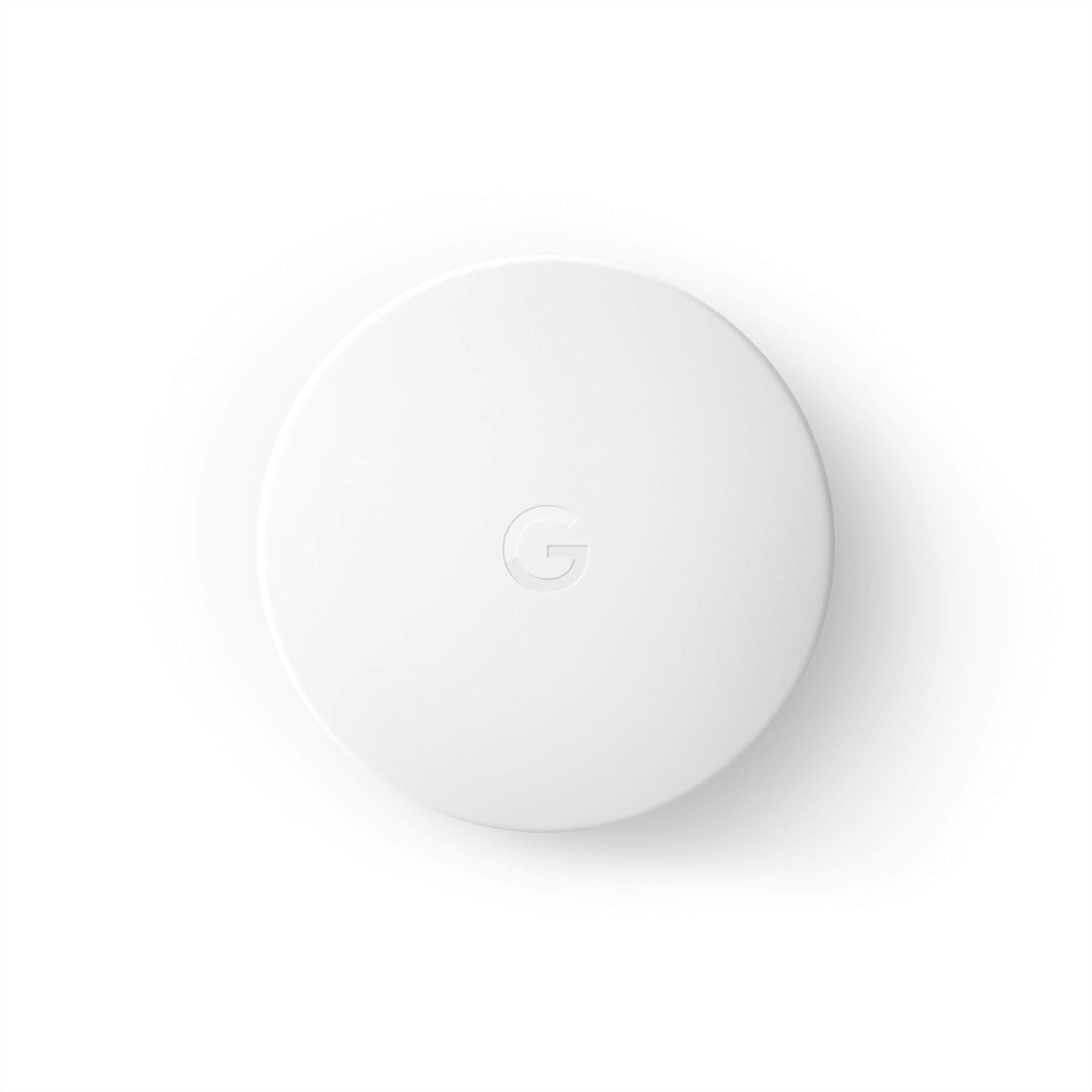
Google Nest Temperature Sensor- That Works with Nest Lear...
Google Nest Temperature Sensor 3 Count Pack - Nest Thermo...
As an Amazon Associate we earn from qualifying purchases.
Official Manufacturer Manual
Google Nest provides official product documentation through their online manual rather than downloadable PDF. Access setup guides, troubleshooting steps, and product specifications for your Nest Temperature Sensor.
Source: support.google.com
Need More Help? Google Nest Support
Note: The contact information below connects you directly to Google Nest's official customer support team, not Trunetto. They can help with warranty claims, device replacements, and advanced technical issues.
How Does Google Nest Compare?
Before replacing your Google Nest device, see how it stacks up against alternatives in our full comparison guides.
Accessories owners commonly pair with Nest Temperature Sensor.

Google Nest Wifi - AC2200 - Mesh WiFi System - Wifi Route...

Google Nest Wifi - Home Wi-Fi System - Wi-Fi Extender - M...

Google Nest WiFi Pro - Wi-Fi 6E - Reliable Home Wi-Fi Sys...
As an Amazon Associate we earn from qualifying purchases.


