

Why Does My Nest Thermostat E Keep Dropping WiFi
- No C-wire and low power
- Weak 2.4GHz signal
- Router band steering issues
Problem Description
Your Nest Thermostat E specifically keeps losing WiFi. The E model has a different architecture than other Nest thermostats — it communicates with a separate Heat Link unit that controls the boiler. WiFi dropping on the E means you lose app control but the Heat Link continues running the last schedule. The E's WiFi antenna is smaller than the 3rd gen model, making it more sensitive to signal strength and interference.
Why This Happens in Real Homes
Thermostat E drops WiFi when power or signal is unstable. This guide checks C-wire power, router settings, and reconnection steps to keep it online. In day-to-day use, this usually looks like Thermostat goes offline daily; WiFi icon disappears; App shows no connection.
Most cases trace back to No C-wire and low power; Weak 2.4GHz signal; Router band steering issues. The fix works best when you go step by step instead of changing multiple settings at once.
A practical order for this issue is: Check Power -> Improve WiFi Signal -> Set a 2.4GHz SSID -> Reserve the IP. After each step, test the exact behavior that was failing so you can confirm what actually solved it.
Symptoms
- Thermostat goes offline daily
- WiFi icon disappears
- App shows no connection
- Battery level low
- Router recently changed
- Other devices stay online
Recognize these? Here's what usually causes it.
Common Causes
- No C-wire and low power
- Weak 2.4GHz signal
- Router band steering issues
- DHCP lease conflicts
- Firmware outdated
- Mesh node sleeping
Most fixes happen in the first 3 steps.
Do not reset to factory defaults unless reconnection fails. It erases schedules and history.
Tools & Requirements
Step-by-Step Solution
Check Power
Review battery level in the Nest app. If it is low, add a C-wire or install a Nest Power Connector.
Improve WiFi Signal
Move a mesh node closer to the thermostat or reposition the router to strengthen 2.4GHz coverage.
Set a 2.4GHz SSID
Create a dedicated 2.4GHz SSID to prevent band steering from dropping the thermostat.
Reserve the IP
Create a DHCP reservation in your router so the thermostat keeps the same IP address.
Reconnect
Remove the network in the Nest app and reconnect the thermostat to the correct WiFi.
Quick Solutions
Still having issues? This is usually the deeper cause below.
This usually happens right after a router reboot or ISP change — the device rejoins the network but drops its cloud session silently.
If the battery falls below 3.7V, WiFi dropouts are common. Restore steady power first.
Most WiFi drop-offs happen right after a router reboot or ISP swap — the device reconnects to the network but silently loses its cloud registration.
- No C-wire and low power
- Weak 2.4GHz signal
- Router band steering issues
- DHCP lease conflicts
- Firmware outdated
Before you go — try one of these (they fix most cases).
Most popular upgrades chosen by Nest Thermostat E owners.

Google Nest Temperature Sensor 3 Count Pack - Nest Thermo...
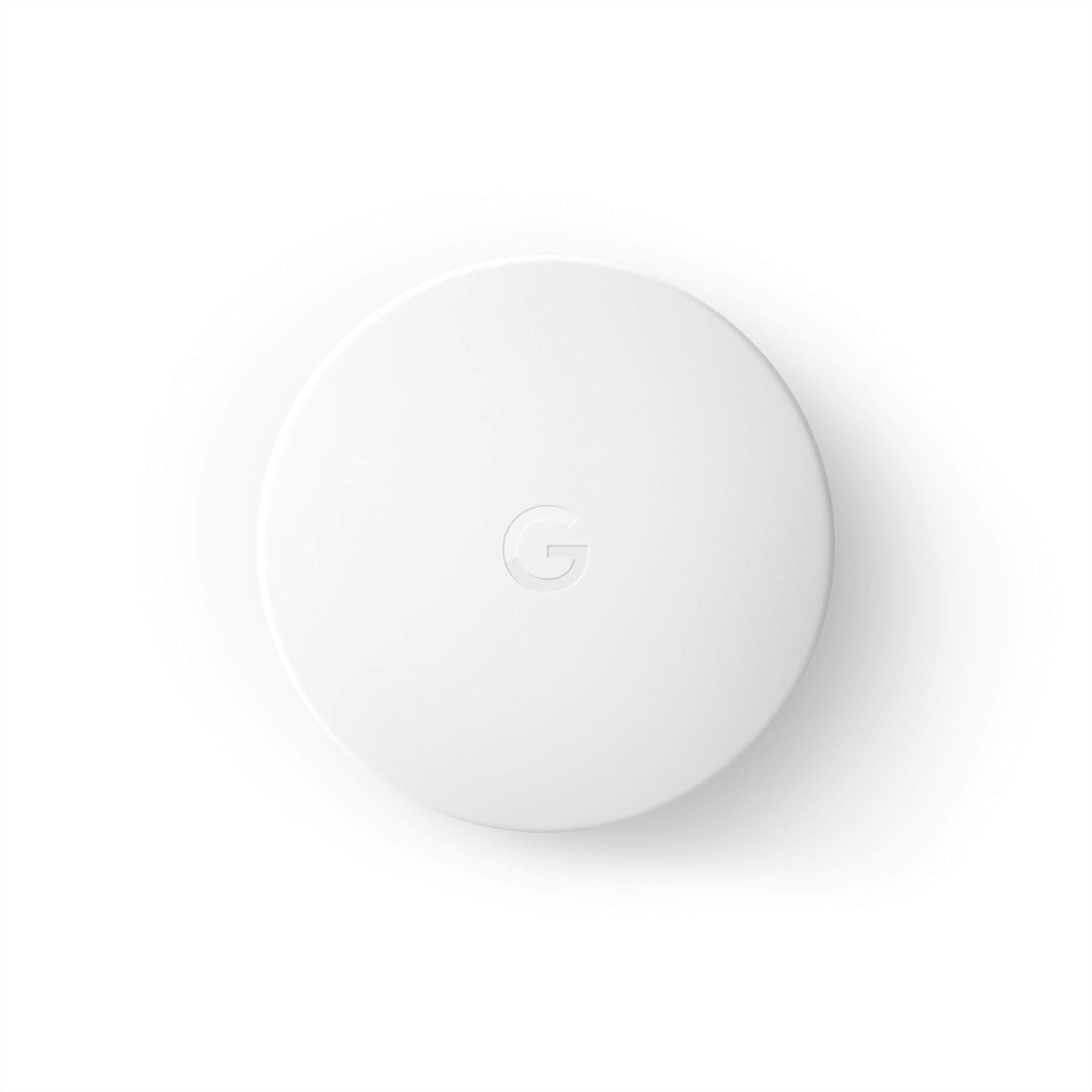
Google Nest Temperature Sensor- That Works with Nest Lear...
Google Nest Temperature Sensor 3 Count Pack - Nest Thermo...
As an Amazon Associate we earn from qualifying purchases.
Official Manufacturer Manual
Google Nest provides official product documentation through their online manual rather than downloadable PDF. Access setup guides, troubleshooting steps, and product specifications for your Nest Thermostat E.
Source: google.com
Need More Help? Google Nest Support
Note: The contact information below connects you directly to Google Nest's official customer support team, not Trunetto. They can help with warranty claims, device replacements, and advanced technical issues.
How Does Google Nest Compare?
Before replacing your Google Nest device, see how it stacks up against alternatives in our full comparison guides.
Accessories owners commonly pair with Nest Thermostat E.

Google Nest Wifi - AC2200 - Mesh WiFi System - Wifi Route...

Google Nest WiFi Pro - Wi-Fi 6E - Reliable Home Wi-Fi Sys...

Google Nest WiFi Pro - 6E - Reliable Home Wi-Fi System wi...
As an Amazon Associate we earn from qualifying purchases.


